Hidden Features Every Advanced User Should Learn 9+
A practical guide to overlooked, officially documented tools inside Gimkit. Learn which ones can save teacher preparation time, improve question quality or make hosting safer—and when each feature should not be used.
Quick answer: Some of Gimkit’s most useful advanced capabilities are not game-winning shortcuts. They include the Question Bank, KitCollab, importing questions through an official CSV template, Kit privacy and School Library controls, Practice Mode, class-connected joining, the Nickname Generator, mode-specific game balance, non-2D Quick Actions, custom currency and language settings, and detailed teacher reports. These features solve different problems; choose based on a specific instructional goal instead of switching everything on.
1. Question Bank: reuse a good question without copying an entire Kit
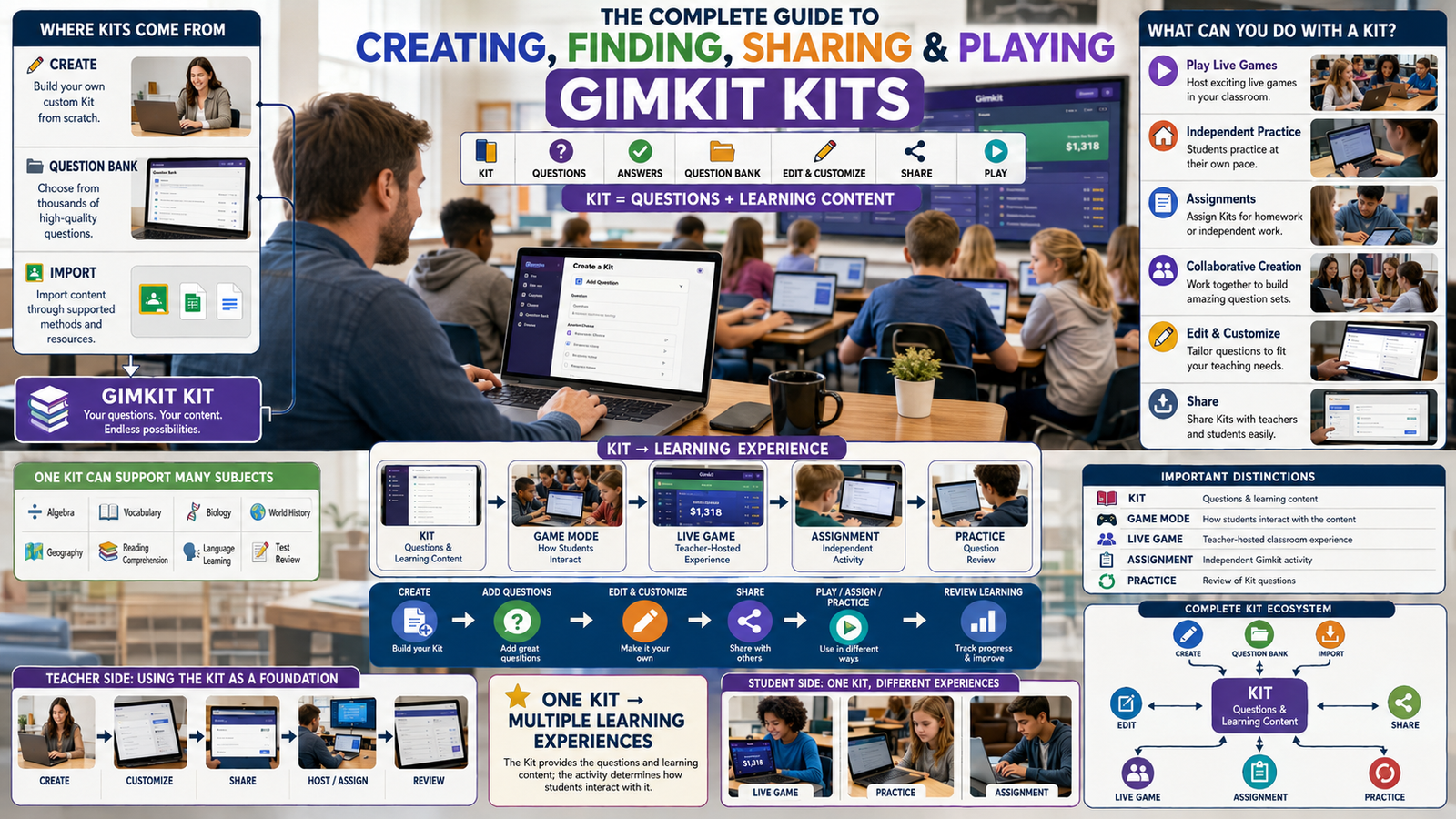
The official Gimkit Question Bank lets educators find questions from public Kits and add selected items to their own Kits. This is a different workflow from copying an entire Kit. The official instructions describe opening a Kit for editing or creation, choosing “Add from Question Bank,” entering a search term and selecting individual questions from the results.
Its advantage is editorial control. A teacher can choose useful questions that align with the current unit rather than importing a broad public Kit with unrelated items. However, public availability does not guarantee question accuracy. Read each distractor, confirm the correct answer and check whether the question is appropriate for your learners. A single ambiguous item can produce misleading learning feedback even when the interface works correctly.
For example, a biology teacher might search a shared bank for photosynthesis questions and choose three that assess different concepts: inputs, outputs and how light affects the process. The teacher then revises the language for the intended class. This is a hypothetical example of good question selection, not a claim that specific search results are currently available.
2. KitCollab: let students propose questions with teacher review
Gimkit’s official KitCollab documentation describes collaborative question submission. Teachers can invite students or other educators to contribute to a new or existing Kit, in realtime or asynchronously. Critically, the teacher approves proposed questions before they are added to the Kit.
This feature can support meaningful learning when the act of writing a question requires students to distinguish correct explanations from plausible misconceptions. A teacher might ask each small group to propose one challenging question and explain why its correct answer is defensible. The class then reviews the ideas and improves wording before approval.
Use a moderation standard. Reject personal information, duplicate questions, misleading distractors and items that do not match the instructional goal. Do not use KitCollab merely as a way to increase the question count. The educational benefit comes from analyzing and improving the content, not from submitting as many items as possible.
3. CSV import: faster Kit creation from a carefully prepared spreadsheet
The official CSV import guide describes creating a Kit by choosing “Import from Spreadsheet,” using one of Gimkit’s templates, populating the appropriate columns, exporting to CSV and uploading the file. This workflow is particularly useful for educators preparing a clean set of questions from existing curriculum materials.
The most common import mistake, according to the official help article, is putting content in the wrong columns. Use the current template instead of building a guessed format. Review the imported Kit afterward for truncated text, malformed characters and incorrect options. CSV import reduces typing, but it cannot evaluate the academic quality of your content.
Do not place identifiable student data in a template intended for public or shareable question content. Questions should focus on curriculum material and should be reviewed for licensing or permissions when using outside sources. A well-organized spreadsheet is a preparation tool, not a guarantee that every imported question is ready to publish.
4. Kit privacy: decide who should discover your materials
The official Make a Kit Private documentation explains how to change visibility using the privacy tag while creating or editing a Kit. The Help Center states that newly created Kits are public by default in the documented workflow, so teachers should inspect the actual privacy state when handling a resource that should not be broadly discoverable.
Public Kits can make reuse easier, but privacy matters for content still in development or material containing information not intended for broad distribution. Before sharing, remove personal information and check the school’s copyright and student-data policies. Even a private Kit should not be treated as a substitute for secure storage of sensitive records.
Remember that a privacy setting describes discoverability, not instructional suitability. A public Kit may be academically excellent or poorly designed. A private Kit may still need careful proofreading. Visibility and content quality are different decisions.
5. School Library: discover teacher resources within a school
Gimkit’s School Library help page describes a dashboard area for browsing Kits created by other teachers associated with the same school. It may help a new teacher find relevant resources from a colleague and reduce duplicated preparation.
The School Library is not necessarily an unrestricted library of every Gimkit Kit. Its content relates to the school’s educator contributions and visibility choices. The official article says private Kits do not appear in the School Library. Teachers should therefore distinguish a resource that is absent because it is private from a feature that is broken.
When reusing a colleague’s material, inspect curriculum alignment, answer accuracy and student reading needs. A Kit developed for one grade or school schedule may not fit another without changes. Share credit appropriately within school practices and avoid promising that a Kit’s prior use makes it evidence of improved outcomes.
6. Practice Mode: remove game mechanics when accuracy is the target
The official Practice Mode instructions explain that educators can open a Kit’s Practice view and share its link. Practice Mode presents questions and correct/incorrect feedback without due dates, modes or game mechanics. That makes it a useful route when students should focus on concepts rather than navigation or competitive rewards.
Use it to test question quality, give a student a simple way to rehearse prior learning or let a colleague inspect a Kit before a lesson. Remember that repeatedly recognizing the same answers can produce familiarity without transferable understanding. Add an independent explanation or new example later if the learning target demands more than recognition.
Practice Mode is not the same as a Gimkit Assignment. Assignments involve different eligibility and reporting workflows. Confirm which task you need before promising a learner that a practice link will record their formal homework completion.
7. Nickname Generator: a host option with an important Classes limitation
The official Nickname Generator guide says hosts can assign randomly generated, safe names to students in live sessions. Students can reroll the suggested name within the documented limit. This can reduce inappropriate or distracting display-name choices when the session is not class-connected.
However, the official documentation notes that games hosted with Classes do not have the Nickname Generator because Classes use student accounts for names. A teacher who cannot find the option while hosting with Classes should check that distinction before concluding the site has a compatibility issue.
A nickname setting does not replace classroom behavior expectations. Teachers still need to supervise participation, share codes through appropriate channels and use the host’s available controls for unexpected participants.
8. Join in Late: an access decision, not just a convenience toggle
Gimkit’s Join in Late guidance describes a host option that controls whether students can enter a game after it starts. The documented setting is enabled by default and may carry over into future hosting sessions. This is an example of a configuration that teachers should review rather than assume is reset every time.
Allowing late joining can reduce disruption for students who arrive late or need additional time to access a device. Restricting late joining can help with a tightly controlled activity or unexpected entrants. Choose according to lesson needs and the school’s participation policy. If a student cannot enter a closed session, give an equivalent academic task rather than treating the restriction as a student failure.
For full hosting instructions, use Complete Teacher Guide to Hosting Gimkit Games. This page focuses on the less obvious implications of a few specific controls.
9. 2D balance: shift attention between questions and gameplay
Gimkit’s official 2D Game Balance document describes mode-specific adjustments affecting how much an answer contributes to gameplay. Examples include snowballs in Snowbrawl, bait in Fishtopia, and energy in certain other modes. The point is not that each game has the same economy, but that selected 2D modes can give teachers a way to influence the relative emphasis on question answering and interactive objectives.
When students spend most of a lesson moving around without responding thoughtfully to academic questions, review the actual 2D balance options for the selected mode. The available settings may let the teacher adjust rewards per correct answer. Do not claim that every mode offers the same slider, currency or outcome.
A sensible teacher starts with the learning objective. If students are new to a topic, a question-focused format might be preferable to making a visually exciting mode more complicated. If the mode remains appropriate, choose a balance that permits meaningful practice and collect independent explanations after the activity.
10. Quick Actions: useful in some non-2D modes, not every mode
The official Quick Actions documentation describes host actions available in non-2D modes. It explicitly notes that Quick Actions are not currently available in Team Mode. The documented action sheet can be opened by choosing a player’s name on the leaderboard in the relevant context.
Some documented actions affect a player’s balance, and the host may also remove an unexpected player. These controls require judgment. A teacher should not repeatedly penalize a student for performing well merely to create artificial drama, nor should a game action substitute for school behavior procedures when safety or harassment is involved.
Use Quick Actions only where the interface offers them and where the instructional goal makes them appropriate. If the option is missing in a 2D game or Team Mode, check the official scope rather than assuming an error.
11. Custom game language and currency: account settings with classroom implications
The official Custom Currencies and Languages guide describes using the dashboard’s Me menu, Settings and Game Settings to select a language and currency for hosted games. This is not the same as editing each individual Kit question. A teacher should preview the displayed settings before a class, particularly when language or terminology is part of the lesson objective.
Do not assume changing a global language setting automatically translates every question written in a Kit. Question text should still be checked for accuracy and accessibility. If the game currency label is customized, students may still need clear instructions about the selected mode’s actual goal and rewards.
12. Game reports: go beyond the end-of-round leaderboard
Gimkit’s current Game Reports documentation describes Student Overview, General Overview and Question Breakdown views for teachers after hosting a Kit they own. The dashboard also provides access to previous reports. This feature is valuable because the leaderboard alone may not show which academic concepts students misunderstood.
A teacher can review question-level patterns, inspect poorly understood ideas and choose a short follow-up task. Check whether a difficult item was confusing or incorrect before attributing every wrong answer to the learner. Use individual information privately and follow school data policies. For a deeper evidence-first assessment framework, read Formative Assessment Strategies with Gimkit.
13. QR codes and live joining can reduce transcription errors
Gimkit’s official hosting guide explains that teachers can share a game code, a link or a QR code. In the described flow, hovering over the code on the host screen displays a QR code, and clicking the code can copy a direct join link. These routes can reduce typing mistakes for students who struggle with entering a projected code.
Share joining information through approved classroom channels and consider whether a QR code is accessible on the devices students actually have. A QR code does not make a session permanent. After the host ends or restarts a game, students need the current joining information. Do not publish a live classroom join link on an open website.
14. Choose the advanced feature based on the problem to solve
| Teacher need | Feature to inspect | Quality-control question |
|---|---|---|
| Find a few useful questions | Question Bank | Were the selected items checked for accuracy? |
| Invite students to write questions | KitCollab | Will the teacher review every submitted item? |
| Prepare many verified questions | CSV import | Does the spreadsheet match the official template? |
| Prevent unintended public discovery | Kit privacy settings | Is the selected privacy level appropriate? |
| Share educator resources internally | School Library | Does a colleague’s Kit fit this class? |
| Practice without game distractions | Practice Mode | How will understanding be checked independently? |
| Manage displayed names | Nickname Generator or Classes | Are the selected options compatible? |
| Change the emphasis in a 2D mode | 2D Game Balance | Does the mode support this particular setting? |
| Help interpret results | Game Reports | Are question errors being interpreted carefully? |
15. Advanced workflow planner: four common teaching situations
Open the situation closest to your class. Each panel assembles officially documented features into a small teaching workflow. This is a decision guide, not an automated connection to a Gimkit account.
I want students to create better questions, not just answer mine
Use a Kit aligned with the curriculum, set a clear question-writing rubric, and consider KitCollab for submissions. Review each proposed item for a defensible answer and meaningful distractors. Approve only appropriate content, then ask students to reflect on why a tempting wrong answer is wrong. Do not count submission volume as achievement.
I need to make several Kits quickly without sacrificing quality
Use the official CSV template to prepare a structured list. Validate each question, avoid personal data and upload using the documented spreadsheet-import route. Review the imported Kit for formatting errors. If you need only a few selected items, Question Bank may be faster than bulk import.
I want calmer question-focused practice
Choose a suitable Kit and inspect Practice Mode, which removes live game mechanics. Provide an explanation task after several attempts. If formal homework reporting is required, investigate Assignment eligibility separately rather than assuming Practice Mode records assignment results.
I want to increase academic engagement in a 2D mode
Read the mode’s specific options and inspect whether 2D Game Balance is relevant. Explain the win condition and set the desired relationship between questions and game actions when supported. Review errors after play and check understanding independently.
16. Safety, access and paid-plan boundaries
Advanced features should not encourage teachers to disregard privacy, licensing or accessibility. Imported question sets must be accurate and appropriate for sharing. KitCollab submissions should be reviewed before approval. Students should not be forced to create accounts when the intended activity does not require them, and sensitive student information should not appear in public question content or shared screenshots.
Some features depend on account entitlements. Gimkit’s official Account FAQ distinguishes Basic from Pro and identifies additional paid capabilities. Check the current plan rather than assuming all documented options appear for every teacher. If a required workflow is unavailable, design an alternate route that meets the learning goal without bypassing account restrictions.
In all cases, the teacher should distinguish a product setting from educational evidence. Changing a nickname, choosing a currency or using a different 2D reward balance does not by itself prove improved understanding. Assess the intended learning target through appropriate content questions and a follow-up explanation.
17. Worked example: a department builds a shared science Kit
Three science teachers want a coherent review on chemical changes. They identify shared learning targets and prepare a small question bank. One teacher uses the official CSV template to import vetted questions; another reviews whether the distractors correspond to common misconceptions; a third checks which materials are appropriate for the School Library and which should remain private.
After the Kit is ready, a class practices with a suitable mode. The teacher then checks question-level results and asks for an independent explanation. This hypothetical scenario demonstrates multiple useful features working together without suggesting that a particular named school has verified success data.
18. Worked example: student-created questions without losing editorial control
A language class studies word meanings in context. Each student proposes one sentence with a target word and an alternative that is tempting but wrong. The teacher reviews submissions through KitCollab, corrects ambiguous items and discusses how context changes meaning. The approved questions become part of a Kit used for a short review.
At the end, learners create a new sentence independently. This separates the academic outcome from the fact that a collaborative tool was used. The teacher does not publish students’ full names or sensitive information in question text.
19. Advanced feature audit checklist
20. Common questions about advanced Gimkit features
Can I add just one question from another Kit?
Yes. The official Question Bank lets teachers find and add selected questions from public Kits. Check each item before using it.
Can students submit questions to a teacher’s Kit?
Yes. KitCollab supports submitted questions, with teacher approval before the content becomes part of the Kit.
How do I upload a spreadsheet of questions?
Use New Kit and the official “Import from Spreadsheet” flow with Gimkit’s current CSV template. Review the imported questions afterward.
Do private Kits appear in School Library?
According to Gimkit’s School Library documentation, private Kits are not shown there.
Does Practice Mode create an assignment?
No. Practice Mode provides a question-focused link without due dates or game mechanics. Assignments have a separate workflow and plan requirements.
Why is Nickname Generator missing when I connect a Class?
Official documentation states that the Nickname Generator is not available when Classes are used, because Classes use account-connected identities.
Can Quick Actions be used in every game?
No. Official help describes them for non-2D modes and specifically excludes Team Mode in the documented interface.
Does every 2D mode use the same resource settings?
No. The balance controls are mode-specific; different games use different rewards or resources.
Can custom currency and language settings change my Kit questions?
They control certain game settings, not an automatic translation or editorial correction of each question in a Kit.
Conclusion: advanced use means choosing the right documented workflow
The best advanced Gimkit features are practical tools that help an educator do something specific: find better questions, manage collaboration, share vetted content, protect privacy, adjust session behavior or interpret responses. They are not secret codes or guaranteed win tricks. Start with one real classroom need, verify feature availability, apply the smallest useful change and evaluate whether students can explain more afterward.
Independent editorial guide, not affiliated with Gimkit. Official feature descriptions were checked against the Gimkit Help Center; interfaces and plan access can change.