Essential Account Settings Every Teacher Should Change
A careful review of the Gimkit settings and classroom controls that matter most for educators—what to verify first, what should not be changed casually, and what to do when school-managed login or student access fails.
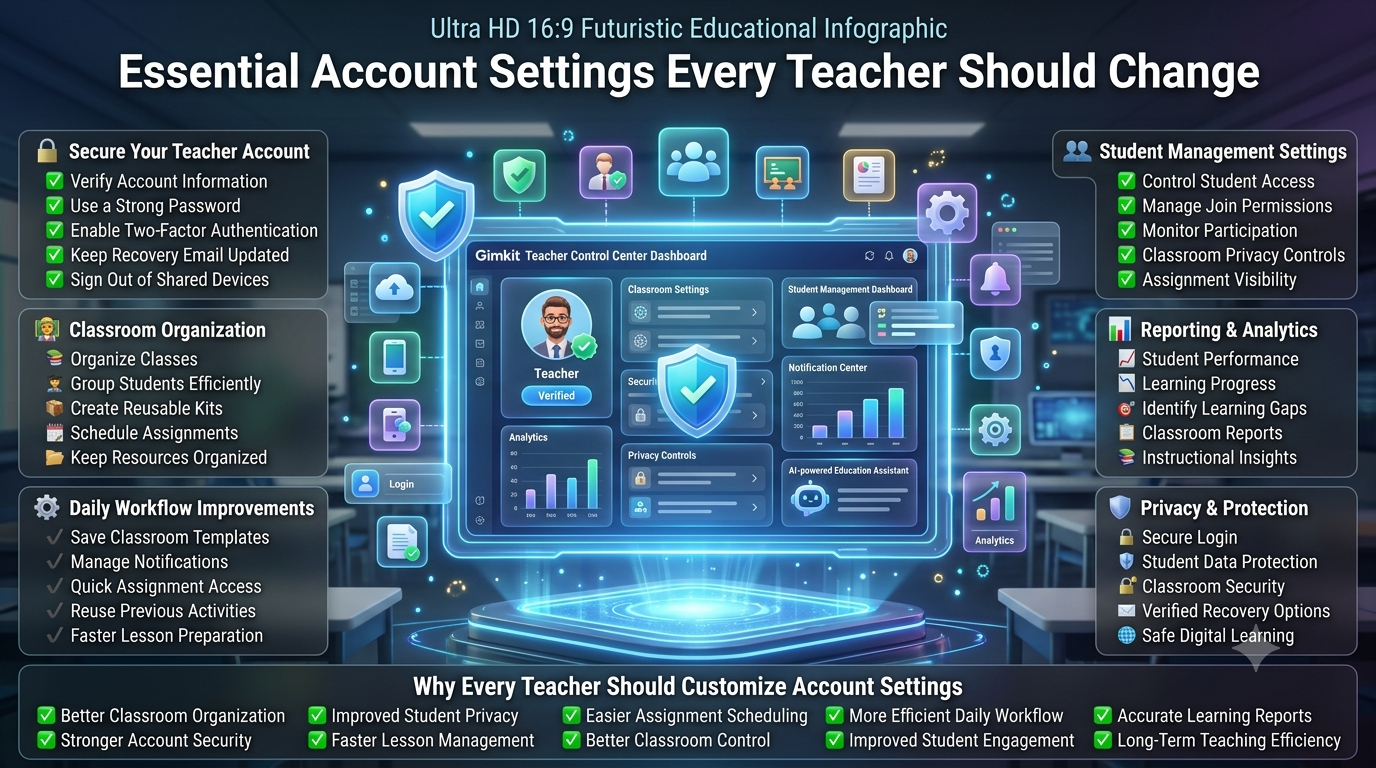
Quick answer: Teachers should verify their account’s email and recovery route, confirm the educator account type and available plan features, review class organization and student access arrangements, then configure each live game’s available options for the particular lesson. Account settings and live game settings are different screens; not every desirable security feature is exposed as a user toggle.
Official starting points:Gimkit’s account FAQ and official account documentation. This independently published checklist does not assume Gimkit supports a particular security feature unless it is documented or visible on your account.
1. Confirm that you are using the correct educator account
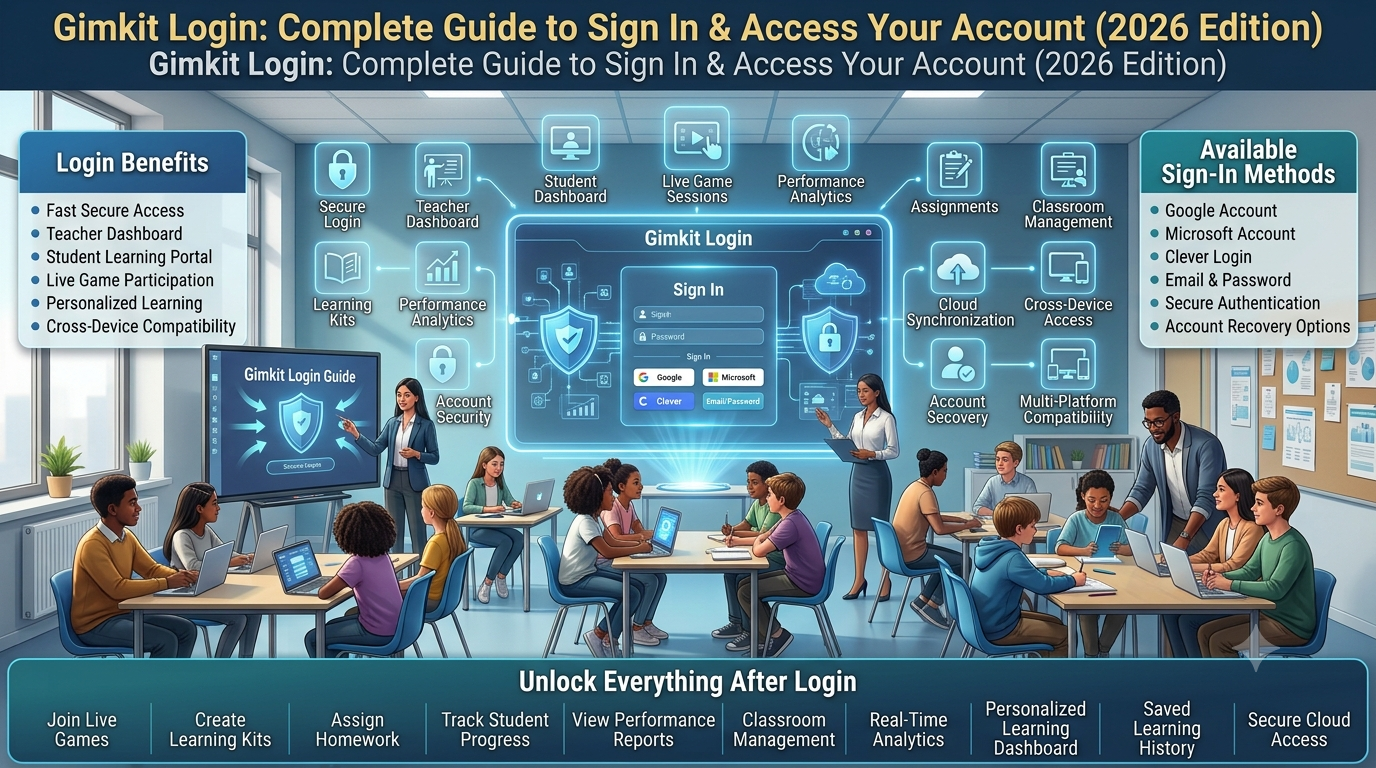
Start at your genuine Gimkit dashboard, not a lookalike login page. According to official guidance, Gimkit provides Educator and Student account types. Teachers who create Kits and host games need the appropriate educator account. If you are unsure which account is signed in, check the account identity before changing class membership or billing settings.
Keep school and personal accounts distinct when school policy requires it. Confirm whether the organization owns the account or whether it is individually managed. A change that makes sense for a personal educator account may not be permitted for a district-managed identity. Do not create duplicate accounts to fix a simple classroom visibility problem; first identify the current sign-in method.
2. Verify your email and recovery route before an urgent lesson
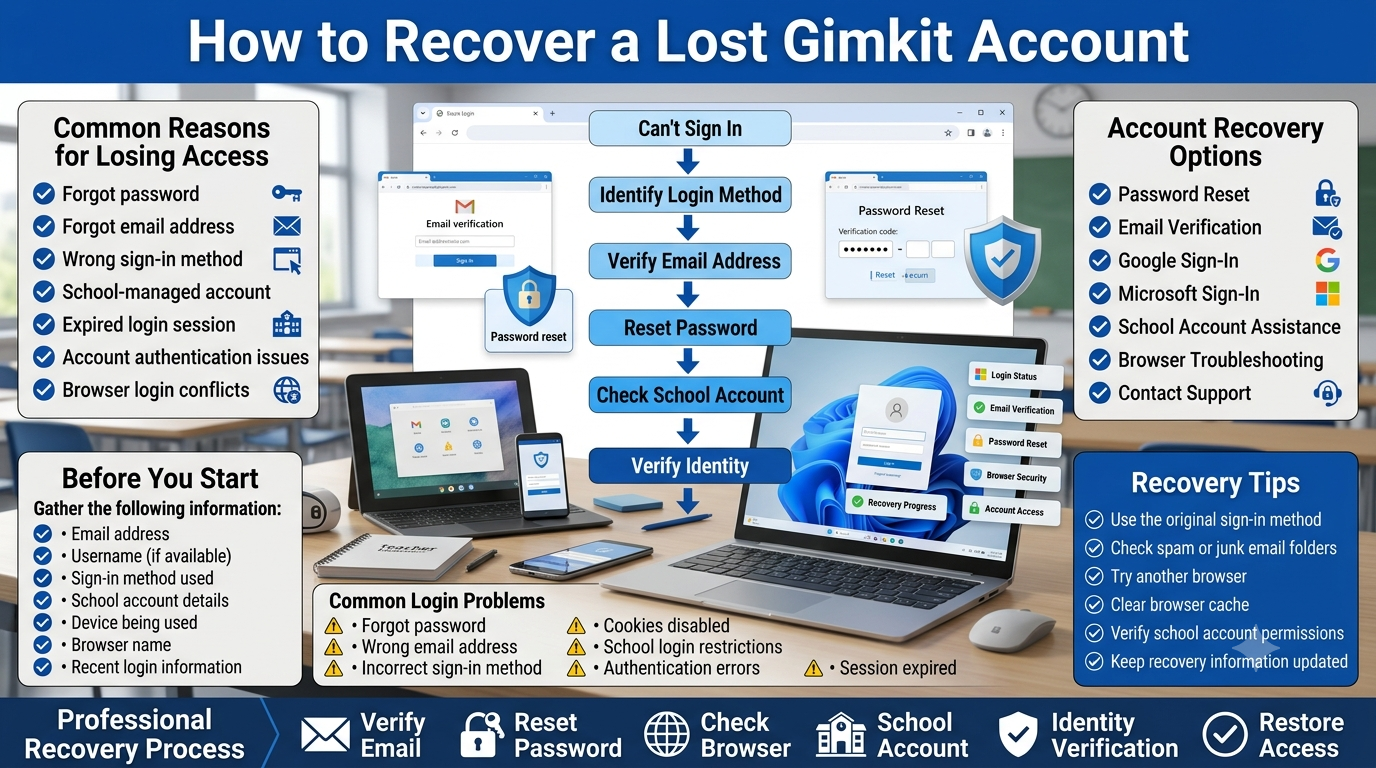
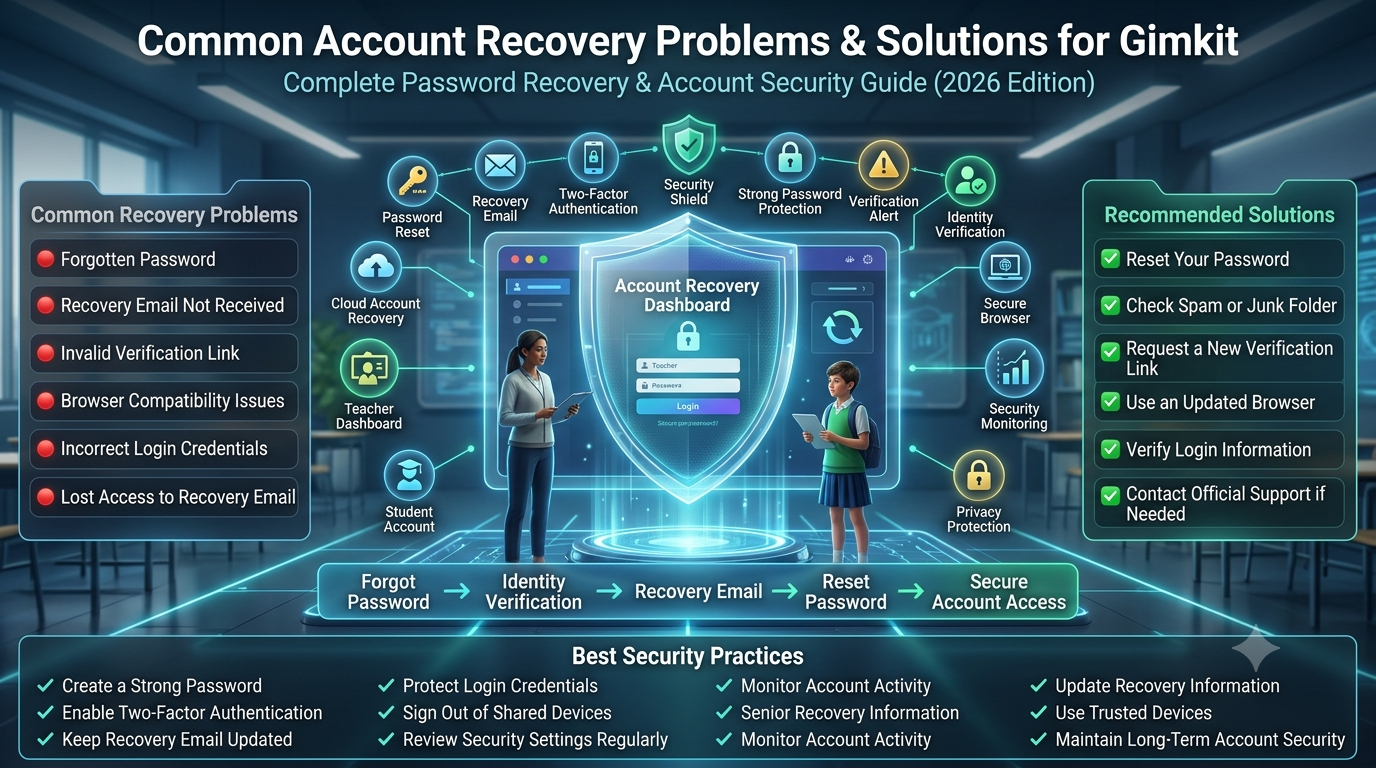
A teacher locked out five minutes before class needs a reliable, approved recovery method. In the official account flow, a teacher can open account settings through the Me menu or the settings page. Check that the email address remains one you can access. If the account is managed through your school, follow its identity-management policy before altering it.
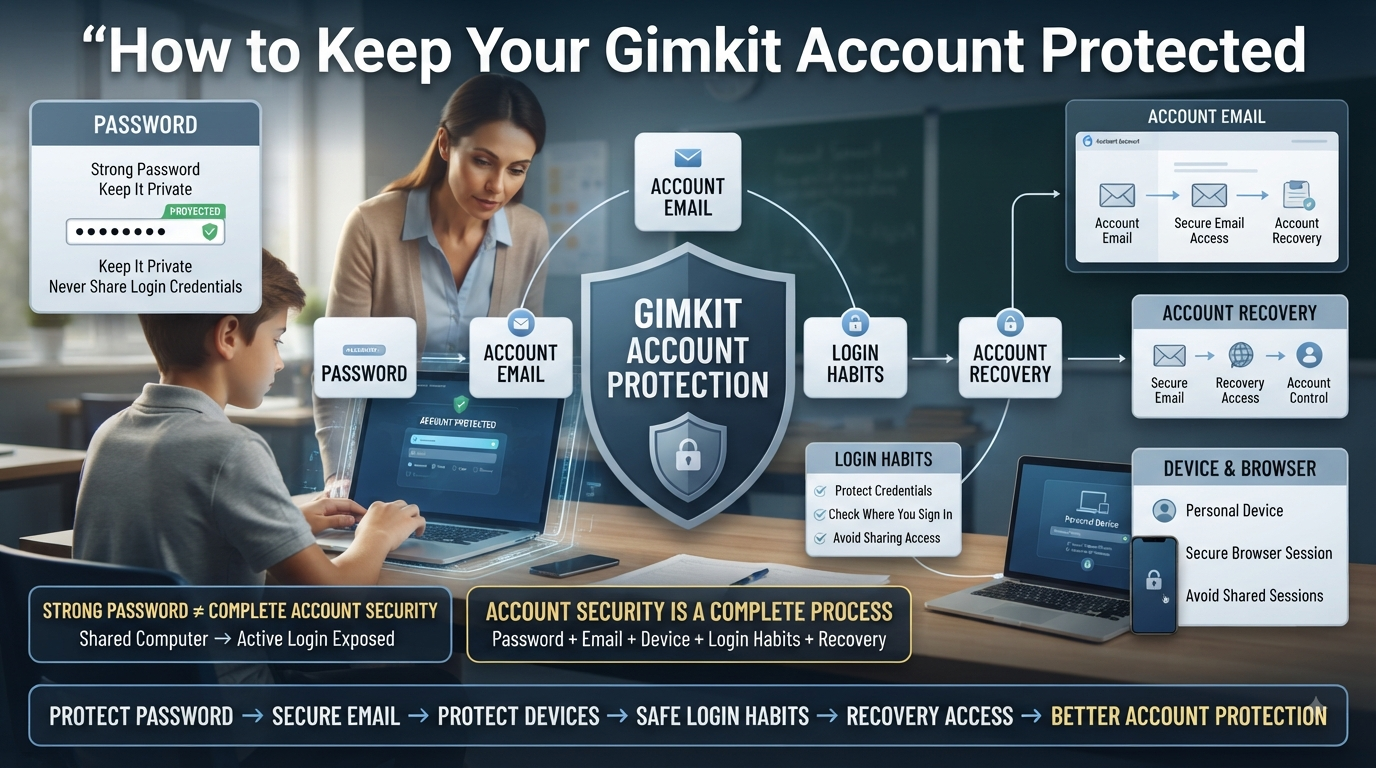
Gimkit’s official password reset guide describes the Forgot Password flow. If a reset message does not arrive, inspect the spam folder and check school email filtering. Use the official support route rather than third-party password tools. Do not share passwords with co-teachers or students; schools should use their approved collaboration process.
3. Use a practical account-protection checklist
If your organization supplies a password manager or stronger authentication through its sign-in provider, follow that policy. Do not describe an unsupported Gimkit toggle as a built-in multi-factor authentication control. Security recommendations must distinguish between account-level product features and school-managed identity settings.
4. Review student account needs rather than requiring unnecessary registrations
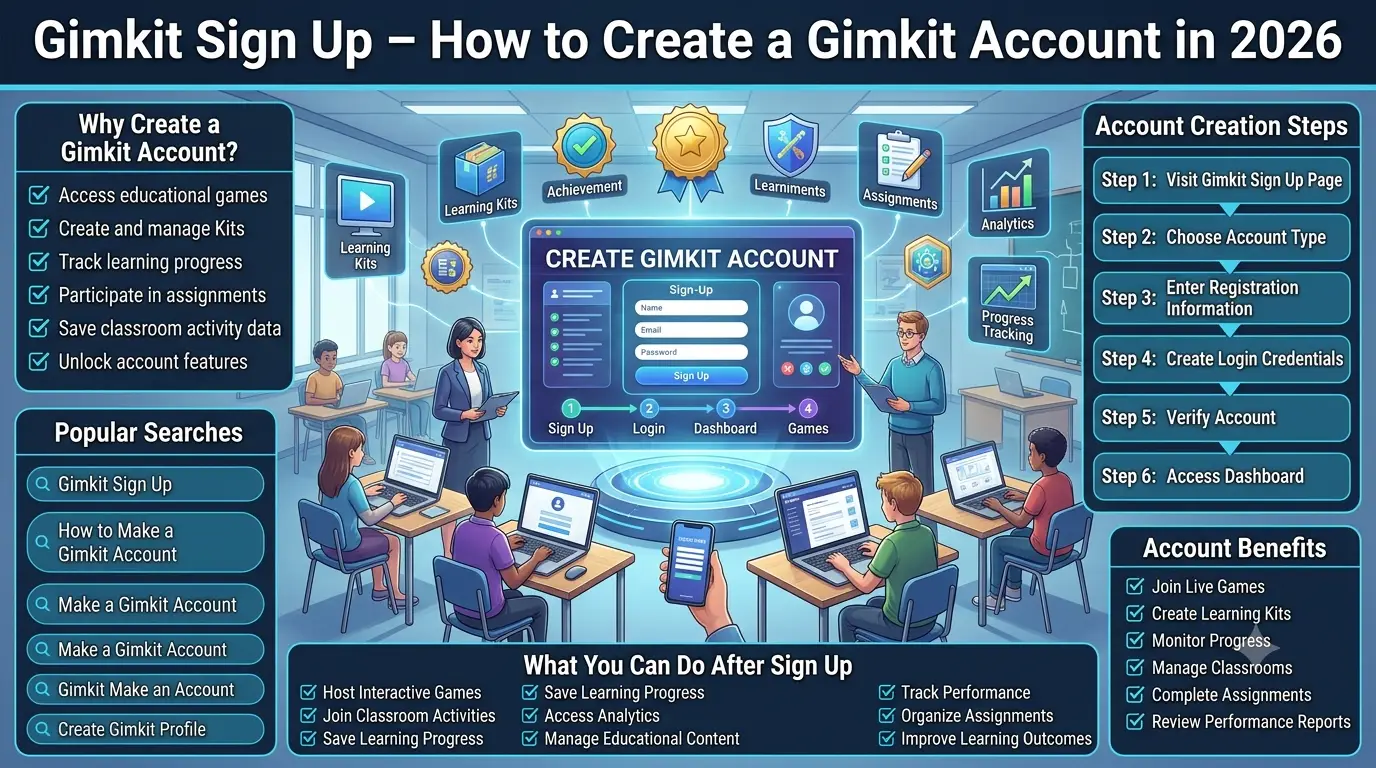
Gimkit’s official account FAQ explains that students generally can participate in live games without creating Gimkit accounts. Accounts may be relevant when you use classes or want students to earn experience and access cosmetic-related features. Ask whether the intended classroom task actually requires registration before imposing that step on every student.
Collect no more student information than school policy permits. Avoid posting student email addresses in public instructions or writing names in a shared troubleshooting thread. Use the platform’s intended classroom access features and keep a clear alternative for students whose account setup is delayed. A participation issue should not automatically become a data-collection task.
5. Separate account settings from game options
Many teachers search their profile settings for controls that belong to individual live sessions. Official game-options guidance describes choices such as a game’s goal, class connection, late joining and nickname generation. Some options differ by mode, and class connections affect naming options. Check the host setup for the particular game instead of expecting a universal account preference.
Question
Where to look first
Why it matters
Is the correct email linked to my account?
Account settings
Recovery and notifications
Can students enter a live game after it begins?
Selected game’s host options
Classroom access and late arrivals
Should students use a class connection?
Class setup and game settings
Access model, names and classroom organization
Which mode is suitable for the lesson?
Mode picker
Difficulty, collaboration and pace
Can I create an assignment?
Account plan and assignment area
Eligibility and available modes
What information does Gimkit retain?
Account information and privacy resources
Student and teacher data awareness
6. Organize classes around educational needs
A classroom structure is easier to manage when teachers use clear, school-approved naming conventions and distinguish active classes from past activities. Review whether students belong to the right learning group and whether the class is needed for the particular game format. A sensible structure can reduce confusion, but more classes do not automatically improve learning.
When moving between groups or school terms, confirm roster decisions through the current interface and your institution’s privacy procedures. Avoid creating duplicate student identities to work around a missing assignment or name. If you teach several groups, design a simple naming scheme that distinguishes sections without exposing unnecessary personal information.
7. Understand nickname, late-join and session-access choices
Nickname-related options and late joining are session-specific concerns. Official documentation describes a Nickname Generator option in certain setups and notes that options can vary with class connections. A teacher can choose rules based on student age, school behavior policies and the lesson format. Avoid guaranteeing a particular control exists in every mode.
Late joining may be useful when students arrive at staggered times, but it can also complicate management of a tightly controlled session. Review it during hosting, and announce the joining procedure in simple language. If unknown participants enter a live session, use the available host controls and ordinary school incident procedures rather than circulating the session code widely.
The detailed hosting flow is covered in our teacher hosting guide. This page is specifically about checking account and configuration responsibilities before teaching.
8. Account plans: avoid assuming every feature is free
Official account guidance distinguishes Gimkit Basic from paid Gimkit Pro. Educator accounts can access free features, but certain features—including assignments—are associated with Pro access. Plan entitlements can change, so check the current plan page and your account before promising a feature to a class or purchasing anything.
Do not upgrade merely because a website suggests a more advanced classroom practice. Decide what your lesson actually needs, evaluate whether free features support it, and compare the cost of a premium tool against the educational benefit. See our Free vs Pro comparison for a broader decision framework, then verify pricing with the official provider.
9. What to do if school-managed Google login fails
School IT policies can affect whether students sign in through a managed Google Workspace for Education account. Gimkit has an official administrator guide for marking Gimkit as a trusted app under relevant Google Workspace rules. That is an administrator action, not a teacher-level switch.
Before escalating, identify whether the problem concerns all students or a particular account, and whether participating without sign-in is appropriate for the learning task. Do not ask students to bypass school access policies, use private accounts against school rules, or send credentials over chat. An administrator can assess whether a change is justified by the district’s privacy obligations.
10. Privacy review without guesswork
Teachers should understand what student participation data they can view and how reports may be used. Do not distribute identifiable game screenshots outside approved school systems. For internal reflection, favor summaries of misconceptions over public lists of student names. When considering an export or new account connection, check the privacy policy and school approval rules.
The official account FAQ describes a way to view information Gimkit has collected about an account. Review the current settings page for the supported route. Account deletion is a serious irreversible action that can affect Kits, assignments and reports, so do not use deletion as a troubleshooting shortcut. See official deletion guidance before making a permanent decision.
11. A five-minute pre-class account check
Minute 1 — identity
Confirm the correct educator account and school-approved sign-in method.
Minute 2 — content
Open the intended Kit and inspect representative questions.
Minute 3 — hosting
Review the selected mode and its actual game options.
Minute 4 — access
Check how students will receive the current join information.
Minute 5 — fallback
Prepare a parallel non-game task for any access failure.
12. Common mistakes and better alternatives
Mistake
Better approach
Changing account settings during the opening minutes of class
Verify access and recovery before the lesson
Assuming every mode has the same options
Review the mode-specific host screen
Requiring student accounts when not necessary
Use the least intrusive access route permitted by school policy
Sharing a teacher password to speed up collaboration
Use school-approved access and account ownership practices
Assuming a school Google login issue is a game defect
Check district app-access policy with IT
Deleting an account to solve a minor login issue
Use official recovery and support routes
13. FAQs
Where are Gimkit account settings?
Official guidance describes using the Me menu from the dashboard and selecting Settings, or visiting the official settings address while signed in.
Can students play without making an account?
Yes, official account guidance says students do not generally need accounts to join live games. Connected classes and some account-specific activities have additional requirements.
Can a teacher reset a forgotten password?
Use the official login page’s Forgot Password flow. If email delivery fails, check filtering and follow the official support process.
Is there one account-level switch for all game modes?
No. Game options vary by the hosted mode and should be reviewed when preparing each activity.
Should teachers change Google Workspace permissions themselves?
School-managed third-party app approval belongs to authorized administrators. Teachers should contact IT and follow institutional rules.
Does this guide guarantee two-factor authentication in Gimkit?
No. Use documented controls and school-provided identity protections. Do not assume a product setting exists unless you can verify it in the actual account interface.
Conclusion
Teachers can prevent many classroom disruptions by checking account identity, recovery access, class organization and session-specific game options before students arrive. Prioritize verified controls, student privacy and the intended learning objective rather than changing every possible setting. For an unfamiliar option, the official Gimkit Help Center is the primary source.
Independent editorial guide; not affiliated with Gimkit. Product settings are subject to change.