Gimkit Classroom: Professional Class Setup & Roster Management
A professional Gimkit classroom begins with a clear Class structure, approved membership, consistent student identities and a reliable routine for reviewing the roster—not with the longest list of game activities.
Learn how to create Gimkit Classes, share Class joining links, use Auto-Accept appropriately, maintain student display names, handle unexpected join requests and keep separate teaching groups organised throughout a term.
Our independent Class Operations & Roster Governance Studio lets you design multiple fictional classroom groups, simulate anonymous join requests and approvals, test membership policies, complete operational checklists and export a school-ready planning brief.
Class naming systemsAuto-Accept governanceAnonymous roster simulatorStudent-name policiesTerm maintenance
Organise people before activities
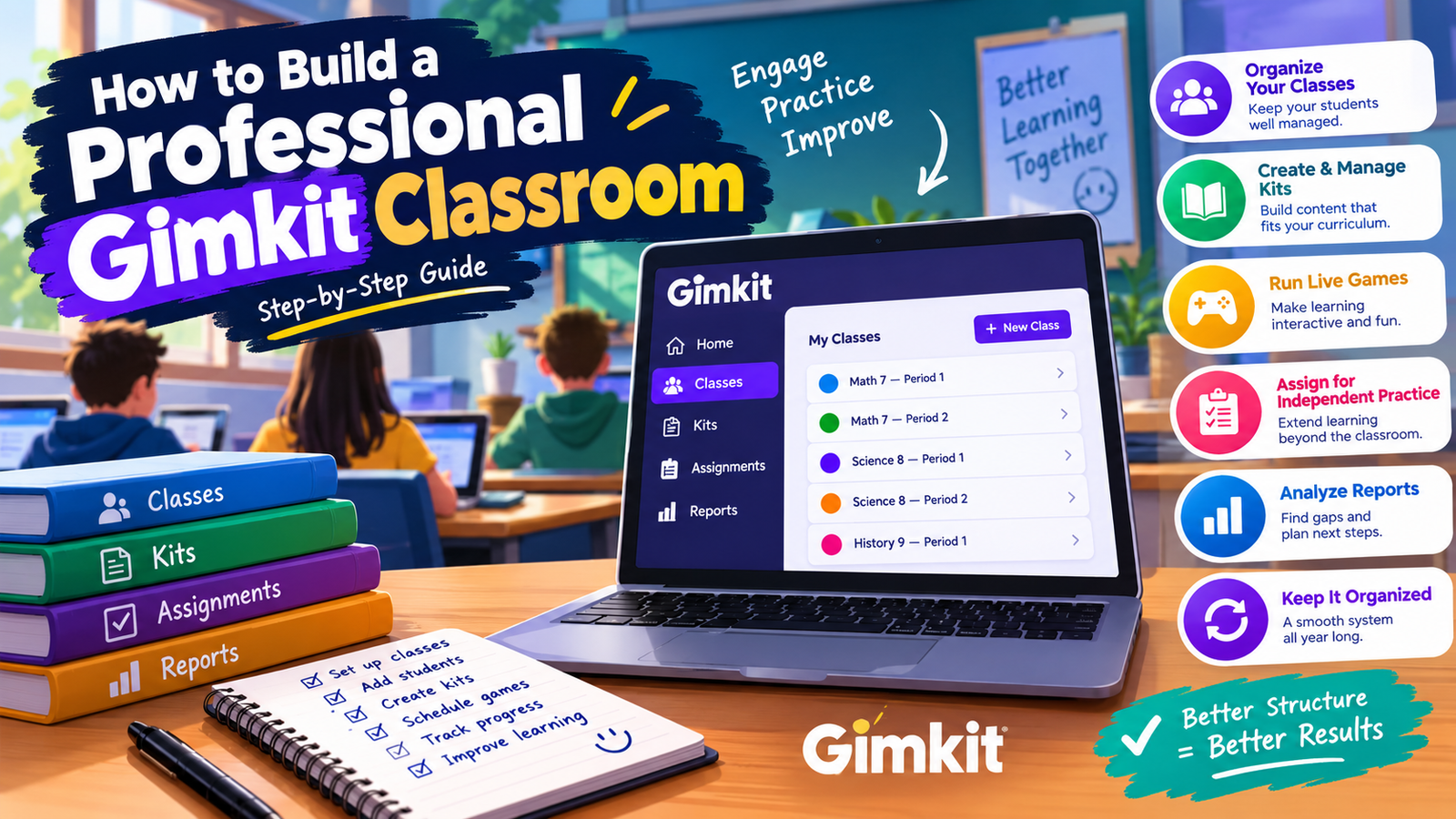
Conceptual classroom structure — not an official dashboard screenshot.
Biology 9 — Period 2One identifiable teaching group
World History 8 — Period 1Separate teaching context and roster
InviteVerifyApproveMaintain
The simulated system uses fictional seat labels instead of real student names or personal information.
Direct Answer
How do you set up a professional Gimkit classroom?
Open the official Gimkit Classes area, select New Class, enter a meaningful class name, choose a color and create the Class. Then share its official join link, decide whether students should be auto-accepted, review membership and maintain appropriate display names.
Gimkit's own Help Center identifies several functions of Classes. They help educators keep names appropriate in live games, organise assignment progress, review results from multiple assignment completions and enable saved progress in Class-connected Assignments.
Those benefits should be distinguished. Creating a Class does not automatically create an Assignment. Gimkit Basic supports Classes, while the official Assignments feature requires paid Pro access. A school can therefore use regular Class organisation without assuming that every related homework capability is free.
Class membership also differs from joining a single live game. A Class represents a more persistent relationship between an educator and participating students. Students use a Class link and authenticate through Gimkit to establish that relationship. A temporary live-game code serves a different purpose.
The most reliable organisation starts with a consistent class-naming convention, a controlled first-day admission process and periodic review. If one teacher manages multiple grade levels, courses or periods, separate appropriately named Classes can reduce ambiguity when working with the correct group.
This page goes beyond an introductory setup checklist by examining the full operational lifecycle: planning the Class, reviewing admission requests, resolving roster mismatches, setting naming expectations, connecting the correct group to supported activities and retiring obsolete class records deliberately.
Official route:gimkit.com/classes. The interactive application on this page is an independent simulator and does not create, edit or inspect actual Gimkit Classes.
01 / STRUCTURE
Create distinct teaching groups
Establish a stable naming convention based on course, grade, period and term without copying the same generic Class name.
02 / GOVERNANCE
Review who belongs
Understand the difference between a pending join request, an approved member and an account needing human review.
03 / CONTINUITY
Maintain the roster
Separate genuine Gimkit membership operations from an independent local plan for regular classroom checks.
Part One — Class Architecture
Designing a clear and maintainable Gimkit Class structure
1. Start with teaching groups, not the game library
A Gimkit Class is best understood as an organisational relationship between an educator and a defined set of students. A Kit represents reusable question content. A live game represents one activity. These objects are connected during teaching, but they should not be treated as interchangeable administrative units.
A teacher who creates one enormous Class for several unrelated course periods may save a little initial setup time, yet introduce confusion when deciding which students belong to a particular lesson or Class-connected activity. Separating genuine teaching groups creates clearer boundaries.
The relevant boundary depends on how the school actually operates. A small course with one recurring group may need a single Class. A teacher serving several subjects or periods may benefit from multiple Classes with stable names.
This is an organisational recommendation rather than a Gimkit-imposed rule about the number of Classes an educator must create. The Class Operations Studio models those choices without claiming to read real rosters.
2. Use a predictable Gimkit Class naming convention
A meaningful name should let the educator distinguish one group from another without opening the roster. Combining subject, course or grade and period often works better than titles such as My Class or Students.
For example, Biology 9 — Period 2 and Biology 9 — Period 3 are distinct even though both study the same subject. World History 8 — Section A describes another group. The order of those components matters less than using the same convention consistently.
The name should remain understandable after the opening week. Temporary events such as Friday Review or Test Tomorrow are not usually suitable as the long-term identity of the Class. Such labels belong to individual teaching activities instead.
The application generates structured example names from course, grade, period and term fields. Teachers can adapt the result to local school conventions before creating anything in the official service.
3. Decide whether the term belongs in the Class name
Some schools maintain separate Classes each academic year. Others reuse a course structure while changing the participating students. Including a term or year in the Class name can help distinguish older groups from current ones when similar courses repeat.
However, adding a term is not universally required. An excessively long name can become difficult to read in a compact interface. The educator should balance clarity against practical length and institutional preferences.
A course name such as Chemistry 10 — Section B — 2026–27 may be useful if several equivalent groups exist across different academic cycles. A teacher managing only one current group may reasonably prefer something shorter.
The Studio provides an optional term field, so the generated title can include or omit that context. This is an original planning function rather than a documented automatic Gimkit naming feature.
4. Choose the Class color as a visual cue
Gimkit's official How to Create a Class guide instructs educators to choose a color during Class setup. The color provides a simple way to make groups visually distinguishable.
An educator who repeatedly works with the same periods might use different colors for different course groups. That can reduce confusion when scanning a list, particularly where multiple names share the same subject or grade.
Color should remain a secondary identifier. A Class name still needs to be clear because not every user can rely on color distinctions, and interfaces or exported records may not preserve the same visual appearance.
The simulator allows colors to be assigned to fictional Class plans. It also displays the full Class name as text, so the meaning of a group never depends exclusively on a colored square.
5. Create a Class using the official workflow
The documented procedure begins in the Classes area of the educator Dashboard. Select New Class, enter the intended Class name, choose its color and use Create Class.
The process is a real account operation. It establishes a new Class object within Gimkit and is not performed by entering similar fields on an unrelated site.
The independent Studio deliberately distinguishes a Class plan from an official Class. When its Create Local Plan button is pressed, it generates an organisational model in the visitor's browser. That model has no membership rights, no official Class link and no connection to Gimkit servers.
Educators should transfer an approved name and color into Gimkit's own interface if they decide to implement the plan. The simulation is intended to clarify decisions before real setup.
6. Separate a Class from its content resources
A Kit contains the educational material used for questioning. The Class describes which group of learners is associated with an educator. A hosted game or Assignment can then connect that material with the relevant group.
Maintaining those boundaries prevents a Class name from becoming a replacement for a topic name. The course may remain stable for a term while different Kits and review activities change from week to week.
For example, a biology Class may use separate Kits for cells, genetics and ecology. The Class should not have to be renamed each time the curriculum advances to a new topic.
This guide focuses on the stability of the organisational group. Writing question content, editing Kits and selecting game mechanics remain separate subjects addressed elsewhere on the site.
7. Define expected membership before distributing the join link
Before inviting students, the educator should know approximately who belongs in the group. That expectation can come from an authorised school roster or the school's normal enrolment process.
The point is not to copy sensitive student records into an unapproved website. It is to establish an operational reference for determining whether the number and identity of members in Gimkit make sense.
An educator expecting twenty learners can then notice that the official Class contains eighteen approved students and two outstanding requests. That discrepancy signals a need to investigate membership, not a conclusion that two specific students failed to participate.
The Studio uses anonymous Seat 01, Seat 02 and similar labels to demonstrate this logic without collecting actual names. Its planned seat count is a local modelling limit and should not be mistaken for an official Gimkit Class capacity restriction.
8. Do not create temporary Classes for every game
A separate Class may be appropriate for a genuine recurring teaching group, but creating another Class for every short review can make membership difficult to maintain.
Gimkit's documented Class benefits are connected to stable student identity and Class-associated activities. Reusing an appropriate Class for recurring sessions supports that organisational purpose.
A live game has its own temporary session identity and joining mechanism. The Class does not need to be duplicated merely because the teacher starts another review activity using a different Kit.
The Class Operations Studio consequently treats each planned Class as a persistent group. Its roster states are independent of individual games and remain local until the visitor edits or resets them.
9. Treat names and colors as operational identifiers
A clear Class name tells the teacher which group is being selected. Its color helps the teacher recognise the same object at a glance. Together they reduce the chance of acting on the wrong Class.
Neither characteristic proves that a roster is correct. Two classes can have excellent names while containing unexpected accounts, incomplete membership or inconsistent student display names.
Good administrative design therefore uses a sequence: identify the group, confirm its official members, choose the appropriate activity connection and periodically review changes.
The Studio applies the same principle. Creating a visually polished fictional Class plan does not automatically mark its onboarding checklist as complete. The user must separately acknowledge the operational checks.
10. Rename an existing Class rather than assuming recreation is necessary
Gimkit documents a Rename Class action inside a Class's ellipsis menu. An educator can open the Class, select Rename Class, enter the revised name and save the change.
This is different from deleting the original Class and creating another. A name may need clarification even when the underlying teaching group remains appropriate.
Renaming should be considered carefully where other teachers or students depend on the Class's established identity. A consistent convention helps avoid confusion when a title changes during a course.
The Studio includes local editing of a Class plan's naming fields and color. This demonstrates the difference between modifying metadata and discarding an entire roster, but cannot carry out Gimkit's actual Rename Class operation.
Part Two — Student Admissions
Class links, joining requests and Auto-Accept policies
11. A Gimkit Class link is not a live-game code
The official How to Have Students Join Your Class guide directs educators to open the Class in gimkit.com/classes, copy its Class link and share it with the intended students.
That link is associated with membership in an ongoing Class. A live-game code, by contrast, is associated with a particular hosted session. Both can involve students entering Gimkit, but they establish different relationships.
Giving a temporary game code to a learner does not automatically mean the student has joined the educator's persistent Class. Likewise, joining a Class does not mean every future game has already started.
For classroom onboarding, educators should explicitly distinguish “join our Class” from “join today's game.” The Studio models Class membership operations only; it does not generate game codes or imitate live-game entry.
12. Students authenticate to join an official Class
Gimkit's Class joining guide states that students visiting the Class link authenticate with Google or their email. Depending on the Auto-Accept setting, they can then be added automatically or await educator approval.
This differs from the simple entry process available for some standalone live games. An ongoing Class uses account-associated identity because Gimkit's documented Class features depend on consistent membership.
Teachers should communicate the expected official sign-in method and ensure students use the account that belongs to the relevant school context. Confusion about which account was used can make roster review difficult.
The independent Studio does not provide a sign-in form or request student credentials. Its fictional join requests illustrate the approval process without attempting to reproduce authentication.
13. Auto-Accept controls how Class join requests are handled
Gimkit allows educators to enable or disable Auto-Accept for Class membership. With Auto-Accept enabled, a student who completes the documented joining process can be added automatically.
When Auto-Accept is disabled, the joining request does not automatically become an approved member. Gimkit instead presents the request for educator review, with accept and reject options.
This control affects the admission process, not the quality of question content or the rules of a gameplay mode. It is a classroom-governance decision.
The Studio reproduces this distinction locally. A fictional request becomes approved under the simulated Auto-Accept policy or remains pending under manual review. No real students or official requests are affected.
14. Manual approval is useful when the initial roster must be verified
A new Class may receive join requests before the educator is familiar with every member. Turning Auto-Accept off during the initial enrolment period can provide an opportunity to review those requests.
This is a recommended governance practice, not a universal Gimkit requirement. Some schools may have an established process where automatic acceptance is operationally appropriate.
The educator should consider how the Class link will be distributed, whether expected learners can be identified through approved school information and what procedures exist for unexpected requests.
In the Studio, a manual policy creates a pending queue. Educators can approve or reject fictional seat requests one at a time or use a deliberate simulated bulk-review control.
15. Auto-Accept does not eliminate the need for periodic review
Automatic acceptance can reduce the number of manual admission actions, especially when a trusted group is joining during a controlled onboarding period.
However, a Class may still need maintenance after its initial setup. Unexpected account names, duplicate participation or a student joining the wrong group can require attention regardless of how admission occurred.
Teachers should not interpret Auto-Accept as a complete identity-verification system. It determines a membership-processing behavior, not an independent investigation of every learner's eligibility.
The simulator therefore tracks approved seats separately from flagged seats and the onboarding checklist. An automatically approved fictional request is not silently treated as proof that the official person's identity has been verified.
16. Pending requests should have a defined review routine
When manual approval is used, requests should be reviewed in a timely and deliberate way. A request left pending may prevent the student from receiving the Class-associated experience expected by the educator.
A practical process includes checking the request against an authorised roster, accepting legitimate members and rejecting requests that do not belong. Teachers should avoid making admission decisions based solely on an unfamiliar display name.
A pending queue can become harder to review if requests accumulate over several weeks. Periodic checks are easier to maintain than a single large cleanup late in the term.
The Studio displays pending fictional seats as a separate operational category. Its dashboard counts allow the user to see how many simulated admissions still need action.
17. A rejected request is not the same as a removed member
Rejecting a pending Class request means the educator does not approve the proposed admission. Removing an existing member applies to an account that was already present in the Class.
Both operations can result in an account not belonging to the Class, but the starting state is different. Teachers should identify whether they are reviewing an incoming request or maintaining an established roster.
The distinction matters for clear records. In a real classroom, the explanation for rejecting an unexpected request may differ from removing someone who transferred to another course.
The Studio preserves those state transitions as local actions and includes them in an anonymous activity log. It does not label a fictional learner as problematic or infer misconduct.
18. A Class link should be distributed in an appropriate channel
The official Class joining process depends on a link supplied by the educator. For an ongoing school group, that link should generally be shared through the school-approved communication method rather than posted indiscriminately.
A controlled distribution process helps the teacher recognise expected join requests and reduces ambiguity about which group new members intend to join.
The Class Operations Studio does not ask visitors to paste the real join link. This is intentional because the link is associated with a classroom membership process rather than a public navigation destination.
The tool's operational checklist can mark that the educator has distributed the real link, but that mark is a local acknowledgement. It does not send invitations or verify that students received them.
19. A student joining the wrong Class requires a roster correction
A learner may receive the wrong Class link or accidentally join a group intended for another period. This creates an organisational mismatch rather than an academic performance issue.
The teacher should confirm the appropriate group, inspect the actual official membership and follow Gimkit's documented member-removal process when correction is necessary.
Removing someone from the wrong Class does not mean the student should be excluded from Gimkit altogether. They may simply need to join the correct educator group using the approved link.
The Studio models this as a flagged membership that can be reviewed or removed locally. It does not move a real student between Gimkit Classes.
20. Onboarding should finish with a membership check
Sending a link is not the same as confirming that every intended student has joined. A teacher should inspect the official Class roster after the joining period and compare it with the school's authorised membership information.
A mismatch could mean that students have not yet followed the link, are waiting for approval, used a different account or joined the wrong group.
These possibilities cannot be resolved from a single total count alone. A count identifies the existence of a difference; the teacher must examine the actual official Class and relevant school records.
The Studio calculates approved, pending, flagged and not-yet-requested fictional seats to demonstrate this review process. Its totals are illustrative local data, not a report from Gimkit.
Part Three — Student Identity
Safe names, roster consistency and the role of Classes
21. Classes support consistent student names in live games
Gimkit's Classes Explained documentation identifies appropriate names as a principal benefit of Classes. Students use the names connected with their accounts, and educators can edit how those names appear in their Class listings.
This helps repeated classroom sessions use a more stable form of identification than an uncontrolled collection of unrelated temporary nicknames.
Consistency matters operationally because the teacher must recognise which student belongs to which Class. However, the right naming convention depends on local school rules and privacy expectations.
The Studio demonstrates sample naming policies using fictional examples. It never asks for real student names and does not claim to enforce a policy inside the actual Gimkit account.
22. Choose a naming convention appropriate for school policy
A name format may use a first name with a surname initial, a school-approved identifier or another convention that the institution permits.
The key requirements are clarity, consistency and appropriate disclosure. Displaying full identifying information may be unnecessary in some contexts. In others, an authorised school system may have established conventions that teachers are expected to follow.
A third-party guide should not impose one universal student-identity format without considering local policy. The educator should use the institution's approved approach.
The Studio offers three example policies—first name plus last initial, numbered learner label and school-approved alias. These are illustrative formats for planning, not automatically valid policies for every school.
23. The teacher should verify ambiguous names rather than guess
A Class may contain two students with similar display names or an account name that does not clearly match the teacher's authorised roster.
The correct response is to verify the account's membership through appropriate official and school channels, not to make assumptions based on appearance.
Where Gimkit permits editing Class display names, the educator can use that official control to improve clarity after confirming the intended identity.
The simulator allows a fictional approved seat to be flagged for review. That local status represents an administrative question to resolve, not a determination that a student is suspicious or at fault.
24. The Nickname Generator and Classes serve different identity models
Gimkit's Nickname Generator assigns random safe names to participants in supported live games. The official Help article states that the Nickname Generator is unavailable when games are hosted with Classes.
The reason for the distinction is structural. A Class-connected activity uses account-associated names from the roster, while the Nickname Generator offers an alternative approach for a game not connected to Classes.
Teachers should therefore not promise to enable both systems simultaneously for one Class-connected session. The actual game options depend on the selected hosting configuration.
The Studio flags this documented incompatibility in its name-policy guidance but does not reproduce random nickname generation or live-game settings.
25. Display-name hygiene is different from academic achievement
Keeping student names readable helps a teacher operate the classroom. It can support correct identification when looking at the group or connecting supported activities.
That is not the same as measuring the learning achieved by those students. A perfectly maintained roster can accompany a lesson that still needs improvement, while a successful instructional session may reveal an administrative issue.
The Class Operations Studio therefore excludes question accuracy, learning gains and game-score calculations. Its metrics describe the local status of fictional memberships and teacher-acknowledged operational checks.
This keeps the Classroom page distinct from the Free Teaching evidence application and the separate official Reports experience.
26. Avoid entering identifiable student information into unofficial tools
An independent classroom-organisation application may not need names, email addresses, student IDs or account credentials to demonstrate the structure of a roster.
Collecting those details unnecessarily would create a privacy concern while adding little value to the question of how admission and maintenance should work.
This Studio consequently creates numbered fictional seat placeholders. The user can model statuses and approvals without entering any sensitive student information.
Its browser storage and exports contain only synthetic administrative records created in the local interface. Educators should keep real authorised rosters within approved school systems and Gimkit itself.
Exclusive Classroom Management Application
Gimkit Class Operations & Roster Governance Studio
Plan multiple Classes, generate anonymous seat rosters, simulate joining requests and approval policies, review membership exceptions and track essential classroom administration tasks—all without connecting to actual students or Gimkit accounts.
FICTIONAL CLASS OPERATIONS ENVIRONMENT
Build the group. Govern admissions. Maintain a clean roster.
Working local simulation with class objects, independent seat states, admission policies, audit checks and exports. It is not an official Gimkit Class management integration.
1. Create or edit a local Class plan
1–72 is this simulator's performance limit, not an official Gimkit class limit.
Maximum eight local Class plans. The fictional rosters use automatically generated Seat numbers. The name-preview input is not an official Class-creation form.
2. Select the Class you want to organise
0Local Classes
0Expected seats
0Approved locally
0Pending requests
0Needs review
Selected Class
Identity rule: Class-connected games use the Class's student names. Gimkit's separate Nickname Generator is unavailable for games hosted with Classes.
3. Anonymous roster operations
Simulated only
Each Seat represents a fictional place in a planned Class. Request, Approve, Reject, Flag and Remove change only the local simulator's state.
4. Operational health and outstanding actions
Class onboarding and maintenance checklist
A checked task means the educator marked it complete in this local guide. It does not prove an action happened in Gimkit.
0%
Local plan-readiness indicator
Anonymous operations log
Recent local actions only. No account events are fetched from Gimkit.
The application attempts to autosave locally in your browser. Exported files contain synthetic Class and Seat records only. No Gimkit join link, student name, email, roster or credential is collected.
What makes this a real Classroom-specific tool?
The application maintains separate local Class objects rather than showing a generic form with renamed fields. Each object has its own name, color, expected seat count, admission policy, simulated roster, naming-policy preview, operational checklist and event history.
The roster operations follow different state transitions. An unrequested Seat can generate a fictional join request. When manual approval is selected, the Seat becomes Pending. Under the Auto-Accept model, the same request becomes Approved. A pending request can be approved or rejected, an approved Seat can be flagged for review or removed, and a removed Seat can be restored to the unrequested state.
These actions change the counts and class-readiness indicator immediately. The selected Class remains separate from the other fictional Classes. Switching to another group displays its own roster rather than merging every seat into one universal list.
The operational checklist is independently editable and covers real administrative responsibilities such as confirming the official Class creation, distributing a legitimate link, reviewing membership and verifying display names. Checkmarks represent the visitor's manual acknowledgements only.
The application also supports pagination for larger fictional rosters, status filtering, seat search, local editing, undo history, browser autosave and structured exports. None of these operations requires personal information or claims to control an actual Gimkit Class.
Part Four — Governance and Access Controls
Classroom rules that prevent operational confusion
27. Make admission policy a deliberate choice
A classroom admission setting should fit the way the group is organised. Manual approval can be helpful when students first join a Class through a shared link and the educator wants to compare requests against an authorised roster.
Auto-Accept can reduce administrative workload when the distribution environment and membership expectations are sufficiently controlled. Neither setting should be treated as universally correct in every situation.
The important practice is knowing which policy is active and what that choice means for students who visit the link.
The Studio makes the current local policy visible and applies it to newly simulated requests. Changing the policy does not retroactively approve requests that were already pending under manual review, and it never affects the official account.
28. Separate expected seats from approved memberships
A teacher may expect twenty-five students in a course while only twenty-three accounts have actually joined the official Class. Expected enrolment and current membership are therefore different quantities.
Treating them as identical can conceal incomplete onboarding. A teacher may accidentally assume that every learner is connected to Class-associated activities even when some students have never completed the admission process.
The Studio maintains an expected set of fictional seat placeholders and separate status counts. It can display approved, pending, flagged and not-yet-requested Seats without manufacturing names or official membership evidence.
A difference between expected and approved locally is a reminder to investigate the corresponding real situation, not a conclusion about which actual student is missing.
29. Flag uncertain membership for review
An approved account may later need review because the educator notices confusing display information or learns that the student belongs to another group.
The correct response should depend on verified information. A name alone may not be sufficient evidence of a mistaken membership, particularly where several students share similar names.
Flagging an item creates an administrative reminder. It is different from immediately removing the account or assigning blame.
The Studio's Review status is an original planning state, not an official Gimkit membership category. It helps users understand the value of separating questions requiring investigation from completed removals.
30. Remove membership through the documented official menu
Gimkit's How to Remove a Student from a Class article describes opening the relevant Class, finding the student's row, hovering over its three-dot menu, selecting Remove and confirming the action.
This is a real account-level membership operation. It may affect the student's relationship with the Class, so the educator should confirm that removal is appropriate before proceeding.
The simulator's Remove button operates only on a fictional Seat. It does not perform account deletion, revoke a real Class link or edit an actual membership record.
Distinguishing the local example from the official action prevents the educational tool from suggesting that it has greater authority than it actually possesses.
31. Reject an unexpected request only after suitable review
Manual acceptance settings provide the educator with an opportunity to review incoming requests. The official joining documentation describes accept and reject controls for those requests.
A request might be unexpected because a learner used the wrong link, joined through the wrong school account or does not belong to the intended group.
The appropriate response depends on what the educator can verify through authorised records. An incorrect Class request should not automatically be treated as malicious behavior.
The Studio's Reject action demonstrates that a pending request can move out of the approval queue without ever becoming a regular approved member. The label represents only a fictional workflow state.
32. Do not confuse Classroom approval with a live-game lobby check
The ongoing Class roster and a live game's temporary waiting lobby serve different administrative purposes.
Class approval establishes whether an account belongs to the educator's group. A lobby check concerns participation in one hosted activity. A student may be an approved Class member while not participating in a particular game.
Likewise, a player joining a public live-game session does not automatically prove they belong to a persistent Class.
The independent Studio deliberately stops at Class governance. It does not create live lobbies, display actual connected players or simulate host controls that belong to the separate Hosting and Multiplayer topics.
33. Maintain a clear boundary between Basic Classes and Pro Assignments
Gimkit Basic includes Classes, but official documentation identifies Assignments as a Pro-only educator capability.
A Class can therefore exist and be maintained without the teacher owning an active Pro subscription. However, using the paid Assignment workflow introduces a separate requirement.
Classes can support assignment-related features when appropriate paid access exists, including tracking completion and saving progress. Those benefits should not be confused with a promise that every Basic Class automatically enables new paid Assignments.
The Studio includes an administrative reminder about the distinction but does not create, score or manage actual Assignments. That work belongs to the dedicated Assignment topic.
34. Treat operational checklist completion as an acknowledgement
A digital checklist can help an educator remember which setup tasks remain unfinished, but it cannot confirm actions occurring in another authenticated service without a supported connection.
For example, selecting “Official Class created” in this local page does not prove that a real Class exists. It means the user has manually acknowledged that setup responsibility.
The same applies to join links, naming policy and roster review. The teacher must inspect the actual official Class when making consequential decisions.
The Studio's readiness indicator combines local admission states and checklist acknowledgements. Its label clearly states that this is a planning metric rather than official verification.
35. Protect the Class link and associated school records
A Class joining link is associated with an ongoing group membership process. Publishing it widely without considering school policy can produce avoidable unexpected requests.
Teachers should prefer authorised school channels and confirm which learners are expected to use the link. Appropriate distribution can make subsequent admission review more manageable.
The Studio deliberately does not request real join links, even though copying them might seem convenient. Such information is unnecessary for a fictional roster-governance simulation.
The same principle applies to student names and identifiers. The tool can demonstrate approval states without storing actual school records in an unrelated website.
36. Local audit history is not an official Gimkit audit log
The Studio records simulated actions such as approving Seat 03 or flagging Seat 07 for review. These entries are useful for understanding how a fictional roster changed within the local browser session.
They are not fetched from Gimkit and should not be presented as evidence that a real student's membership was modified.
An actual school audit may require the institution's own authorised records, procedures and data-retention rules. An independent demonstration cannot replace that evidence.
The Studio exports its synthetic action history with explicit disclaimers so that a local planning record is not confused with a formal platform record.
Part Five — Operating a Classroom
How Gimkit Classes fit into recurring teaching activities
37. Use the correct Class when hosting a connected live game
Gimkit's Host a Live Game documentation describes a Connect a Class option among standard game settings. Connecting the relevant Class lets the session use the membership and associated naming behavior.
For an educator managing several groups, the key administrative question is whether the intended Class has been selected.
A mistaken Class connection can create confusion about which students belong to the session. The teacher should confirm the teaching group rather than relying only on a familiar Kit name.
This page focuses on verifying Class identity. It does not duplicate the game setup interface, generate codes or instruct the user how to optimise a specific game mode.
38. Explain the difference between account membership and session participation
Students who are members of a Gimkit Class have an ongoing relationship with that educator group. Participation in a particular live session is a separate event.
A learner may be correctly enrolled in the Class but absent from a day's review. Another may be present in the classroom but using an incorrect account or joining workflow.
Teachers should interpret these situations separately rather than equating a Class roster with live attendance.
The Studio models only membership readiness. It does not track attendance, infer device connections or mark real students present in a game.
39. Understand when the Class-connected joining path is useful
Gimkit's hosting and Classes guidance describes Class-connected game joining as a convenient option for students associated with the educator's Class.
The usefulness comes from the established relationship and recognised student identity, which can reduce repetitive naming steps during recurring activities.
However, the actual connection still depends on the student's account and the host's selected settings. A local roster plan does not establish that a particular device is currently authenticated.
This guide explains the Class relationship without turning into a student login troubleshooter or a live-code entry tutorial. Those are separate search intents.
40. Use appropriate display names in the live experience
Gimkit documents that the Class-associated name can appear in connected live games. That gives educators a reason to resolve ambiguous or inappropriate names during Class maintenance rather than at the last moment before gameplay.
A teacher may establish a naming convention during onboarding, verify it in the actual Class and update a display name using the supported official interface when needed.
This reduces repeated administrative interruptions, but it should remain aligned with school privacy requirements.
The Studio's naming preview demonstrates the intended pattern with fictional names only. It does not rename actual account identities or generate random player aliases.
41. Connect Assignments to the correct Class when Pro is available
Gimkit Assignments can be connected to Classes, and official documentation explains that students in connected Classes can see relevant assignments through their dashboards.
This creates an additional administrative reason to keep Classes well organised. A teacher selecting the wrong group may create confusion about which students should see a particular activity.
The underlying Assignment remains a paid Pro capability. Class membership by itself does not remove that subscription requirement.
The Classroom page owns the group-selection and membership context. Assignment goals, due dates, mode compatibility and result calculations belong to the separate dedicated Assignment workflow.
42. Saving assignment progress depends on the proper relationship
Gimkit's Classes Explained article describes the ability of students using Classes with Assignments to save progress and continue later.
This is useful when work is completed across more than one sitting, but it depends on the appropriate supported Class and Assignment experience.
Teachers should not describe every ordinary Practice link as though it automatically provides saved Assignment progress. The products and workflows are different.
This guide identifies why accurate Class membership is relevant without reproducing an Assignment progress tracker or promising that an independent simulator can inspect saved progress.
43. Assignment completion reports use Class context
Official Gimkit guidance describes Class-associated Assignment results that can distinguish completed, in-progress and not-started work. It also documents review of multiple completion information.
The benefit depends on correctly associating students and the activity with the intended Class.
This is another reason a stable roster matters. Confusing two similar groups can make subsequent interpretation harder, even if the underlying learning content is valid.
The Studio does not calculate assignment completion because that would duplicate the dedicated Assignment and Reports subjects. Its role is to model the administrative membership layer that makes Class-connected activity organisation possible.
44. A substitute teacher needs a clearly identifiable group
A teacher covering a class for a colleague may need to understand which group is involved, what naming conventions are in use and where approved instructions are kept.
A vague Class label can make this harder. Stable names such as Biology 9 — Period 2 are easier to interpret than temporary titles dependent on the original teacher's memory.
The same principle applies to a teaching team collaborating within institutional policies. Consistency helps people understand what the Class represents without disclosing unnecessary student data.
The Studio's exportable Class-plan summary can serve as an administrative template. It should never be presented as an official delegation of permissions within Gimkit.
45. Do not let course changes create accidental duplicate Classes
Teachers may create additional Classes during a busy term without noticing that the same teaching group already exists under a slightly different title.
A duplicate can fragment membership and make it harder to know which group students should join.
The Studio checks for repeated generated Class-plan names and refuses an exact duplicate within the local model. This is a convenience feature of the independent simulator rather than a claim about Gimkit's internal duplicate detection.
The educator should still inspect the actual account before creating a new official Class, especially when similar course groups exist across periods or academic years.
46. Maintain class membership even when the Kit changes
The same Class can engage with different Kits over a term. Content changes do not necessarily require rebuilding the membership group.
An educator may move from one unit to another while continuing to teach the same students. The Class remains an organisational reference; the content resources change as instruction progresses.
This reduces the temptation to create new Class records as a substitute for organising lesson material.
The Studio preserves the fictional roster while allowing the local Class name or policy to be updated. It does not contain a question editor because teaching-content management is a separate topic.
Part Six — Maintenance and Quality Assurance
How to keep a Gimkit classroom organised throughout the term
47. Review the Class after the initial enrolment period
A useful first maintenance checkpoint occurs after students have had a reasonable opportunity to use the official join link.
The educator can compare expected membership with the official roster, review pending requests and clarify account names that are ambiguous.
An apparent shortage of members may have several causes: a student may not have joined, may be waiting for approval or may have used another account. The teacher should investigate through authorised information rather than guessing.
The Studio's local metrics demonstrate which discrepancies are worth checking. They do not identify real missing learners or certify completed school enrolment.
48. Use a brief recurring roster-review routine
A Class can change during the term as students transfer, accounts are corrected or unexpected requests appear.
A periodic review helps the educator confirm that the membership still corresponds to the intended group. The appropriate frequency depends on the school environment and how often the Class is used.
A regular lightweight check is often easier than allowing problems to accumulate until a major assessment or class activity.
The Studio includes a maintenance-checklist acknowledgement so teachers can keep the concept of periodic review visible without storing identifiable student information.
49. Distinguish inactive students from removed membership
A learner may remain a legitimate Class member despite not participating in a recent activity. Absence from a game does not automatically justify removal from the ongoing group.
Removing membership is a deliberate administrative action supported by Gimkit's Class management controls. The teacher should use current, authorised information before making that change.
The independent simulator consequently does not interpret lack of gameplay as a removal trigger. It only changes fictional membership states when the visitor explicitly selects an operation.
This prevents an automated assumption about attendance or academic engagement from becoming an unsupported student-management decision.
50. Use official confirmation for consequential changes
A real Class deletion or member removal can affect the ongoing organisational relationship between the educator and learners. Those actions deserve more care than editing a local planning example.
Gimkit's documentation describes confirmation steps for removing members and deleting Classes. Educators should read and follow the current official interface rather than rely on a third-party simulated confirmation.
The Studio's Delete Local Plan function removes only a fictional object stored in the visitor's browser. It is intentionally labelled differently from Gimkit's real Delete Class action.
The local operation cannot remove a student account, delete a school roster or change membership in another system.
51. Know how to rename a Class when its identity changes
Gimkit's Help Center documents a Rename Class option inside the Class's ellipsis menu. An educator may use it when a current group needs a clearer or more consistent title.
A change of name does not necessarily mean the course group has stopped existing. When the underlying membership remains valid, renaming may be the more appropriate administrative operation.
The independent Studio supports editing local Class metadata while preserving the fictional roster. This reinforces the distinction between changing a label and rebuilding an entire group from scratch.
The actual rename must still be carried out in the authenticated Gimkit service.
52. Delete obsolete Classes with deliberate confirmation
Gimkit's How to Delete a Class guide describes opening the Class, selecting the ellipsis menu, choosing Delete Class and confirming the action.
This operation should be approached deliberately. The educator should check whether the Class is genuinely obsolete and understand the effect of the action under Gimkit's current terms.
Deleting a Class is not the same as merely changing its title or removing one incorrectly enrolled student.
The Studio provides a separate local deletion action with confirmation. Its effect is limited to the simulated Class plan and cannot change the official service.
53. Use a naming system that survives the academic transition
At the end of a term, teachers may need to distinguish current groups from those created in an earlier school year.
A stable naming convention that includes an appropriate term identifier can help make these records easier to interpret.
The educator should also consider whether to maintain, rename or retire old Classes in accordance with school policy and the real product's supported controls.
The Studio's optional term field helps demonstrate this planning decision, but it does not automatically archive or migrate official Classes.
54. Record procedures, not unnecessary student details
A professional administrative guide can describe who is responsible for reviewing join requests, when the roster should be checked and how inappropriate display names are handled without storing the personal information of each learner.
The procedure itself is useful across multiple groups. Teachers can use the same decision rules even when the actual student membership changes.
The Studio produces an operations brief describing the fictional Class structure and current checklist state. It omits student names, emails and official join links by design.
For actual school records, educators should follow their institution's approved tools, permissions and retention practices.
55. Evaluate organisational readiness separately from lesson outcomes
A Class can be administratively ready when its intended membership is established, requests have been addressed and names have been reviewed.
That readiness is not a prediction of academic performance. It simply means the teacher has taken steps to make the Class usable as an organisational group.
The Studio calculates a local readiness indicator from fictional approved Seats and checked administrative tasks. It is a descriptive planning percentage, not an official Gimkit verification score.
Keeping this boundary clear prevents the Classroom page from duplicating the assessment-analysis applications assigned to other parts of the website.
56. A Class structure should reduce mistakes, not create bureaucracy
The purpose of an organised Gimkit Classroom is to make recurring teaching smoother and clearer. Additional procedures are valuable when they prevent meaningful confusion, but unnecessary administrative complexity can distract from instruction.
A small Class may need only a simple name, a controlled join process and occasional membership review. An educator serving many different groups may need a more explicit naming and maintenance system.
The Studio can model both situations. It offers detailed controls without suggesting that every teacher must use the maximum number of Classes, Seats or checklist items.
The aim is a clear relationship between real teaching groups and official Class membership while keeping the administrative system proportionate to its purpose.
Operational Reference Table
Common Gimkit Classroom situations and the correct action
Situation
Correct administrative focus
Important distinction
Creating a recurring group
Use Classes → New Class; name and color the group
A Class is not a Kit or live session
Student needs to join a Class
Share the official Class link
Not a temporary game code
New requests should be reviewed
Disable Auto-Accept and inspect pending requests
Membership is not automatically approved
Incorrect Class membership
Verify identity and use the supported member controls
Removing a Class member is not account deletion
Confusing display name
Review the official Class name-management control
Use a school-approved naming policy
Class-connected live game
Select the correct Class in host options
Nickname Generator is unavailable with Classes
Class-connected homework
Confirm the Class and paid Assignment workflow
Assignments are Pro-only
Old Class needs a clearer title
Use Rename Class
Renaming differs from deletion
Class is genuinely obsolete
Review the official Delete Class confirmation
Consequential account operation
Related but Distinct Learning Topic
Class organisation is different from live multiplayer mechanics
A Class establishes an ongoing organisational relationship between an educator and students. A multiplayer game describes what happens when participants engage in a particular live activity.
For that separate subject, read the site's guide explaining Gimkit multiplayer gameplay and participation. This Classroom page stays focused on membership, identities, admission controls and roster governance rather than game economics or live session mechanics.
Frequently Asked Questions
Gimkit Classroom and Classes FAQs
What is a Gimkit Classroom?
A Gimkit Classroom generally refers to an educator's use of Gimkit Classes to organise recurring student groups and connect those groups to supported activities.
Where do I create a Gimkit Class?
Open the official Classes area at gimkit.com/classes or select Classes from your Educator Dashboard, then choose New Class.
What information do I enter when creating a Class?
Gimkit's official guide describes entering a Class name and selecting a color before pressing Create Class.
Is creating a Gimkit Class free?
Gimkit's Pro FAQ includes Classes among Basic educator capabilities. Paid Assignments are a separate feature.
Is a Gimkit Class the same as a Kit?
No. A Class represents an educator's group of students. A Kit is a reusable set of question content.
Should I create a separate Class for every game?
Usually not for a recurring teaching group. A Class can continue across several activities; creating unnecessary duplicate Classes may complicate membership.
How do students join a Gimkit Class?
The educator shares the Class's official join link. Students use the link and authenticate with Google or email as described in Gimkit's Help Center.
Is a Class link the same as a live-game code?
No. A Class link establishes ongoing membership, while a game code refers to a specific hosted session.
What does Auto-Accept do?
Auto-Accept controls whether students completing the joining process are accepted automatically or must wait for educator approval.
Can teachers approve Class joining requests manually?
Yes. When Auto-Accept is disabled, Gimkit documents accept and reject options for requests.
Should Auto-Accept always be disabled?
No universal rule applies. Manual review may help initial enrolment, while automatic admission may suit a controlled, trusted joining process. Follow school policy.
How can I remove someone from a Gimkit Class?
Open the Class, locate the student, use the three-dot menu beside their information, select Remove and confirm through Gimkit's official interface.
Can I rename a Gimkit Class?
Yes. Gimkit documents Rename Class inside the Class's ellipsis menu.
Can I change the color of a Class?
Gimkit documents choosing a color when creating a Class. Check the current official interface for any later color-editing options rather than assuming an undocumented procedure.
How do I delete an old Gimkit Class?
Gimkit documents opening the Class, using its ellipsis menu, selecting Delete Class and confirming the action.
Can Class names appear in live games?
For Class-connected games, Gimkit describes using the student's Class-associated name in the live experience.
Can I edit how a student name appears in my Class?
Gimkit's Classes Explained documentation says educators can edit how student names appear in their Class listings.
Does the Nickname Generator work with Classes?
No. Gimkit's official Nickname Generator documentation states that it is unavailable when games are hosted with Classes.
Why would a school use Classes instead of temporary nicknames?
Classes support ongoing identity consistency and additional Class-connected activity functionality, while temporary nicknames serve a different participation model.
Can Classes help with Assignment tracking?
Yes. Gimkit documents Class-connected Assignment progress and results, but the Assignment feature itself requires paid Pro access.
Do Class members get Assignments automatically?
Not merely by joining a Class. An educator must create and connect the relevant supported Assignment through Gimkit's paid workflow.
Can students save assignment progress using Classes?
Gimkit describes saved progress as a benefit of the supported Class-connected Assignment experience.
Does Class membership prove attendance at a live game?
No. Ongoing membership and participation in a specific session are different.
How many students can be in a Gimkit Class?
The official Class setup articles reviewed here do not establish a universal Class roster limit. The 72-seat maximum in this simulator is an independent interface limit, not an official restriction.
Can a student belong to more than one Class?
The relevant account relationships are managed in Gimkit. Teachers should verify official membership and school policy rather than assume that a repeated identifier always represents an error.
What is a professional Class naming format?
A consistent structure such as Subject + Grade + Period, optionally including an academic term, can make similar groups easier to distinguish.
Do I need to include the academic year in every Class name?
No. It is an organisational option, useful when groups repeat across terms, not a mandatory Gimkit Class field.
What is the Class Operations Studio?
It is an independent fictional roster-management application for planning Class structures and practising admission, approval and maintenance workflows.
Does the Studio create a real Class in Gimkit?
No. It creates a local planning object only. Official Class creation occurs on gimkit.com/classes.
Can the Studio approve real student requests?
No. Approval changes only synthetic Seat statuses generated within the local simulator.
What do Seat 01 and Seat 02 represent?
They are fictional placeholders used to demonstrate roster processes without collecting student names or email addresses.
Why does the Studio have Pending and Review states?
Pending models an admission request awaiting approval. Review is an independent local administrative flag for an approved membership that needs further checking.
What does the readiness percentage represent?
It combines local simulated approved Seats and the user's checked operational tasks. It is not an official Gimkit verification or academic score.
Does the Studio store real student information?
No real student information is required. The supplied Class-plan fields and fictional Seat statuses are the only intended locally stored data.
Where is the local plan stored?
The tool attempts browser localStorage autosave. It does not sync the fictional plan to Gimkit or a school account.
Can I export the Class structure?
Yes. The Studio provides text, CSV and JSON exports, plus import, copy and print functions.
Can I import the generated JSON into Gimkit?
No. The export is specific to this independent Class Operations Studio, not an official Gimkit import format.
Should I enter actual student names into the Studio?
No. Use its fictional Seat identifiers and maintain real identifiable school rosters only in approved systems.
What if an unexpected student joins the wrong Class?
Verify the real membership using authorised school information, then follow Gimkit's documented removal and appropriate joining procedures if a correction is needed.
What if two accounts have confusingly similar names?
Confirm the correct identity through authorised records before editing a display name or removing membership. Similar names alone do not prove an error.
Can I use a Gimkit Class in a live game?
Yes. Gimkit's hosting documentation describes a Connect a Class option within supported live game setup.
Is Gimkit Classroom management different from the Dashboard?
Yes. Dashboard navigation concerns where features are located. Classroom management concerns the group data, admission policies and maintenance actions themselves.
Official Documentation
Verified Gimkit Classes references
The following resources are from Gimkit's official Help Center. They establish the platform-specific rules used in the article. The Studio's fictional Seat objects, custom checklist and local metrics are original functionality and are not presented as features inside Gimkit.
Product distinction: Gimkit Classes are available under Basic. Official Gimkit Assignments are paid Pro functionality. Class-connected live games use Class-associated names; Gimkit's Nickname Generator is unavailable with Classes.
Independence and privacy: GimkitApp.com is an independent educational website, not operated, authorised or endorsed by Gimkit. The embedded application works on fictional Class and Seat records only. No official membership, account or student data is accessed.
Build a classroom structure that stays clear throughout the term.
A professional Gimkit Class depends on appropriate membership, consistent student naming and deliberate roster maintenance. The official service manages the real accounts; this guide helps educators understand and plan the process.