What to Do If Your Game Code Doesn’t Work-Expert Guidance
A practical, evidence-checked guide to Gimkit join errors: identify the exact failure, verify the host’s current session and link, handle class-connected joining, and get a classroom back to learning without unsafe workarounds.
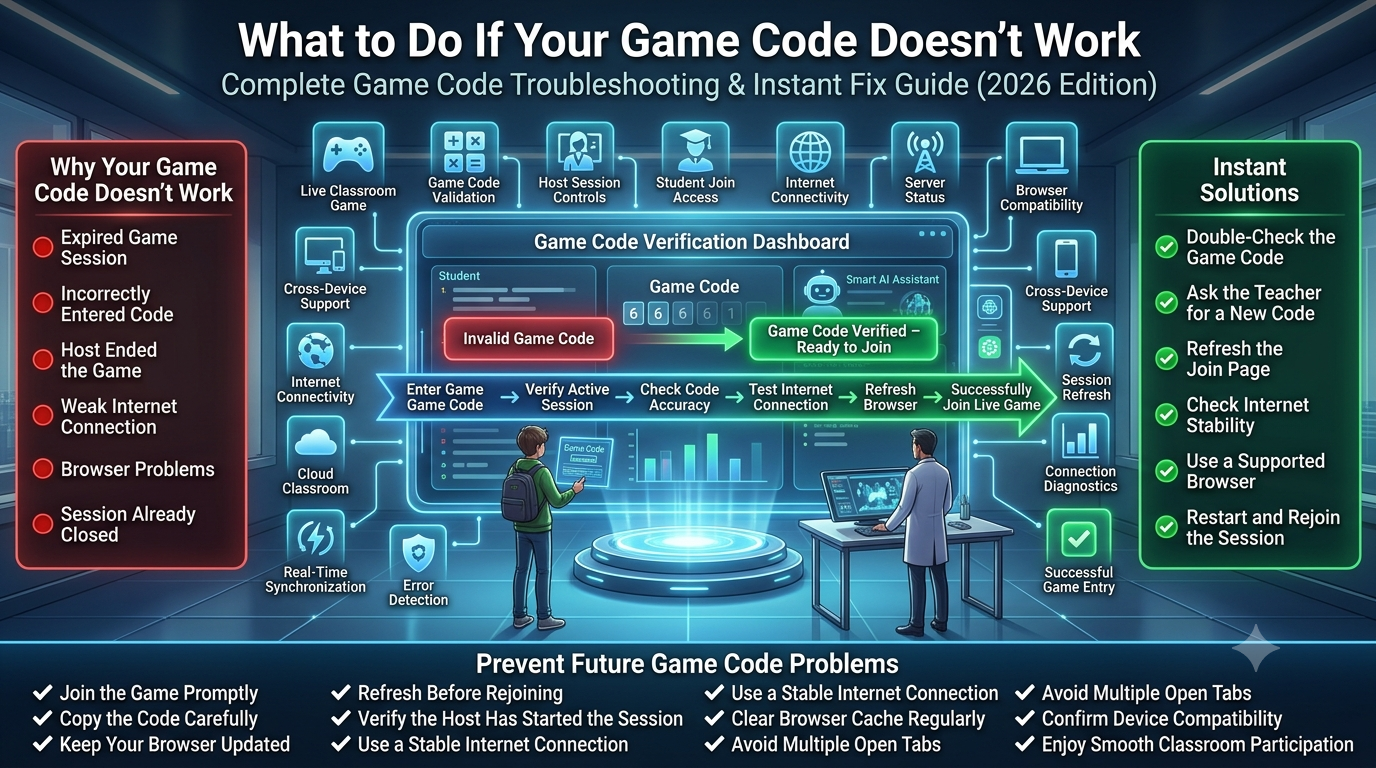
Start here: Ask your teacher or host for the live session’s current joining details. Open Gimkit’s official join page and follow the instructions shown by the host. If the code is rejected, do not repeatedly guess random codes. Check whether the session is active and whether your teacher restarted or changed the game.
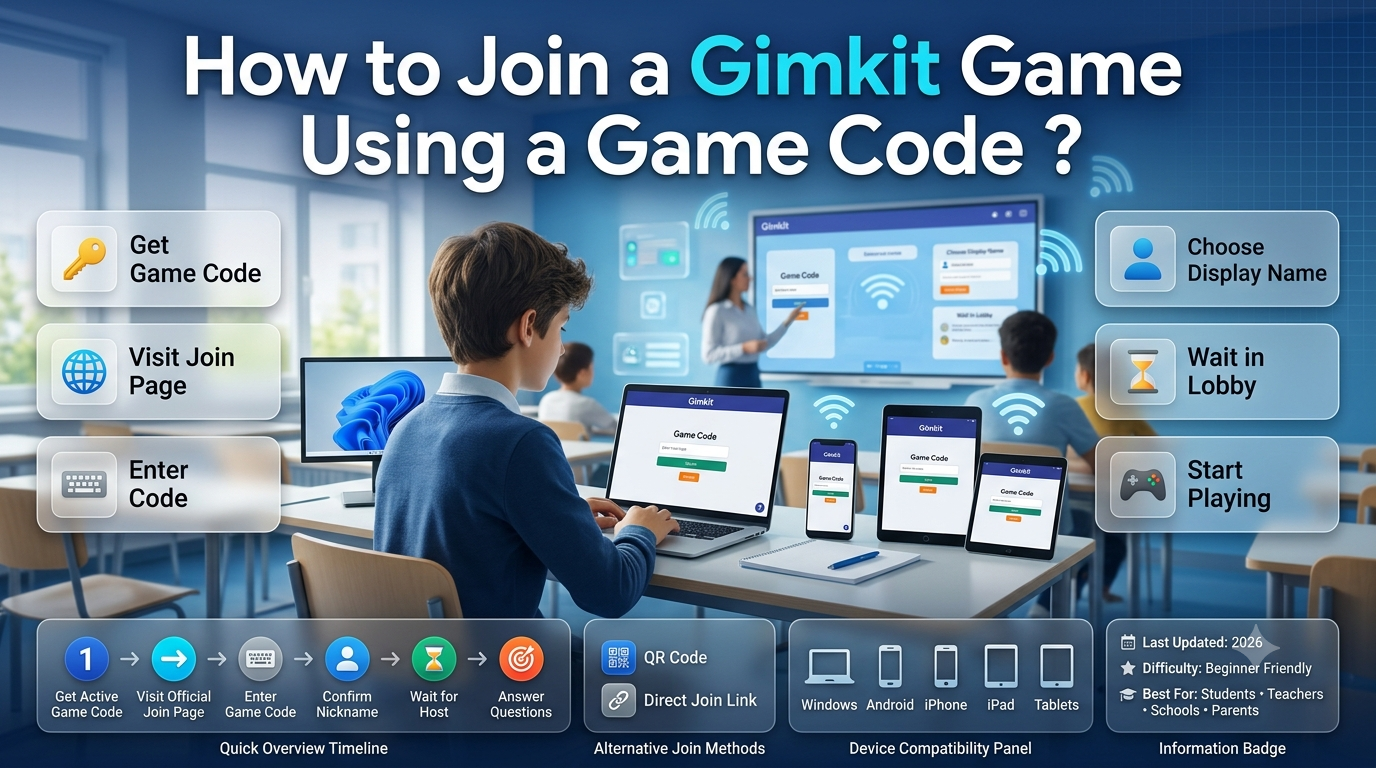
At a glance: According to Gimkit’s official join instructions, students can use a code, QR code or shared link. The live host screen is the source of the correct joining information. When Classes are connected and a student is signed in, the join process may happen automatically. This website is an independent guide, not a source of active game codes.
1. Identify exactly what failed
“My Gimkit code doesn’t work” can describe several different problems. A code might be copied incorrectly, the host might no longer be running the session, the teacher may have disabled joining after the start, or the page might not load at all. Those causes require different fixes. Begin by identifying the earliest step at which the process breaks. If the site never loads, changing a code cannot repair an internet or school-filtering problem. If the site loads but rejects the session, reinstalling your browser is an unnecessarily large first step.
What you see
Likely area to investigate
First safe action
The join page never loads
Internet access, browser, school filtering
Check the URL, connectivity and school-approved browser
The code field appears but your code is rejected
Incorrect or outdated session details
Compare the characters with the host’s current lobby screen
The code worked before but fails now
Host ended, restarted or replaced the session
Request a fresh code or link from the host
You enter but cannot start playing
Waiting lobby, host controls or mode loading
Ask the host whether the game has started
Only one school device cannot join
Device, browser profile or local restrictions
Try one school-approved alternative browser or device
All classmates have the same issue
Host session or wider connectivity
Let the teacher test one device and arrange backup practice
2. Interactive join problem navigator
Open the symptom that most closely matches your situation. These expandable panels work without tracking, logins or scripts, and show a focused diagnostic sequence rather than a generic list of unrelated fixes. After completing one sequence, tell your host the exact point where progress stopped.
Verify the URL and try refreshing once rather than repeatedly reloading.
Check whether the school’s permitted browser is current and supported.
On managed devices, ask the school’s IT administrator about filtering. Do not disable protection or install unapproved software.
Use the teacher’s equivalent practice questions while the issue is investigated.
C. My teacher says I should join automatically with Classes
Ask whether the live game has been connected to your class.
Check that you are using the appropriate Gimkit student account if the teacher requires class-connected access.
Follow the host’s actual on-screen directions; a class-connected join may not use the same typing workflow.
Never share a password or one-time account code to prove membership.
D. I am in the lobby but cannot play yet
Check whether the teacher has clicked Start Game.
Wait for the mode to load and follow the host’s instructions.
If a blank screen or specific error persists while others can play, tell the teacher the exact browser and what is visible.
Do not restart a live host session yourself or attempt to change the teacher’s options.
E. I joined earlier but was disconnected
Check network access and whether the host session is still running.
Ask if late joining or re-entry is permitted for that session.
Use the current link or code if the host confirms it is appropriate.
For repeated school-network issues, provide the teacher with the error text and approximate time rather than sharing credentials.
3. First check the official join route
Students without a class-connected automatic flow are generally directed to gimkit.com/join to enter the host-provided code. The current official help article also documents using a shared URL or a QR code. A browser page advertising “free Gimkit codes” is not an official source of valid live sessions; codes are associated with games a host has actually started.
Do not confuse this third-party educational resource website, GimkitApp.com, with the official platform at gimkit.com. Guides here can explain how a code works, but they cannot generate a valid code for someone else’s session. If a page promises that an arbitrary static code will always work, treat that claim with caution.
Copying the full join URL can reduce typing errors, but it will not revive a game that the teacher has ended. Similarly, scanning the QR code from a previous class will not guarantee that the same session remains active. If your host displays new instructions, follow the latest ones.
4. Verify the code against the live host screen
When a student says a game code is invalid, the first useful comparison is the code displayed in the teacher’s current live lobby. Ask the host to read it aloud, show it on a screen or distribute the current join link through the class’s approved communication channel. A teammate’s copied message may be outdated after a restart.
Type carefully. Check for an omitted character, accidentally pasted space or confusing character. If the code is displayed too briefly for some learners, the teacher can leave the lobby information visible for longer. Do not ask students to photograph or post a screen that contains personal information. A copied link shared through the school learning-management system is usually more accessible than relying exclusively on a projected code.
There is no benefit in repeatedly guessing variations of a rejected code. When the exact current code fails on several devices, the host should investigate the live session rather than telling every student to clear data or install applications.
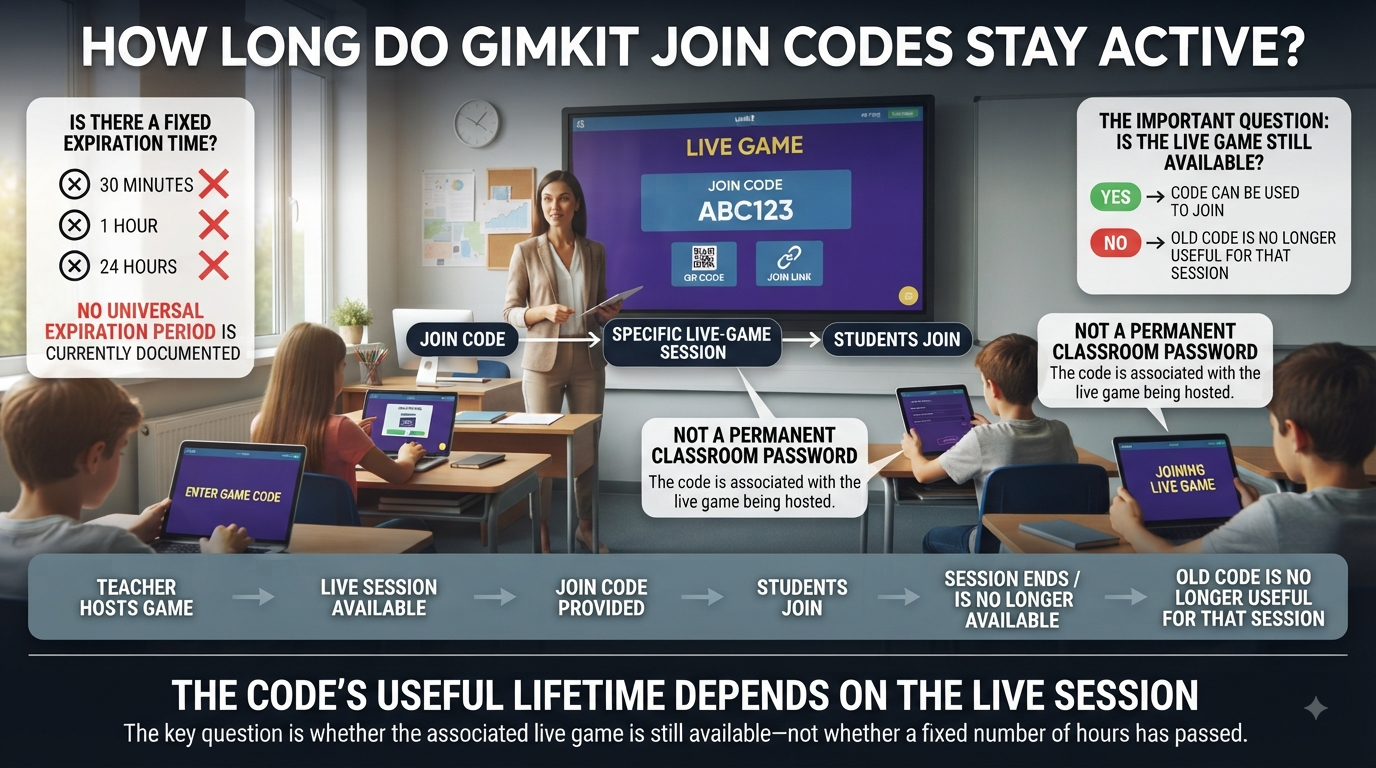
5. The host may have restarted or ended the game
Live game sessions have a beginning and an ending. When a teacher ends a game and creates a new session, students must follow the currently displayed joining details. A code from an earlier session is not a general account password, a permanent class access key or a way to revisit old results. Ask whether a new game was launched or an existing session was ended.
Teachers can follow the official Host a Live Game tutorial: select a Kit, select a mode, set options, share the code or joining link, and start the game. If a teacher accidentally shares a screenshot of a previous lobby, replacing it with the live lobby’s current information is a better first fix than troubleshooting each student independently.
6. Understand why a lobby might not be ready
Successful code entry does not always mean active gameplay has started. According to Gimkit’s host guide, students gather in a lobby before the host starts. Teachers may be checking names, waiting for absent classmates or adjusting the lesson plan. Students should confirm with the host that the activity has begun instead of repeatedly submitting the code while already connected.
If a learner sees an error after a game starts, note whether other students entered successfully. A single affected device suggests a different issue from a class-wide failure. Where a mode takes time to load, a brief pause may be normal; a persistent blank page or clear browser error is worth reporting with exact wording.
7. Late joining may be disabled
Teachers can configure live game options, and the official hosting guidance describes an option governing whether students can join late. If a student arrives after the activity starts, ask whether the session still accepts entrants. There is no safe browser trick that overrides a host’s deliberately closed joining period. The teacher can decide whether to change the setup, invite the student to a subsequent session or provide equivalent practice.
A sensible policy communicates joining expectations before the lesson. Some teachers keep joining available for staggered arrivals, while others need a closed start for a tightly managed activity. Neither choice changes the student’s academic worth. The learning objective should remain accessible through an approved alternative when a late arrival cannot enter.
8. Classes can change the join experience
Gimkit’s Classes documentation describes class membership, appropriate names and tracking relevant assignment progress. The official join article notes that a student signed into a connected class can enter automatically in supported live joining flows. Teachers should not instruct every student to type a code if the class-connected workflow shows different directions.
If a student believes they belong to a class but cannot enter automatically, check account identity and whether the host selected the intended class. The teacher should confirm membership through the authorized class interface. Do not solve the issue by asking a student to share a password or by posting class invitation links publicly. A class roster is not a substitute for a school’s data handling rules.
9. Check the device and network only after confirming the session
A site loading failure deserves an ordinary browser check. Verify that the device is online, the address is correct, and a school-approved browser can access the page. Close unnecessary tabs when a device is overloaded. If one school Chromebook fails while other devices work, report the device-specific symptoms to school IT. Avoid indiscriminately clearing all cookies and saved passwords, which may sign students out of legitimate school accounts.
If a classroom network blocks the platform, ask the authorized school administrator to review the filtering policy. Students should not use unauthorized VPN services, browser extensions or unapproved hotspot networks to bypass institutional controls. If the school has disabled access for privacy or administrative reasons, the teacher should use an approved alternative activity.
Distinguish connectivity from an alleged platform outage. A failed attempt on one device does not prove Gimkit’s servers are down. If several devices and networks show the same problem, check the provider’s official communications or contact support rather than claiming a specific attack or incident without evidence.
10. Test one representative device before troubleshooting the whole class
When multiple students report failure, the host can perform a controlled test on a single school-approved device while students work on equivalent practice questions. If a correctly copied current link also fails on that device, inspect the host session and network. If the test succeeds, determine what the failing devices have in common: an account type, managed browser, particular access route or the same old copied link.
Do not ask every learner to refresh at once or reinstall applications. A systematic check reduces disruption and produces actionable information for school support. Record a short incident note: the date and approximate time, mode, failure step, device/browser combination and exact message. Do not include a student’s password or unnecessary personal data.
11. Distinguish game code problems from login problems
A game code allows access to a specific live session. A login problem concerns account authentication. A student entering a code may not need an account in the ordinary joining flow, whereas joining a connected class may require one. Confusing the two can lead teachers to troubleshoot an account that was never required.
If a learner cannot sign into a required account, follow official account recovery instructions and school policy. Do not reset passwords merely because a live code failed. The site has separate guides on Gimkit Login and Gimkit Join for their respective workflows; this article focuses on diagnosing why a supplied session code does not work.
12. Teacher procedure when the whole class cannot join
Protect lesson time. Start with one controlled check using the live host instructions. If the session is wrong or ended, replace the join information. If the session is active but multiple devices fail, investigate the common network or permission issue. Set a reasonable troubleshooting limit and move to a backup task when the cause cannot be resolved promptly.
Backup mini-lesson:
Write the original learning objective where students can see it.
Display or distribute two representative questions from the intended Kit.
Allow students to answer independently or with an established accommodation.
Discuss why one distractor is tempting but incorrect.
Collect a short response and use it to plan tomorrow’s practice.
The class has preserved the learning goal even if the game remains inaccessible.
13. Join-code troubleshooting checklist
Use this checklist before escalating. You can tick items while reviewing the issue with a teacher; it does not submit personal information or communicate with Gimkit.
14. Common myths about Gimkit game codes
Claim
What to understand
One code always works for Gimkit
Live codes belong to actual host sessions; use current host information
A new account will fix any invalid code
Account authentication and session validity are different issues
Scanning an old QR code should revive the game
A QR route cannot guarantee access to a session the host ended
Every invalid code means servers are down
Wrong, stale or mistyped information is a separate possibility
Students should bypass a blocked school network
School access controls must be handled by authorized staff
15. Scenario examples
Scenario A: a code copied into a class group chat yesterday
A learner uses a code saved from an older lesson, but the teacher has started a different game. The join page loads normally and rejects the code. The correct response is to request the current lobby information—not clear browsing data or reinstall the operating system. The teacher shares a new link through the approved classroom platform, and students resume the intended task.
Scenario B: students arrive after a timed review begins
Two students arrive late and report that the session no longer accepts them. The host checks the relevant joining option instead of assuming the code was typed incorrectly. If re-entry is intentionally restricted, the learners receive equivalent practice and can join a future activity. Instruction continues without punishing them for a configuration they do not control.
Scenario C: only school-managed browsers fail
A teacher’s test device can load the joining page, but multiple managed student devices cannot. This pattern suggests investigating school device or network policy. The teacher records the error details for school IT and uses paper or projected questions in the meantime. Students are not asked to bypass monitoring or filtering systems.
Scenario D: a class-connected student expects automatic joining
The teacher has connected a class but one student is signed into a different account. The student does not see the expected automatic route. The teacher confirms class membership through the proper interface and gives appropriate instructions. The fix is not to ask for the student’s account password or post the class link publicly.
A mistyped or outdated code, a changed session, or the wrong joining context may explain the rejection. Check the host’s live screen first. The exact cause cannot be determined from the word “invalid” alone.
Where can I find a real Gimkit game code?
From the teacher or host of an active session. The official host lobby provides the current joining information. A third-party blog cannot supply a universally valid code.
Can I use a Gimkit game code from yesterday?
Do not assume so. Ask your host whether the same game is still active and use the current code or link for the intended session.
Can I join with a QR code instead?
Yes, official joining guidance includes QR codes shared by the host. The QR route still depends on the live session being available.
Do I need to make a student account?
Ordinary live game entry can work without a student account. A class-connected setup may use a signed-in account; follow your teacher’s approved access instructions.
What if I cannot join after the game starts?
Check with the teacher whether late joining is allowed in that session. The host may need to adjust the plan or provide a parallel learning task.
Does changing browsers fix a wrong code?
No. A wrong or outdated session code needs correct host details. Browser troubleshooting is relevant if the page fails to load or a device displays technical errors.
What should I do if my school blocks Gimkit?
Ask the teacher or authorized school IT administrator about the policy. Do not bypass school restrictions through unapproved tools.
What if everyone has the same joining error?
Have the host verify the session and test one representative device. If the cause is not quickly resolved, continue the same lesson through an alternative task.
Conclusion: use the current host instructions, not random fixes
A Gimkit game code not working is a symptom, not a diagnosis. Find the point where entry stops, verify the live session, ask whether joining is open, and distinguish account, device and network problems. For product-specific changes, follow the official Help Center. This approach solves the most plausible causes first without wasting class time or compromising school security.
Independent educational guide. Not affiliated with Gimkit. No current game codes are provided here. Review official Gimkit documentation for changing features and interfaces.