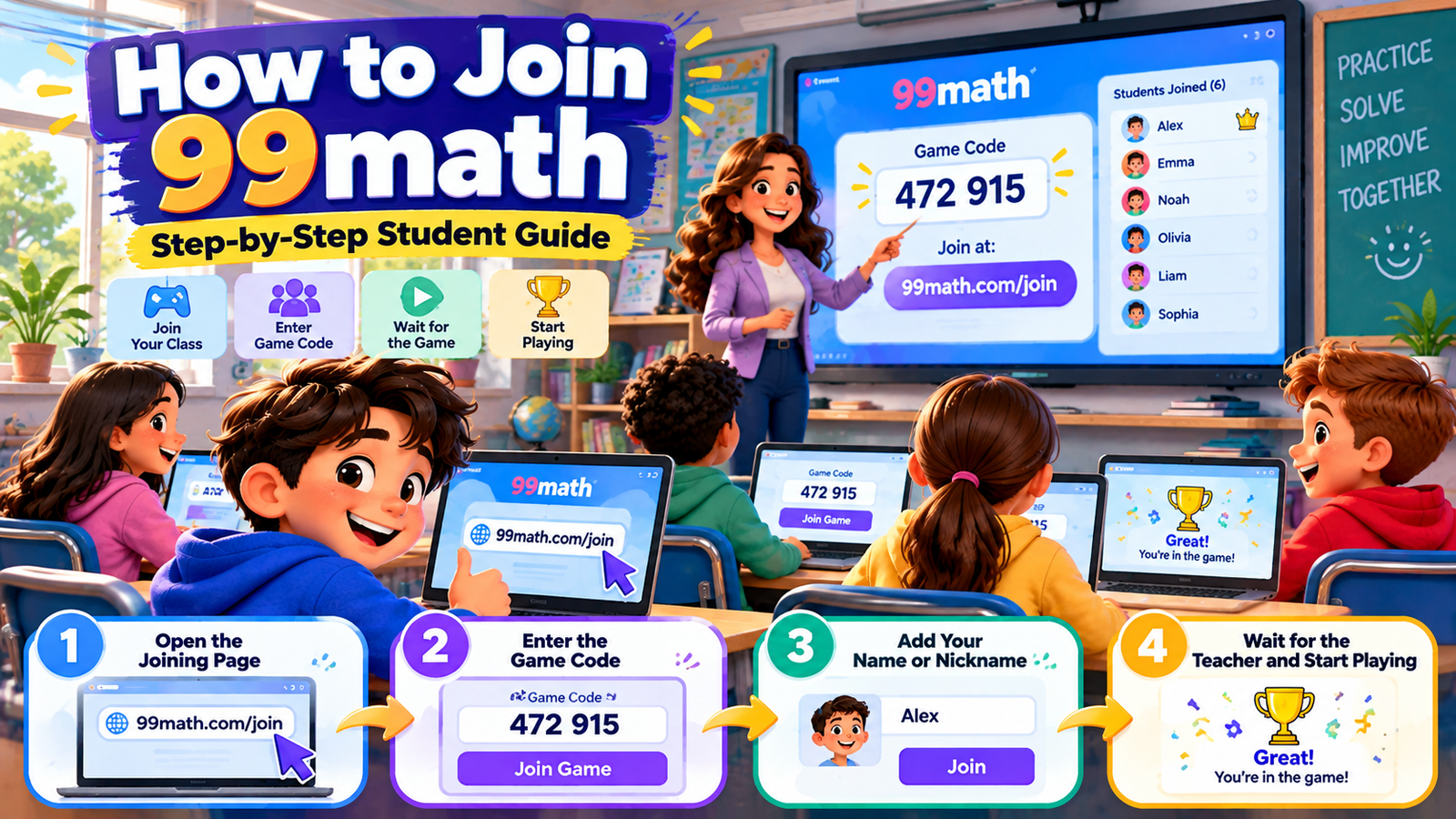
How to Join 99math: To join 99math, open the official student joining page at 99math.com/join, enter the game code provided by your teacher, add your name or classroom nickname, and wait for the teacher to start the game. You can join a standard live group game without creating a personal student account.
If you already have a 99math student account, you can sign in and select Enter Code from your homepage instead.
Whether you are using a school Chromebook, laptop, iPad, tablet, or smartphone, the basic joining process is similar. Your teacher prepares the game, shares its code, and controls when the classroom round begins. Your job is to connect to the correct session and get ready to answer math questions.
For first-time players, joining can be confusing when the teacher’s screen looks different from the student’s screen, the game has not started, or several classroom codes are being shared. This guide explains the complete student joining experience, including the preparation steps, what happens inside the lobby, how to recognize a successful connection, and what to do when something interrupts the process.
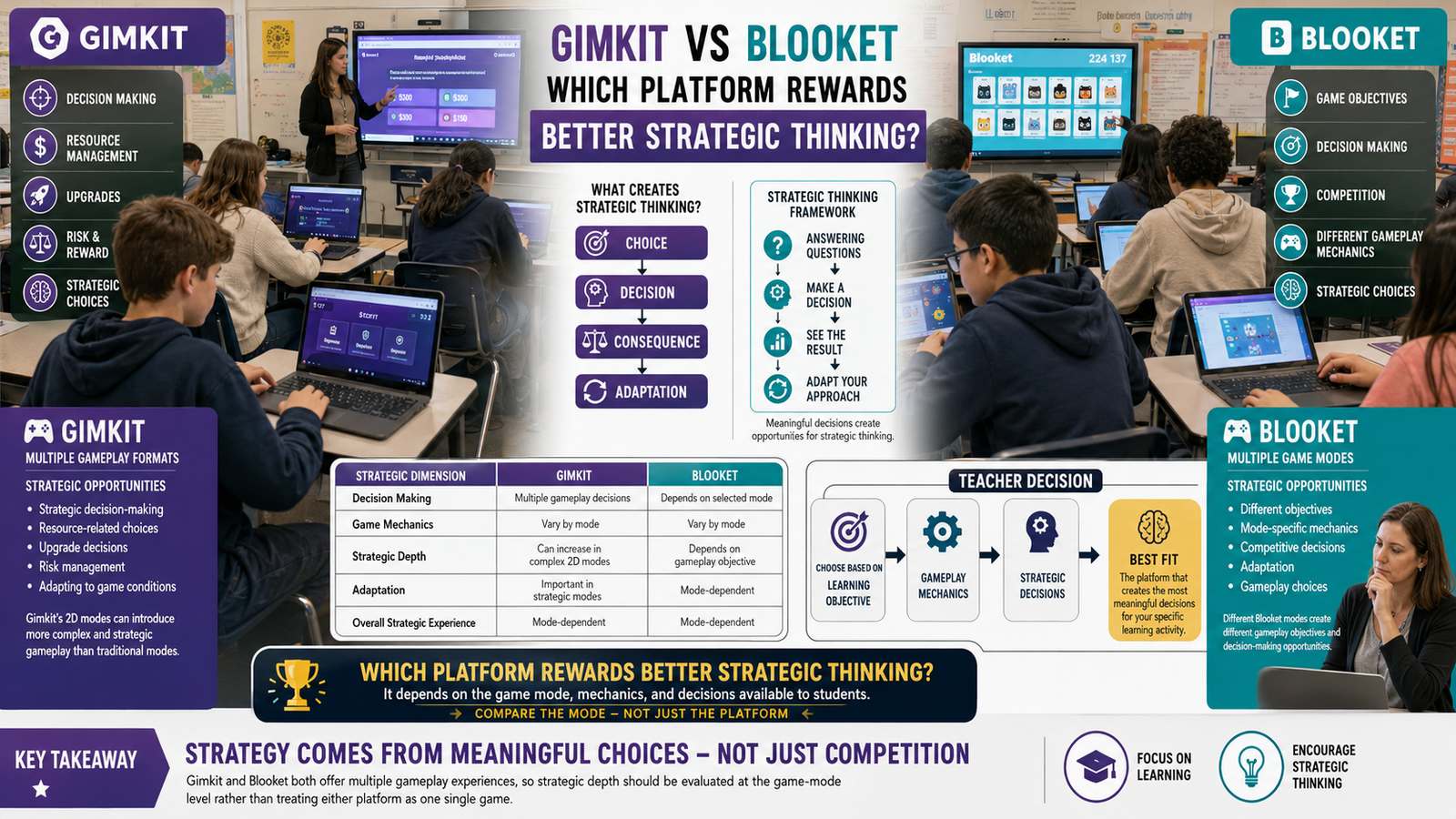
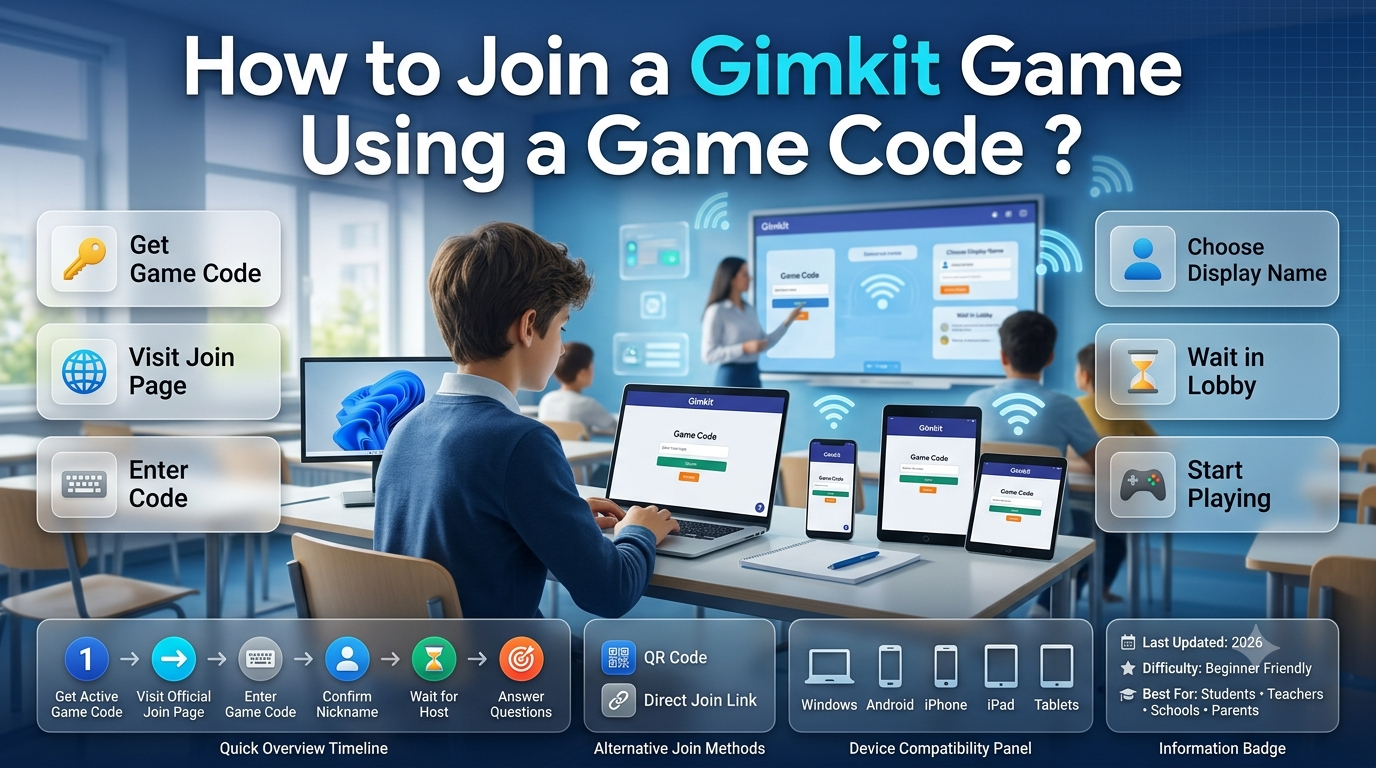
Explore Gimkit App for helpful guides, interactive learning resources, game tips, and educational tools that make learning more engaging and fun for students and teachers.
Quick Answer: How Do Students Join 99math?
Students join a live 99math group game using a teacher-generated game code. The normal process is straightforward:
Open a web browser on your device.
Visit 99math.com/join.
Get the current game code from your teacher.
Enter the code into the joining page.
Enter your name or an approved nickname.
Complete any additional on-screen player setup.
Wait in the game lobby for the teacher to start.
Begin answering math questions when the live round opens.
The teacher must prepare a group game before students can join its session. Entering a code does not create a new classroom game; it connects you to the one your teacher is hosting.
99math also supports personal accounts and individual math practice. Those features are separate from the basic live-game joining process. You do not have to explore them when your immediate goal is to participate in the classroom game shown on the board.
What Is the 99math Student Joining Process?
The student joining process is the connection between a teacher-hosted group game and the students who will participate.
99math is an educational math practice platform where teachers can organize interactive rounds around mathematical skills. In a live group game, the teacher chooses a skill, prepares the round, and displays a code that students use to enter.
A student does not independently set the topic or create the shared classroom session. Instead, the student opens the joining page and enters the code associated with the teacher’s game.
Once connected, the student’s player entry appears in the teacher’s game lobby. This allows the teacher to check that the class is ready before starting.
The practical distinction is important: joining a game is not the same as signing up for 99math. Joining provides access to the current live session, while registering a student account supports account-based activities and other personalized features.
Who can join a live 99math game?
Students who have the correct game code and an appropriate internet-connected device can participate in a standard live group session.
A teacher may use the game during an in-person lesson, a remote classroom meeting, a small-group activity, or another supervised learning session.
Students typically enter through a browser rather than installing a separate classroom application. This makes the basic joining process accessible on several types of devices.
The teacher can also provide joining instructions specific to the class, such as which nickname to use or when to begin.
Does the teacher have to start a game first?
Yes. A student needs a teacher-prepared group game with a current joining code.
If your teacher has only announced that a math activity will happen later, there may not be an active session available yet.
Opening the joining website early is fine, but the game cannot be entered without the appropriate code.
This is why students should wait for the teacher to display or distribute the joining instructions rather than searching for random codes on other websites.
What Do You Need Before Joining 99math?
Most students need only a few things: a compatible device, internet access, the current game code, and the name they should use during the activity.
Preparing these before the teacher begins reduces classroom interruptions and makes the joining process easier.
Requirement
Why it matters
What to check
Internet-connected device
Loads the game and sends responses
Device is connected and working
Web browser
Opens the student joining page
Browser can load ordinary websites
Current game code
Identifies the teacher’s live session
Code matches the teacher’s screen
Student name
Helps identify the player
Name follows classroom instructions
Active group game
Provides the session to join
Teacher has prepared the game
Teacher’s directions
Clarifies timing and participation
You understand when to begin
Choose a device that is ready to use
A Chromebook or laptop may be convenient in school because students can easily access a browser and see math questions on a larger screen.
A tablet can also work well, especially when the student is comfortable with touch controls.
Smartphones are supported for browser-based 99math participation, although the smaller display may require more careful attention when entering answers.
Choose the device approved by your teacher or school. If the class has assigned Chromebooks, using the classroom device may make the activity simpler than switching to a personal phone.
Check your internet connection
A live math game requires communication between your device and the online session.
Before joining, make sure the browser can open a website normally. A page that fails to load at all may point to an internet, browser, or school-network issue rather than a problem with the game code.
In a classroom, use the network your teacher or school recommends.
Avoid making changes to school network settings yourself. If websites appear blocked, ask your teacher or school technology staff for assistance.
Have the code ready
Students should obtain the game code directly from the teacher hosting the session.
The code might be shown on a projector, shared through a virtual classroom screen, or communicated using another teacher-approved method.
Pay attention to every character. If you cannot read the code from your seat, ask the teacher to show it more clearly.
Do not use a code from a different lesson merely because it worked previously.
Know which student name to enter
The player name allows the teacher to identify you after joining.
Some teachers ask students to use their first names. Others prefer a classroom nickname, student number, or another recognizable label.
Use the format your teacher requests.
Avoid entering private information such as a home address, phone number, password, or personal email address into a player-name field.
How to Join 99math Step by Step
The following walkthrough covers the complete process for a student joining a standard teacher-hosted live group game.
Step 1: Open your preferred web browser
Start by opening the browser on the device you will use for the lesson.
On a Chromebook, this will commonly be Google Chrome. On an iPad, you may use Safari or another available browser. A Windows laptop or desktop computer can use its installed browser.
Make sure you are connected to the internet before continuing.
If several browser windows or tabs are open, create a clear working space so you can easily return to the 99math game when your teacher begins.
You do not need to open the teacher dashboard or find a game-creation tool. Those are not part of the student’s joining task.
Step 2: Visit the official 99math joining page
Enter the following address into your browser:
https://99math.com/join/
This page is intended for students entering teacher-hosted games.
The official 99math homepage also provides a student option for entering a game code.
Check that you are visiting the official 99math website. Avoid unfamiliar third-party pages that imitate a joining screen or request unrelated account details.
A normal joining experience should lead you toward entering the game code and identifying yourself as a player.
Step 3: Find the live game code
Look at the screen or message provided by your teacher.
The teacher generates the code when setting up the group game. You should not attempt to invent a code or guess one.
For example, imagine the teacher displays a code such as 482731. This is only an illustrative example, not a real active game code.
Your own class may use a different code and display format. Always enter exactly what your teacher provides.
If the teacher shares an updated code after restarting or preparing another session, use the updated information.
Step 4: Enter the game code
Locate the code-entry field on the official student joining page.
Type the code carefully and submit it using the button or control displayed on the page.
Check the code before moving forward. A single incorrect character can prevent the website from finding the intended session.
If you are copying a code from a printed classroom instruction, check that you have not confused similar-looking characters.
Once the code is accepted, proceed to the next available part of the joining process.
If the page rejects the code, do not repeatedly try random combinations. First compare your entry with the code currently shown by the teacher.
Step 5: Enter your name or nickname
After the game code is accepted, the joining experience asks you to identify yourself.
Enter the name your teacher has approved.
For example, a teacher might ask students to use a first name and initial so the host can tell students apart when two people share a first name.
If the interface offers an avatar selection, choose an available character or appearance and continue.
Avatars are part of the player experience, but they are not a reason to delay the class. Make your selection and follow the remaining on-screen instructions.
Your goal at this stage is to create a recognizable player entry for the live session.
Step 6: Join the game lobby
After completing the joining steps, you should reach the waiting area or lobby for the game.
The game lobby is where the host can see the students who have joined before gameplay begins.
Your teacher may check the player list to confirm that everyone is connected.
If you have reached the lobby, avoid returning to the joining page simply because no math questions have appeared yet.
The session may be working correctly, and the teacher may still be helping other students.
Step 7: Wait for the teacher to begin
Students do not normally control the starting point of a teacher-hosted group game.
The teacher decides when the class is ready.
During this period, listen for any final instructions, such as whether you should focus on multiplication facts, how long the round will last, or whether everyone should remain quiet while answering.
Keep your device on the current game page.
If the screen appears to be waiting, that may be exactly what it is supposed to do.
Step 8: Start answering math questions
When the teacher begins the round, the game moves into active practice.
You will see math questions based on the topic selected by your teacher.
Read each question carefully and enter your answer through the displayed interface.
The activity can involve timed rounds, so you may feel encouraged to work quickly. However, speed is most useful when paired with accurate mathematical thinking.
For example, if a question asks for \(8 \times 7\), recall the multiplication fact or apply a reliable strategy rather than selecting a random answer.
Continue until the round ends or the teacher gives additional directions.
Step 9: Follow instructions between rounds
A group session can contain multiple rounds, depending on how the teacher configured the activity.
When one round ends, the teacher may review the class’s progress and begin another.
Remain attentive to your screen and classroom instructions.
Do not assume the entire session is over simply because you have finished one round of questions.
The teacher will indicate whether another round is coming or whether the activity has concluded.
Step 10: Finish the classroom activity
At the end of the game, follow the results or completion screen displayed by 99math.
Your teacher may use the results to discuss common mistakes, recognize improvements, or decide what the class should practice next.
You generally do not need to create a new account, join another code, or restart the browser after the session unless your teacher specifically requests it.
The main joining task is complete once you have connected to the right game and participated in the teacher-hosted activity.
What Happens After You Join a 99math Game?
A successful connection does not always mean that math questions appear instantly.
After joining, students normally enter a waiting stage while the host confirms that the group is ready.
The teacher’s hosting screen shows incoming players, making it possible to check participation before launching the live round.
The student experience is intentionally different from the teacher experience. Teachers prepare the game and control its progression, while students connect, identify themselves, and answer questions.
Knowing this difference can prevent unnecessary troubleshooting.
The game lobby is a waiting area
Think of the lobby as the online equivalent of arriving in a classroom before the lesson begins.
You have entered the correct activity, but the teacher has not started the timed math practice.
If classmates are still joining, the teacher may keep the session waiting.
A student should not mistake this normal waiting period for a failed connection.
Your player entry helps the teacher
The teacher can use the lobby to identify which students have joined.
If you used a confusing nickname or an unexpected name, the teacher may have difficulty recognizing your entry.
This is one reason classroom naming instructions matter.
When you use the requested name consistently, it becomes easier for the teacher to check participation and manage the group.
Gameplay begins when the host starts
The teacher chooses when to begin the live round.
At that point, the student screen changes from waiting to answering math problems.
The specific questions depend on the practice skill chosen by the teacher, not on the student’s device.
A Chromebook student and a tablet student can participate in the same classroom challenge even though their screen layouts or input methods may look different.
How to Know You Joined the Correct 99math Game
The easiest confirmation is that your player entry appears in the teacher’s current group-game lobby.
A student should also see the expected joining or waiting experience after entering the code.
If the teacher can see your name and you are waiting for the current session, you have strong evidence that the joining process succeeded.
However, there are several situations worth distinguishing.
You entered a code but still see an entry field
You may not have completed the code submission process.
Check whether the code was accepted and whether the page is asking you to do anything else.
Do not assume a successful connection just because you typed the code.
You entered your name and reached a waiting screen
This generally indicates that you have progressed into the session’s lobby.
Wait for the teacher to begin and check whether your player entry is visible to the host.
You see an unexpected activity
Check with your teacher before answering questions.
You may have entered an outdated or incorrect code, or the teacher may have changed the activity.
Do not guess which game is correct based solely on the topic shown on your device.
The teacher cannot identify you
Tell the teacher which name you entered.
If your entry needs to be corrected, follow the teacher’s instructions rather than creating several duplicate player entries.
A clear player name makes classroom management easier and reduces confusion during the activity.
Can You Join 99math Without an Account?
Yes. For a standard live group game, 99math supports joining without a separate student login.
Students can open the official joining page, enter the teacher’s game code, and participate after completing the player-identification steps.
This is particularly useful for classroom activities where the teacher wants everyone to begin quickly.
Account-free participation should not be confused with the full range of account-based 99math features. Personalized practice, student account management, and some longer-term learning activities follow different workflows.
For the live joining task, the most important requirement is the code for the session your teacher is hosting.
What if you already have an account?
You can sign in to your student account and use Enter Code from the homepage.
This connects account access with the live-game joining process.
If you are already signed in, there is no need to create another student profile simply to participate in a group round.
If your teacher specifically requests that you use your school account, follow those instructions.
Should you sign up before every classroom game?
No. Creating a fresh account before every live group game is unnecessary.
For ordinary code-based group participation, use the joining route your teacher provides.
If you have an existing account and your teacher requires it for a particular classroom workflow, sign in through that established account.
Avoid making multiple accounts because you are unsure which page to use. Ask your teacher to clarify whether the activity requires an account or only a game code.
How to Join 99math on a Chromebook
Chromebooks are a common choice for web-based classroom activities. Students can use the built-in browser to access the official joining page.
Begin by opening Chrome and confirming that your school internet connection is working.
Type 99math.com/join into the address bar rather than a search field inside another classroom application.
Once the page loads, enter the code shown by your teacher and continue with the player-name instructions.
When the lobby appears, stay on that tab until the teacher starts the game.
If your Chromebook has several open tabs, close unrelated pages when allowed so the game is easy to find.
A typical Chromebook does not require a separate installation for browser-based joining.
Chromebook classroom considerations
Some schools manage Chromebook settings centrally.
Your browser may have restrictions, filtering tools, or approved website rules configured by the school.
If 99math does not load on a managed device, do not try to bypass restrictions. Ask your teacher or school administrator to check whether the site is permitted.
If the joining page loads but the code is not accepted, focus first on the code and active session rather than assuming the Chromebook is the problem.
How to Join 99math on an iPad or Tablet
Students can access browser-based 99math group games on iPads and other suitable tablets.
Open your browser and visit the official student joining address.
Enter the current teacher-provided game code using the on-screen keyboard.
After submitting the code, follow the name and player setup instructions.
When the lobby loads, keep the browser open and wait for the session to begin.
Because tablets use touchscreens, students should pay attention to where they tap when answering questions.
If the keyboard covers part of the screen during code entry, dismiss it after submitting the code so you can see the rest of the page clearly.
Tips for tablet users
Place the tablet on a stable surface where you can read the math questions comfortably.
Avoid switching rapidly between apps while a live round is active.
If the tablet is shared in a classroom, follow the teacher’s instructions about which student should use the device and which name to enter.
Use the available screen orientation that makes the activity easiest to read. The exact layout can depend on the device and browser.
How to Join 99math on a Phone
99math’s official website identifies phones among the devices that can access browser-based activities.
To join from a smartphone, open your browser, navigate to the student joining page, and enter the game code.
Follow the on-screen prompts to identify yourself and wait for the teacher’s session to start.
The smaller screen can make some controls feel more compact than they would on a laptop or tablet. Read the question completely before entering an answer.
Using a stable internet connection is especially important during a live game.
If the class is using school-provided devices, check whether your teacher permits personal phones.
Should you use the app or browser?
For the specific task of joining a teacher-hosted group game, the official browser joining route is a clear starting point.
99math also offers mobile apps associated with student home practice, but an app download is not a prerequisite for joining the standard browser-based live game.
Follow your teacher’s instructions if the school has a preferred device or approved access method.
Can You Join 99math From Home?
Yes. A teacher can run a group game while students are in different locations, provided the participants can access the active session.
For example, a teacher might display the code during a virtual class or share it through an approved classroom communication channel.
The student can open the joining page from home, enter the code, and wait for the remote group session to begin.
The key requirement is that the teacher is actually hosting a live group game.
Opening the joining website at home does not automatically create a math activity.
Joining during a video lesson
If your teacher is sharing the game code through a video-conferencing lesson, keep the meeting and the game accessible.
You may need to read the code from the teacher’s shared screen before switching to your browser.
If possible, arrange your windows so you can see the instructions without repeatedly leaving the joining page.
After you enter the session, listen for the teacher’s announcement that the round is starting.
If your device struggles with several applications running at once, ask whether you can use a second device for the video meeting or follow another approved classroom arrangement.
What if you receive the code before the lesson?
A code shared in advance may not mean the session is ready for immediate participation.
Wait for the scheduled activity or teacher instructions.
If the code does not work before the lesson, do not assume that your device has a problem. The teacher may not have started the group-game setup yet, or a different code may be used when the session begins.
99math Game Code vs. Class Code: What Is the Difference?
A 99math game code and a 99math class code serve different purposes.
The game code identifies a specific teacher-hosted group game. Students use it to enter the live math activity.
A class code connects a student account to a teacher’s class. It is part of classroom membership rather than the immediate live-game joining process.
Feature
Game code
Class code
Main purpose
Join a live group game
Join a teacher’s class
Associated with
A specific group session
A class created by a teacher
Typical use
Starting classroom gameplay
Establishing class membership
Where it is used
Game joining process
Student account class-joining process
Student account required
Not for standard guest group joining
Used for account-based class joining
These codes should not be treated as interchangeable.
If your teacher asks you to enter the current game code, use the live-game joining process.
If the teacher is helping you connect your account to a class, follow the class-membership instructions instead.
This distinction helps students avoid visiting the wrong page and repeatedly entering a valid code into an unrelated field.
What Math Activities Can You Expect After Joining?
The live joining process stays broadly similar even when the classroom topic changes.
Your teacher selects the mathematical skill or topic before sharing the game code.
Students then join the same group activity and answer questions generated for that selected practice area.
For example, the teacher may create a round involving multiplication facts, addition, subtraction, division, or other supported mathematical skills.
You do not need a separate joining page for each topic.
The game code connects you to the selected activity, and the session provides the appropriate questions.
Joining a multiplication activity
Imagine your teacher is reviewing multiplication facts involving sixes and sevens.
The teacher prepares a group game and shares its code.
You join through the normal student route, enter your name, and wait for the round.
When play begins, you might answer questions such as \(6 \times 7\), \(7 \times 8\), or \(6 \times 9\).
The exact questions are determined by the game, not by the code-entry process.
Joining an addition activity
In another lesson, the teacher might select addition practice.
The student uses the same joining procedure: open the page, enter the active code, and wait for the host.
Once the round starts, the screen presents the math tasks chosen for that session.
This illustrates an important point: learning topics change, but the fundamental process of entering a live group game remains consistent.
Joining a mixed-skills activity
Some classroom practice involves more than one type of mathematical thinking.
If the teacher selects a suitable skill area, students may encounter questions that require different operations or representations.
The joining procedure is still independent of the skill content.
As a student, concentrate on reaching the correct session first. Once connected, focus on the actual math questions.
Common Mistakes Students Make When Joining 99math
Many joining difficulties come from small misunderstandings rather than complicated technical failures.
Recognizing these mistakes can help students enter their games more smoothly.
Mistake 1: Using an old game code
Students sometimes save a code from a previous lesson and try it again.
A group-game code belongs to its specific session. A past code should not be assumed to work for a new classroom activity.
Always check the currently displayed code.
Mistake 2: Entering a class code as a game code
A class code and a game code have different functions.
If your teacher gives you a code for joining a class, it may not work in the live-game entry process.
Ask which kind of code you have before repeatedly trying it.
Mistake 3: Joining under an unrecognizable name
A nickname that is amusing to classmates may be difficult for the teacher to identify.
Choose a name that follows the classroom instructions.
This is especially important when several students have similar names.
Mistake 4: Assuming the game has failed because it has not started
Students may reach the lobby and expect questions immediately.
However, the teacher may still be preparing the class or waiting for others to join.
Look for the waiting experience and check whether the host can see your entry before treating the situation as a failure.
Mistake 5: Opening multiple copies of the same session
When students are uncertain whether joining worked, they may open the page in several tabs or attempt to enter repeatedly.
This can make it harder to determine which tab is connected to the current game.
Use one active session unless your teacher instructs you otherwise.
Mistake 6: Sharing personal information unnecessarily
The standard player-name step does not require students to publish private details.
Use the name or nickname approved by your teacher.
Never enter an account password, home address, telephone number, or other sensitive details into an ordinary player-name field.
What to Do If 99math Won’t Let You Join
A failed joining attempt can have several causes, including an incorrect code, a session that is not ready, a browser issue, or an interrupted connection.
The first step is to identify where the process stopped.
Do not try unrelated fixes before checking the most likely explanation.
The game code is not accepted
Compare every character with the current code shown by your teacher.
If your teacher has generated a new game, make sure you are not using a previous code.
Ask another student or the teacher to confirm the displayed code, rather than searching for codes on public websites.
If the correct code still does not work, tell the teacher what happens when you submit it.
The teacher can then check the session status.
The joining website does not load
First check your internet connection.
Try opening another familiar website to see whether the browser can connect.
If no websites load, the problem may involve your connection rather than 99math.
If other websites work but the joining page does not, check the address for typing errors.
You may also ask the teacher whether other students are experiencing the same issue.
On a school-managed device, network filtering or browser restrictions may need to be reviewed by authorized school staff.
You entered the code but cannot see the game
Check whether the page is waiting for you to enter a name or complete another player setup step.
If you have reached the lobby, you may already be connected.
Ask your teacher to check for your player entry.
If you are still on a code-entry page, the joining process may not have completed.
Your name does not appear on the teacher’s screen
Tell the teacher the exact nickname you entered.
You may have used an unfamiliar name, connected to the wrong activity, or failed to complete the final joining step.
Avoid generating several new entries while the teacher is checking.
A controlled correction is usually easier than repeatedly restarting the process.
You joined, but the math questions have not appeared
The teacher may not have started the round.
Look for a waiting screen and listen for classroom instructions.
If other students are already playing while your screen remains unchanged, tell the teacher so they can determine whether your connection needs attention.
Your connection drops during the game
An unstable internet connection can interrupt online participation.
Check whether your device is still connected to the school or home network.
Tell your teacher before attempting to rejoin, especially when a timed round is running.
If the teacher provides a fresh code or asks you to repeat the joining process, follow those instructions.
Whether your previous progress remains available depends on the session and account context; do not assume that it will automatically be restored.
How to Join More Smoothly in a Busy Classroom
A classroom with many students joining simultaneously can feel hectic, even when the technical steps are simple.
A predictable joining routine helps keep the activity organized.
One useful approach is to prepare the device before the code is displayed.
Open your browser, make sure the website is accessible, and listen for your teacher’s instructions.
When the code appears, enter it carefully rather than competing to be the first student in the lobby.
After joining, use the waiting time to read any instructions on your screen.
Follow a consistent name format
If your teacher requests first names and initials, follow that pattern every time.
Consistency makes the player’s identity easier to recognize during classroom activities.
For example, if several students are named Alex, a format such as Alex M. or Alex R. may help the teacher identify them.
The exact format should come from your teacher, not from a website telling every student to use the same system.
Keep your device ready
A device with a nearly empty battery or unstable connection can interrupt participation.
Before the activity, ensure the battery has enough charge or that charging is available when allowed.
Keep the browser tab accessible and avoid running unrelated applications that could distract you during the game.
Listen for the round’s beginning
Joining the lobby and beginning math practice are separate stages.
The teacher may explain the topic, time limit, or expectations before starting the round.
Listening at this stage helps prevent confusion once the questions appear.
Ask for help early
If you cannot read the game code, see an unfamiliar page, or do not know what to enter, ask while the class is still joining.
It is easier to solve a joining question before the timed activity starts.
This small habit can help you participate fully instead of spending the round troubleshooting.
A Complete First-Time Student Example
Consider a hypothetical fifth-grade classroom preparing for a multiplication review.
The teacher announces that the class will use 99math for a short live practice activity.
Students open their Chromebooks and make sure the internet connection is working.
The teacher prepares the group game and displays its code on the classroom screen.
A student named Maya opens 99math.com/join in Chrome.
She types the code shown by her teacher and submits it.
The joining process asks for her player name. Following the teacher’s instructions, she enters Maya L.
If an avatar-selection step appears, she chooses an available avatar and continues.
Maya then reaches the game lobby.
She notices that the questions have not started yet, but she does not reload the page. She knows the teacher is waiting for the remaining students.
The teacher sees Maya’s entry in the lobby and continues checking attendance.
Once everyone is connected, the teacher starts the first round.
Maya begins answering multiplication questions. When one round finishes, she follows the teacher’s instructions for the next stage.
At the end, the class reviews which multiplication facts were difficult.
This example shows that joining is a short part of the overall learning activity. The student does not need to configure the group game, choose its settings, or manage other players.
The most important actions are entering the current code, using the correct name, and waiting for the teacher’s signal.
How Can Parents Help a Child Join 99math?
Parents may occasionally help children join a live 99math session from home, especially during remote learning or a teacher-organized online activity.
The most useful support is practical rather than complicated.
Help the child open a browser, find the official joining page, and carefully enter the code supplied by the teacher.
If the child is unfamiliar with the keyboard, assist with typing the code while allowing them to follow the classroom instructions themselves.
Once the child reaches the game lobby, confirm that they understand the teacher will begin the activity.
Avoid creating a new student account unless the teacher’s assignment requires one.
Supporting younger students
Younger learners may struggle to copy a code accurately from another screen.
A parent can read the code slowly or check that the characters were entered in the correct order.
If the child does not know what name to use, refer to the teacher’s instructions.
The parent does not need to answer the math questions for the student. The educational purpose of the activity is for the child to practice.
Supporting independent participation
As students become familiar with the platform, encourage them to manage the ordinary joining steps themselves.
They can learn to open the correct website, enter a code carefully, and recognize the waiting lobby.
These are basic digital classroom skills that apply to many online learning activities.
If a technical problem occurs, adults can help check the connection or contact the teacher without taking over the entire activity.
How to Stay Safe While Joining 99math
Students should use the official 99math website and follow their teacher’s classroom directions.
A live-game code is intended to connect participants to a particular session. It should be shared through the channels approved by the teacher.
Avoid posting classroom codes publicly or using unfamiliar websites that claim to provide random active codes.
A page asking for unrelated personal information should be treated cautiously.
Use the official website
Check the website address before entering a code.
The official domain is 99math.com, with a dedicated student joining path.
A random website offering a similar-looking form is not automatically associated with 99math.
If you are unsure whether a link is authentic, ask your teacher or parent.
Protect account information
Joining a standard guest group game does not require sharing a personal account password with classmates.
If you use an account-based login, enter credentials only through the appropriate official sign-in process.
Do not give passwords to people who claim they need them to add you to a game.
Choose appropriate player names
Use a name your teacher recognizes without including sensitive personal details.
Avoid names that reveal private contact information.
Classroom naming rules should also support respectful participation, so choose a nickname that does not impersonate or insult another student.
Frequently Asked Questions About Joining 99math
How do I join 99math as a student?
Open 99math.com/join, enter the current game code from your teacher, follow the player-name instructions, and wait for the teacher to start the live session. Students with an existing account can also use the Enter Code option on their homepage.
What is the official 99math join website?
The official student joining address is https://99math.com/join/. The main 99math homepage also provides an option for students to enter a game code.
Do students need to log in to join a 99math game?
Not for standard teacher-hosted group games. Students can participate by entering the game code and completing the ordinary joining process. Account-based student activities may have different requirements.
Can I join 99math with just a code?
Yes, the code is the primary way to identify a live group session. You will also need to follow any player-name or avatar instructions displayed during joining.
Who gives students the 99math game code?
The teacher hosting the group game provides the code. It is generated during the game’s preparation process and can be displayed on a classroom screen or shared through teacher-approved channels.
Can I join 99math without a teacher?
You cannot join a teacher-hosted live group game without an appropriate active session and code. Individual practice follows a separate workflow and is not the same as joining a group game.
Can I join 99math on my Chromebook?
Yes. Open Chrome, visit the official student joining page, enter the code, and follow the on-screen instructions. If your school Chromebook blocks the website, ask your teacher or school technology staff for help.
Does 99math work on an iPad?
99math supports browser-based participation on tablets, including iPads. You can open the joining page in a browser and use the touch interface to enter your code and answers.
Can I join 99math on my phone?
Yes. Smartphones are among the browser-enabled devices supported for 99math participation. Follow the same joining steps, using the code supplied by your teacher.
Why does my 99math game say I need a code?
A live group game must connect you to a particular teacher-hosted session. The game code identifies that session. Ask your teacher for the current code rather than guessing one.
What should I do if my 99math code doesn’t work?
Check the code carefully against the teacher’s screen, confirm that you are using the live-game joining page, and ask whether the teacher has prepared the session. If the problem continues, show the teacher exactly what appears on your screen.
Can I use the same code for another game?
Do not assume so. A game code belongs to a particular group session. When the teacher prepares another game, use the code provided for that activity.
Why am I stuck waiting after entering the code?
You may already be inside the game lobby. The teacher controls when the live round begins, so a waiting screen is not necessarily an error. Ask the host to check whether your name appears in the current lobby.
What should I enter as my 99math player name?
Enter the first name, nickname, or classroom identifier requested by your teacher. Choose a recognizable and appropriate name without including private personal information.
Can two students use the same device?
Follow your teacher’s instructions. A standard live group game is designed around student participation and player entries, so sharing a device may make it difficult to distinguish individual work. Do not assume two students can independently participate through one player entry.
What happens when I finish a round?
The game may display results or move into a waiting period while the teacher reviews progress and decides whether to begin another round. Follow the host’s instructions rather than automatically leaving the session.
Is joining 99math the same as joining a class?
No. Joining a live game uses the game code for that session. Joining a teacher’s class through a student account uses a class code and serves a different purpose.
Can parents help students join 99math?
Yes. Parents can assist with opening the official website, entering the teacher-provided code, and checking that the child reaches the expected joining screen. The student should still complete their own math practice.
Final Student Joining Checklist
Before the game begins, confirm that you have completed the essential steps.
Your device is connected to the internet.
You opened the official 99math joining page.
You entered the current game code supplied by your teacher.
You used the correct student name or approved nickname.
You completed any required player setup.
You reached the game lobby or teacher-confirmed waiting screen.
You are ready to begin when your teacher starts the round.
If all these points are covered, you are ready to participate in the classroom game.
Conclusion
Learning how to join 99math is primarily about using the correct live game code and following the student joining process.
You do not need to create a new account for an ordinary teacher-hosted group game. Open the official joining website, enter your teacher’s code, identify yourself, and wait in the lobby until the live math round begins.
Students can follow this process on Chromebooks, laptops, tablets, and phones. The screen layout may differ between devices, but the essential steps remain the same.
When something goes wrong, begin with the simplest checks: verify the game code, confirm that the teacher has prepared the session, and make sure the website and internet connection are working.
Once connected, you can concentrate on what matters most—participating in the class and practicing the mathematical skills your teacher has selected.
Note:
Core joining instructions are supported by the official 99math Help Center student joining instructions. They specifically distinguish the Enter Code option for signed-in students from the direct joining link for students who are not signed in.