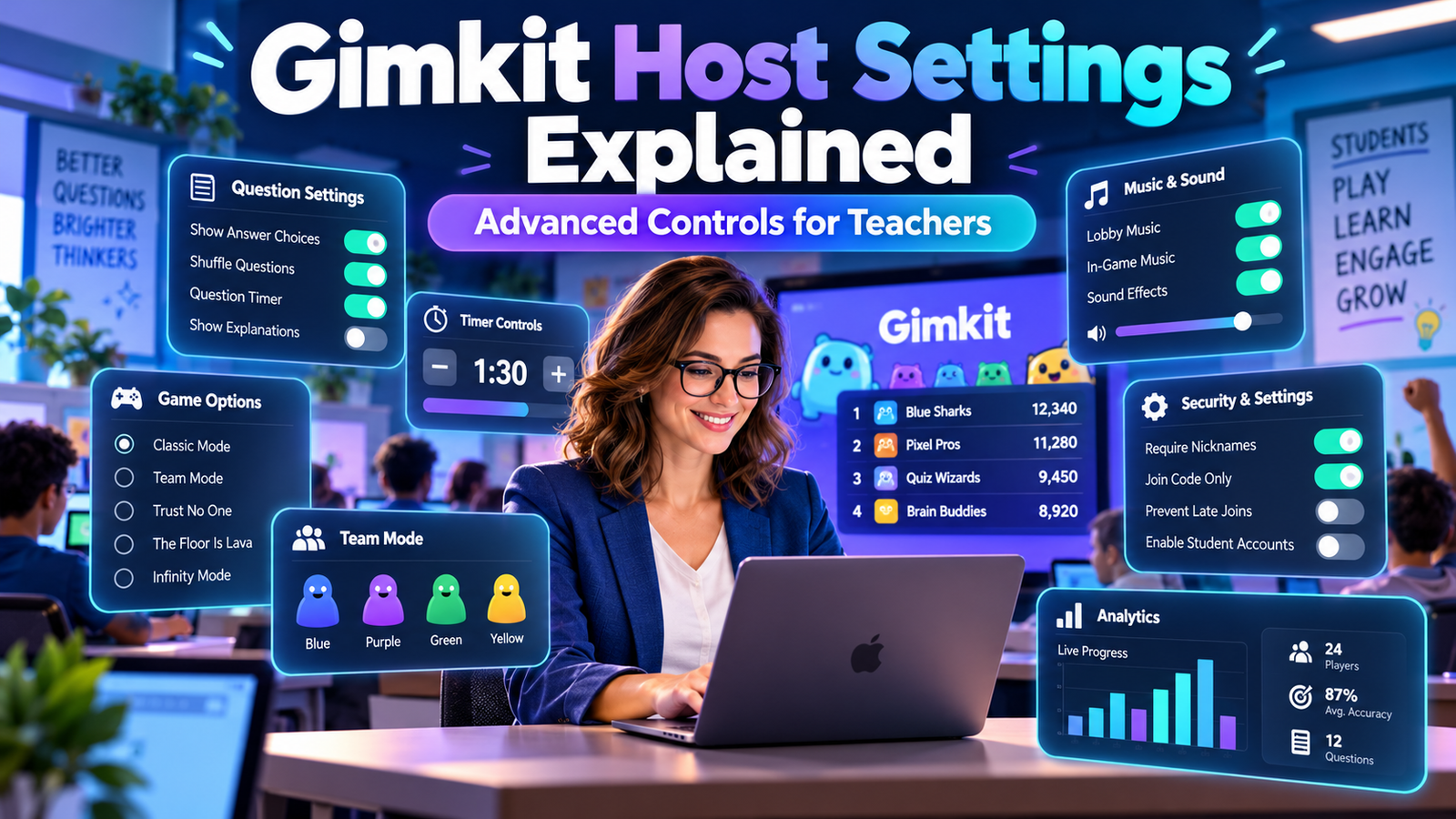
Opening Gimkit’s Game Options screen can look simple.
That simplicity can be misleading.
A live Gimkit session is controlled by several different layers of settings, and they do not all live in the same place.
Some controls appear before students join.
Some depend entirely on the selected game mode.
Some appear only in 2D games.
Some exist only in non-2D games.
Some are account-level preferences rather than settings for one session.
Others do not appear at all when a teacher connects a Gimkit Class.
Understanding those layers is what separates simply starting a Gimkit game from understanding Gimkit host settings.
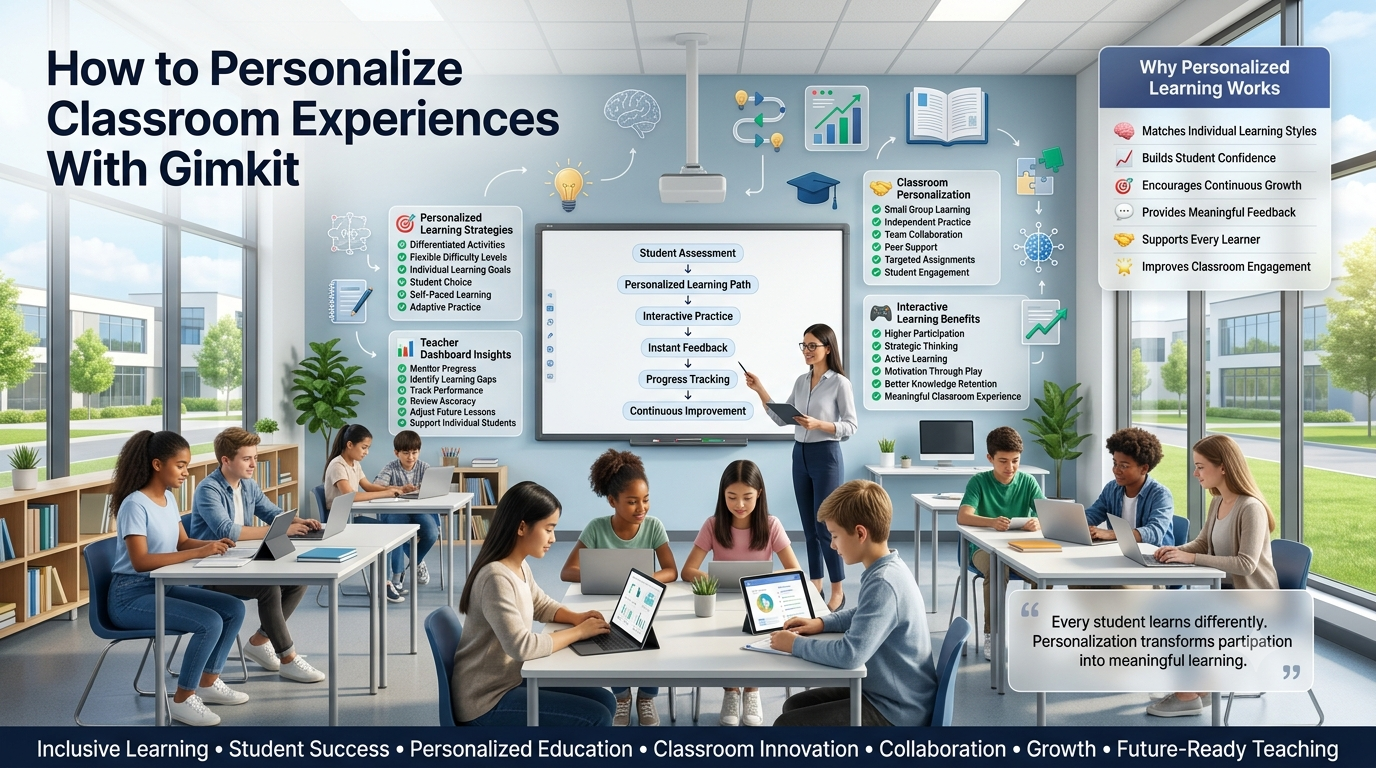
Gimkit’s current official hosting flow is:
select a Kit → choose a Game Mode → configure Game Options → open the lobby → let students join → start the game → manage the session with host controls.Gimkit Help
Gimkit also explicitly divides Game Options into two categories:
standard options available across modes and mode-specific options that change according to the selected game. Gimkit Help
That distinction should be the starting point for every teacher.
You are not configuring “Gimkit” once.
You are configuring:
the platform → the mode → the particular live session.
Want to explore more Gimkit features, hosting tips, and classroom strategies? Visit GimkitApp for helpful guides, expert tips, and resources to make your Gimkit experience even better.
The Gimkit Host-Control System Has Four Layers
The easiest way to understand advanced Gimkit settings is to stop treating every control as one long menu.
There are four separate layers.
Host-control layer
What it controls
Account Game Settings
Persistent preferences such as game currency and language
Pre-Game Options
Standard and mode-specific settings chosen before the session
Monitoring, sound, leaderboard, players, spectating, Quick Actions, ending the game and other live controls
This layered model is more useful than memorizing individual buttons because Gimkit continually changes which controls appear according to game mode.
The most important principle is:
Not every setting belongs to every mode.
Gimkit’s official documentation says mode-specific options can vary considerably, while standard options form the common foundation of live games. Gimkit Help
Standard Settings vs. Mode-Specific Settings
This is the first advanced concept every Gimkit host should understand.
Standard Game Options
Gimkit currently identifies several settings that are shared broadly across live modes:
a game goal or goals;
connecting a Class;
Join in Late;
Nickname Generator when a Class is not being used. Gimkit Help
The precise game goal can depend on the experience. Gimkit lists examples including time, cash, investigations, difficulty level, and number of questions answered. Gimkit Help
These settings define the basic session.
Mode-Specific Game Options
After the teacher selects a mode, extra settings may appear.
Those settings are tied to that game’s mechanics.
For example, One Way Out currently allows hosts to alter variables such as difficulty, player health, and energy earned from correct questions. Gimkit Help
Don’t Look Down has its own options, including game duration, energy earned per question, and checkpoint behavior. Gimkit Help
Snowy Survival has different controls again, including options that affect elements such as the Cursed players and game difficulty. Gimkit Help
This is why teachers should avoid memorizing one “perfect Gimkit settings screen.”
There is no single universal screen.
The settings belong partly to the selected mode.
The Mode Picker Is Actually the First Host Setting
Teachers sometimes think configuration begins after they choose a mode.
In practice, the Mode Picker itself is the first major configuration decision.
Gimkit says different modes are designed to create different types of engagement, and the Mode Picker includes descriptive labels. Current examples include labels such as Calming, Strategic, and Collaborative. Gimkit Help
Teachers can select a mode and use Learn More to see additional information before continuing to its Game Options screen. Gimkit Help
That matters because many controls only exist after the mode has been selected.
If you cannot find a setting that another teacher showed you, the explanation may simply be:
you selected a different mode.
Do Not Expect 2D and Non-2D Games to Have Identical Controls
Gimkit makes a significant distinction between 2D and traditional/non-2D modes.
In a 2D mode, students move through a game world using Gims. Gimkit says these modes can be more complex and strategic than traditional games. Gimkit Help
That decision changes what appears on the host’s screen.
If the host joins as a player, the host receives game controls associated with playing.
If the host joins as a spectator, the host gains monitoring controls designed for watching students.
Understanding that distinction prevents a common problem:
“Why doesn’t my host screen look like the screenshot?”
The answer may be that one host is playing while the other is spectating.
Player or Spectator: What the Host Choice Means
When a 2D lobby opens, Gimkit currently allows the host to toggle whether they will join as a player or spectator. Gimkit Help
These are not merely cosmetic views.
Joining as a player
The teacher becomes part of the game world.
The host may see additional player controls depending on the selected mode. Gimkit Help
Joining as a spectator
The teacher can watch student gameplay instead of participating directly.
The spectator interface includes controls for changing the player being watched, viewing the leaderboard, managing players, controlling audio, seeing the game code, and ending the game. Gimkit Help
A teacher therefore does not need to enter every 2D session as an active competitor.
Spectator mode exists specifically for host oversight.
Spectator Next and Previous Controls
When spectating a 2D game, Gimkit currently places Next and Previous controls in the lower corners of the host screen.
These buttons let the host move between the students being spectated. Gimkit Help
This is useful to understand because the spectator screen is not a single fixed camera.
The teacher can manually inspect different players.
That gives the host a more direct way to observe what is happening across a 2D session rather than watching only one student for the entire game.
Auto-Shuffle Spectating
Gimkit also provides Auto-Shuffle while spectating 2D games.
When enabled, Gimkit automatically switches between players every 10 seconds. The host can turn Auto-Shuffle off when they want to remain on a particular player. Gimkit says the last Auto-Shuffle selection is remembered as the default for the next game. Gimkit Help
This is an advanced host feature because it changes monitoring rather than student gameplay.
Instead of manually clicking through the class, a projected spectator screen can rotate through students automatically.
The important point is that Auto-Shuffle does not alter student scores, questions, or progress.
It changes which student’s gameplay the host is currently viewing.
The Player Panel in 2D Games
The Players button gives 2D hosts access to the people currently in the game.
From there, the teacher can click an individual player’s name and either:
This creates a direct relationship between monitoring and moderation.
If something on the projected game catches the teacher’s attention, the host does not have to leave the session and search through another dashboard.
The relevant player-management controls remain available during play.
Removing Players Before and During a Game
Gimkit allows hosts to remove players from live games.
In the lobby, the teacher can hover over and select a player’s name.
During a supported game, the teacher can access the player through the leaderboard/action controls and remove them. Gimkit notes an important limitation: players cannot currently be removed mid-game in Team Mode. Gimkit Help
That exception matters.
A teacher should not assume every moderation control behaves identically in every session structure.
Mode architecture can affect host permissions.
The Leaderboard Control
In 2D spectator mode, Gimkit includes a dedicated Leaderboard button.
Selecting it displays the leaderboard on the host screen. Gimkit Help
This is different from traditional/non-2D games, where the host screen itself may naturally function as a leaderboard display.
Gimkit’s current hosting guide says non-2D modes present a leaderboard screen that can be cast to the room, while 2D hosting shows the game world depending on whether the teacher is participating or spectating. Gimkit Help
So the host’s projected display changes by mode family.
That distinction is important when planning what students will see at the front of the classroom.
Music and Sound Effects Are Separate Host Controls
During 2D hosting, Gimkit provides a Sound control.
This is more useful than a single mute button because the two audio layers serve different roles.
A teacher might want:
quieter music;
audible game feedback;
or:
no music;
some sound effects;
without silencing the entire game.
The controls affect the host presentation environment rather than rewriting the underlying Kit.
The Game Code Remains Available During 2D Play
The lobby is not the only place where the game code exists.
In a live 2D game, the host can access the code from the upper-right controls.
Clicking it enlarges the code, which Gimkit specifically describes as useful when projecting for late joiners. Gimkit Help
That is a small but important operational detail.
Teachers do not need to restart the lobby just because one student needs the join information again.
QR Codes and Direct Join Links
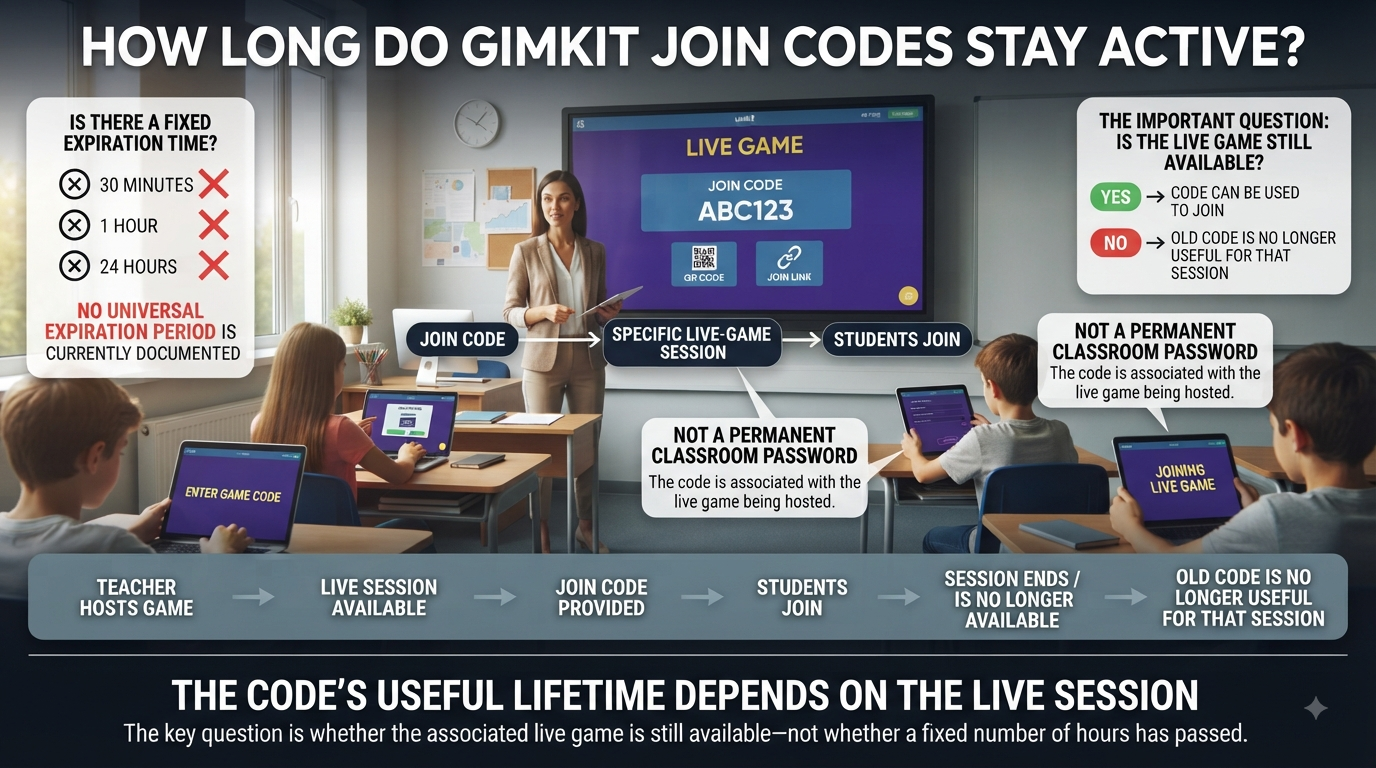
Gimkit currently gives teachers three practical live-join methods:
game code
QR code
direct join link.
During hosting, hovering over the game code displays a QR code.
Gimkit also provides a button for copying a direct join link, which lets students enter the game without manually entering the code. Gimkit Help
These are access methods rather than different game types.
The teacher can choose whichever entry method fits the device environment.
A student on a phone may find a QR code convenient.
Students receiving instructions through an LMS may find a direct join link simpler.
Connecting a Class Changes the Identity System
One of the most important advanced settings is Connect a class.
Classes are not only organizational folders.
Gimkit says Classes help keep student names appropriate during live games because students join using their accounts and appear using the names associated with the Class. Gimkit Help
When Classes are being used, the ordinary Nickname Generator does not appear. Gimkit Help
That behavior makes sense:
If Gimkit already knows which enrolled student is joining, it does not need to assign a random temporary identity.
So teachers should view:
Classes
and
Nickname Generator
as two different identity-management systems rather than settings that are normally used together.
When Classes Are Connected
Connecting a Class creates benefits outside the immediate live game too.
Gimkit currently says Classes can help with:
keeping names appropriate;
tracking Assignment progress;
viewing results across multiple Assignment completions;
However, Gimkit says Quick Actions are not currently available in Team Mode. Gimkit Help
Quick Actions Are Not the Same as 2D Host Controls
This distinction can prevent a lot of confusion.
2D games
Hosts have spectator/player controls, player lists, camera switching, leaderboard access and other 2D-specific controls. Gimkit Help
Non-2D supported games
Hosts can use the leaderboard-based Quick Actions system. Gimkit Help
So if a teacher reads about Ice or balance adjustments but cannot find those buttons in a 2D spectator panel, the feature may not belong to that mode family.
Again:
mode determines interface.
Increase Balance by 10%
One Quick Action increases an individual player’s balance by 10%. Gimkit Help
This is a live intervention affecting that player’s game state.
It is not:
a change to the Kit;
a classwide setting;
a permanent account preference.
It exists only inside the running supported game.
Decrease Balance by 10%
The corresponding Quick Action reduces an individual player’s balance by 10%. Gimkit Help
Like the increase control, this is an in-session intervention.
The host can access it from the player’s Action Sheet in supported non-2D modes.
Because it alters one participant’s game state, it should not be confused with mode-level Game Options that apply to everyone before the session begins.
Ice
The Ice Quick Action is another non-2D host interaction.
Gimkit currently lists it among the Quick Actions and says hosts can use these actions repeatedly. Gimkit Help
Its presence illustrates a broader point:
Some Gimkit host controls are intentionally game-like host interventions rather than conventional classroom-management settings.
Teachers should know whether they are configuring the environment for everyone or taking an action against one individual player’s current game state.
Join in Late Is a Persistent Pre-Game Choice
Gimkit currently allows hosts to decide whether students can enter after a live game has already begun.
Live games default to allowing late joining.
Importantly, Gimkit says the selected state is remembered for the next game. If a teacher turns Join in Late off, it remains off the next time they host until changed again. Gimkit Help
Article #9 already owns the pedagogical implications of late joining.
For Article #12, the advanced-settings lesson is:
some Gimkit selections persist across sessions.
Do not assume every new game begins from factory-default settings.
Persistent Settings Can Cause “Mystery” Configuration Changes
A teacher may host one class, disable late joining, and later start another game expecting the default behavior.
Because Gimkit saves the selection, the next lobby may behave differently from what the teacher remembers. Gimkit Help
This is why experienced hosts should review settings rather than clicking through automatically.
Persistence can save time.
It can also preserve a choice that no longer fits the next class.
Account-Level Game Settings Are Separate From Session Options
Not every Gimkit game preference lives on the Game Options screen.
Gimkit currently has account-level Custom Game Settings for:
These are configured under account Settings → Game Settings.
The selected values then appear in games the teacher hosts. Gimkit Help
This makes them fundamentally different from a one-session game goal.
They are persistent account preferences.
Custom Currency
Gimkit lets the educator change the currency used during games through account Game Settings. Gimkit Help
This does not change real money.
It changes the terminology presented inside compatible Gimkit game systems.
Because the preference is account-level, teachers should not expect to find it every time they open a mode’s live Game Options screen.
Custom Language
The same account-level settings area lets teachers select the language students see in hosted games. Gimkit Help
Again, this is not configured separately every time a new live game starts.
Understanding where this setting lives matters for troubleshooting.
If the game interface is appearing in an unexpected language, the relevant setting may be under the teacher’s account Game Settings rather than inside the current game’s setup screen.
Player Limits Are Part of Host Planning
Gimkit’s current hard limit for a standard live game is 500 students.
For 2D game modes, the current hard limit is 60 students. Gimkit Help
Gimkit also notes that practical performance depends on network reliability because larger games require a faster, more stable connection. Gimkit Help
This makes player capacity both:
a platform limit;
a network-planning issue.
The maximum supported number does not guarantee that every school network will perform equally well at that size.
Free-Plan Mode Limits Can Also Affect Hosting
Gimkit says Gimkit Basic offers unlimited access to featured modes, while Gimkit Pro includes unlimited access to all modes.
For Basic educators, Pro-exclusive modes have a current limit of five players when those modes are available, while featured/Pro-exclusive mode rotation changes over time. Gimkit Help
Student accounts that host games are also currently limited to five players. Gimkit Help
These limits are especially important when testing a configuration before a full class session.
A settings screen may exist, yet account-level access can still affect how many students can participate.
Free and Pro Hosting Should Not Be Treated as Identical
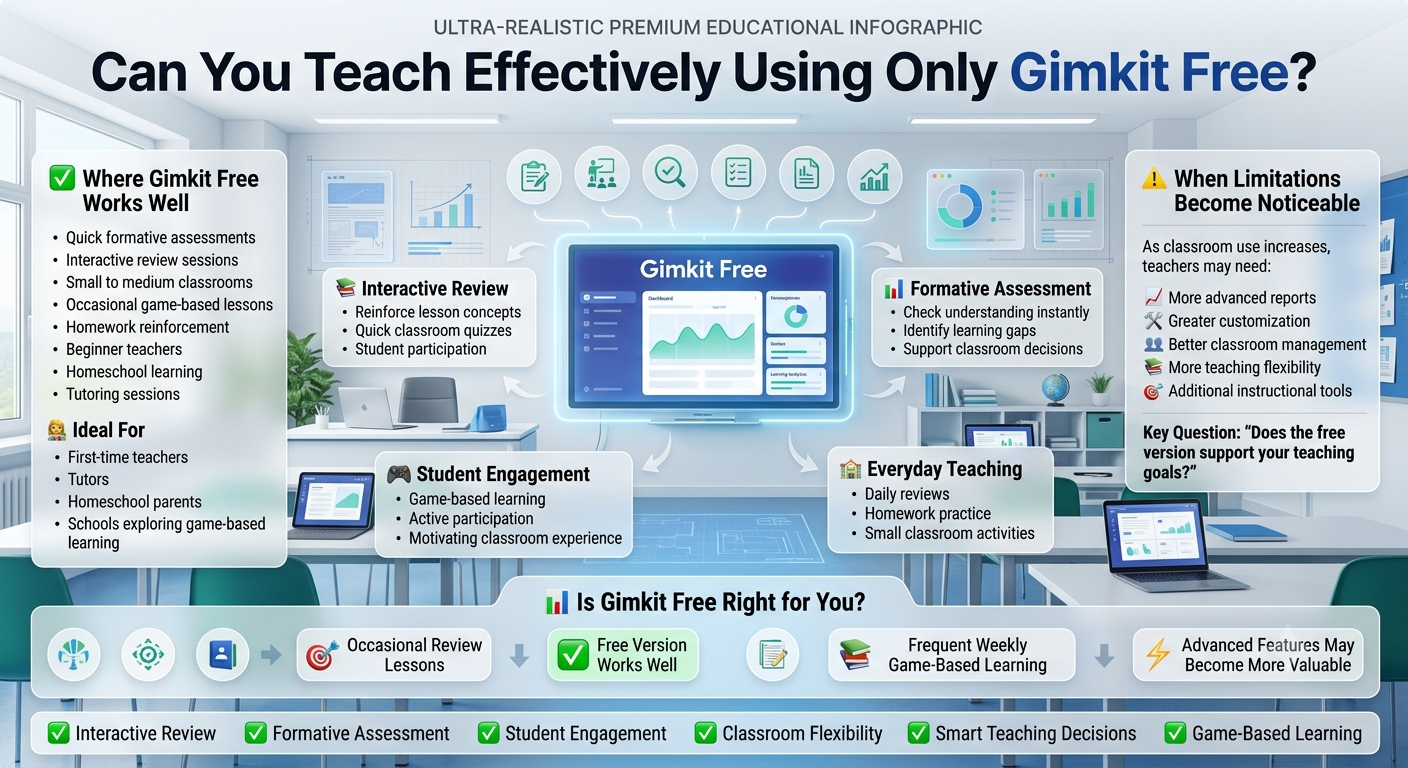
Gimkit Basic remains a usable free educator account.
Gimkit’s account FAQ says Basic educators can host games, create Classes, and collect game reports without limitations on those basic capabilities, while Gimkit Pro adds benefits including Pro-exclusive modes and Assignments. Gimkit Help
This matters because screenshots from another teacher may show:
a mode you do not currently have full access to;
options associated with a Pro-exclusive mode;
assignment controls that do not belong to Basic.
When comparing settings, always compare the same mode and account access, not only the same platform.
Lobby Management Is Part of Advanced Hosting
The lobby should not be treated as dead time between setup and gameplay.
Gimkit’s current host instructions explicitly recommend checking player names in non-2D lobbies and removing inappropriate names when necessary. Gimkit Help
The lobby is where the teacher can verify:
who joined;
whether names are appropriate;
whether the expected number of students is present;
whether the chosen identity system is working.
Once the game begins, the management tools change.
So the lobby is the last pre-start verification layer.
Starting the Game Changes the Available Controls
After the host clicks Start Game, Gimkit moves from setup controls to live host controls.
In non-2D games, the host has a leaderboard-style view.
In 2D games, the host enters the game world as either a participant or spectator. Gimkit Help
This transition matters because settings that were available before the game may no longer be editable once play begins.
Teachers should therefore separate settings into two categories:
configure before Start
and
manage after Start.
That distinction is central to avoiding mid-game surprises.
Some Host Decisions Cannot Be Fully Reversed During Play
A useful advanced-hosting habit is to recognize which choices are easy to change later and which are not.
For example, Gimkit’s 2D timer can currently be extended during play, but time cannot be subtracted once the game has started. Gimkit Help
Likewise, some mode-specific configuration belongs to pre-game setup rather than live controls.
Article #9 already owns the pacing strategy around the timer.
The settings lesson here is simpler:
the live control panel is not a full copy of the pre-game Game Options screen.
Starting the game closes off some configuration choices.
Why Advanced Hosts Review Every Screen Before Starting
The safest mental checklist is:
Mode Picker → Game Options → Lobby → Start.
At each stage, different decisions are available.
The teacher should not assume the next screen will let them repair something skipped earlier.
This is especially important for unfamiliar 2D modes where:
game objectives;
resource settings;
difficulty variables;
team behavior
can differ substantially.
Host Controls Are Mode-Aware, Not Universal
One of the biggest mistakes teachers make when learning Gimkit is treating instructions from one game as platform-wide instructions.
A tutorial might say:
“Click this button.”
But that control may exist only:
in 2D;
in non-2D;
in one particular mode;
while spectating;
while hosting without Classes.
The correct advanced-hosting question is:
“Under what conditions should this control exist?”
That approach makes troubleshooting much faster.
A Quick Settings Diagnostic
If you cannot find a Gimkit setting, check these conditions:
Check
Why it matters
Which mode did you select?
Mode-specific options differ
Is it 2D or non-2D?
Host controls differ significantly
Are you playing or spectating?
Spectator controls differ from player controls
Did you connect a Class?
Nickname Generator disappears
Are you in Team Mode?
Certain actions such as Quick Actions/removal behavior differ
Has the game already started?
Pre-game and in-game controls are not identical
Basic or Pro access?
Mode availability can differ
Account-level Game Settings?
Currency/language are configured elsewhere
This table solves a large share of apparent “missing setting” problems without assuming something is broken.
Host Controls vs Student Settings
Teachers should also distinguish host settings from student-side accessibility controls.
For example, Blooket—sorry, Gimkit hosts manage the game environment, but some student experience controls may be available independently to students depending on the interface and mode.
The important publishing principle for this article is not to call every visible switch a “host setting.”
A host setting is something that changes the teacher-managed session or host display.
Student-specific controls belong to a different information territory.
Post-Game Reports Are the Final Hosting Layer
Once a Kit the teacher owns has been hosted, Gimkit provides a game report containing class and individual performance data.
Reports can be opened immediately after the game or later from the Reports area.
A report is not technically a Game Option, but it completes the host workflow.
The hosting lifecycle is therefore:
configure → admit → run → manage → review.
Why Reports Should Not Be Confused With Host Settings
Reports describe what happened.
Host settings determine what happens.
That distinction matters for information architecture.
A teacher changes a setting before or during the session.
A teacher uses a report afterward to inspect performance.
Article #12 includes reports only to show where the host-control lifecycle ends.
A separate assessment/reporting article should own deeper interpretation of report data.
The Best Way to Learn Gimkit Host Settings
Do not memorize screenshots.
Screenshots age quickly.
Instead learn the categories:
Before the game
Mode + Game Options
Joining
Class / nickname / code / QR / link
During 2D
spectator/player + host control panel
During non-2D
leaderboard + supported Quick Actions
Across games
account Game Settings
After the game
Reports
This conceptual map is more durable than remembering where one button happened to appear in one version of one mode.
Common Gimkit Host-Settings Mistakes
Assuming every mode has the same options
It does not.
Gimkit explicitly separates standard and mode-specific options. Gimkit Help
Looking for Nickname Generator while using Classes
The Nickname Generator disappears when Classes are connected. Gimkit Help
Expecting Quick Actions in 2D
Quick Actions are documented for non-2D modes and are not available in Team Mode. Gimkit Help
Expecting the 2D spectator interface while playing
Playing and spectating produce different host interfaces. Gimkit Help
Assuming Join in Late resets every game
Gimkit currently remembers the selected state across games. Gimkit Help
Looking for currency or language inside one live game’s options
Those settings live under account-level Game Settings. Gimkit Help
Planning a 2D session for hundreds of students
Current 2D games have a 60-player hard limit, while the broader live-game limit is 500. Gimkit Help
Standard vs Advanced Does Not Mean Hidden vs Visible
A useful clarification:
An “advanced” Gimkit setting is not necessarily hidden behind an Advanced menu.
The term describes how the setting is used.
For example:
Nickname Generator is easy to find.
But understanding why it disappears under Classes requires deeper product knowledge.
Player/Spectator is one toggle.
But understanding how it changes the host interface is advanced hosting knowledge.
The value of this guide is therefore not merely locating buttons.
It is understanding the relationships between them.
Which Gimkit Settings Apply to Every Mode?
Gimkit currently describes standard game settings shared across modes, including:
game goal or goals;
Connect a class;
Join in late;
Nickname Generator when Classes are not connected. Gimkit Help
Beyond those, mode-specific configuration varies.
Teachers should therefore avoid expecting controls such as:
player health;
checkpoints;
energy;
difficulty;
resource-per-question settings
to appear universally.
Those belong to individual mode designs.
Which Settings Persist Beyond One Session?
At least two types of settings can persist beyond one immediate session.
First, Join in Late currently remembers the host’s previous selection. Gimkit Help
Second, Auto-Shuffle Spectating remembers the last-used on/off state for the next hosted game. Gimkit Help
Account-level currency and language also naturally persist because they are stored under Game Settings rather than one live game’s configuration. Gimkit Help
This means an experienced teacher should never assume:
“New game = all settings reset.”
Which Settings Affect Student Identity?
Two systems are particularly important.
Classes
Students join using account-linked names controlled through the teacher’s Class setup. Gimkit Help
Nickname Generator
Students receive random safe names and cannot manually enter their own when the setting is active. Gimkit Help
Because the Nickname Generator disappears with Classes, teachers normally choose between these identity models rather than combining them.
Quick Actions are not currently available in Team Mode. Gimkit Help
This makes the non-2D host experience operationally different from the spectator-centered 2D interface.
Can the Teacher Host Without Student Accounts?
Yes.
Gimkit’s current account documentation says students do not need accounts to play live games.
Accounts become necessary when the teacher wants to use Classes or when students want features associated with XP and cosmetics. Gimkit Help
For an open live game, students can join using the game code, QR code, or direct link. Gimkit Help
This affects which identity and tracking settings are available.
Why Classes Change More Than Login
Connecting Classes creates a persistent relationship between known students and the teacher’s Gimkit environment.
For hosting, this affects identity.
For Assignments, Classes add progress tracking, multiple-completion history, and saved progress. Gimkit Help
Therefore, “Connect a class” should not be interpreted as:
“just another way to join.”
It changes how Gimkit knows who the student is.
Do Host Settings Change the Questions?
Generally, live Game Options configure how the selected mode runs, not the underlying Kit.
If the teacher wants to change:
question text;
answers;
Kit structure;
those edits belong to the Kit itself.
If the teacher wants to change:
game goal;
identity setup;
mode mechanics;
host display;
2D balance;
spectator behavior;
those belong to hosting.
Keeping those layers separate helps prevent unnecessary editing.
Do Advanced Settings Automatically Make a Game Better?
No.
More configuration is not automatically an improvement.
A simple live game may only require:
the correct mode;
a sensible goal;
the correct joining method;
a clean lobby.
Advanced host controls become useful when they solve a specific operational need.
The next article in this series will focus on advanced game-hosting techniques, where settings become part of a deliberate hosting workflow.
Article #12’s job is narrower:
know what each control layer is before trying to optimize it.
Frequently Asked Questions About Gimkit Host Settings
Where are Gimkit host settings?
Gimkit’s live configuration appears after you select a Kit and choose a Game Mode. The next Game Options screen includes standard settings and additional options specific to the selected mode. Once the game starts, a different set of host controls becomes available. Gimkit Help
Some preferences do not live on either screen. Gimkit’s custom language and currency settings, for example, are stored under account Settings → Game Settings. Gimkit Help
So there is no single page containing every Gimkit host setting. They are distributed across pre-game, live, mode-specific, and account-level interfaces.
Why do Gimkit settings change between game modes?
Gimkit explicitly separates Game Options into standard and mode-specific settings. Standard controls cover common needs, while individual games expose options related to their unique mechanics. Gimkit Help
For example, One Way Out can expose settings involving difficulty, health, and energy, while Don’t Look Down has settings tied to its obstacle-course mechanics. Gimkit Help
Therefore, a setting shown in a tutorial for one mode should not automatically be expected in another.
What are the standard Gimkit game options?
Gimkit currently lists common options including the game’s goal or goals, connecting a Class, Join in Late, and the Nickname Generator when Classes are not being used. Gimkit Help
Possible goals vary by game and can involve time, cash, investigations, difficulty level, or number of questions answered. Mode-specific settings appear in addition to those standard controls.
Teachers should always review the Game Options screen after choosing the mode because the final configuration depends on the game selected.
Why can’t I see the Gimkit Nickname Generator?
If you connected a Gimkit Class, the Nickname Generator will not appear. Gimkit says games hosted with Classes do not have access to the Nickname Generator because students already join using their Class/account identities. Gimkit Help
Without Classes, the Nickname Generator can assign random safe names and prevent players from typing their own names. Students can regenerate the assigned nickname up to three times before it is locked in.
What does connecting a Gimkit Class do during live games?
Classes give students stable account-linked names in live games rather than relying on temporary manually entered nicknames.
Gimkit says Classes help keep names appropriate and are also used for Assignment tracking, multiple-completion results, and saved Assignment progress. Gimkit Help
For live hosting, the biggest immediate change is student identity. Connecting a Class also removes the Nickname Generator from the live Game Options screen.
Can students join a Gimkit live game without accounts?
Yes. Gimkit’s current account guidance says students can play live games without having Gimkit accounts.
Accounts are required when the teacher wants to use Classes, and students also need accounts for XP/cosmetic-related features. Gimkit Help
Without Classes, students can enter a live session using its game code, QR code, or direct join link. Gimkit Help
How does the Gimkit QR code work?
While hosting, move the pointer over the game code to display a QR code.
Students can scan it to join the game. Gimkit also provides a direct join-link control, allowing the teacher to copy a URL that takes students directly into the joining flow without manually typing the game code. Gimkit Help
These are simply different access methods for the same live game.
Can a Gimkit teacher spectate instead of playing?
Yes. In current 2D game modes, hosts can select whether they join as a player or spectator from the lobby. Gimkit Help
Spectators receive monitoring-focused controls, including switching between players, accessing the leaderboard, managing players, controlling host audio, viewing the game code, and ending the session. Gimkit Help
This lets a teacher supervise the game without needing to participate as another player.
What is Gimkit Auto-Shuffle Spectating?
Auto-Shuffle is a 2D spectator feature.
When enabled, Gimkit automatically changes the player being spectated every ten seconds. The host can turn Auto-Shuffle off to remain on one player. Gimkit says the host’s most recent setting becomes the default next time. Gimkit Help
It changes the host’s spectator view only; it does not alter students’ questions or game progress.
What are Gimkit Quick Actions?
Quick Actions are live host actions available in supported non-2D modes.
The host opens the Action Sheet by selecting a player’s name on the leaderboard. Current actions include removing the player, increasing their balance by 10%, decreasing it by 10%, and using Ice. Gimkit Help
Gimkit says Quick Actions can be used repeatedly but are not currently available in Team Mode.
Why can’t I use Quick Actions in Team Mode?
Gimkit’s current Quick Actions documentation explicitly states that Quick Actions are not available in Team Mode. Gimkit Help
That is a mode limitation rather than a browser problem or missing account setting.
Teachers should remember that Gimkit host controls are conditional. A feature available in one type of live session may intentionally be absent from another.
Can teachers remove students from a live Gimkit game?
Yes.
Before the game begins, the host can remove a player from the lobby.
During supported games, the host can select the player’s name and use the removal control. Gimkit currently notes that players cannot be removed mid-game in Team Mode. Gimkit Help
That makes player removal another example of a generally available host function with a mode-specific exception.
Can a Gimkit host change the game language?
Yes. Gimkit’s Custom Game Settings currently let educators choose their hosted-game language from the account’s Game Settings page. Gimkit Help
This is an account-level preference rather than a control that must be reselected for every game.
The same Game Settings area also includes custom currency.
Can Gimkit teachers change the game currency?
Yes. Gimkit currently provides a custom currency preference under account Settings → Game Settings.
The chosen currency is then used in games the educator hosts. Gimkit Help
Because this is an account setting, teachers should not expect it to appear alongside a mode’s temporary live-game options.
How many students can join a Gimkit live game?
Gimkit currently lists a hard limit of 500 students for a general live game and 60 students for 2D game modes. Gimkit Help
Gimkit also warns that practical performance depends on internet stability and speed, because larger player counts require the network to handle more simultaneous activity. Gimkit Help
Account and mode access can create additional limits in certain situations.
Are Gimkit host settings different on the free plan?
Core educator hosting remains available through Gimkit Basic. Gimkit says free educators can host live games, create Classes, and collect game reports. Gimkit Help
However, Gimkit Pro provides full access to Pro-exclusive modes, while Basic users have limited participation access when a Pro-exclusive mode is not currently featured. Gimkit Help
Because mode-specific settings depend on mode availability, the options a Basic user encounters can differ from those shown by a Pro user hosting another mode.
Does Gimkit remember host settings?
Some settings do persist.
Gimkit says Join in Late remembers its previous state for the next hosted game. Gimkit Help
Auto-Shuffle Spectating also remembers the host’s last selection. Gimkit Help
Account-level game language and currency naturally persist as account preferences. Gimkit Help
Teachers should therefore review settings rather than assuming every new game resets everything automatically.
What controls does a Gimkit 2D host have?
A 2D spectator currently has controls for the game code, switching between spectated players, host music and sound effects, displaying the leaderboard, viewing/managing players, ending the game, and viewing the timer. Gimkit Help
The host can also choose to join the 2D game as a player instead of spectating, in which case additional player controls can appear depending on the mode. Gimkit Help
Can the host change Gimkit music without muting everything?
Yes. Gimkit’s current 2D spectator controls provide separate sliders for game music and sound effects. Gimkit Help
That lets the teacher adjust the projected game’s audio environment more precisely than using the computer’s global mute control.
The setting belongs to the host interface rather than to the academic Kit itself.
Do all 2D modes have the same settings?
No.
Gimkit’s overall Game Options system includes standard settings, but individual modes can add their own mechanics and controls. Gimkit Help
For example, One Way Out uses settings related to difficulty, health, and energy, while Don’t Look Down includes options tied to energy and checkpoints. Gimkit Help
The shared 2D concept does not mean every 2D game has an identical settings menu.
What happens after a Gimkit live game ends?
When the teacher owns the hosted Kit, Gimkit provides a game report.
Reports can be opened immediately after the game or later from the Reports section.
Current report views include Student Overview, General Overview, and Question Breakdown, and reports can be saved as PDFs. Gimkit Help
Reports are not host settings, but they complete the live-hosting workflow by showing the academic results produced by the configured session.
Final Takeaway
The most useful way to understand Gimkit host settings is not to memorize one Game Options screen.
Gimkit’s hosting system is layered.
First comes the Mode Picker.
Then the teacher configures standard and mode-specific Game Options.
The lobby handles access and identity.
Once gameplay begins, the interface changes into mode-appropriate live host controls.
And some settings—such as language and currency—live outside the individual session under account Game Settings. Gimkit Help
The biggest distinctions to remember are:
standard vs. mode-specific
2D vs. non-2D
player vs. spectator
Classes vs. Nickname Generator
pre-game configuration vs. in-game control
session settings vs. account-level preferences
Once those relationships are clear, Gimkit’s advanced controls become much easier to understand.
The settings stop looking like unrelated switches.
They become one system:
choose the experience → configure the rules → control access → monitor the session → manage live gameplay → review the results.
That is the foundation teachers need before moving into more advanced hosting strategy.