Gimkit troubleshooting • Student and teacher guide
How to Fix Unable to Join Game Errors (Gimkit)
A practical, evidence-based way to diagnose a Gimkit join failure without guessing, exposing passwords, or disrupting an entire lesson. Start with the current live invitation and host settings, then investigate devices and networks only when the symptoms justify it.
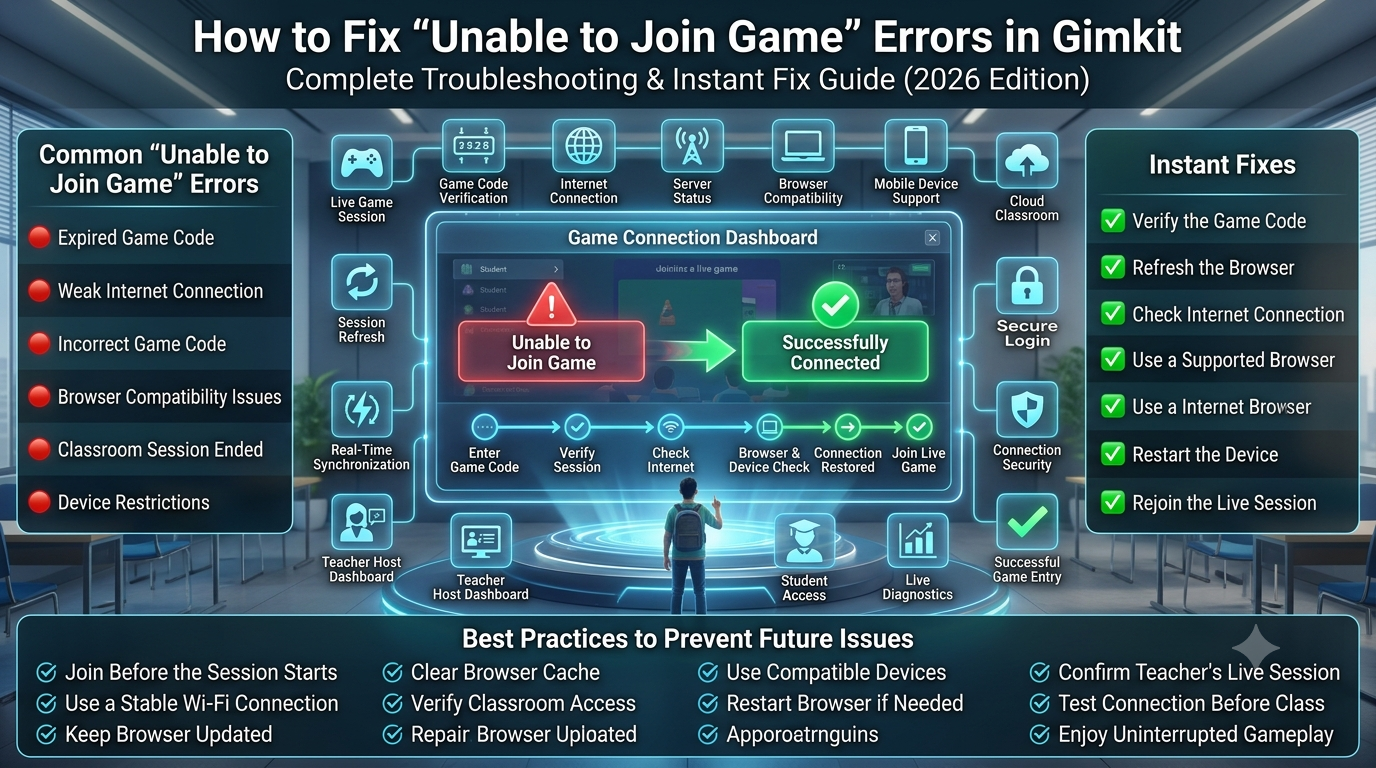
Fastest safe fix: Open the official Gimkit Join page, use the current code or direct link from your teacher’s live lobby, and check that the host is still running the game. If the code is correct but you cannot enter, ask whether late joining is allowed and whether this session uses a connected Class. If the page itself fails to load, investigate the browser or school network with authorized help. These steps address different causes; no single fix works for every error.
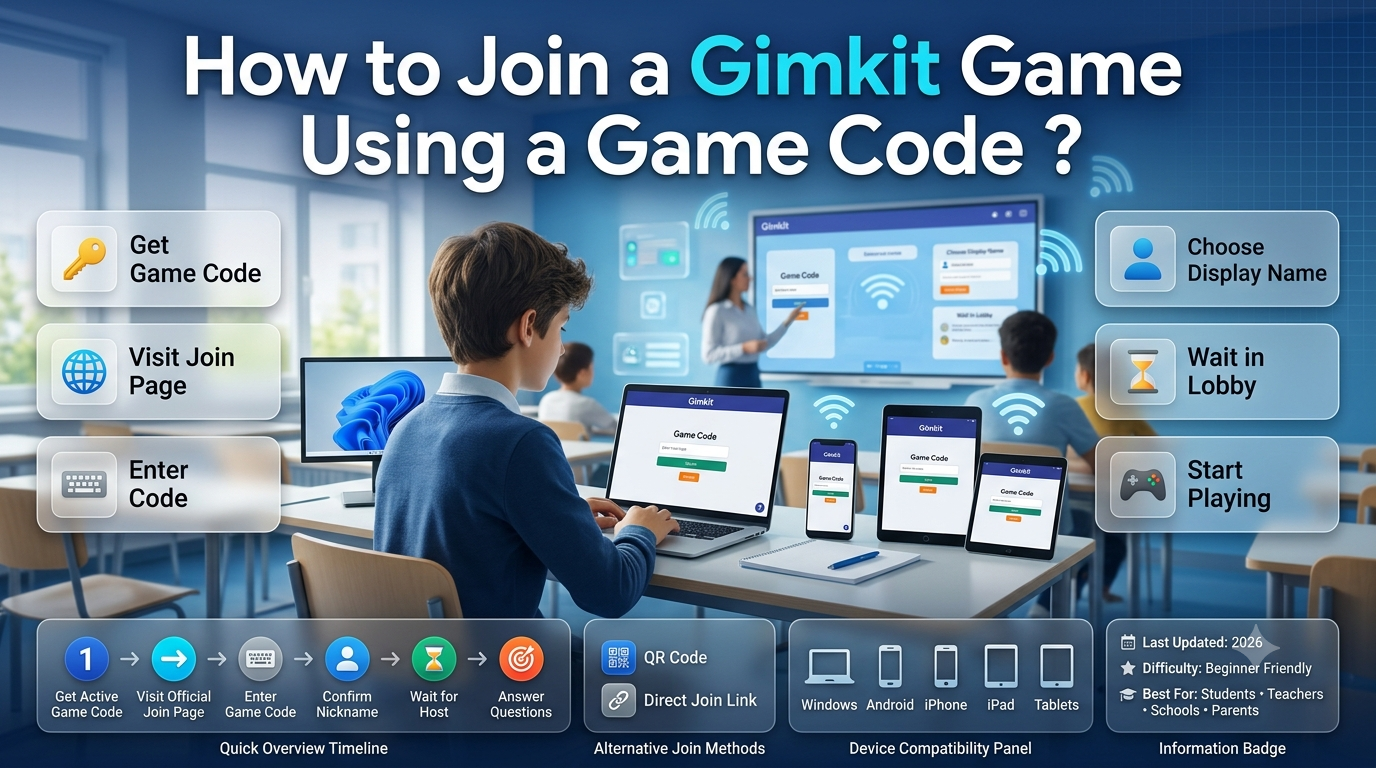
Official workflow: Gimkit’s Join a live game article describes entering the code, using a QR code or direct link, and choosing a nickname when prompted. Its Host a live game guide explains how the teacher opens the lobby and shares the current invitation. This independent article explains diagnosis and safe recovery; it cannot generate a live game code or unlock a host-controlled session.
Start by identifying exactly where joining fails
Different screens point to different types of problems. If the official website never opens, the code has not been tested. If the page opens but rejects the code, check the invitation and the live session. If the code is accepted but a nickname screen appears, the joining process may still be working normally. If the lobby opens and then disconnects, the investigation shifts toward connection stability or session status. A teacher can save time by asking students to describe the last successful step rather than simply asking whether Gimkit is broken.
Last step reached
Likely category to check
First useful action
Who can resolve it?
Join page does not open
Connectivity, device, browser or school policy
Confirm official URL and note exact error
Student with teacher or IT support
Code is rejected
Wrong, stale or inactive invitation
Compare against current host lobby
Teacher confirms live session
Code accepted, name requested
Normal joining step or nickname policy
Follow displayed name instructions
Student, with host guidance
Joined before, cannot rejoin
Ended game or late-join policy
Ask whether the session is still active
Host decides next step
Lobby opens then disconnects
Unstable connection or session change
Record timing and compare other devices
Teacher, IT or provider as appropriate
Only a 2D mode struggles
Device performance or mode demands
Check when the failure starts
Teacher and device support
Two-minute decision route for students
Do not begin with destructive actions such as deleting account data, changing passwords or resetting the device. The most informative first check is whether you are using the correct invitation for a game that the teacher is actively hosting. If the join page is available, ask the host to confirm the current code. If the class uses a direct link, open only the one shared through the approved school channel.
If the code matches and the host confirms the lobby is active, note the exact behavior. A message about the session being unavailable points toward the game state. A school filter notice points toward institutional policy. A nickname prompt usually means the code was accepted and another step is needed. A blank screen after loading may justify checking the browser or device. Avoid applying every internet troubleshooting suggestion in sequence; each change should test a plausible cause.
Students who need an accessible route can request the teacher’s direct link or a large-text code instead of scanning a QR code. Those who cannot use a particular game mode should receive an equivalent way to practice the academic objective. The purpose of a join workflow is to reach learning, not to test how quickly students can navigate a device.
Interactive join-error diagnosis
This local selector provides a first-step recommendation based on the visible symptom. It does not contact Gimkit, check real-time server status, validate codes, collect student names or access a live game. It is a decision aid, not an account recovery service.
Choose the symptom and affected group, then review a focused next step.
Why one-size-fits-all troubleshooting wastes lesson time
A list that begins by clearing browser history and ends with changing network settings may look comprehensive, but it can make an ordinary expired invitation harder to diagnose. Every unnecessary action creates another variable. If the teacher simply ended the game, no amount of cache clearing will restore that session. If a school filter blocks the official domain, asking students to repeatedly enter the code cannot fix the policy. If a learner is on the wrong Class account, a device restart does not establish the intended identity.
Use the smallest reversible test that matches the symptom. Compare the displayed code, confirm the host state, inspect the visible message and note the scope. Only then consider the browser, network or device. This is especially important for managed school technology, where students are not authorized to alter security policies or install unapproved software.
Twenty-four joining problems and their specific corrections
The following scenarios separate code mistakes, host decisions, authentication confusion, connection failures and device limitations. Each section includes a realistic classroom symptom and a safe next step. These are illustrative scenarios rather than provider incident reports or measured failure rates. Product settings and restrictions may change, so use the linked official Help Center as the final reference.
1. The code was copied from a previous lesson
What this symptom means
A student opens a bookmarked message from last week and enters the code displayed there. The page does not reach the intended lobby. The code is a session-specific joining credential rather than a permanent identifier for the Kit, so a code from a previous live game should not be assumed to work for a new one.
First safe correction
Ask the teacher to display the current lobby’s code or direct join link. Verify the digits against the active host screen instead of an old slide, worksheet or chat. If the teacher has not launched the current lobby, wait for the live session to be prepared.
What to avoid
Avoid searching the internet for a random Gimkit code. Publicly posted codes may refer to unrelated sessions, may be inactive, or may not be appropriate for your class. The teacher’s current invitation is the authoritative reference for which activity to join.
Teacher or support follow-through
For teachers, update classroom materials before each live session. A reusable slide can show the official join URL while leaving a clear space for the current code. Do not place a previous session code into a permanent learning management system template.
2. A digit was entered incorrectly
What this symptom means
A valid-looking entry may still be wrong if one digit was omitted, repeated or taken from a blurred projection. This is a data-entry problem, not proof of an account restriction or server outage. Repeatedly submitting the same mistaken value will not make it valid.
First safe correction
Compare the complete code to the teacher’s current screen from left to right. Use the direct join link or QR code supplied by the teacher when that is easier and permitted. A link can reduce typing errors, but only when it comes from a trusted host.
What to avoid
Do not rely on a code remembered from another student’s device. A screenshot can be stale, and a verbal message can lose digits. If the classroom display is difficult to read, ask the teacher to enlarge it or share the link through an approved channel.
Teacher or support follow-through
If multiple students enter the same incorrect value, examine the projection or handout before asking everyone to troubleshoot their devices. One wrong digit in a shared slide can create an apparent class-wide incident.
3. The teacher has not opened the lobby
What this symptom means
Students may arrive at the joining page before the teacher has completed the host setup. The selected Kit and mode exist, but a live invitation may not yet be available. Students should not infer that the whole platform is broken because a session has not been launched.
First safe correction
The teacher should select the Kit, choose a mode, review its options and proceed to the live lobby. Gimkit’s official hosting instructions explain this sequence. Once the current code or link is visible, students can attempt to join the correct session.
What to avoid
Students should wait for the teacher’s signal instead of repeatedly refreshing a code from another activity. If the teacher is preparing the lobby, this is a scheduling issue. No browser reset, password change or VPN workaround is required.
Teacher or support follow-through
A preflight check can prevent the problem: the host confirms the lobby is visible on the projector, tests the current invitation on an authorized device if appropriate, and then invites the class. The test must not reveal credentials or personal student information.
4. The host has ended the session
What this symptom means
A live game is not a permanent room. After the teacher ends the session or its goal is reached, the original joining path may no longer accept players. A student attempting to return from an old tab can encounter an error that resembles a connection problem.
First safe correction
Ask whether the teacher intends to start another round. If so, use the new session’s current invitation. Do not assume the previous code will be restored by reloading the browser, clearing cookies or opening a private window.
What to avoid
Teachers can reduce confusion by announcing when a session is finished and when a new one begins. Update the projected code rather than leaving the previous one visible while students move between activities.
Teacher or support follow-through
If a student was disconnected just before the end, the teacher can decide whether the learning objective requires another attempt, a brief independent question or no further action. The solution should fit the lesson rather than forcing a new game for one missed round.
5. Late joining is disabled
What this symptom means
Gimkit provides a host option for whether students can join a live game after it starts. A learner arriving late may have the correct code and a working browser but still be unable to enter because the host has chosen not to permit late arrivals.
First safe correction
Ask the teacher to check the session’s Join in Late option. The host decides whether admitting additional players is appropriate for the mode, the class and the activity’s progress. Students cannot override this setting by switching devices.
What to avoid
The official hosting documentation describes game options, including late joining, and the available controls can differ by mode. Do not promise that every setting can be changed after the game begins. Check the current host interface.
Teacher or support follow-through
When late entry is intentionally restricted, provide a learning-equivalent task for students who arrive afterward. That might be a short retrieval exercise or a written response to the same concepts, rather than an unsupervised attempt to find a different game.
6. A class-based join route is being used
What this symptom means
Gimkit supports joining through Classes in some hosting configurations. When the host connects a class and the student is logged in appropriately, the joining flow may differ from entering a code and typing a nickname. A student in the wrong account can become confused by an unexpected dashboard or login prompt.
First safe correction
Ask the teacher whether this session uses a class-based route or an ordinary game code. Follow the teacher’s instructions for the correct school identity, and avoid creating a second account simply to bypass a class membership problem.
What to avoid
The official joining guide says students who are logged into a connected class may join automatically. That does not mean every game requires a student account. The provider’s account FAQ says students can participate in live games without creating one in ordinary joining workflows.
Teacher or support follow-through
School-managed identity issues should be referred to the teacher or authorized IT. Do not share a school password with classmates, attempt to join under another student’s identity or use a personal account where institutional policy requires a managed one.
7. A nickname prompt is misunderstood
What this symptom means
After the code is accepted, a student may be asked to enter a name or approve an automatically generated nickname. A learner who expects to be placed directly into the game may interpret this additional screen as a failure, especially if instructions were given quickly.
First safe correction
Read the prompt and follow the host’s nickname rules. When the Nickname Generator is enabled, students cannot freely edit the generated name; the provider describes a limited number of rerolls. Do not keep refreshing in an attempt to force a different identity.
What to avoid
If the host removes a player for an inappropriate nickname, the appropriate next step is to ask permission to rejoin with an acceptable name. A moderation decision is not equivalent to a technical server failure.
Teacher or support follow-through
Teachers should explain the nickname policy before displaying the invitation. In a class using identifiable school accounts, follow school privacy rules and avoid requiring students to display unnecessary personal information on a public screen.
8. The browser loads the site but not the game
What this symptom means
A student can reach gimkit.com/join yet fail after entering the code. This narrows the problem: basic website access works, but a later session step may be blocked, delayed or interrupted. The precise cause cannot be diagnosed from this symptom alone.
First safe correction
Record what happens after submission. Does an error appear immediately, does the page keep loading, or does the lobby open and then disappear? These observations help distinguish an invalid invitation, a session restriction and a network connection that drops during the transition.
What to avoid
Try one controlled reload of the official join page, then reenter the current invitation. If the issue persists, ask the teacher to compare with an authorized working device. Avoid repeatedly clearing all browser data or resetting unrelated accounts without evidence.
Teacher or support follow-through
A teacher should record whether the problem affects one device, one browser profile, one classroom or the whole school. This scope is often more useful to IT than the broad statement that Gimkit is not working.
9. The page never opens
What this symptom means
When the official join URL fails before a code can be entered, the issue is not yet about the validity of the code. It may involve connectivity, browser policy, domain access or a temporary service problem. The error message and the behavior of other approved websites can provide context.
First safe correction
Confirm that the address is the official https://www.gimkit.com/join page and not a lookalike domain. Check whether the school device has an internet connection and whether the browser displays a specific blocked-site or certificate warning. Do not ignore a security warning to continue.
What to avoid
If the problem occurs only on school-managed equipment, involve authorized IT. If other trusted sites also fail, investigate the device or local connection under the institution’s normal procedures. Avoid changing DNS settings or using a private hotspot to evade school controls.
Teacher or support follow-through
A teacher can continue the academic task through a prepared offline or projected alternative while technical support works. The lesson should not depend on a single external website being reachable at every moment.
10. The device loses connection in the lobby
What this symptom means
A learner reaches the lobby, sees other players and then disconnects. Because the code worked, retyping it is not the first diagnostic step. Intermittent Wi-Fi, device sleep, congestion or a session ending can produce similar visible behavior.
First safe correction
Check whether the teacher’s game is still active and whether the same device can maintain access to another approved school service. If the network is unstable, follow the school’s connection guidance or ask IT for help. A second authorized device can be used as a comparison if available.
What to avoid
Avoid claiming that a browser refresh will always restore in-game progress. Different modes and states can handle reconnection differently. If the activity is time-sensitive, the teacher may choose an alternative response rather than repeated rejoining attempts.
Teacher or support follow-through
When several students disconnect at once, examine shared infrastructure before troubleshooting each individual browser. A class-wide pattern may indicate a network or service issue; a single-device pattern calls for a narrower investigation.
11. A school content filter blocks access
What this symptom means
School firewalls, device management policies and approved-app settings can prevent access to parts of an online service. A learner may see a policy notice or a generic failure. This does not mean the student should try to bypass the restriction.
First safe correction
Record the visible policy message and the official URL, then ask the school’s authorized IT team to review it. Teachers can provide the instructional purpose and the date of the planned session without asking students to alter security settings.
What to avoid
Do not advise students to disable filters, use unapproved VPNs or install unknown browser extensions. A permitted personal device is not automatically an appropriate substitute when the school requires managed technology and student privacy protections.
Teacher or support follow-through
If the restriction cannot be resolved during the period, use a school-approved alternative that practices the same knowledge. A responsible digital lesson anticipates access controls rather than treating them as obstacles students should circumvent.
12. The browser is outdated or unsupported
What this symptom means
Modern interactive sites depend on browser features that may be absent in old versions or disabled in restricted environments. The join page might load partially, display broken controls or fail when the game initializes. The exact requirements should be checked against current official guidance rather than assumed from an old list.
First safe correction
Ask IT or the device owner to verify that the browser and operating system meet the school’s approved standards. On an unmanaged personal device, a normal official update may be appropriate. On managed devices, do not attempt unauthorized installations.
What to avoid
Compare the issue on another approved browser only if policy permits. If the problem follows one browser profile but not another, note that difference. If it follows the device across browsers, a system-level or network cause becomes more plausible.
Teacher or support follow-through
The site has a separate browser compatibility guide for deeper technical investigation. This article focuses on the join workflow: first establish whether the invitation is valid, then diagnose the environment only when evidence points there.
13. Browser extensions interfere with the flow
What this symptom means
Content blockers, privacy extensions or security software can sometimes alter scripts or page resources. However, an extension should not be blamed without testing. The same symptom may come from a stale code, host setting or unstable connection.
First safe correction
On a personally controlled browser, a controlled comparison with an approved clean profile may help. In a school browser, ask IT to review extension policies rather than instructing students to disable protections. Do not install an unknown ‘Gimkit fixer’ extension.
What to avoid
If an authorized comparison succeeds without a particular extension, document the result and follow institutional policy before changing it. The goal is to isolate the cause, not permanently weaken browser security.
Teacher or support follow-through
Teachers should avoid requiring every learner to change browser settings just because one device failed. Confirm the scope of the issue and maintain a non-digital way to complete the learning objective.
14. A device struggles with a 2D mode
What this symptom means
A device may be able to open the joining page but perform poorly when a graphics-intensive game mode begins. That is different from a code-validation error. Frame rate, available memory, browser performance and network conditions can affect the experience after joining.
First safe correction
Observe whether the problem starts at the join screen, in the lobby or only after the 2D game launches. This sequence matters. If the game opens but movement is slow, review the device’s performance and the selected mode rather than changing the code.
What to avoid
A teacher may choose a less demanding activity or an accessible question-focused alternative when hardware limitations interfere with the intended learning. The class should not be penalized for device capabilities unrelated to the subject objective.
Teacher or support follow-through
For device-specific performance guidance, consult the site’s older-device article. This page does not promise that a particular graphics setting, operating system or low-cost device will support every future Gimkit mode.
15. The teacher selected a Pro-exclusive mode
What this symptom means
Some Gimkit modes are restricted by the educator’s plan. The provider’s documentation describes featured free modes and Pro-exclusive modes, with additional player limitations for certain Basic hosting situations. A player limit or entitlement issue should not be misdiagnosed as a student’s typing error.
First safe correction
The teacher should verify the selected mode and current account entitlement on the official host interface. If the plan or mode does not support the intended group, choose an available mode or follow the provider’s legitimate upgrade process. Students should not be asked to pay for classroom access.
What to avoid
Current provider guidance distinguishes general player caps from 2D mode caps and from Pro-exclusive restrictions. These values can change; check the official player maximums article rather than repeating an unsourced universal capacity number.
Teacher or support follow-through
Plan a fallback format for the same questions so an unexpected entitlement issue does not consume the period. A simpler live mode or question practice may preserve the instructional goal without relying on a paid feature.
16. The live game has reached its player capacity
What this symptom means
A teacher may host a very large group, and new players can be unable to join when a mode’s cap is reached. Gimkit documents a general hard limit and a lower limit for 2D games. The appropriate limit depends on the current mode and hosting context.
First safe correction
Confirm the number of players in the current lobby and review the official player maximums documentation. Do not tell students to share a single login or impersonate an existing player to work around a limit.
What to avoid
If the event legitimately exceeds the supported capacity, the teacher can divide participants into separate planned sessions or choose another approved instructional format. Each group should receive a clear invitation and an equivalent learning objective.
Teacher or support follow-through
Capacity limits are a host-side planning issue, not a student-device defect. A class-wide error at a predictable participant count calls for checking the session configuration before asking everyone to clear browser caches.
17. A student was removed by the host
What this symptom means
Gimkit hosts can manage participants and remove a player. If a learner is removed from the lobby or during play, their experience may look like a connection failure. The appropriate interpretation depends on the teacher’s actual moderation decision.
First safe correction
Ask the host privately whether the removal was intentional and whether rejoining is allowed. Respect the classroom’s naming and conduct rules. Do not recommend creating another identity to evade moderation.
What to avoid
Teachers should distinguish moderation from technical troubleshooting when communicating with students. If the wrong player was removed, explain the correction and provide the current joining route if the session permits it.
Teacher or support follow-through
A technical support ticket is unlikely to resolve an intentional classroom moderation decision. The teacher remains responsible for managing participation fairly and in line with school policy.
18. The join link points to a lookalike site
What this symptom means
Search results and forwarded messages can contain websites that imitate familiar services. A page asking for unnecessary credentials or payment before a student joins a live game should raise concern, particularly when it is not on the provider’s genuine domain.
First safe correction
Use the teacher’s current official link or navigate directly to https://www.gimkit.com/join. Check the domain before entering credentials. If a suspicious page asks for a password, school email verification code or payment information, stop and report it through the school’s normal security process.
What to avoid
The provider’s account FAQ explains that students can join live games without creating accounts in ordinary cases. A random page claiming that every student must pay or disclose a password is not a reliable source for the legitimate joining workflow.
Teacher or support follow-through
Teachers can reduce phishing risk by sharing links through the school’s approved learning platform and reminding students that a live game code is not an account password. Avoid publishing unnecessary personal or classroom details alongside invitations.
19. An old tab or stale browser session causes confusion
What this symptom means
Students sometimes keep multiple tabs open: a previous lobby, the current join page and a class dashboard. They may type the new code into the wrong tab or return to a finished game. The resulting confusion can resemble a technical error.
First safe correction
Identify the teacher’s current session and open a fresh official join page. Close clearly obsolete game tabs if doing so will not discard needed school work. Use the current invitation once rather than clicking through multiple saved lobby screens.
What to avoid
If the issue follows only one tab, that observation is useful. It does not justify clearing all cookies or signing out of unrelated school services. Start with the least disruptive change and keep track of what was tested.
Teacher or support follow-through
Teachers should give a clear verbal transition between rounds and update the projected code. A brief ‘new game, new invitation’ reminder is more effective than asking an entire class to troubleshoot after they have opened the previous tab.
20. The student is using an unnecessary sign-in workflow
What this symptom means
Students can join ordinary Gimkit live games without an account, according to the provider’s account FAQ. A learner who assumes a login is mandatory may become stuck on a school identity page even though the teacher intended a simple code-based join.
First safe correction
Ask whether the host is using Classes. If not, follow the official join route and enter the current code as instructed. If Classes are connected, use the school-approved account and request help from the teacher when class membership is wrong.
What to avoid
Do not create a new account or enter someone else’s credentials simply to bypass a login prompt. Account recovery is a separate issue and should be handled only when the intended workflow genuinely requires authentication.
Teacher or support follow-through
Teachers should state the expected path in plain language: ‘Use the current code and a nickname’ or ‘Use your class-linked account.’ This prevents students from solving the wrong problem and protects account security.
21. A QR code cannot be scanned
What this symptom means
QR codes can make joining easier, but they are not accessible to every student or device. A cracked camera, low contrast projection, distance from the screen or an approved device without a camera can prevent scanning even when the underlying live session is valid.
First safe correction
Use the host’s direct join link or enter the code manually on the official site. The provider documents these as alternatives. Do not insist that students install an unfamiliar QR scanner or grant broad permissions merely to access one lesson.
What to avoid
Teachers should display the code in large readable text and provide an approved link when possible. A QR code is a convenience, not a required academic skill. Ensure students with visual, motor or device-related needs have an equivalent joining route.
Teacher or support follow-through
If the QR code leads to the wrong session, the host should generate or display the current lobby’s code and link. A printed QR from last week’s activity is not a permanent substitute for the current live invitation.
22. The game begins while the student is still joining
What this symptom means
A student may be navigating the name prompt when the teacher starts the activity. Depending on host settings, late joining may be available or blocked. The student can feel excluded even though the issue arises from the timing of the transition.
First safe correction
The teacher should check whether the learner appears in the lobby before starting, particularly when the lesson requires broad participation. Give a clear final joining reminder and consider a brief buffer for students using accommodations.
What to avoid
If the game has already started and late entry is permitted, follow the current invitation and host instructions. If it is disabled, the teacher can choose whether to admit the learner through an available control or provide a comparable task.
Teacher or support follow-through
A plan should never equate fast code entry with subject mastery. Students who require extra time to access the interface should still have a meaningful opportunity to demonstrate the academic objective.
23. The platform is experiencing a temporary service issue
What this symptom means
A widespread service disruption can affect multiple classrooms, but it should not be assumed from one failed device. A host can check whether other school-approved sites work and whether the same issue is reported across independent, authorized devices.
First safe correction
If many students cannot open the official service, document the time, visible message and scope of the problem. Check genuine provider communications or school IT notices. Avoid relying on unverified social-media claims about an outage.
What to avoid
Do not repeatedly change passwords, browser policies or network settings in response to a suspected service interruption. Continue with the prepared alternative learning activity while the relevant service or support team investigates.
Teacher or support follow-through
When access returns, verify the current game invitation instead of reusing an expired session. The goal is to restore instruction, not to reconstruct the exact game if the learning objective can be met more efficiently in another format.
24. A specific error persists after basic checks
What this symptom means
When a problem survives a verified current code, a confirmed active lobby and a working approved connection, the next step is structured escalation. Vague descriptions such as ‘it does not work’ leave technical staff unable to distinguish account, browser and session issues.
First safe correction
Record the device type, approved browser, time, exact step, sanitized error text and whether other students are affected. Note which safe checks were completed and their outcomes. Do not include passwords, one-time codes, full student records or private class lists in a public support request.
What to avoid
The teacher can contact official Gimkit support through the provider’s genuine Help Center, while school-managed device problems go to authorized IT. A third-party guide cannot access the account, override a host setting or guarantee that the provider will restore a session.
Teacher or support follow-through
After a fix is found, document the minimal corrective step for future lessons. Avoid turning one unusual incident into a rule that every student must permanently change their device settings.
Teacher preflight: reduce join failures before class starts
Most preventable disruptions are simpler to address before the first student opens a browser. The teacher can verify the correct Kit, select a suitable mode, confirm the current lobby invitation and review the session options. The official hosting guide explains the sequence; this checklist emphasizes what students need to see and what the teacher needs to know when a join attempt fails.
0 of 8 preflight checks complete. Your selections are not transmitted.
What students should tell the teacher instead of ‘it is broken’
Useful reports are brief and specific. “The official join page loads, but the code from the current board says it is invalid” points toward the invitation. “I see a school policy block before the code screen” points toward managed access. “I was in the lobby, but the page disconnected when the game started” points toward session or device behavior. A student does not need to diagnose the network to provide these observations.
A good support message includes the stage of failure, the exact sanitized error, whether other students are affected and what safe check was attempted. It does not include passwords, one-time verification codes, private account details or screenshots exposing other students’ names. If the teacher needs evidence, the student can show the error privately on the device rather than publishing it in a public forum.
Teachers can turn this into a short classroom routine: one student reports the stage, another confirms the current projected invitation, and the teacher decides whether the problem is individual or shared. This reduces repeated interruptions and helps preserve the lesson’s instructional purpose. It also avoids asking students to make unauthorized technical changes.
Five classroom incident patterns and what they reveal
Incident A: the whole class enters an outdated code
A teacher copies last week’s slide into a new presentation. The slide still displays the old code, so many students receive the same failure. Because the problem affects almost everyone, the teacher initially suspects an outage. The faster diagnostic is to compare the projected number against the current live lobby. Once the correct invitation is displayed, students can join without modifying their devices.
The lasting correction is a template that displays the official join URL but requires the teacher to fill in the session-specific code each time. A QR code generated for the current lobby is preferable to a printed image reused indefinitely. The teacher should also announce when a new round starts so students do not reopen an old tab.
Incident B: one learner is blocked by a school account mismatch
Most students join normally, but one learner sees an unexpected identity screen. The teacher is using a Class-connected workflow, and the student’s browser is signed into a different school account. The right response is to check the intended identity and class membership through authorized school processes, not to create a second personal account or share another student’s credentials.
If the student cannot resolve the account issue during the period, provide a parallel question task so the learning objective remains accessible. The teacher or IT can investigate the managed account after class. A correct diagnosis protects both the lesson and the student’s account security.
Incident C: late arrivals cannot enter after the game begins
A group of students arrives after the activity starts. The current code is correct, but the host has disabled late joining. Students repeatedly refresh and assume the code is wrong. The teacher should check the host setting and decide whether admitting the students is possible and appropriate for that game. If it is not, a short independent practice task is a better solution than searching for another public code.
This incident can be prevented by checking late-join settings before the session and communicating the plan to students. The educational objective should not depend on whether someone enters a code within the first few seconds of the period.
Incident D: the join page works, but a 2D game runs slowly
Students reach the lobby, yet one older device freezes when the mode loads. The successful join indicates that the code itself is probably not the main problem. The teacher can investigate device performance, browser support and the demands of the selected mode. If a suitable alternative mode is available, the teacher may choose it rather than sacrificing the lesson to repeated attempts on one device.
The teacher should avoid claiming that every slow 2D game is a network outage. Graphics, memory and device configuration can also matter. An independent question-based task can preserve the academic target while technical staff review the hardware.
Incident E: the school network blocks a necessary resource
A class can load general websites, but the official game flow shows a policy block on managed devices. The teacher records the blocked URL and asks IT to evaluate it. Students should not be instructed to bypass filtering or use unapproved connections. If access cannot be restored safely, the class continues with the prepared questions in another approved format.
The follow-up is an institutional configuration review, not a mass password reset. Keeping the incident log limited to non-sensitive observations makes it easier to resolve future lessons without exposing student data.
Do not confuse three different Gimkit participation methods
Participation method
What it does
What can go wrong
Correct next step
Live game code or join link
Enters the teacher’s current hosted session
Old code, inactive lobby, host restriction
Confirm current host invitation
Practice link
Opens a Kit’s questions for independent practice without game mechanics
Student expects a live lobby
Confirm which activity teacher assigned
Assignment link
Opens an eligible independent assignment created by a Pro educator
Wrong link, due date, entitlement or task confusion
Check official assignment instructions and teacher’s directions
Gimkit’s Practice Mode guide says every Kit has a practice link for question-and-answer rehearsal without due dates or game mechanics. The Assignments guide describes a separate Pro feature. Neither is the same as the current live game code. A student given a practice link should not search for a live lobby, and a teacher should not call a paid Assignment an ordinary free join code.
When is it appropriate to try another browser or device?
Change the environment only when evidence points to it. If one student cannot open the official join page while peers on the same network can, a comparison using another approved browser or device may help. If everyone has the same incorrect code, changing browsers will not address the shared mistake. If a school policy message appears, the appropriate authority is IT, not the student’s personal settings.
On a personal device, updating an outdated browser through its official update process may be reasonable. On school-managed equipment, changes should follow institutional policy. Never install third-party ‘game unlocker’ extensions or accept security prompts from unfamiliar websites. Keep a record of which comparison succeeded and which did not; a single controlled test is more informative than several simultaneous changes.
How to preserve learning when joining cannot be restored immediately
A failed join should not become a failed lesson. The teacher can use the same Kit’s academic questions as a teacher-led discussion where licensing and access permit, provide a short printed retrieval task, or ask students to explain an example independently. The fallback should measure the same learning objective rather than substitute unrelated busywork. For a vocabulary review, students might use target words in new sentences. For mathematics, they might solve and justify a new problem. For science, they might explain a diagram or predict an outcome.
Students who cannot join because of accessibility needs should receive an equivalent opportunity to respond, not merely watch a classmate play. Students with a temporary device failure can contribute through an approved non-digital route. A good fallback has clear instructions, realistic timing and a way for the teacher to check understanding. This approach protects the value of the lesson even when the intended game cannot be used.
Related Gimkit guides for deeper, non-overlapping problems
If the main task is learning the official joining steps, use the site’s Gimkit Join guide. For the lifecycle of codes and how the host shares them, read the Gimkit Join Code guide. For browser-specific errors that remain after a correct invitation is confirmed, consult browser compatibility troubleshooting. For a managed identity or inaccessible email, see account recovery guidance. For host-controlled setup, use the teacher hosting guide. These links have different scopes; this article concentrates on diagnosing a join failure.
Frequently asked questions about unable-to-join errors
Why does Gimkit say my game code is invalid?
The code may be incorrect, stale or associated with a session that is no longer available. Ask the teacher for the current live lobby invitation and compare every digit before changing browser settings.
Do I need a Gimkit account to join a live game?
Ordinary live games do not require a student account. If the teacher is using Classes, the join flow may involve the school-linked account. Follow the host’s instructions and the official account FAQ.
Can I reuse yesterday’s Gimkit game code?
Do not assume so. Live codes are session-specific invitations. Ask the teacher for the current code or direct join link when a new game begins.
What if the teacher has already started the game?
Ask whether late joining is allowed for the session. The host controls that option. If it is disabled, the teacher may provide a comparable activity or another appropriate route.
Can I join with a QR code instead of typing?
Yes, the official hosting guide documents QR codes, direct links and manual codes. If scanning is not possible, ask for the current link or readable code.
Why does the page ask for a nickname after I enter the code?
This can be a normal step. Enter a name that follows classroom rules or approve the generated nickname when the host has enabled that feature.
Why does Gimkit work for my classmates but not for me?
That pattern suggests checking your specific invitation, browser, device, identity or connection. It does not prove the provider is unavailable. Compare the last successful step with an authorized working device.
Can I join if my school blocks Gimkit?
Do not bypass school restrictions. Ask the teacher and authorized IT to review the policy. Meanwhile, request an equivalent way to complete the learning task.
Does clearing browser history fix invalid codes?
No. Clearing history does not make an inactive or incorrect live invitation valid. Confirm the current session before considering any browser troubleshooting.
Should I disable my VPN or security extension?
Not automatically. On managed devices, follow school policy and ask IT. On a personally controlled device, make only a limited, authorized comparison when the symptoms point to an environmental problem.
Why can I reach the lobby but not play?
The host may not have started the game, the session may have ended, the device may struggle with the selected mode or the connection may have dropped. Report the exact stage where the problem occurs.
Can I enter any public game code I find online?
No. Use the code supplied by the teacher hosting the activity. Random public codes may be inactive or unrelated to your class.
Why does a 2D game freeze on my device?
Performance demands, browser support and connection conditions can contribute. If joining succeeds but the game runs poorly, investigate device performance and ask the teacher for an accessible alternative if needed.
Does Gimkit limit the number of players?
Yes, limits depend on mode and hosting conditions. Review the current official player maximums documentation rather than assuming every session supports the same number of players.
Why was I removed after joining?
The host may have removed you or the connection may have failed. Ask the teacher privately whether the removal was intentional and whether rejoining is permitted.
What should a teacher do if many students cannot join?
Check the projected invitation and active lobby first, then examine shared network or policy conditions. Keep an equivalent learning task ready while diagnosing the problem.
Is a Practice Mode link the same as a live code?
No. Practice Mode is a question-only link without live game mechanics, while a live code joins a hosted session. Ask the teacher which activity is intended.
How can I report a persistent issue safely?
Share the exact step, sanitized error, device and browser details, and whether other students are affected. Never include passwords, one-time codes or sensitive student records in a public report.
Advanced triage for teachers: resolve the cause, not the symptom
Distinguish the invitation, the participant, and the environment
A reliable incident review separates three layers. The invitation layer concerns the specific live session: whether it exists, which code or link it uses, whether late joining is allowed, and whether the selected mode supports the intended number of participants. The participant layer concerns the student’s progress through the workflow: the official join page, code entry, nickname approval, class-based identity and successful entry into the lobby. The environment layer concerns the browser, device, network and school policies. Mixing these layers causes wasted effort because a problem in one layer is rarely fixed by changing an unrelated layer.
For example, suppose five students enter a code from a worksheet and all receive an error. If the teacher’s current lobby displays a different code, the shared invitation is the cause. Testing five browsers would add no useful information. By contrast, suppose twenty-nine students join successfully and one device cannot open the official domain. That pattern makes the invitation less suspicious and makes a device-specific or policy issue worth investigating. Neither pattern is absolute proof, but each narrows the next reasonable test.
A third example involves a student who enters the correct code, reaches a nickname screen and then stops. The participant is not necessarily facing a technical failure; the next action may simply be to approve the generated name. A fourth involves students who join but cannot interact after the game starts. That requires attention to the mode, device performance and connection rather than the original code. Teach students to identify the last screen they saw because it places the failure in the right part of the process.
Keep a concise incident log that protects student privacy
For recurring classroom problems, record the date, approximate time, affected group, selected game mode, last successful step, exact sanitized error and the corrective action that was attempted. Avoid copying full names, student identifiers, authentication tokens, passwords, private Class rosters or screenshots showing unrelated students. The purpose is to establish a reproducible technical pattern, not to create another student database.
If the problem involves school-managed equipment, share the relevant observations through the institution’s approved support channel. A message such as “The official join page loads on district Chromebooks, but the lobby disconnects on several devices after a 2D mode begins” is more actionable than “Gimkit is broken.” If the problem involves an inactive game or a host-controlled restriction, the teacher may be able to resolve it without an IT ticket. If the provider itself is suspected, official support may need the session context and the error, but only information requested through its genuine channels should be shared.
Use a controlled retest rather than changing five settings
After a correction, retest the same step that failed. If the host displays a new code, try the current code once on an authorized device. If a school filter has been updated by IT, test the official join page and then the actual lobby. If an approved browser update was applied, check whether the page now loads without changing the account identity. This isolates whether the proposed correction worked and reduces the risk of introducing a new problem.
When the retest fails, do not assume the same cause remains. Record the new result and decide whether it reveals a different stage. A device that previously could not open the page but now reaches the lobby has made progress; an error after that point needs a new diagnosis. If repeated testing threatens the lesson, stop and use the prepared fallback. Technical troubleshooting should support teaching rather than consume the entire period.
Build a join-accessible lesson before the next attempt
A well-prepared class does not depend on every learner scanning a code at exactly the same time. Provide the official URL and the current session invitation in a readable format. Offer a direct link when appropriate. Explain the nickname or Class route before students start. Allow a realistic entry buffer, particularly for younger learners and students using assistive technology. Check that the game mode’s controls are usable on the actual devices in the room, not just on the teacher’s laptop.
Prepare a short alternative task using the same academic questions or skills. If the session practices the difference between a scientific claim and evidence, a student unable to join can still evaluate two sample statements and explain the distinction. If the session reviews algebraic equations, an independent worked example can show the same skill. The student should not be treated as absent from learning merely because the game interface was unavailable. After class, review the incident and change only the part of the process that caused the disruption.
Final recovery checklist
Confirm the official join URL. Verify the current code or link with the teacher’s live lobby. Ask whether the game is still active and whether late joining is permitted. Follow the correct Class or nickname workflow. If the page itself fails, document the exact error and investigate only authorized device or network causes. If joining remains unavailable, continue the lesson through an equivalent activity and seek support through the correct official channel.
These checks are designed to prevent unnecessary account changes, unsafe workarounds and wasted class time. Gimkit’s official Help Center remains the authority for its current product behavior; this independent troubleshooting guide does not provide live session access or real-time service-status confirmation.
Independent editorial guidance by GimkitApp.com, not an official Gimkit support service. Classroom incidents are illustrative. Official help links were reviewed in October 2026. Always follow school IT, safeguarding and accessibility policies.