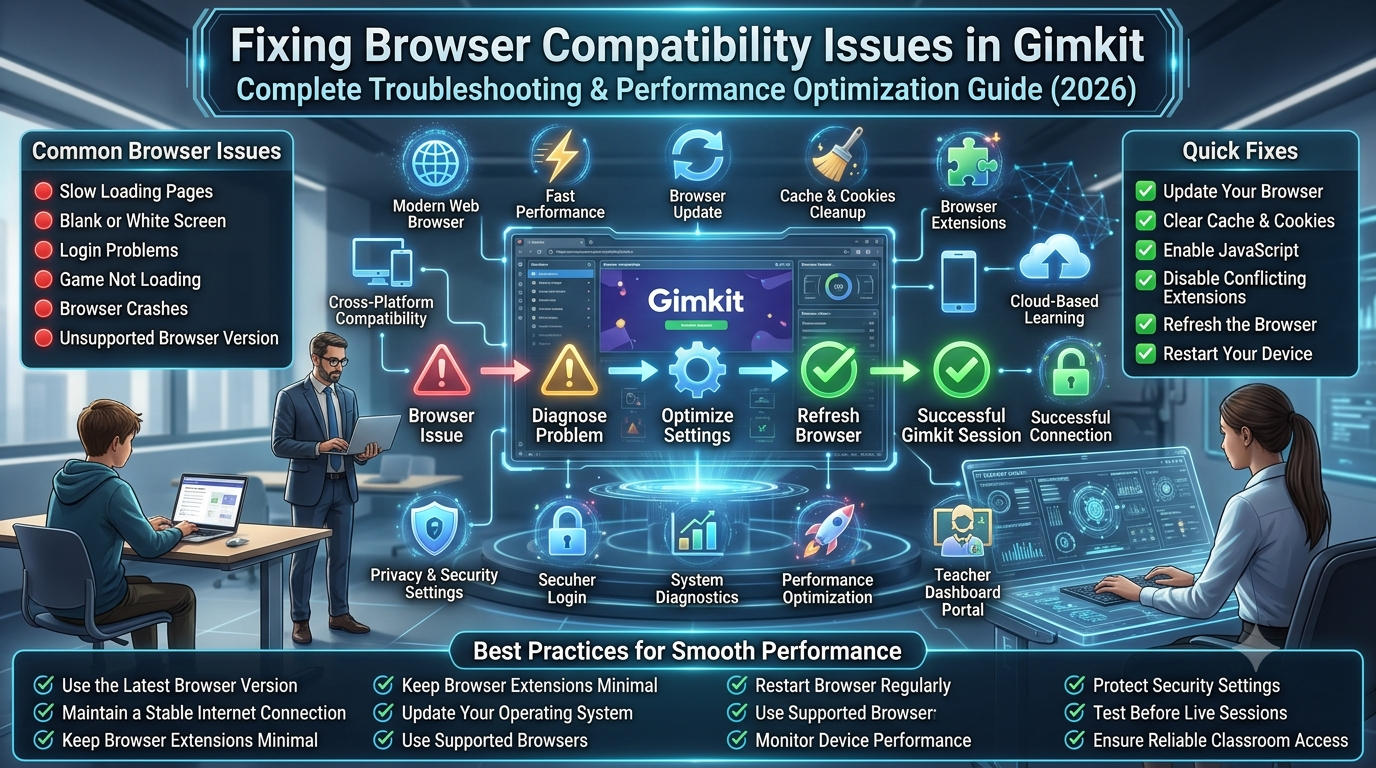
Fixing Browser Compatibility Issues in Gimkit-Solve Quick Now
Diagnose loading failures, blocked realtime connections, missing graphics support, blank 2D screens and classroom Chromebook policies with a systematic, safe approach based on official Gimkit support documentation.
WebGL & 2D gamesWebSockets & school networksChrome, Firefox, SafariChromebook policyTeacher & IT checklists
Quick answer: First decide whether you have a browser graphics problem, a real-time game-server connection problem, or a join-session problem. For 2D modes that remain blank or cannot render, review Gimkit’s official WebGL advice and graphics acceleration settings. For sessions that cannot connect or keep disconnecting, visit the official Gimkit compatibility test and inspect the provider’s server-status page. When a school firewall or proxy blocks required connections, the authorized network administrator—not a student—must review the policy. Gimkit’s connection troubleshooting document describes the official process.
Important distinction: Browser compatibility is not the same as an invalid game code, an unavailable host session, or a missing student account. Don’t clear saved passwords, install unknown browser extensions, disable school security, or use unapproved VPNs as your first troubleshooting step. This guide focuses on technical rendering and connectivity; use the join-code troubleshooting guide when the page loads but a supplied session code fails.
1. Start with the exact symptom, not a guessed solution
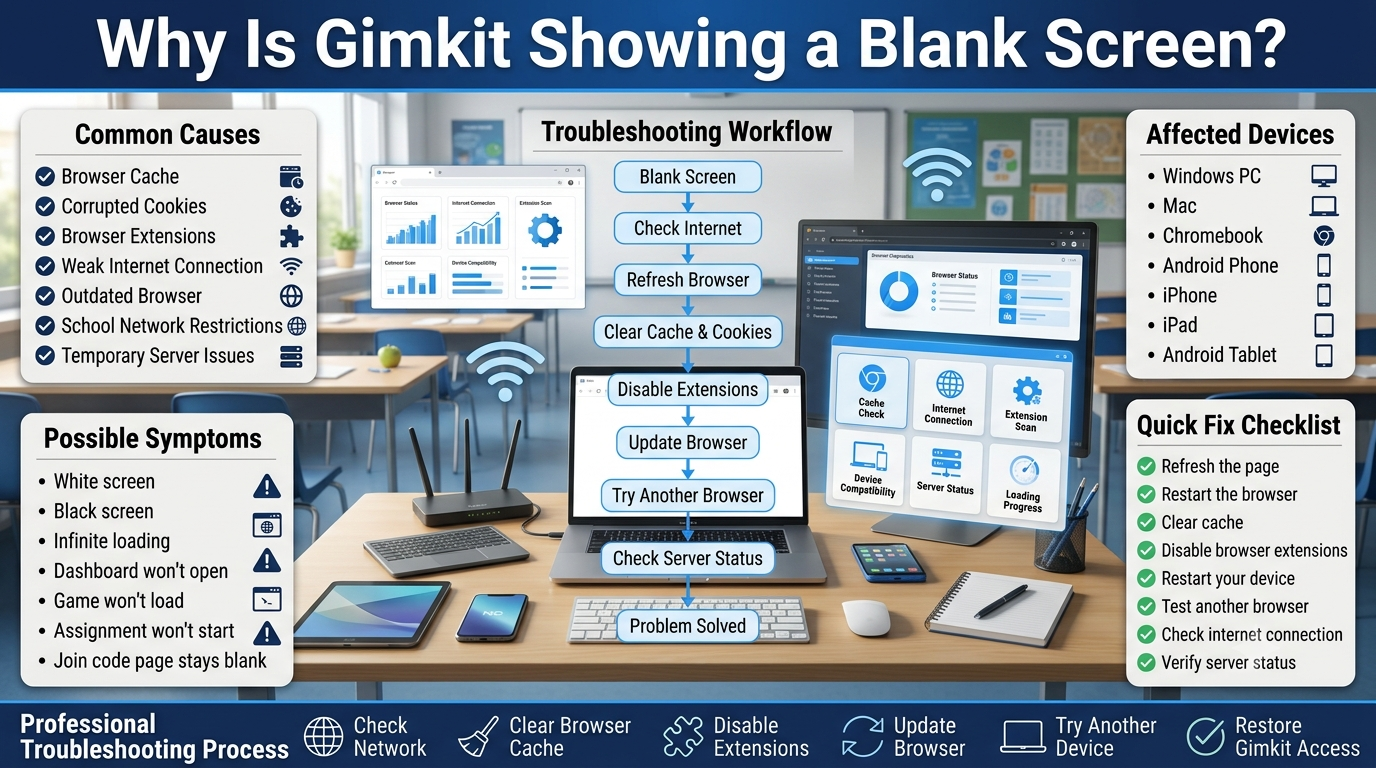
When students say Gimkit is “not working,” several different technologies might be involved. A browser can load the general website but fail to connect to a live game server. A student can successfully join a lobby and still be unable to render a 2D scene if graphics support is blocked. Another student’s browser can render the game but be affected by a school-managed network policy that interferes with live communication. These cases look similar from the teacher’s desk, yet their appropriate fixes differ substantially.
Begin with a precise observation: Which screen opens? Does the problem occur before entering the game, during the lobby, or only when the 2D world starts? Does the issue affect one device or an entire class? What browser and operating system are being used, and is the device under school management? A screenshot that excludes personal data, along with the exact error message, is usually more valuable than a report saying the site is broken.
There are three useful starting branches. The first covers a blank or unresponsive 2D environment while ordinary pages work. The second covers a real-time connection failing despite a reachable website. The third covers a failure of the site itself to load in a supported browser. Follow only the branch matching the observable problem; broad resets can obscure the original cause and waste instructional time.
Observed symptom
Primary area
First test
Who should act
Normal pages work but a 2D game is blank
WebGL, graphics acceleration or 3D-content policy
Official WebGL guidance and current browser settings
Device owner; school IT if managed
Game lobby appears but server connection fails
Real-time WebSocket/network access
Official gimkit.com/check results
Teacher with network administrator
All students on one school network fail
Firewall, filtering, proxy or network configuration
Compare one authorized network/device test
School IT
Only one older device is slow or unstable
Browser version, available resources or graphics
Update approved browser and examine device capacity
Teacher/device administrator
Code is rejected while site and game render correctly
Open one panel at a time. Each decision sequence uses a small number of observations and explains when a student should stop troubleshooting and ask an authorized adult. No personal data is submitted and the panels work without scripts or logins.
The game works until a 2D mode opens, then I see a blank scene
Check whether ordinary Gimkit pages and non-2D content load.
Identify your browser and whether it has an available approved update.
If a firewall or WebSocket test fails, share the documented result with school IT.
Do not disable TLS inspection, proxies or firewall settings yourself.
Keep classwork moving with a parallel activity while the issue is investigated.
One student fails while others on the same network can play
Verify the affected device’s browser version, network connection and installed school profile.
Compare the error with a representative device under the same policy.
Try a permitted alternative browser or restart after saving other work if school guidance allows it.
Do not delete all browser data or saved passwords as a generic fix.
Record whether the failure is graphics, loading or live connection; the distinction matters.
All classroom Chromebooks fail in the same 2D game
Have the teacher confirm that the game’s 2D mode requires WebGL.
Ask the Google Workspace or device administrator to verify the 3D-content policy and current ChromeOS deployment.
Check a representative approved device, not a random workaround.
Use non-2D question practice or printed questions if available while investigating.
I cannot get past a school login or third-party app approval screen
Determine whether the intended task requires a signed-in student account.
Confirm the school’s app authorization requirements through the teacher.
Ask the Google Workspace administrator to review official Gimkit third-party-app guidance.
Do not attempt to bypass school sign-in controls.
3. Why WebGL is the key technology behind 2D-mode graphics
WebGL is a browser technology used to render graphics with hardware acceleration. Gimkit’s official support article states that WebGL is required for its 2D game modes. WebGL is typically enabled in modern browsers, but it can become unavailable because a browser is outdated, graphics acceleration is disabled, system graphics drivers are incompatible, or an organization imposes policy restrictions.
The name “2D mode” can be confusing here. A game may look two-dimensional on the screen but still use a graphics rendering system that depends on WebGL. Therefore, an ordinary website loading correctly is not proof that a 2D game can render. The browser can retrieve a page’s HTML and images while failing the graphics initialization necessary for the playable environment.
A reliable diagnosis distinguishes WebGL availability from internet connectivity. If a browser can connect to the site but produces a blank game area, inspect graphics first. If the playable scene renders but freezes or loses connection during live interaction, investigate real-time network communication. Neither diagnosis should be treated as certain until the observed evidence supports it.
4. Chrome: update the browser and examine graphics acceleration
Chrome normally supports WebGL in current versions. If a Gimkit 2D game cannot load, the official WebGL help guide advises updating Chrome and checking the browser’s setting for graphics acceleration. Open Chrome Settings and search for graphics acceleration. The current official instructions identify the setting as “Use graphics acceleration when available.” If it is disabled and you control the device, enabling it and relaunching the browser may restore WebGL access.
In a school-managed Chrome profile, settings may be enforced by an administrator. A greyed-out control is not an invitation to circumvent device policy. Ask school IT whether the relevant Chrome setting is intentionally managed. Avoid altering experimental browser flags or downloading third-party graphics patches unless an authorized technical team specifically recommends them; ordinary users can create security and stability problems by doing so.
After an approved change, test the actual Gimkit mode rather than assuming a browser restart means success. If Chrome still cannot render WebGL, note the operating system, device model and browser version. The official guide mentions that outdated graphics drivers can also affect support, but updating drivers is a device-management decision that may require school administrator permissions.
5. Firefox: start with the maintained version and actual device limits
Gimkit’s official WebGL guide says that modern Firefox versions generally support WebGL and recommends updating Firefox when 2D modes fail. Check the browser’s permitted update channel first. On a school-managed computer, the deployed version may be controlled centrally; ask the administrator rather than downloading a second unofficial build.
Do not assume every Firefox failure is caused by the same graphics issue as Chrome. Firefox and Chrome have different implementations and different policies. If the Gimkit page and 2D scene load in Firefox but connection to the live game fails, run the official compatibility test to investigate connectivity. If Firefox cannot open unrelated secure websites, the issue may be broader than Gimkit.
A useful comparison uses the same authorized network and a representative device. Record what loads in each browser, but avoid treating a different result as proof that one browser is “bad.” The goal is to identify a reproducible condition the device owner or school IT can address.
6. Safari: check supported updates before looking for hidden switches
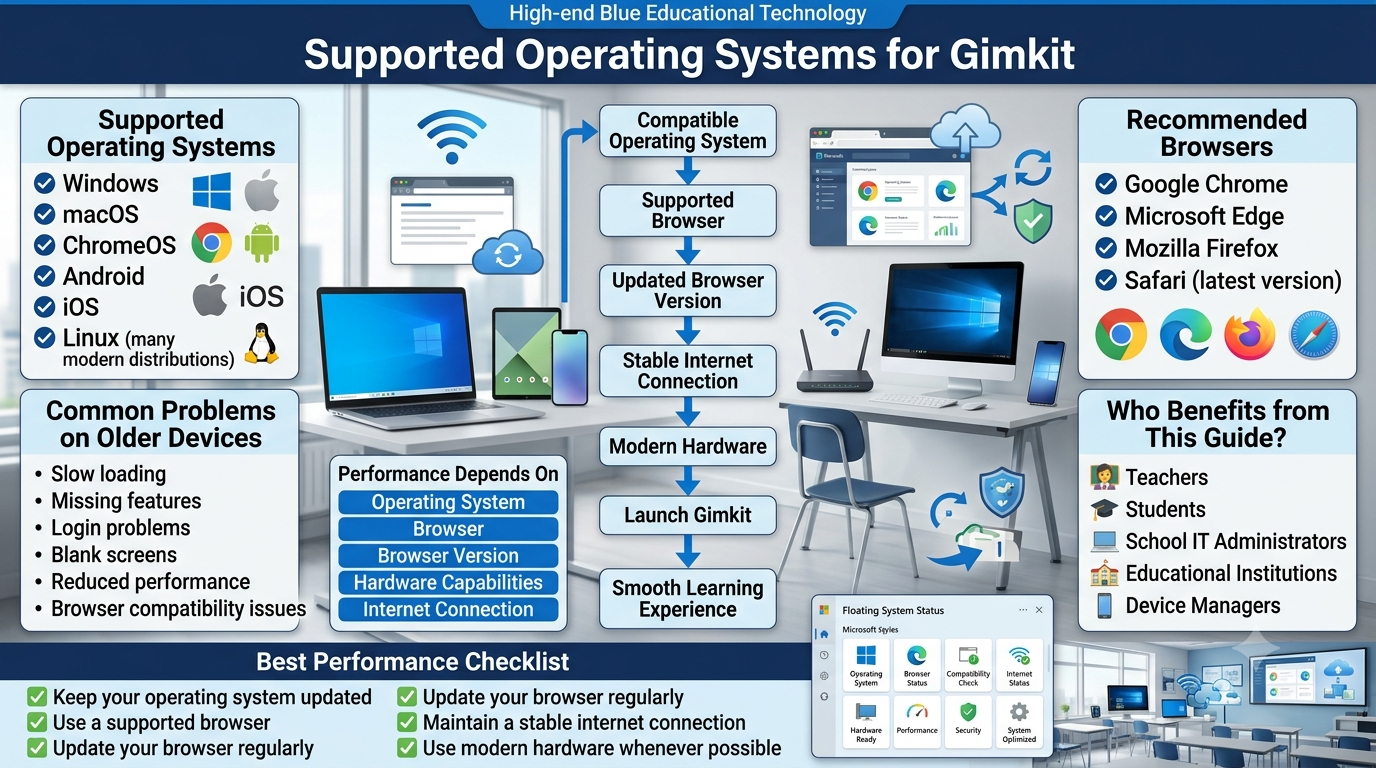
Safari typically supports WebGL on current supported systems. Gimkit’s official article advises updating Safari and explains that certain versions may display a site-specific WebGL permission. That permission does not appear identically across all devices and versions. Do not promise readers that every Safari browser has the same “WebGL” menu in the same place.
If a Mac has an older Safari version, first check whether the operating system is eligible for approved updates. On a managed Mac or iPad, software and site permissions may be governed by school policy. If WebGL remains unavailable, provide the support team with the operating system version, the affected game mode and the precise failure, instead of asking students to change experimental preferences or disable protective settings.
It is also important not to confuse an unsupported device with a missing account. A student who is signed in correctly can still encounter an incompatible graphics environment. Resolve the rendering issue independently of login troubleshooting.
7. Chromebooks: the important difference between user settings and admin policy
Chromebooks are common classroom devices, and many can run modern browser-based activities. However, a school can use Google Admin policies to restrict graphics or other features. Gimkit’s official WebGL documentation specifically tells Google administrators to verify that Chrome’s 3D-content policy permits displaying 3D content; setting the policy to prohibit 3D content can prevent 2D Gimkit modes from rendering.
A teacher should report the pattern rather than attempting to change administrator policy. The useful report is: “These managed Chromebooks load the Gimkit site, but the same 2D mode fails for several students while other pages work.” Add a representative ChromeOS version and whether an unmanaged test device works on an authorized network. The IT team can then review device and organization-level settings without guessing.
Students should not install extensions, edit flags or find ways around managed policies. If the school needs time to investigate, choose a mode and question task compatible with the available environment, or provide a paper-based equivalent of the lesson’s academic content.
8. Windows devices: browser compatibility versus graphics drivers
On Windows, WebGL rendering may be affected by graphics hardware and drivers. Gimkit’s official help notes that driver updates can help when WebGL is unavailable. Device administrators can review the installed graphics adapter and use approved manufacturer or operating-system update mechanisms. Avoid downloading drivers from random “speed booster” websites, which can introduce unwanted software or replace functional configurations.
Do not change a school’s driver configuration without its approval. In a computer lab, identical devices may all have the same outdated configuration, making repeated student-by-student troubleshooting inefficient. A single IT-led test on one representative machine is a safer route to establishing whether an update is appropriate.
Even with up-to-date drivers, a very old or restricted graphics device may not support the required rendering features. In that case, use a suitable alternative device or instructional format instead of promising that every computer can run every mode.
9. macOS and ChromeOS updates are relevant to WebGL
The official Gimkit WebGL article recommends keeping macOS and ChromeOS current because system updates also carry relevant graphics driver improvements. That recommendation has two practical constraints. First, a user must check whether the device supports the update. Second, school-managed updates may be scheduled or restricted to maintain stable classroom systems.
Before updating a classroom fleet, school IT can test the game on representative devices and confirm that the current browser and operating system remain within supported policy. Students should save work and follow approved update procedures. A device update should not be used as a distraction from a simpler cause such as an invalid game link.
10. Real-time multiplayer requires more than ordinary page loading
Live classroom games depend on ongoing communication between the browser and game servers. A school firewall can permit ordinary website downloads while restricting the connections needed for realtime sessions. Gimkit’s official connection troubleshooting guide describes checks involving the provider’s game-server domains and WebSocket traffic.
WebSockets allow an open communication channel to support realtime updates. They are not identical to a normal one-time web request. Some proxy configurations or filtering systems interfere with this traffic, resulting in sessions that never connect or repeatedly disconnect, despite the homepage being accessible. This is a different failure from a 2D WebGL blank screen, and it needs a different technical response.
Do not instruct a student or nontechnical teacher to open ports or disable an SSL-monitoring proxy. Share the official document with authorized network staff. Gimkit’s technical guidance refers to the wildcard domain *.gimkitconnect.com and relevant secure WebSocket handling. An administrator should evaluate allowlisting under the school’s security policy and only make approved changes.
11. How to use gimkit.com/check correctly
Gimkit maintains a compatibility test at gimkit.com/check. According to the provider’s support instructions, the test helps determine whether the browser and network can reach necessary parts of the service. Its output is an evidence source; it does not replace the teacher’s understanding of the current classroom session.
Run the test from an affected device on the affected network whenever possible. Record which test failed rather than merely taking a screenshot of the page heading. Repeat once on a permitted representative device or network if necessary to distinguish a single-device problem from a school-wide pattern. A test passing does not prove every individual game session will always work; it simply narrows the likely causes.
If a firewall or WebSocket test fails, provide the specific result and official documentation to school IT. Avoid asking students to try personal hotspots or other unauthorized networks; such workarounds may violate school policy and obscure whether the underlying organization network is configured correctly.
Technical handoff template (copy into your school’s approved IT ticket):
“We tested Gimkit on a school-approved device using the campus network. The general site [loads / does not load]. The affected activity is [2D mode / live connection]. At gimkit.com/check the following check failed: [exact name or message]. Browser and OS: [version]. Number of affected devices: [approximate count]. Please review the official Gimkit troubleshooting requirements and school policy.”
Do not include passwords, students’ personal identifiers or access tokens in the ticket.
12. Server status: distinguish an outage from a local failure
Before making disruptive device changes, check the status page linked by the official provider. If an incident is confirmed, teachers may need to shift temporarily to an alternative learning task. If the status page reports normal operation, continue checking the local connection and browser rather than claiming the service must be down.
Status pages offer provider-level information but may not cover every user-specific scenario. A reported green status does not guarantee that one school network has correct proxy settings; conversely, one classroom failure does not establish a worldwide outage. Note the time and specific impact, and follow authoritative service updates rather than circulating guesses about security incidents.
13. The most useful way to compare school and home devices
When possible, use a controlled comparison. Keep the intended Gimkit activity the same and change only one relevant condition at a time, such as device browser or network, under the school’s rules. If the browser renders the game on a personal device but not on a managed Chromebook, it suggests a device or management difference—but it is not definitive evidence until the configuration is checked.
Do not instruct learners to authenticate school accounts on unapproved personal devices for testing. A teacher can coordinate with IT using school-controlled hardware and authorized test accounts. The purpose is to isolate a cause while protecting student information and institutional controls.
14. Device performance issues: practical checks without exaggerated promises
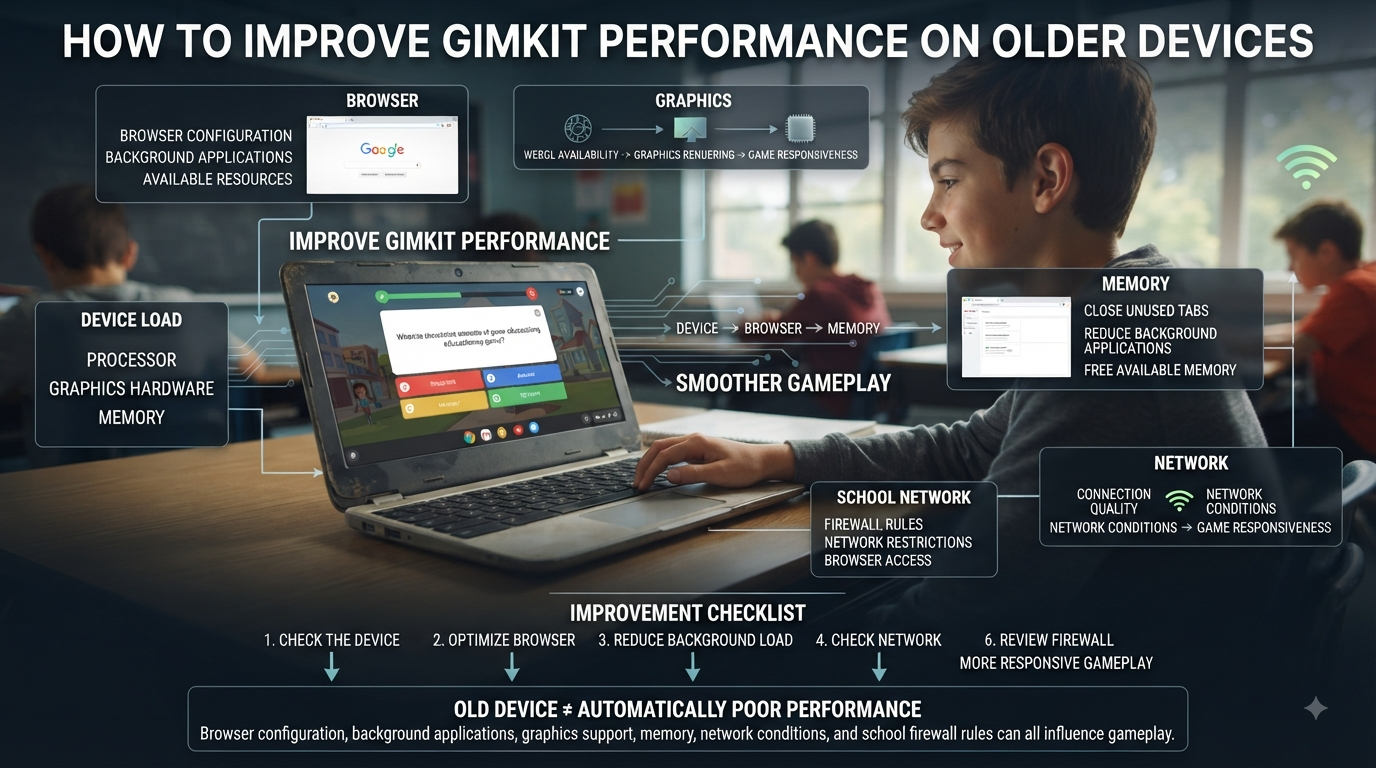
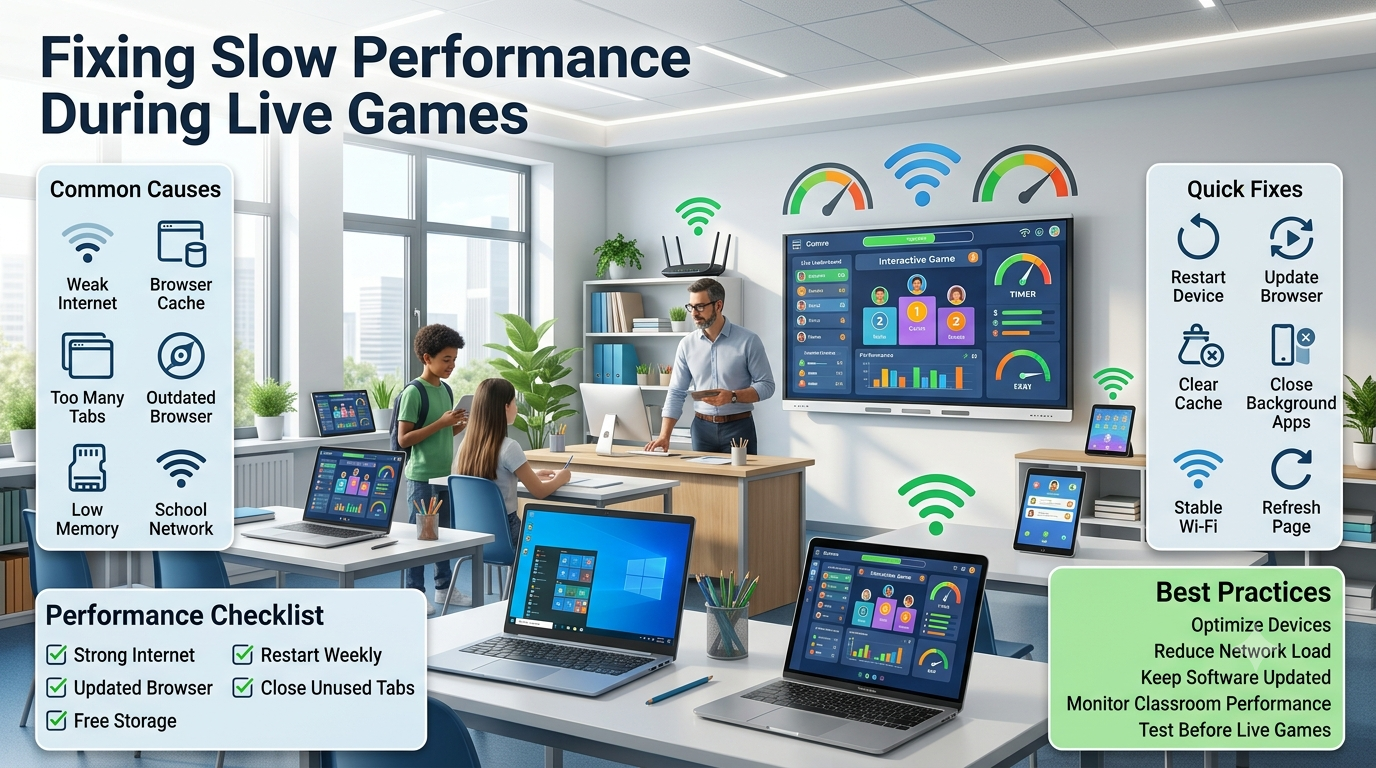
A low-powered device may struggle when a browser runs many applications, displays complex visuals or receives a large number of simultaneous updates. Close unnecessary tabs and programs after saving other work. Make sure the device is not running on critically low power. A browser update or system restart may help when the issue is local, but these steps cannot repair an invalid session or a blocked network connection.
Avoid promising that enabling graphics acceleration always increases performance. On some devices, acceleration may be unavailable or managed, and changing it may not resolve a separate connectivity problem. Likewise, a large memory cache is not inherently proof of corruption; clearing all stored site data is a high-impact step that signs users out and should not be the first recommendation.
If crashes occur only in a particular mode, note its visual complexity and compare it to another official mode under the same authorized conditions. Use an alternate teaching approach if a required classroom device cannot support the activity reliably.
15. School-managed Google Workspace access is another distinct issue
Some learners encounter a Google sign-in or app approval screen rather than a browser rendering failure. Gimkit’s official support documentation includes a Google Workspace for Education administrator guide for schools that use managed student Google accounts. This issue concerns application authorization, not WebGL graphics or the basic join-code validity.
Determine whether the learning task actually needs a student account before troubleshooting sign-in. Gimkit’s official Account FAQ says accounts are not generally required to join live games, though Classes and other account-linked features have different needs. When a managed Google app is blocked, authorized administrators should evaluate the appropriate policy. Students must not bypass the restriction.
16. Privacy and safety during browser troubleshooting
School staff should not request a student’s password, personal email recovery code or private browser history merely to diagnose game loading. Collect only details relevant to the technical problem: browser version, operating system, approximate time, whether a device is managed, which step failed and a non-identifying error message. These details help reproduce the problem without exposing unnecessary private data.
If a screenshot is needed, crop or redact names, codes associated with live classes, school identifiers and personal account details. Provide screenshots only through approved support channels. If an administrator requests additional network diagnostics, they should explain why the information is necessary and handle it under institutional data policies.
17. A short teacher-facing recovery workflow
1. Preserve the learning goal
Write the objective and prepare an equivalent question activity outside the game.
2. Identify the failure
Classify the issue as page loading, WebGL rendering, realtime connection or host session.
3. Run one controlled test
Use the current official compatibility page or relevant WebGL check.
4. Escalate appropriately
Give school IT technical results, not passwords or guesses.
5. Continue teaching
Use accessible independent or group practice until the required system works.
6. Record the prevention step
Document a short resolution note for the next class using the same devices.
18. Worked example: a 2D game fails on an entire Chromebook cart
A teacher starts a 2D mode, and a group of students can load the Gimkit joining page but cannot see the playable world. Another browser-based reading application works on those devices, so the teacher initially assumes the internet is fine. Instead of repeatedly reissuing the game code, the teacher asks school IT to review WebGL and the managed Chrome policy for 3D content. While staff investigate, the teacher runs a short question-based review using a suitable alternative route.
In this illustrative example, the critical insight is that successful page loading does not prove graphics support. The response is not to disable security or accuse the service of an outage. It is to investigate the documented technology needed for 2D rendering and maintain the lesson objective throughout the disruption.
19. Worked example: the site loads, but a live game will not connect
A second teacher finds that the official site loads on the school network and the game lobby appears, but students repeatedly lose connection to the realtime session. Rather than changing browser graphics settings, the teacher runs the official compatibility check on an affected device. A WebSocket test fails. The school network administrator receives the exact test result and Gimkit’s documentation about required realtime communication.
This is an illustrative diagnostic scenario, not an assertion that a particular school has an actual firewall problem. It shows why the step of identifying the failure matters: WebGL instructions are unlikely to repair an organization proxy that restricts secure realtime communications.
20. Technical compatibility checklist for teachers and IT
21. Frequently asked questions about Gimkit compatibility
Does Gimkit require WebGL?
Gimkit’s official documentation says WebGL is required for its 2D game modes. Ordinary website loading and WebGL rendering are separate capabilities.
Why does Gimkit load but a 2D game show a blank screen?
One possible cause is unavailable WebGL or blocked graphics acceleration. Check the official WebGL guidance and managed-device restrictions before assuming the code is invalid.
Does enabling Chrome graphics acceleration always solve the issue?
No. It is a supported troubleshooting step for relevant WebGL failures, but an older graphics device, driver issue, school policy or unrelated network problem may still be responsible.
Where can I test whether my browser and network can connect?
Gimkit’s own support recommends the compatibility page at gimkit.com/check. Record which checks pass or fail and share a specific failure with IT when needed.
What if the compatibility test reports a WebSocket problem?
Ask the school network administrator to review the official Gimkit documentation regarding secure realtime connections and the game’s server domains. Students should not alter institutional firewall or proxy settings.
Can I fix a school Chromebook’s 3D policy myself?
Not if it is managed by the school. The Google or device administrator must review relevant 3D-content restrictions and decide whether changes are appropriate.
Does a rejected game code mean my browser is incompatible?
Not necessarily. A stale or mistyped code, an ended host session or a joining restriction is a different category of problem. Verify the live host details first.
Should I clear all cache and cookies when a game freezes?
Not as the first response. Broad clearing can sign learners out and erase useful site data. Identify the specific failure and try a smaller approved check first.
What if all students in one building cannot connect?
Compare authorized test results on the affected network and check server status. Have the school IT team evaluate filtering and realtime access requirements, while teachers maintain a backup academic activity.
Is a green provider status proof that every school device is compatible?
No. Provider status and local browser, graphics or network policy are different factors. A single school can have a local configuration issue while the provider is operating normally.
Can students use an unauthorized VPN to make Gimkit work?
That is not an appropriate recommendation. Follow school network and privacy rules and have authorized administrators address any relevant restriction.
22. Related help that does not duplicate this topic
For an invalid live code or joining confusion, see What to Do If Your Game Code Doesn’t Work. For a teacher whose whole multiplayer classroom activity is disrupted by participation or instruction issues, use Common Multiplayer Challenges and Solutions. For account-specific login and recovery, read Gimkit Login. For choosing a mode appropriate for device limitations, read Gimkit Game Modes. These pages answer different questions; they are not substitutes for the official technical documentation.
Conclusion: diagnose graphics, connectivity and joining separately
Browser compatibility issues in Gimkit become easier to address once the exact symptom is clear. WebGL and graphics acceleration matter for 2D rendering; WebSocket communication and school proxies can affect realtime sessions; account authorization and game codes involve different systems entirely. Use the current official tests, provide precise information to authorized school staff and continue the learning objective through an accessible alternative while the problem is investigated.
Independent technical education guide. Not affiliated with or endorsed by Gimkit. Current device and server requirements should be verified through Gimkit’s official Help Center and the school’s IT policies. No claim is made that the troubleshooting steps guarantee a fix on every device.