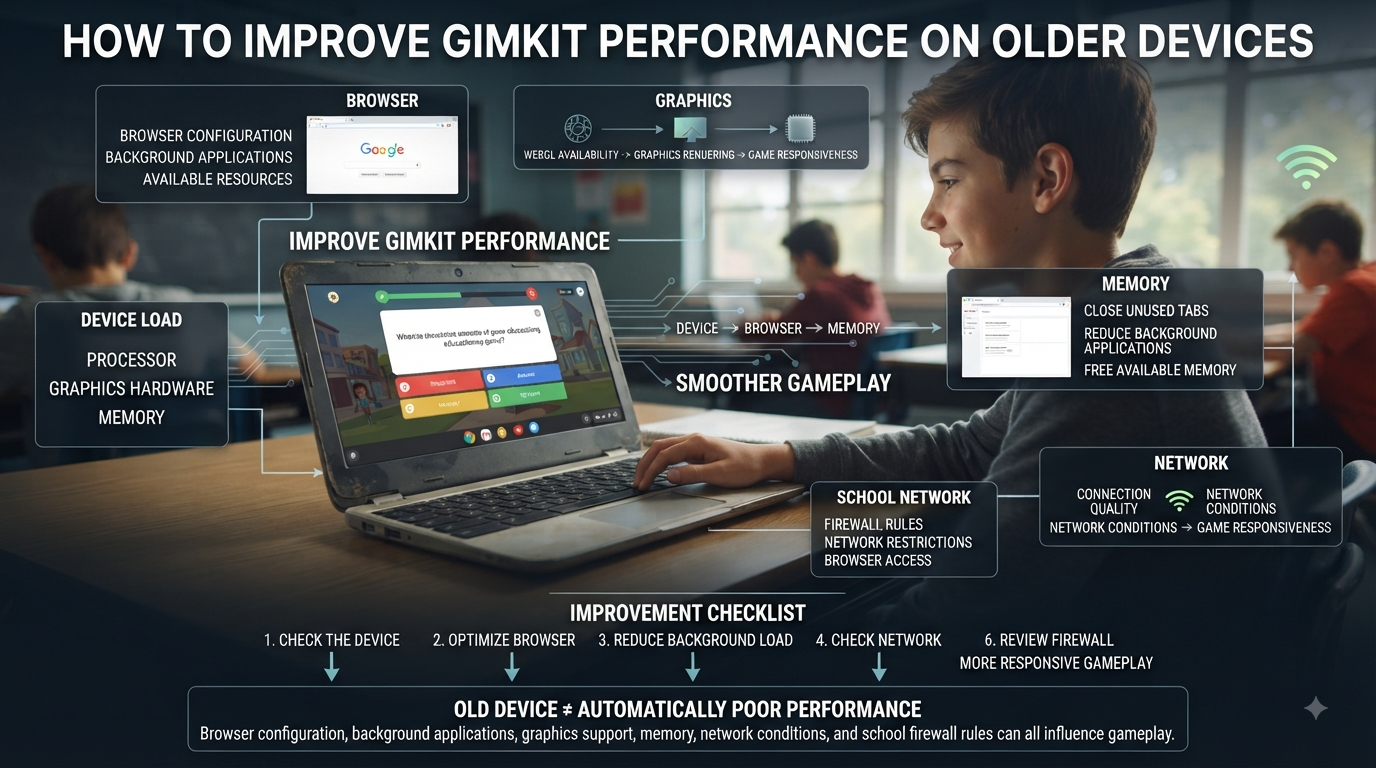
How to Improve Gimkit Performance on Older Devices | Gimkit runs on a wide range of computers and browsers, but older devices can struggle when a game places heavier demands on the processor, graphics hardware, memory, or browser. Poor performance is not always caused by the age of the device itself — browser configuration, background applications, WebGL availability, network conditions, and school firewall rules can all affect how smoothly a session runs.
For students on older Chromebooks, laptops, tablets, or phones, a handful of practical, ordered adjustments can often make Gimkit noticeably more responsive without requiring a new device.
Looking for comprehensive classroom resources and educational technology insights? Explore GimkitApp for expert guides, teaching strategies, game modes, and the latest updates to enhance student engagement.
1. Start With the Browser
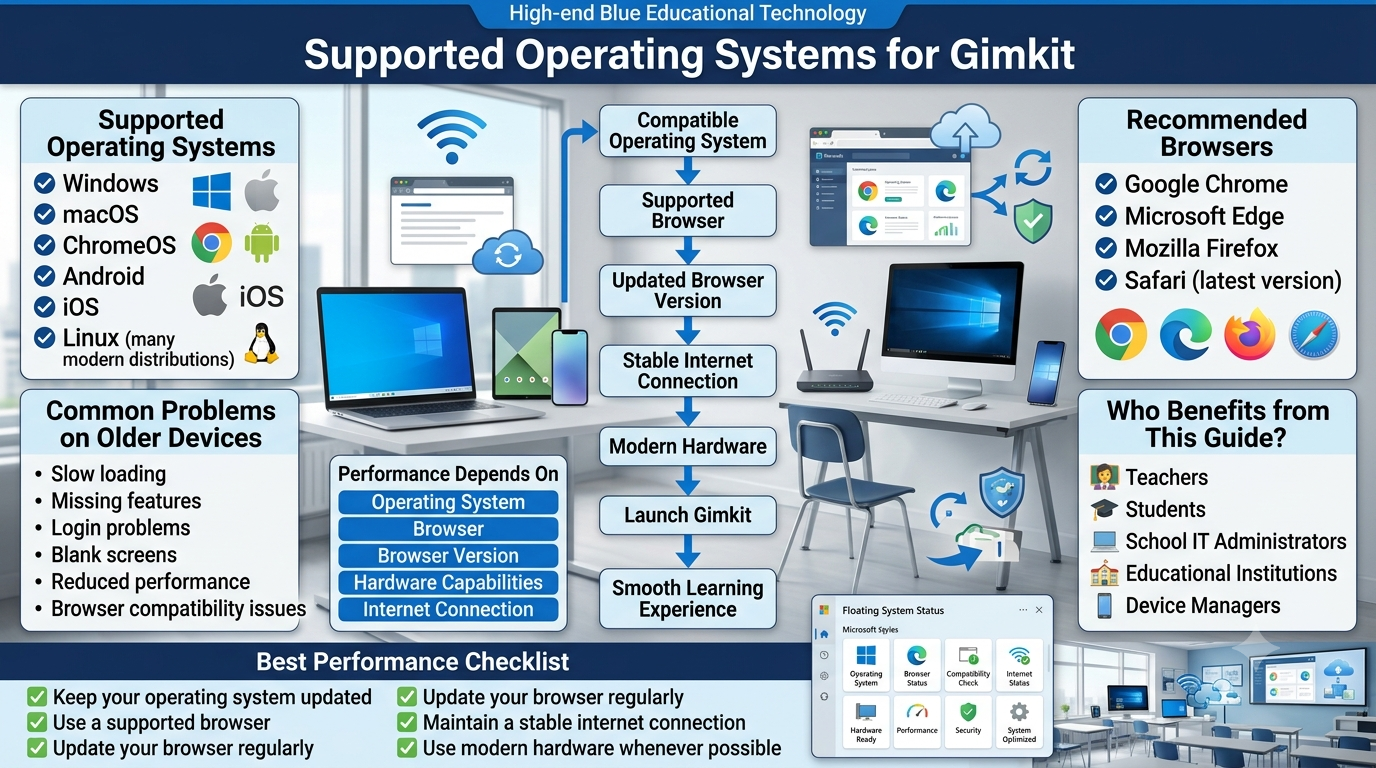
The browser is the first thing to check on an older device. Gimkit’s own support documentation recommends keeping browsers current, since WebGL — the technology its 2D game modes depend on — has shipped enabled by default in Chrome, Firefox, and Safari for roughly the past decade. An outdated browser build can create compatibility problems even when the underlying hardware is still capable.
Before changing anything else:
Update the browser to its latest available version.
Restart the browser after updating.
Avoid running Gimkit in an unsupported or outdated browser build.
If one browser performs poorly, test Gimkit in another current browser.
2. Close Unnecessary Browser Tabs
Older devices often have limited RAM. Multiple open tabs — video streams, large web apps, online documents, other classroom platforms, social feeds, browser-based games — leave less memory available to Gimkit. Starting a session with a clean browser window instead of twenty open tabs can make a substantial difference.
3. Close Background Applications
The same principle applies outside the browser. Programs running in the background — video editors, download managers, unused communication apps, other games, or anything syncing heavily — compete with the browser for processor time and memory. The goal is to free as many resources as possible for the browser and Gimkit before joining a game.
4. Check WebGL
WebGL is required specifically for Gimkit’s 2D game modes, and Gimkit’s help center is explicit that there is no fallback rendering path for those modes — if WebGL is unavailable, 2D modes simply won’t load. If a device has trouble loading a 2D mode, this should be one of the first things checked.
Chrome: Update to the latest version — WebGL should be enabled by default in recent builds.
Firefox: Current versions support WebGL automatically with no manual flag required.
Safari: Update macOS/Safari first; on some Macs, WebGL needs to be explicitly allowed for the site under Safari’s Websites preferences.
If WebGL is unavailable because of outdated graphics drivers or a device restriction (common on school-managed Chromebooks via admin policy), the issue may not be solvable through Gimkit’s own settings.
5. Enable Hardware/Graphics Acceleration
Hardware acceleration lets compatible graphics operations run on the device’s GPU rather than the CPU alone, which can matter on computers struggling with Gimkit’s 2D content.
On Chrome:
Open Chrome settings.
Search for “graphics acceleration.”
Turn on Use graphics acceleration when available.
Relaunch Chrome.
You can confirm whether it actually took effect by visiting chrome://gpu and checking whether WebGL is listed as hardware-accelerated. Acceleration isn’t guaranteed to help every old machine — if a particular graphics driver is unstable, test with the setting both on and off to see which is more reliable.
6. Reduce the Device’s Overall Workload
Even when Gimkit itself isn’t demanding, simultaneous activity can push older hardware toward its limits. Running a high-resolution video stream, several large documents, and a file download alongside Gimkit creates avoidable pressure. For a classroom session, the simplest setup is usually the most reliable:
Gimkit + Essential Classroom Resources → Fewer Competing Processes → More Available Resources
7. Keep the Device Updated
An old device isn’t necessarily an unusable one. Operating-system updates bring browser improvements, graphics-driver updates, and compatibility fixes — Gimkit’s own guidance specifically recommends keeping macOS and ChromeOS current, since driver updates on both platforms are bundled with system updates rather than installed separately. On Windows, graphics drivers can also be updated manually through Device Manager. If a device is old enough that it can no longer receive current browser or OS updates, compatibility eventually becomes the hard limit.
8. Check Whether the Problem Is Actually the Network
Not every performance problem originates from the device. Because Gimkit continuously exchanges game-state data over WebSocket connections, an unstable connection can make a game appear to freeze, update slowly, or behave inconsistently even on a perfectly capable computer.
Device problem
The game is visually slow, stuttering, or hard for the hardware to render
Network problem
The game responds late, balances/answers update slowly, or changes lag by several seconds
Testing the same device on another network is the fastest way to tell these apart.
9. Run Gimkit’s Compatibility Test
When the cause is unclear, Gimkit provides an official diagnostic at gimkit.com/check, which tests firewall access, WebSocket connectivity, SSL certificate validation, and WebGL support in a single pass. A clean result confirms the device and connection meet requirements; a failed test points to the specific layer causing trouble — often more useful than guessing. This is especially valuable in schools, where students use managed devices on filtered networks and an apparent “device problem” is really a network one.
10. Be Careful With School Network Restrictions
School-managed networks add a layer of complexity. Gimkit’s real-time gameplay depends on secure WebSocket connections to its game servers under *.gimkitconnect.com, and school firewalls or proxy filters commonly block unfamiliar domains or WebSocket traffic by default — Gimkit’s support team can provide the specific domain list a school’s IT department needs to whitelist. If multiple students suddenly hit the same connection problem on otherwise-functional devices at the same time, that’s a strong signal to investigate the network rather than reconfigure every device individually.
11. Use Less Demanding Game Modes When Possible
Older hardware may handle simpler game experiences more comfortably than more demanding ones, though hardware capability varies significantly even between same-age devices. A useful classroom habit is testing the intended mode on the oldest available student device before a full class session — if it struggles, switch modes or simplify. This matters more as class size grows, since larger sessions place greater demands on network stability.
12. Restart Before a Major Classroom Session
A restart clears accumulated browser and system activity and gives an older device a clean starting point. A practical pre-class sequence:
Restart Device → Update Browser → Close Unnecessary Apps → Open Gimkit → Run Compatibility Check → Join Game
13. Keep the Device Cool
Older laptops can throttle or become less responsive under sustained heat. Avoid soft surfaces (beds, blankets, cushions) that restrict airflow, keep vents unobstructed, and use a hard, stable surface. If Gimkit runs smoothly at first but grows progressively more sluggish during extended use, heat is worth ruling out alongside browser and network causes.
14. Know When the Hardware Is the Actual Limitation
Software adjustments cannot fully compensate for insufficient hardware — very limited RAM, an outdated processor, weak integrated graphics, an unsupported OS, a browser that can no longer update, or drivers that don’t support required functionality. At that point, the most useful diagnostic is comparing the device against Gimkit’s own compatibility check and confirming whether the same account and game work normally on a newer machine.
A Practical Older-Device Checklist
CheckWhy It Matters
Update browser
Improves compatibility with current web technologies
Close unnecessary tabs
Frees RAM and browser resources
Close background apps
Reduces CPU and memory competition
Check WebGL
Required for Gimkit’s 2D game modes
Enable graphics acceleration
Can improve compatible graphics processing
Update the operating system
Delivers newer drivers and compatibility fixes
Test the network
Separates device problems from connection problems
Run gimkit.com/check
Identifies common compatibility and connectivity failures
Restart the device
Provides a clean starting state
Test the game mode beforehand
Reveals problems before the class begins
The Best Strategy for Older Classroom Devices
Improving performance is less about one magic setting and more about removing unnecessary sources of strain, in this order:
Update → Clean Up → Check WebGL → Enable Graphics Acceleration → Test Network → Run Compatibility Check → Test the Game Mode
If problems persist, compare the device’s behavior against a newer computer on the same network. If the newer device works normally, the older hardware or its software environment is the likely bottleneck. If both devices show the same issue, the network or Gimkit’s service is the more probable cause — not the device.
Advanced Troubleshooting for Older Devices
When basic browser, device, and network checks don’t resolve a problem, the next step is isolating exactly where the limitation sits. A game that freezes, one that loads slowly, and one with delayed player actions can look similar on the surface but point to different causes.
When Gimkit Loads Slowly
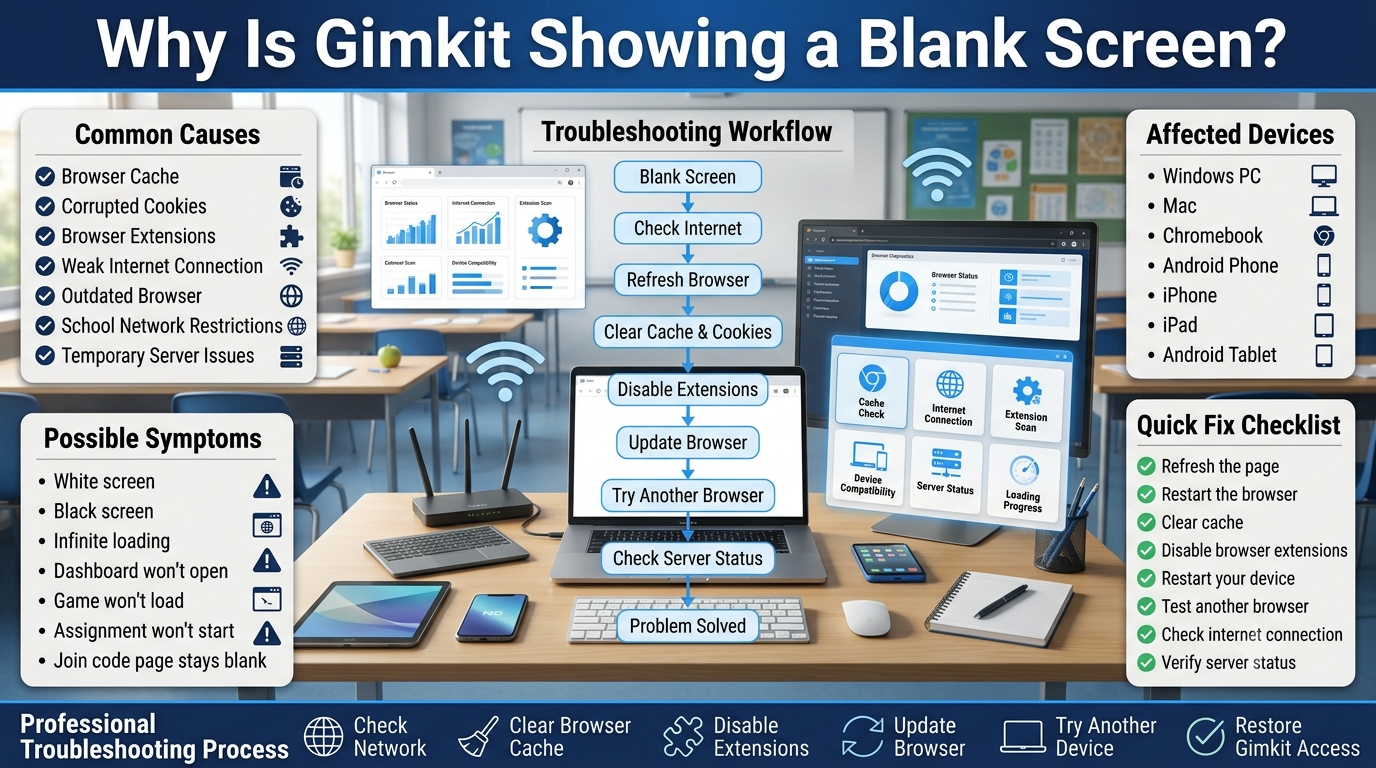
Determine whether the delay happens before the game opens or after it has already loaded. Slow initial loads are commonly related to an outdated browser, limited memory, too many open tabs, browser extensions, slow connectivity, a stale browser cache, or school network filtering. If other websites also load slowly on the same device, the issue likely isn’t Gimkit-specific; if ordinary sites load fine but Gimkit consistently lags, focus on browser compatibility, WebGL, extensions, and network restrictions.
When the Game Stutters or Freezes
Visual stuttering usually points to device-side processing rather than a simple network delay. Try:
Close Extra Applications → Close Extra Tabs → Restart Browser → Check Graphics Acceleration → Restart Device → Test Again
If performance improves after closing background apps, resource contention was the likely cause. If stuttering persists even in a clean session, hardware capability or driver/browser compatibility is the more likely limitation.
When Actions Feel Delayed
This differs from graphical stuttering: a student clicks or acts, and the result appears late. This pattern points more toward network latency or packet loss than raw processing power — Gimkit’s real-time architecture depends on a steady WebSocket connection, and any instability shows up first as delayed state updates. Testing the same device on a different, reliable network is the clearest way to confirm this. If the game becomes responsive elsewhere, the original connection — not the device — was the bottleneck.
When Only One Student Has Problems
If a single student struggles while the rest of the class plays normally, it’s unlikely to be a Gimkit-wide outage or classroom-wide network issue (worth a quick check at Gimkit’s status page regardless). Check that student’s browser version, device age/specs, available memory, open tabs, background apps, WebGL support, graphics acceleration, network connection, and OS version — this is usually faster than adjusting settings for the whole class.
When Many Students Have Problems at Once
The opposite pattern — widespread connection failures, long delays, disappearing players, repeated loading, or shared error messages — points away from individual devices and toward the classroom network, firewall, content filter, or a genuine service issue. Gimkit maintains a live status page at gimkit.crisp.watch covering its main site, 2D game servers, non-2D game servers, and API separately — worth checking before troubleshooting individual machines.
For the latest gaming news, expert reviews, and walkthroughs, readers can also visit IGN, one of the world’s leading gaming websites.
Other Factors Worth Checking
Browser extensions. Extensions that inspect pages, modify scripts, block resources, or run continuous background operations add a workload that’s negligible on a modern machine but more noticeable on older hardware. Testing in a clean browser profile can confirm whether an extension is the culprit; on managed school devices, an IT administrator may need to adjust extension policy directly.
Browser cache and stored data. Corrupted or stale cached data can occasionally cause unusual behavior. If Gimkit misbehaves while other sites work fine, clearing site data is a reasonable troubleshooting step — not something to do routinely before every game.
Simplicity over multitasking. A single updated browser with one Gimkit tab and essential classroom resources tends to outperform the same device juggling several tabs, streaming video, documents, and background downloads — especially on machines with limited RAM.
Simultaneous downloads. Large downloads, cloud syncs, or software updates running during a live session compete for both bandwidth and system resources. Avoid starting them while an important class game is in progress.
Battery-saving mode. Some laptops throttle processor performance under battery-saving settings. If a device performs noticeably better plugged in than on battery, power management — not the hardware itself — may be the limiting factor. For longer sessions, starting with a full charge avoids both throttling and sudden shutdowns.
Free storage space. A nearly-full drive can leave little room for temporary files and normal browser operation, contributing to general sluggishness beyond just Gimkit. If a device is slow everywhere, not just in Gimkit, checking free storage is worthwhile — though this is separate from raw processing capability.
Browser choice. Different browsers can behave differently on the same older hardware. If one current, supported browser stutters, testing another can isolate whether the issue is graphics handling, extensions, or device-specific compatibility rather than a universal flaw in either browser.
Skip third-party “performance boosters.” Unofficial system cleaners, driver utilities, and browser “optimizers” are not automatically beneficial and can add more background processes or ads. For a classroom device, the safer path is current supported software, official browser settings, normal OS maintenance, proper drivers, solid network configuration, and Gimkit’s own troubleshooting resources.
When a Device Is Simply Too Old
There’s a real ceiling on what configuration changes can fix. If a device can no longer run a current supported browser, can’t support required web technologies, has extremely limited memory, or has graphics hardware that can’t provide required functionality, the issue has moved from “how do I optimize Gimkit” to genuine device incompatibility. The clearest test: run the same account and game on the older device and a newer one, on the same network. If the newer machine consistently works and the older one doesn’t, the older device’s hardware or software environment is the strongest suspect.
A Teacher’s Pre-Game Checklist for Older Devices
Before students join:
Update the supported browser.
Restart the device if it’s been running a long time.
Close unnecessary applications and browser tabs.
Confirm a stable internet connection.
Test the intended game mode ahead of time.
Check the oldest available student device first.
Run gimkit.com/check if a problem appears.
Keep an alternative activity ready in case a device can’t participate.
This turns troubleshooting from a mid-class emergency into ordinary preparation.
A Troubleshooting Decision Tree
Does Gimkit load? No → check browser version, internet access, WebGL, and network restrictions. Yes → continue.
Does the game visually stutter? Yes → check CPU/memory load, open tabs, background apps, graphics support, and hardware acceleration. No → continue.
Are actions delayed or connections unstable? Yes → test the network and compare against another device on the same connection. No → continue.
Does the problem occur on only one device? Yes → investigate that device specifically. No → investigate the shared network, firewall, filtering system, or Gimkit’s service status.
Frequently Asked Questions
1. Can Gimkit work on an old laptop?
Yes. An older laptop can run Gimkit if it supports a current compatible browser, required web technologies such as WebGL, and a stable internet connection. The age of the device alone does not determine compatibility. Performance depends more on its processor, memory, graphics capabilities, operating system, browser version, and network conditions.
Before replacing an older device, teachers or students should test these factors and close unnecessary applications that may consume system resources.
Check these factors first:
Current supported browser.
WebGL and graphics support.
Available system memory.
Operating system compatibility.
Stable internet connection.
Number of background applications.
2. Does more RAM make Gimkit faster?
More RAM can improve performance when a device is genuinely running low on available memory, particularly when students have multiple browser tabs, applications, or background processes open. However, adding RAM does not automatically solve every performance problem.
A slow processor, outdated graphics support, browser issue, network limitation, or excessive background activity can still cause lag even when the device has plenty of memory.
3. Why does Gimkit work on a newer laptop but not an older one?
A newer laptop may have a faster processor, stronger graphics capabilities, more memory, newer operating-system support, or better compatibility with current browser technologies. Comparing the two devices can therefore help identify whether the problem is related to hardware, software, or the network.
If both devices use the same connection but only the older laptop struggles, examine its browser version, available resources, graphics support, extensions, and operating system before assuming the internet is responsible.
Compare:
Processor performance.
Available RAM.
Graphics capabilities.
Browser versions.
Operating-system support.
Network behavior.
4. Can slow internet make an old device look slow?
Yes. Network delays can make Gimkit appear unresponsive even when the laptop itself has adequate hardware. This is particularly important during live games, where continuous communication between the browser and online service is required.
Teachers can compare several devices using the same network. If multiple students experience delays simultaneously, the network becomes a stronger suspect. If only one device struggles, investigate that device separately.
Check the difference between:
Device performance.
Internet speed and stability.
Network congestion.
Browser responsiveness.
Performance during larger games.
5. When should a school consider replacing an old device?
A school should consider replacement when an older device can no longer run current supported software reliably, repeatedly fails compatibility requirements, or remains unsuitable after reasonable troubleshooting. Occasional slowness alone does not necessarily justify replacing hardware.
The better approach is to evaluate the device’s overall ability to support modern educational software, not simply its age. If hardware limitations consistently interfere with learning activities, replacement may provide a more reliable long-term solution.
Replacement may be appropriate when:
Current browsers are no longer supported.
Required web technologies do not function properly.
Performance remains consistently poor.
The operating system cannot receive necessary updates.
Troubleshooting no longer resolves recurring problems.
The device regularly disrupts classroom learning.
Professional Recommendations & Expert Reviews
How to Improve Gimkit Performance on Older Devices starts with keeping the browser updated because outdated browser versions can struggle with modern web applications.
How to Improve Gimkit Performance on Older Devices is easier when unnecessary browser tabs are closed before starting a game.
How to Improve Gimkit Performance on Older Devices often begins with reducing the number of programs running in the background.
How to Improve Gimkit Performance on Older Devices can involve restarting the device before an important classroom session.
How to Improve Gimkit Performance on Older Devices becomes easier when students avoid running demanding applications alongside the game.
How to Improve Gimkit Performance on Older Devices requires checking whether the device has enough available memory for normal browser use.
How to Improve Gimkit Performance on Older Devices can benefit from closing unused browser extensions.
How to Improve Gimkit Performance on Older Devices may improve when unnecessary extensions are disabled, particularly those that consume significant resources.
How to Improve Gimkit Performance on Older Devices includes keeping the browser environment as simple as possible during gameplay.
How to Improve Gimkit Performance on Older Devices can involve clearing accumulated browser data when browser problems are causing unusual slowdowns.
How to Improve Gimkit Performance on Older Devices should include checking whether the problem occurs across different websites or only inside Gimkit.
How to Improve Gimkit Performance on Older Devices becomes easier when users identify whether the main problem is slow loading, freezing, delayed responses, or network instability.
How to Improve Gimkit Performance on Older Devices requires recognizing that slow gameplay is not always caused by the device itself.
How to Improve Gimkit Performance on Older Devices can involve checking the internet connection when questions or game actions take a long time to respond.
How to Improve Gimkit Performance on Older Devices benefits from using a stable Wi-Fi connection with minimal interference.
How to Improve Gimkit Performance on Older Devices can improve when other devices are not heavily consuming the same network connection.
How to Improve Gimkit Performance on Older Devices may require moving closer to the Wi-Fi router when signal strength is weak.
How to Improve Gimkit Performance on Older Devices should include checking whether other classroom activities are consuming significant bandwidth.
How to Improve Gimkit Performance on Older Devices becomes more manageable when teachers test the devices before students enter a live session.
How to Improve Gimkit Performance on Older Devices can involve testing a small number of devices first instead of waiting until the entire class joins.
How to Improve Gimkit Performance on Older Devices is easier when students use a browser that is currently supported and performs well on their hardware.
How to Improve Gimkit Performance on Older Devices does not necessarily mean that every student must use the same browser.
How to Improve Gimkit Performance on Older Devices should focus on finding a reliable browser-device combination rather than following a one-browser-fits-all approach.
How to Improve Gimkit Performance on Older Devices can involve disabling unnecessary visual or background browser features.
How to Improve Gimkit Performance on Older Devices may benefit from reducing other demanding browser activity while the game is running.
How to Improve Gimkit Performance on Older Devices requires keeping enough free storage available because extremely limited storage can contribute to broader device performance problems.
How to Improve Gimkit Performance on Older Devices can involve removing unnecessary temporary files and unused applications.
How to Improve Gimkit Performance on Older Devices becomes easier when the operating system is maintained and supported by the device manufacturer.
How to Improve Gimkit Performance on Older Devices should include checking for pending system updates when unusual performance problems appear.
How to Improve Gimkit Performance on Older Devices can improve after unnecessary startup applications are reduced.
How to Improve Gimkit Performance on Older Devices requires avoiding heavy downloads or installations during gameplay.
How to Improve Gimkit Performance on Older Devices can be helped by keeping large background transfers paused during a classroom game.
How to Improve Gimkit Performance on Older Devices may require monitoring whether the device becomes unusually hot during extended use.
How to Improve Gimkit Performance on Older Devices can involve placing the laptop or tablet where ventilation openings are not blocked.
How to Improve Gimkit Performance on Older Devices becomes more reliable when devices are allowed to cool down after intensive use.
How to Improve Gimkit Performance on Older Devices should include checking battery-saving modes because aggressive power settings can sometimes reduce device performance.
How to Improve Gimkit Performance on Older Devices can involve connecting the device to power during longer classroom sessions when appropriate.
How to Improve Gimkit Performance on Older Devices requires avoiding unnecessary multitasking while students are playing.
How to Improve Gimkit Performance on Older Devices can improve when video streaming, large downloads, and other demanding activities are stopped.
How to Improve Gimkit Performance on Older Devices is easier when teachers prepare a simple classroom technology setup instead of running several demanding services simultaneously.
How to Improve Gimkit Performance on Older Devices can involve using fewer browser windows during gameplay.
How to Improve Gimkit Performance on Older Devices may improve when students remove unnecessary pages from memory before joining a session.
How to Improve Gimkit Performance on Older Devices should include testing the device with a normal browsing session before assuming the game is responsible.
How to Improve Gimkit Performance on Older Devices can involve checking whether other websites are also slow or unresponsive.
How to Improve Gimkit Performance on Older Devices requires separating device limitations from temporary network or browser problems.
How to Improve Gimkit Performance on Older Devices can benefit from reducing unnecessary workload before the teacher starts the session.
How to Improve Gimkit Performance on Older Devices becomes easier when teachers identify weaker devices before assigning them to students.
How to Improve Gimkit Performance on Older Devices can involve keeping a few better-performing devices available for students whose hardware struggles.
How to Improve Gimkit Performance on Older Devices may require adjusting classroom expectations when very old hardware cannot comfortably handle modern web applications.
How to Improve Gimkit Performance on Older Devices does not mean that upgrading hardware is always the first solution.
How to Improve Gimkit Performance on Older Devices should begin with free improvements such as closing unnecessary applications, updating software, improving connectivity, and reducing background activity.
How to Improve Gimkit Performance on Older Devices becomes more effective when teachers identify the exact bottleneck instead of changing many settings randomly.
How to Improve Gimkit Performance on Older Devices can involve comparing performance before and after each major adjustment.
How to Improve Gimkit Performance on Older Devices helps teachers determine whether a problem comes from memory, processing power, browser behavior, or connectivity.
How to Improve Gimkit Performance on Older Devices should also consider the number of students using the classroom network simultaneously.
How to Improve Gimkit Performance on Older Devices can improve when network congestion is reduced during larger sessions.
How to Improve Gimkit Performance on Older Devices is particularly important before high-participation classroom activities where small performance problems can affect many students.
How to Improve Gimkit Performance on Older Devices should include a short practice session before an important assessment or competitive game.
How to Improve Gimkit Performance on Older Devices allows teachers to discover compatibility or performance issues before they interrupt the actual lesson.
How to Improve Gimkit Performance on Older Devices ultimately depends on balancing browser efficiency, device resources, network quality, software maintenance, and classroom setup.
How to Improve Gimkit Performance on Older Devices is most effective when users simplify the device workload, maintain current supported software, use a stable connection, monitor hardware limitations, and test everything before the lesson begins rather than waiting for performance problems to appear during gameplay.
Final Perspective
Improving Gimkit performance on an older device isn’t about forcing outdated hardware to behave like a new computer — it’s about making sure the device operates within a configuration it can realistically handle. Device hardware, browser support, graphics capability, system resources, and network quality are separate layers, and problems in each can look nearly identical to a student even though they need different fixes: a slow processor causes stuttering, limited RAM makes the browser sluggish, outdated graphics support blocks 2D modes outright, extensions add overhead, a weak network delays actions, and a school firewall blocks the WebSocket traffic Gimkit depends on.
The systematic path — keep software current, reduce unnecessary workload, verify browser and graphics support, test the network, use Gimkit’s own compatibility tools, compare devices when needed, and replace hardware only once incompatibility is confirmed rather than assumed — gives older devices the best realistic chance of a smooth Gimkit session.