Plan independent Gimkit practice with a clear purpose, reliable assignment links, sensible completion goals and evidence-based follow-up—without confusing assignments with live games or promising controls that a particular mode may not offer.
Quick answer: Effective assignment management starts by choosing a suitable Kit and eligible game mode, configuring the assignment options actually available to your account, sharing the link through an approved classroom channel, and using student responses to decide what to teach next. According to Gimkit’s official Assignments help, assignments are a Gimkit Pro feature. Teachers should confirm current account access and mode availability before scheduling graded work.
Before you start: This is a lesson-planning workflow, not a reproduction of Gimkit’s control panel. Platform labels, eligible modes and paid-plan details may change. Review the actual settings shown on Gimkit and the current official creation instructions.
1. Define what the assignment should teach
An assignment is worthwhile when it provides a practice opportunity that students can complete independently and that the teacher can interpret afterward. Begin with one observable learning target. “Practice fractions” is too broad to tell whether the work helped. “Compare fractions with unlike denominators using benchmark reasoning” gives you a clearer basis for choosing and reviewing questions.
Decide whether the work will introduce a concept, provide retrieval practice, review earlier material or help students prepare for a short formative check. These purposes require different question demands. Initial practice may include accessible items and clear feedback; retrieval practice should prompt students to recall rather than merely recognize familiar wording. A review assignment may sample topics from several lessons, but it should not be an unstructured collection of unrelated questions.
Choose a Kit that aligns with the target. Inspect both correct answers and distractors. If a question has multiple defensible interpretations, edit it before assigning work. If difficulty is uneven, arrange a manageable sequence or create an alternative Kit; do not use the game as a substitute for content quality control. See our related question-design overview for further detail.
2. Understand the distinction between live hosting and assignments
Decision
Live game
Assignment
When students participate
During a scheduled teacher-hosted session
At a time determined by the assignment arrangements
How they enter
A live join code, link or QR flow
The assignment’s shared link or class dashboard route
Restricted to assignment-compatible modes and account access
Teacher response
React to a session as it unfolds
Review completion and understanding afterward
Do not promise every live game mode works as an assignment. Official documentation explains that assignment options depend on mode, and certain modes require a team or live participation. The game-modes guide helps compare formats, while this article focuses on the management of independent work.
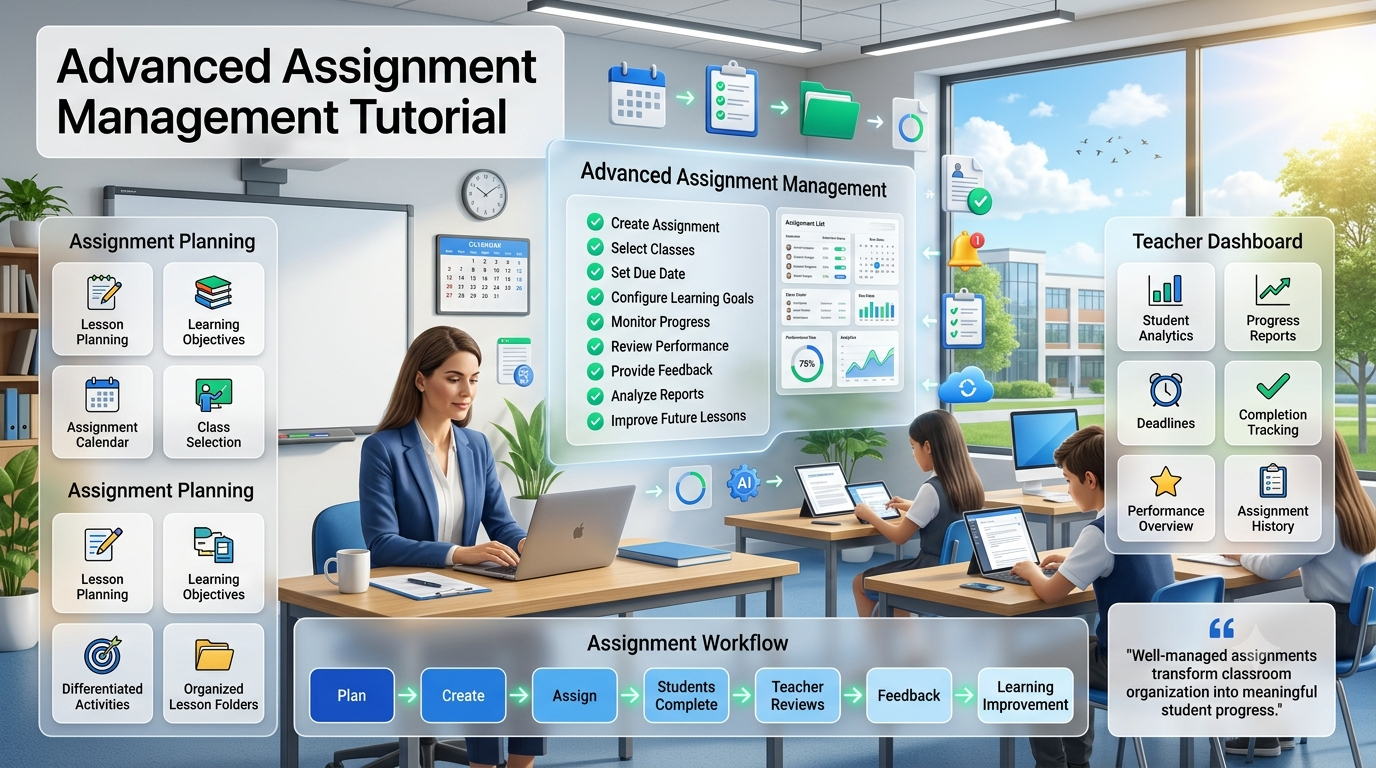
3. Create an assignment with a reliable workflow
Open an approved Kit: check spelling, readability, topic alignment and whether any answer needs updating.
Select assignment creation: official guidance describes using “Assign HW” next to a Kit or the Assignments area, depending on the interface.
Choose an eligible mode: use the displayed mode picker. If the required option is absent, verify account access and compatibility instead of inventing a workaround.
Set relevant options: inspect due date, class connection and the selected mode’s goals. A goal should represent meaningful practice rather than an arbitrary reward target.
Check the details: verify what students will see and whether the deadline suits classroom needs.
Share the current link: use the teacher’s own learning-management channel and confirm a test recipient can open it.
Review the result: use available reporting and a brief independent question to identify conceptual gaps.
If the interface differs from this sequence, follow the current official product screen rather than searching for an option that has been removed or renamed. Students can participate in assignments without creating a Gimkit account in many cases; class-connected experiences have different account and access considerations. See the official account FAQ before making a universal login rule for students.
4. Set realistic completion goals and deadlines
A due date should communicate when feedback will be useful, not simply pressure students to rush. Consider school schedules, device availability, reading demand, and accommodations. An assignment assigned on a Friday evening may be inappropriate if learners cannot access school devices at home. Offer an equivalent alternative when necessary and explain the expected standard of work before students begin.
Goals should match the content. A lengthy session can produce more clicks without producing more knowledge. For foundational facts, shorter spaced opportunities may be better than one extended sprint. For multi-step reasoning, students may need more time per question and a way to explain why they selected an answer. Keep the difference between game progress and demonstrated understanding visible to learners.
5. Use a three-path planning assistant
Open the situation closest to your class. Each panel supplies a distinct plan that can be adapted before you create the actual assignment.
Students are practicing a brand-new idea
Objective: build initial accuracy without overloading working memory. Use a focused Kit with clear wording. Pair the assignment with a short worked example outside the game. Review common wrong answers in the next class, and allow a non-timed explanation for students who require it. Avoid grading only speed or points.
Students need to retrieve content from earlier lessons
Objective: recall and distinguish concepts. Combine a limited set of representative questions from prior topics, place the assignment after some delay, and check errors by concept rather than ranking students. Use a follow-up question that asks for reasoning without answer options.
Students have very different access or support needs
Objective: provide equivalent learning opportunity. Check home device availability, language and reading needs, established accommodations and deadline flexibility. Provide a printed or classroom-based version of the same learning task when digital access is not equitable. Keep student information private.
6. Differentiate without creating three unrelated lessons
Differentiation should preserve the same conceptual destination while adjusting the support needed to reach it. Students who are learning new terminology may benefit from a short vocabulary preview; students with established knowledge may need transfer questions; students who need additional processing time may need an alternative response method. These variations can be designed around the same lesson goal.
A teacher should avoid treating a low score as evidence of lack of effort. Reading complexity, device distractions and prior experience with game mechanics can affect performance. Compare performance with explanation quality and previous classroom evidence. When creating different Kits or assignments, document what distinguishes them so the instructional purpose remains clear.
7. Manage links, classes and student access
A broken or outdated assignment link can produce avoidable frustration. Share the current URL from the assignment you want students to complete. If students use connected classes, check whether the assignment appears under the expected class and due-date filters; the official creation guide describes class-connected assignments in students’ dashboards. Do not share a live game code as a replacement for an assignment URL.
For students who cannot access the activity, first check whether the issue is limited to one user. Verify the correct link and school network rules. If a school-managed Google account cannot sign in, involve school IT instead of requesting a student’s password or asking them to bypass controls. Document only the minimum information needed to solve the problem.
8. Interpret assignment reports responsibly
Completion can show whether a learner reached a game-specific objective, but it does not automatically show durable learning. Treat performance as one evidence source. Look for question patterns: are errors concentrated in one misconception? Are several students selecting the same distractor? Did the assignment demand reasoning that a single-choice result cannot capture?
Follow up with a low-stakes explanation prompt, a short application problem, or a retrieval question on another day. When a misconception is shared, reteach it briefly to the group. When one learner needs support, offer specific feedback privately. Do not publish student names or identifiable results on an open classroom website. The formative-assessment guide
9. Troubleshooting assignments: a teacher checklist
Problem
First check
Next instructional action
Assignment option unavailable
Account plan and mode compatibility
Use a supported alternative; verify subscription details before upgrading
Students say they cannot open the task
Current URL, device, browser and school access policy
Offer an equivalent practice task while troubleshooting
Students rush for rewards
Question demand and success criteria
Require an explanation of a representative answer
Many students get the same item wrong
Question clarity and the underlying misconception
Reteach the concept; do not simply increase game duration
Completion varies dramatically
Access, accommodations and clarity of directions
Adapt support and deadline based on school policy
10. Assignment quality checklist before publication
11. FAQs about advanced assignment management
Are assignments available in Gimkit Basic?
Gimkit’s official account and assignment documentation describes assignments as a Pro feature. Check the current account screen and official plan information before promising availability.
Can every game mode be used for homework?
No. Eligible assignment modes are restricted and may change. Check the current mode picker for assignment compatibility rather than assuming every live mode is supported.
Do all students need an account to complete an assignment?
Official account guidance says student accounts are not universally required for gameplay or assignments, but connected-class workflows may involve accounts. Check your chosen access setup.
Does finishing an assignment prove mastery?
Not by itself. Use a separate explanation or transfer question to check understanding and make next-step teaching decisions.
Should I use game scores for grades?
Only if the score validly measures the intended skill and satisfies school assessment policy. Avoid grading speed or game mechanics when the target is conceptual understanding.
Conclusion
Advanced assignment management is less about adding settings and more about coordinating content accuracy, student access, mode suitability and instructional follow-up. Define the purpose, verify the product options, share a reliable task and use resulting evidence to teach better. Official feature instructions should always take priority when the interface changes.
Independent editorial guide; not affiliated with or endorsed by Gimkit. Last content review: October 2026.