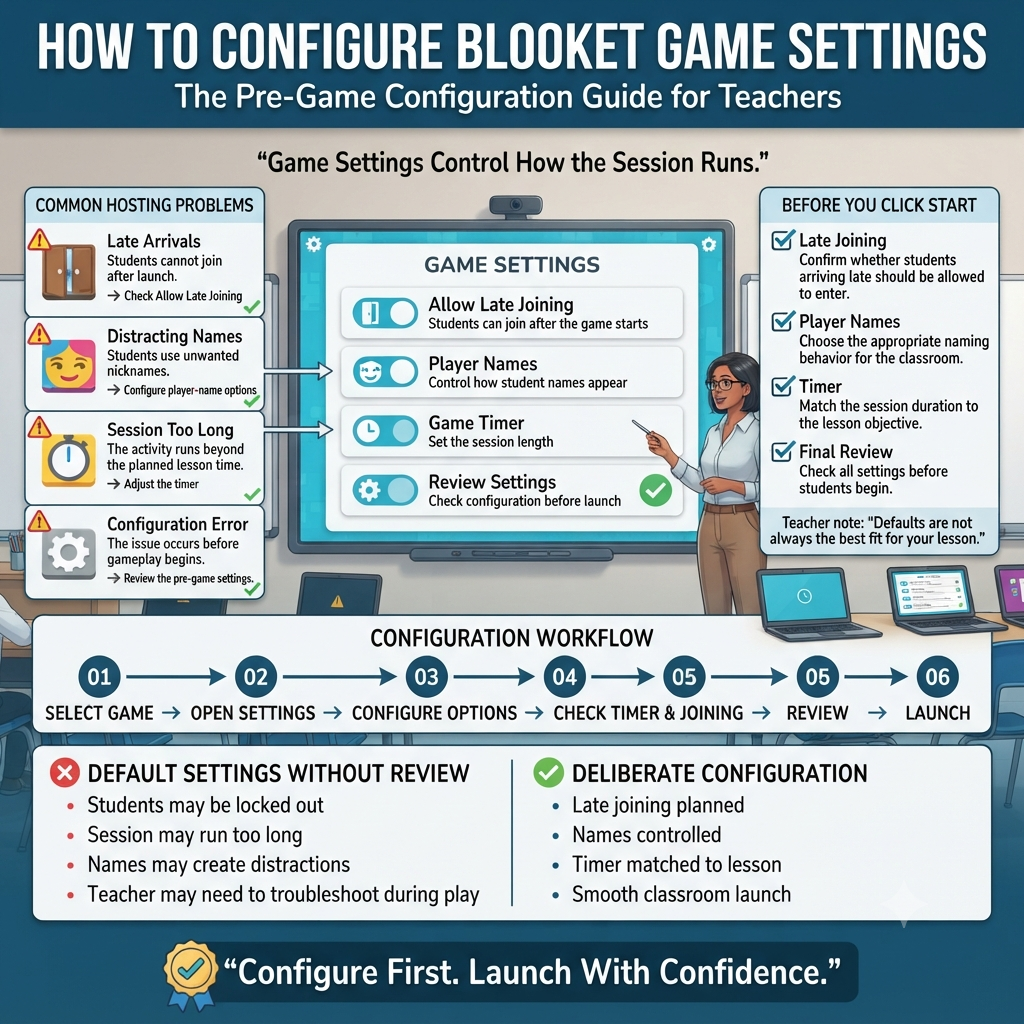
How to Configure Blooket Game Settings | The settings screen that appears right before a Blooket game launches is easy to click through without a second thought — and that’s exactly where most hosting problems start. Late arrivals get locked out because Allow Late Joining was off. A quiet review session turns chaotic because random names weren’t enabled and three students picked distracting nicknames. A ten-minute warm-up drags to twenty because the timer wasn’t adjusted for the mode’s default pace. None of these are game-mode problems or question-set problems — they’re Blooket game settings problems, and every one of them is preventable in under a minute.
🎯 Common Problems Caused by Settings
🚪 Late Arrivals Get Locked Out – Allow Late Joining was turned off.
🎭 Distracting Nicknames – Random names weren’t enabled.
⏱️ Session Runs Too Long – The timer wasn’t adjusted for the mode’s default pace.
⚙️ Hosting Problems – The issue comes from configuration rather than the game mode or question set.
This guide walks through every setting on that pre-game screen, what each one actually controls, and how to configure Blooket game settings deliberately instead of accepting whatever the defaults happen to be. If you already know how to reach the hosting flow and pick a mode, this is the missing piece: the configuration layer that determines whether the session runs the way you actually planned it.
Looking for comprehensive classroom resources and educational technology insights? Explore GimkitApp for expert guides, teaching strategies, game modes, and the latest updates to enhance student engagement.
Where Blooket Game Settings Live in the Hosting Flow
Blooket game settings appear on a single screen, positioned between choosing a game mode and generating the live join code. After selecting a question set and clicking “Host,” then picking a mode and confirming it, the settings menu opens automatically — this is the last checkpoint before the game code exists and students can start joining.
Because this screen sits so close to the “go live” moment, it’s tempting to skim past it. But every option here directly shapes the classroom experience that follows, and unlike question sets or game modes, most Blooket game settings reset to their defaults each time you host a fresh session rather than carrying over automatically.
💡 Pro Tip: Get in the habit of treating the settings screen as a checklist rather than a formality. A ten-second scan of each toggle before clicking “Host Now” catches nearly every avoidable hosting hiccup before it happens in front of a live class.
Allow Late Joining: Controlling Who Can Enter Mid-Game
Allow Late Joining is checked by default in Blooket’s game settings, meaning students can join the game code even after the round has already started. Leaving it enabled is usually the right call for real classrooms, where a student pulling out a device thirty seconds late shouldn’t be permanently excluded from participating.
Unchecking this option locks the game the moment it begins — no one who wasn’t already in the lobby can join afterward. This matters most for competitive or timed formats where a mid-game entrant would have an unfair advantage or disadvantage relative to everyone else.
⚠ Common Mistake: Disabling late joining for a virtual or hybrid class without warning students first. Remote students often take longer to click a shared link than in-person students take to scan a QR code, and a locked game creates confusion that’s entirely avoidable with a quick heads-up.
When to keep it on: Regular classroom review sessions, larger classes where a few stragglers are inevitable, virtual sessions with variable connection speeds.
When to turn it off: Timed competitive formats, assessment-style sessions where fairness across identical start times matters, any game where a late entrant would meaningfully skew results.
Random Names: Managing Classroom Behavior Through Blooket Game Settings
One of the more behavior-focused Blooket game settings is the option to enable random names instead of allowing students to type their own nickname. When turned on, Blooket automatically generates a name for each player joining the lobby, removing the option to type anything at all.
This setting exists largely as a moderation tool. Free-text nicknames occasionally turn into a distraction — inside jokes, inappropriate words, or names designed purely to get a laugh rather than represent the student. Random names shut that possibility down entirely before it becomes a mid-lesson interruption.
✅ Best Practice: Turn on random names for any class where you don’t have time to actively monitor the lobby screen as students join, and turn it off for smaller, more mature groups who benefit from the small personalization of choosing their own display name.
📌 Quick Note: Random names also speed up the join process slightly, since students skip the typing step entirely and land straight into the waiting lobby — a small but real time-saver at the start of a class period.
Team Management Settings in Team-Based Modes
For game modes that support team play — Battle Royale, Coco Cabana, Busy Bees, and other team-oriented formats — the settings screen includes options for how players are grouped. Hosts can typically let Blooket assign teams automatically, which balances group sizes without any manual intervention, or manage team assignments directly to control exactly who plays together.
Manual team management is worth the extra thirty seconds when there’s a specific pedagogical reason for the grouping — mixing stronger and weaker students evenly across teams, keeping certain students apart, or aligning teams with existing classroom groups already established for other activities.
⭐ Expert Insight: Random team assignment works fine for a one-off session, but if you’re running the same class through team modes repeatedly across a semester, manually balancing teams once and reusing the pattern prevents the same few students from always ending up together — which tends to flatten engagement for everyone else over time.
Timer and Pacing Settings: Shaping the Rhythm of a Session
Question timing is one of the most consequential Blooket game settings, even though it’s easy to leave untouched. Depending on the mode, hosts can adjust the time allowed per question, and in some modes, an overall game timer or goal that determines when the session ends automatically.
Goal-based endings vary by mode — a Gold Quest session might end once the leading player reaches a set amount of gold, while a Fishing Frenzy session might end once a total catch weight is reached across all players. Understanding which ending condition a mode uses helps you predict roughly how long a session will actually run, rather than guessing.
🔍 Did You Know? The same question set will produce a noticeably different pace depending purely on the timer setting — a 30-second-per-question configuration used for content review can stretch a five-minute mode into fifteen, while a tightened 10-second timer compresses that same content into a fast-paced sprint.
For content review before a test: Lengthen the timer and prioritize accuracy over speed, giving students room to actually think through each question rather than guess under pressure.
For high-energy competitive rounds: Shorten the timer to keep the pace fast and the tension high, which works especially well with steal-based modes like Gold Quest.
For very young or newer players: Start with a slightly longer timer than feels necessary — students still learning the interface need a few extra seconds just to process what’s on screen before they can even consider the question itself.
Show Instructions: Deciding Whether Students See the Rules First
Many Blooket game settings screens include a toggle for showing instructions to players before the game begins. When enabled, students see a brief rules overview for the selected mode once they join the lobby, explaining the objective and basic mechanics before the first question appears.
This setting matters most the first time a class plays a given mode. A group encountering Factory or Crazy Kingdom for the first time benefits enormously from a thirty-second rules preview, while a class that’s played the same mode a dozen times gains little from seeing the same instructions again and might prefer jumping straight into the action.
✅ Best Practice: Keep instructions on for any mode being introduced for the first time, and consider turning them off for well-established favorites where the extra screen is just delaying a session your students already know how to play.
For the latest gaming news, expert reviews, and walkthroughs, readers can also visit IGN, one of the world’s leading gaming websites.
Audio and Text-to-Speech Settings
Blooket includes an automatic audio option that reads question text aloud using text-to-speech, which can be toggled on from the settings menu. This setting exists primarily as an accessibility feature, supporting students who read below grade level, are still developing fluency, or have a documented need for auditory support during assessment.
Enabling automatic audio doesn’t require any additional setup on individual questions — it applies at the game level, reading whatever text appears on screen as each question loads. It’s worth testing once with a sample question before relying on it during a real session, since pacing with audio enabled runs slightly slower than pure silent reading, and timer settings may need a small adjustment to compensate.
Blook Banning and Player Management Settings
Some Blooket game settings extend beyond pacing and into player-level control, including the ability to ban a specific Blook — the collectible character players select — from being used in a given session. This is a narrow but occasionally useful tool for hosts managing recurring behavioral issues tied to a specific in-game item rather than a student’s actual name.
Separately, hosts retain the ability to end a session early directly from the live game screen, independent of the pre-game settings menu. This matters when a technical issue, a scheduling interruption, or an unexpected classroom event means the planned session can’t run to its natural conclusion — ending early preserves whatever data was collected up to that point rather than losing the session entirely.
⚠ Common Mistake: Forgetting that ending a game early still generates a partial report. Hosts sometimes assume an interrupted session produces no usable data, when in fact the results screen still reflects performance up to the moment the game was stopped.
Testing Blooket Game Settings Before Going Live
Because most Blooket game settings reset with every new hosted session, it’s worth building a habit of testing a new configuration before relying on it in front of a full class. A quick solo run — hosting the game alone, joining from a second device or browser tab, and playing through a few questions — reveals exactly how a timer change or an instructions toggle actually feels in practice, rather than how it looks on paper.
This matters most when adjusting settings you don’t touch often. Timer lengths in particular are hard to judge accurately just by reading a number; ten seconds feels completely different once a question with a longer answer choice list is actually on screen and the countdown starts. A two-minute solo test before class catches a poorly chosen timer long before thirty students experience it live.
📌 Quick Note: Testing is especially worthwhile the first time you enable a setting you’ve never used before, like automatic audio or manual team assignment. Unfamiliar settings are far more likely to behave differently than expected than ones you’ve configured dozens of times already.
⭐ Expert Insight: Keep a short mental note — or an actual note — of which settings combinations worked well for which type of session. Because Blooket doesn’t remember your preferences between games, your own memory of “this timer felt right for review days” becomes the fastest way to configure future sessions without re-testing from scratch every time.
Matching Blooket Game Settings to the Purpose of the Session
The fastest way to configure Blooket game settings well is to start from the goal of the session rather than adjusting toggles in isolation. A few common scenarios illustrate how the settings work together:
Session Goal
Late Joining
Random Names
Timer
Instructions
First-time Blooket session
On
On
Slightly longer than default
On
Fast competitive review
Off
Optional
Shortened
Off (if mode is familiar)
Calm content review before a test
On
Off
Lengthened
Off (if mode is familiar)
Virtual/hybrid class
On
On
Default or slightly longer
On
Recurring team-based session
On
Off
Default
Off
This table isn’t a rigid formula — it’s a starting point. The right configuration always depends on the specific class, the specific mode, and what that particular session is actually trying to accomplish, but starting from purpose rather than habit consistently produces smoother sessions than leaving every setting on its default.
Common Mistakes When Configuring Blooket Game Settings
Never touching the settings screen at all. Defaults are reasonable for a generic session, but they’re rarely optimal for a specific one — a few seconds of adjustment consistently pays off in smoother gameplay.
Disabling late joining without communicating it. Students who expect to join late and find themselves locked out often assume something is broken rather than realizing the setting was intentional.
Leaving the timer at default regardless of question difficulty. A timer built for simple vocabulary recall is punishing for multi-step problem-solving, and vice versa — mismatched pacing is one of the most common causes of a session that feels either rushed or sluggish.
Skipping the instructions toggle when introducing a new mode. Turning instructions off for a mode students have never seen creates unnecessary early confusion that a thirty-second rules screen would have prevented.
Forgetting settings don’t carry over between sessions. Because most Blooket game settings reset with each new hosted game, assuming last week’s configuration is still active can lead to an unintentionally different experience than planned.
Frequently Asked Questions
Where do I find the Blooket game settings menu?
The settings menu appears automatically after you select a question set, choose a game mode, and confirm hosting. It sits as the final screen before the live game code is generated, giving you one last chance to adjust options like late joining, random names, timers, and instructions before students start joining the lobby.
Do Blooket game settings save automatically for future games?
No. Most settings reset to their defaults each time a new game is hosted, even when reusing the same question set and mode. This means reviewing the settings screen before every session is necessary if you want a specific configuration, rather than assuming last time’s adjustments carried over.
Should I turn on random names for every class? Not necessarily. Random names work well as a moderation tool for larger classes or sessions you can’t closely monitor as students join, since it removes the option for distracting or inappropriate nicknames. Smaller, more mature groups often benefit more from choosing their own names, so the right choice depends on the specific class.
Can I still get results if I end a Blooket game early?
Yes. Ending a session early through the live game screen still generates a partial report based on whatever data was collected before the interruption. It doesn’t erase the session — it simply stops it, meaning you can still review question-by-question performance for the time the game was actually running.
How does the timer setting affect which game mode I should choose?
The timer works together with the mode rather than independently. A longer timer suits review-focused modes like Café or Study, while a shortened timer amplifies the energy of competitive modes like Gold Quest or Battle Royale. Adjusting the timer to match both the mode and the session’s purpose produces a noticeably better-paced game than leaving it at the default.
Professional Recommendations & Expert Reviews
How to Configure Blooket Game Settings begins with selecting an activity that matches the purpose of your lesson.
How to Configure Blooket Game Settings helps teachers prepare the gameplay experience before students begin participating.
How to Configure Blooket Game Settings encourages educators to review available options before starting a live session.
How to Configure Blooket Game Settings helps teachers create activities that fit their classroom size and learning objectives.
How to Configure Blooket Game Settings starts with choosing the appropriate question set for the activity.
How to Configure Blooket Game Settings allows teachers to consider how competitive the session should feel.
How to Configure Blooket Game Settings helps educators select options that support the intended classroom experience.
How to Configure Blooket Game Settings encourages teachers to review the selected game mode before launching the session.
How to Configure Blooket Game Settings helps ensure that gameplay mechanics are suitable for the students participating.
How to Configure Blooket Game Settings supports better lesson pacing by encouraging teachers to consider the available time.
How to Configure Blooket Game Settings helps educators prepare students for the rules of the selected activity.
How to Configure Blooket Game Settings encourages teachers to explain important instructions before gameplay begins.
How to Configure Blooket Game Settings helps reduce confusion during the opening moments of a classroom game.
How to Configure Blooket Game Settings supports smoother participation when students understand what they need to do.
How to Configure Blooket Game Settings encourages teachers to consider whether the activity should emphasize speed, accuracy, strategy, or review.
How to Configure Blooket Game Settings helps educators match gameplay choices with the academic purpose of the lesson.
How to Configure Blooket Game Settings supports a more controlled classroom environment.
How to Configure Blooket Game Settings encourages teachers to review every relevant option before hosting.
How to Configure Blooket Game Settings helps educators avoid selecting settings that may distract from learning.
How to Configure Blooket Game Settings supports appropriate competition by allowing teachers to think carefully about the class experience.
How to Configure Blooket Game Settings helps teachers choose settings that work comfortably with their available lesson time.
How to Configure Blooket Game Settings encourages educators to consider student age and familiarity with interactive games.
How to Configure Blooket Game Settings helps teachers introduce more complex activities after students understand the basics.
How to Configure Blooket Game Settings supports differentiated classroom experiences when different groups have different needs.
How to Configure Blooket Game Settings encourages teachers to test unfamiliar options before using them with an entire class.
How to Configure Blooket Game Settings helps identify potential problems before a live activity begins.
How to Configure Blooket Game Settings supports more confident classroom technology use.
How to Configure Blooket Game Settings encourages educators to keep the question content aligned with the lesson objective.
How to Configure Blooket Game Settings helps prevent gameplay from becoming more important than the educational purpose.
How to Configure Blooket Game Settings supports effective review sessions when teachers choose appropriate gameplay conditions.
How to Configure Blooket Game Settings encourages teachers to consider how students will respond to competitive elements.
How to Configure Blooket Game Settings helps educators maintain a positive environment during multiplayer activities.
How to Configure Blooket Game Settings supports classroom engagement by giving students a clear structure.
How to Configure Blooket Game Settings encourages teachers to monitor how well the selected configuration works during gameplay.
How to Configure Blooket Game Settings helps educators make adjustments in future sessions based on classroom experience.
How to Configure Blooket Game Settings supports better lesson planning by connecting game choices with instructional goals.
How to Configure Blooket Game Settings encourages teachers to consider whether students need independent practice or a shared competitive experience.
How to Configure Blooket Game Settings helps educators create variety by changing appropriate settings across different lessons.
How to Configure Blooket Game Settings supports more engaging revision when students encounter different gameplay experiences.
How to Configure Blooket Game Settings encourages teachers to establish expectations about fair play before starting.
How to Configure Blooket Game Settings helps educators balance entertainment with meaningful academic practice.
How to Configure Blooket Game Settings supports better classroom management when rules and expectations are communicated clearly.
How to Configure Blooket Game Settings encourages teachers to review student participation after the session.
How to Configure Blooket Game Settings helps educators determine whether the selected configuration supported the intended learning outcome.
How to Configure Blooket Game Settings supports continuous improvement as teachers gain experience with interactive activities.
How to Configure Blooket Game Settings encourages educators to prioritize simplicity when students are new to the platform.
How to Configure Blooket Game Settings helps teachers gradually introduce more challenging gameplay experiences.
How to Configure Blooket Game Settings supports flexible teaching by allowing educators to adapt activities to different classroom situations.
How to Configure Blooket Game Settings encourages teachers to treat configuration as part of lesson planning rather than an afterthought.
How to Configure Blooket Game Settings helps educators create structured, engaging, and purposeful interactive sessions.
Summary
Blooket game settings are the configuration layer that sits between picking a question set and mode and actually running a session, and they deserve more attention than the quick skim most hosts give them. Late joining, random names, team assignment, timers, instructions, and audio each shape the classroom experience in specific, predictable ways — and because most of these settings reset with every new session, deliberate configuration has to happen every time, not just once. Treating this screen as a purposeful checklist rather than a formality is the difference between a session that runs exactly as planned and one that needs mid-game troubleshooting in front of a live class.