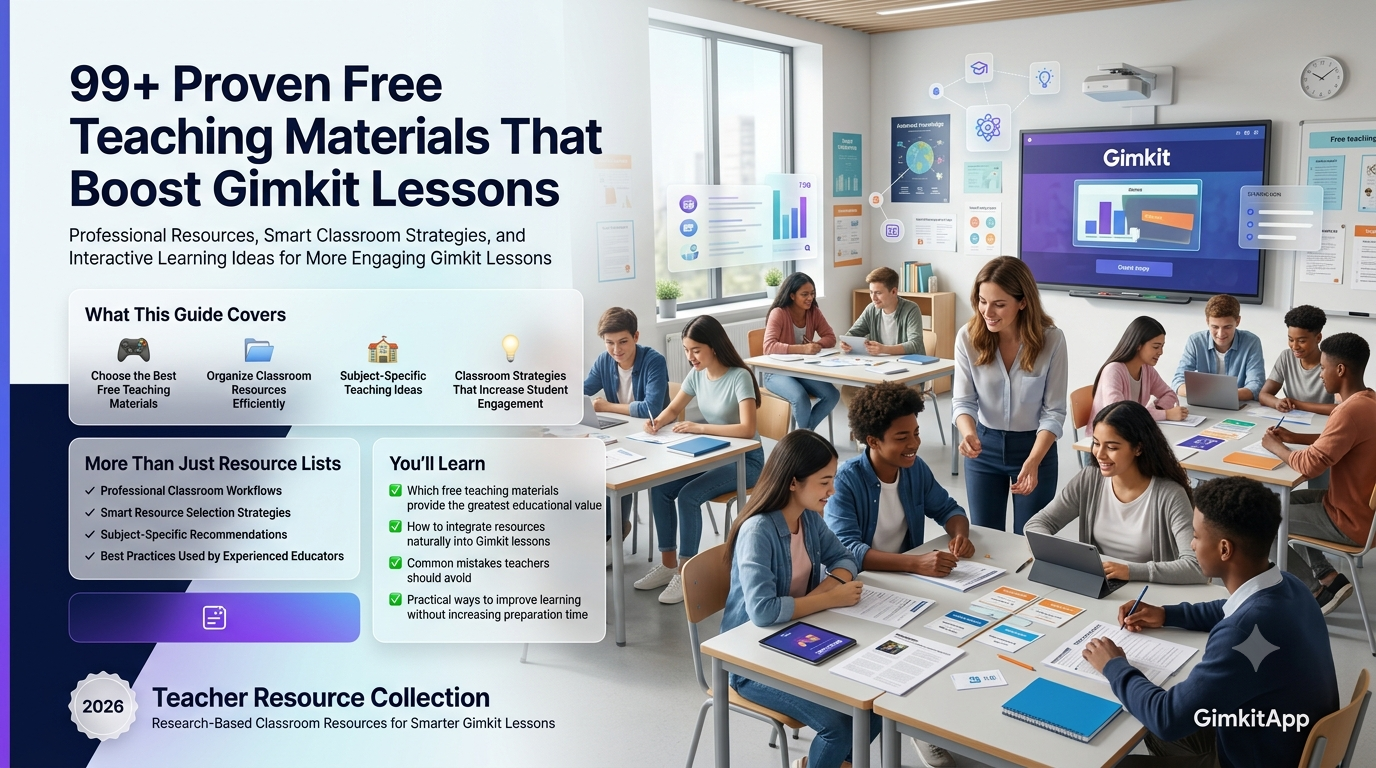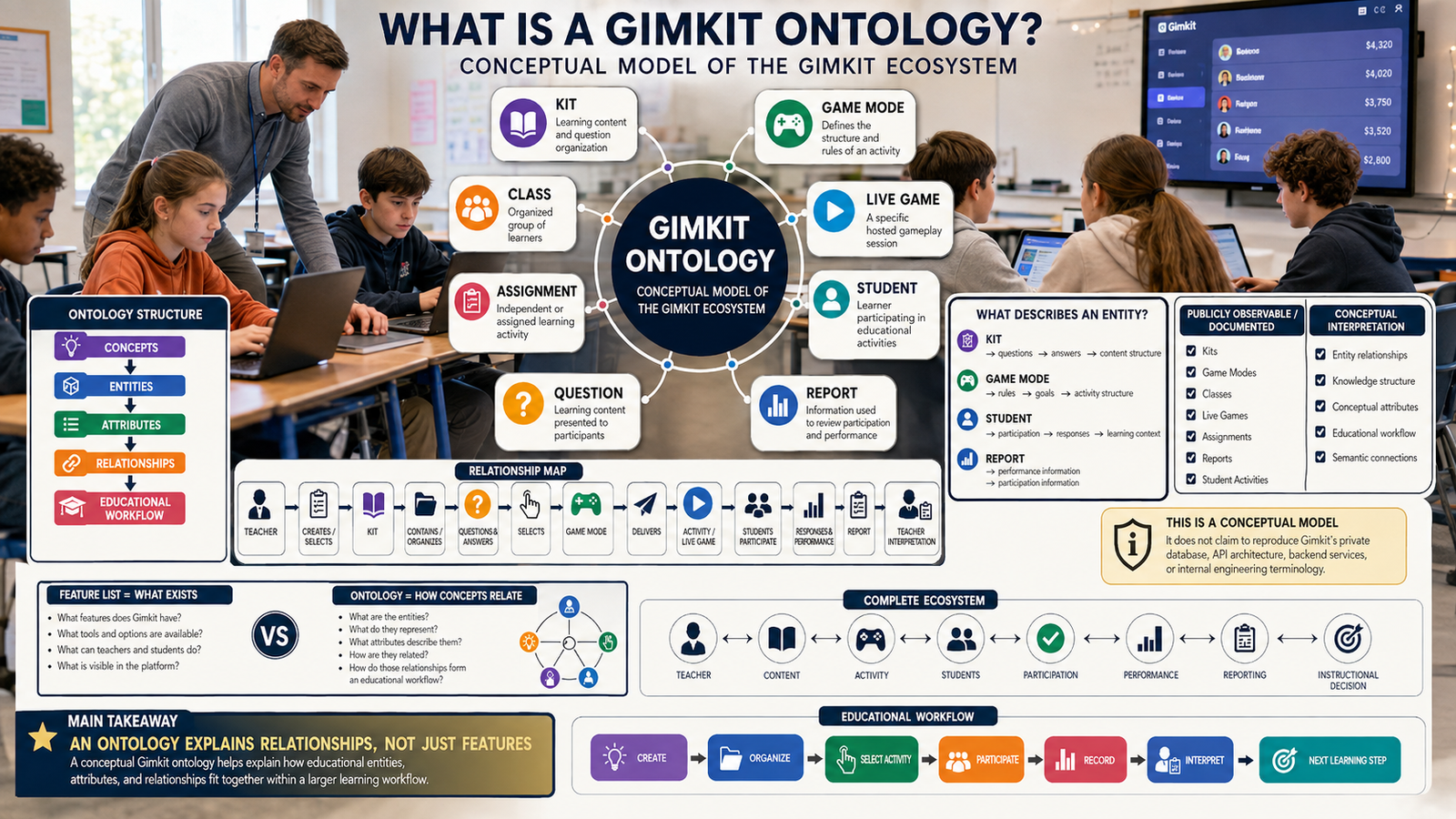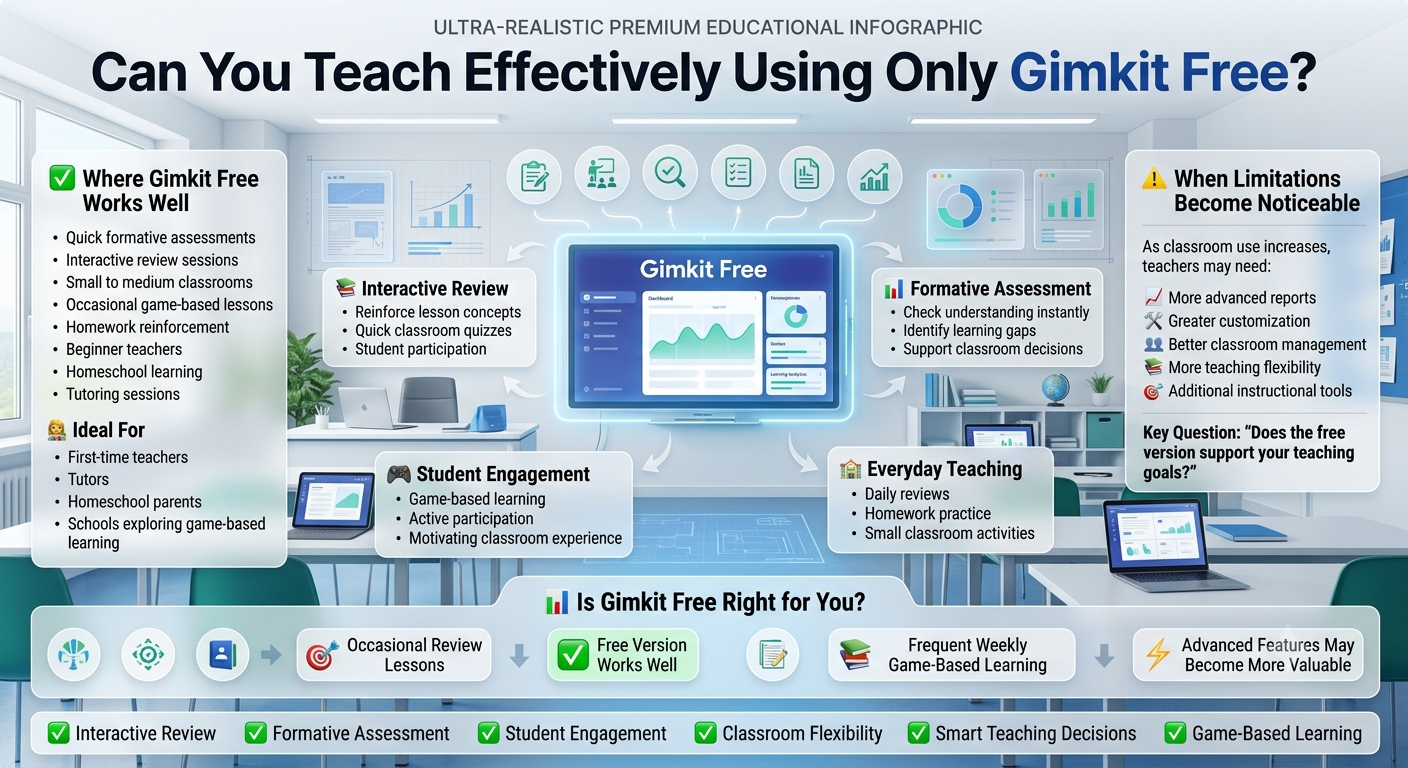
Gimkit Kits: The Complete Guide to Finding, Organizing and Managing Kits
Learn how Gimkit question collections are discovered, copied, edited, shared, imported and maintained—and use an original Kit Inventory & Coverage Auditor to assess the structure of a reusable question collection.
Independent educational resource. GimkitApp.com is not affiliated with Gimkit. The application is a local Kit inventory model, not an official Kit editor, import service or account connection.
What is a Gimkit Kit?
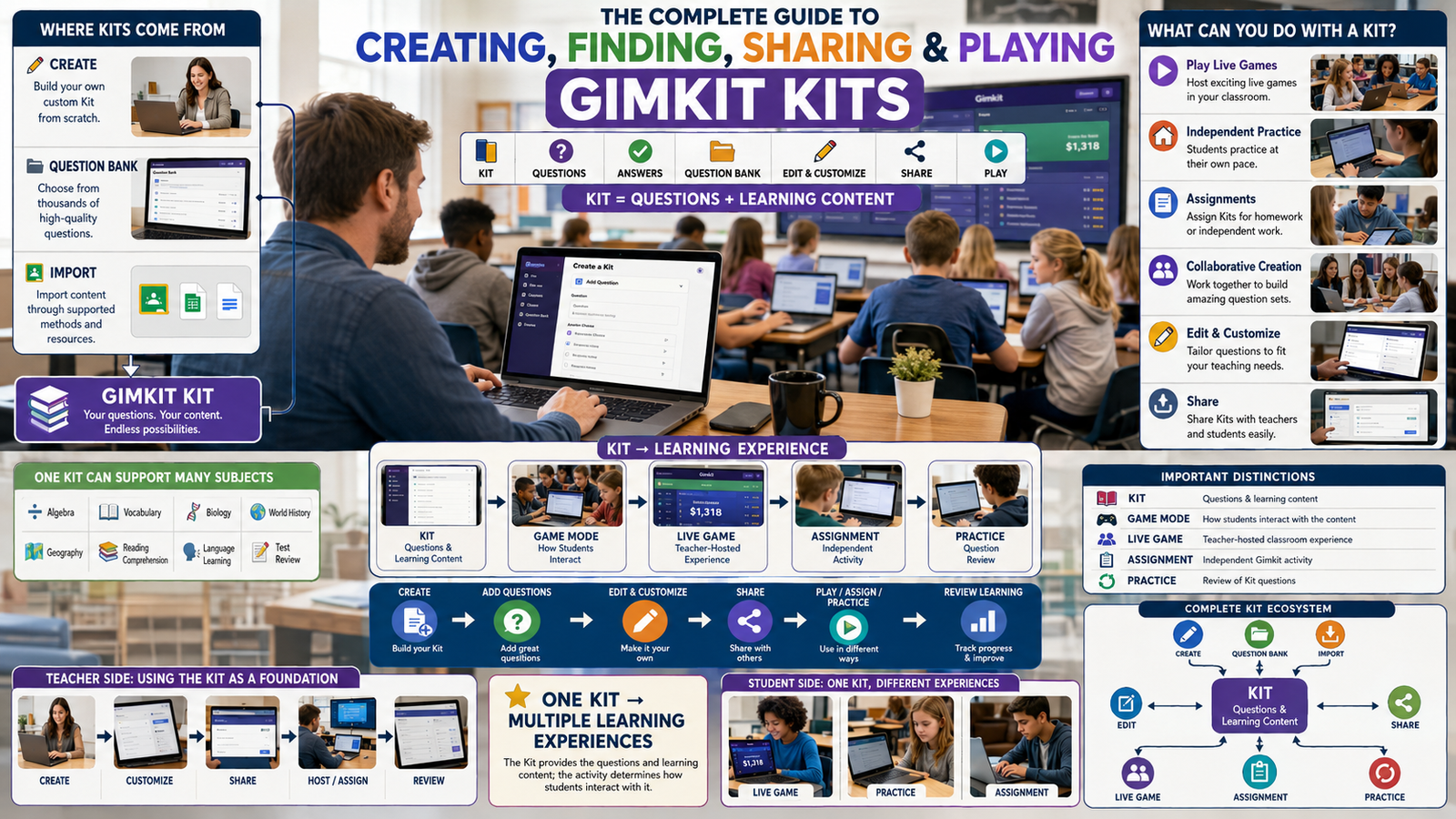
A Gimkit Kit is a reusable collection of educational questions and their associated answers, organised as content that can be used in supported Gimkit learning activities. A Kit is not simply the session that students enter or the particular game mode selected for one class. It is an identifiable content resource that a teacher can create, find, inspect, copy, edit when authorised, organise and use again. Its durable value comes from maintaining a useful set of questions rather than recreating the same subject content whenever another learning activity is needed.
The distinction is important because the word “Gimkit” is often used informally to mean several different things. Someone may say that they made a Gimkit when they actually created a Kit of questions. Another person may use the same expression after hosting a game that used an existing Kit. Both situations involve Gimkit, but they describe different objects and different responsibilities. A Kit is the content collection. The game provides the activity context in which that content may be encountered. The content remains separately manageable outside any one hosted session.
Official Gimkit Help describes creating a new Kit from the dashboard, entering information such as its name, language and subject, selecting cover information and adding questions. Once the resource exists, it can be opened from the dashboard, edited, organised into a folder or used through supported activity options. The documentation also provides workflows for copying, sharing, exporting and importing content. This makes Kit management an ongoing task rather than a single button press completed when the first question is added.
For a teacher, the practical questions extend beyond “How do I create a Kit?” They include: Do I already have a suitable collection? Does another educator own one that could be copied? How can I identify content that is outdated? Are several Kits covering the same unit under confusing names? Which items have been reviewed? Can the collection be discovered by other teachers? What should be preserved if the material is revised or archived? Each question belongs to the management of a reusable teaching resource.
This guide gives those collection-level questions priority. It also explains the basic official creation and importing pathways because a complete Kit guide should not ignore them. However, it does not become an individual-question writing application, a student entry tutorial, a game-mode selection engine or a classroom roster manager. Those topics have separate ownership in the wider GimkitApp article system. Keeping the distinction clear makes this guide useful to readers who need to understand and maintain a Kit rather than navigate an entire platform.
The Kit is a content container, not an automatic learning guarantee
Having a collection of questions available does not establish that those questions are accurate, appropriately scoped or suitable for a particular group. A Kit may contain excellent material alongside an ambiguous item or an outdated fact. It may also cover one portion of a unit thoroughly while leaving another portion almost untouched. These are content-management questions. They cannot be answered from the Kit's title alone and should not be assumed resolved simply because the collection appears in search results.
The most valuable quality check begins with the content actually present. A teacher may review the relationship between the collection's stated subject and its individual topics, inspect whether any questions have become obsolete and identify whether borrowed material has been evaluated. That does not require publishing scores about a teacher's professional competence. It requires a transparent record of what has been checked, what remains uncertain and what needs revision before the resource is reused.
A Kit can outlast one particular activity
The same Kit may provide material for different supported uses without losing its identity as a content collection. Official documentation discusses hosted games, practice and assignments as distinct activity contexts. The details of those activities belong in their own guides. For Kit management, the important fact is that a reusable resource may serve more than one purpose, making accurate naming, careful organisation and periodic revision worthwhile.
Long-term reuse is also the reason version awareness matters. A resource originally prepared for one unit can become less appropriate when the syllabus changes, a textbook is replaced or a topic receives an updated definition. The Kit's continued availability does not certify continued relevance. Treating the resource as maintainable content, with a record of editorial decisions, is more reliable than assuming that every old question should remain permanently unchanged.
The components that make a Kit recognisable
Kit identity is built from its descriptive information, question collection, ownership and visibility—not from an invented permanent game session.
Name and subject
Descriptive metadata helps an educator identify the intended topic without opening several unrelated resources.
Language and cover
Official creation includes language and cover choices that make the collection easier to recognise.
Question inventory
The collection contains the actual academic material and can be inspected for coverage or editorial errors.
Ownership
Editing rights matter: Gimkit documents that a Kit you do not own must first be copied before editing.
Visibility
Public and private settings influence discovery and whether other people can view the collection.
Maintenance status
Editorial review is an independent discipline; this website's audit metadata does not alter Gimkit's official Kit record.
A descriptive Kit name should communicate its scope
Names such as “Unit Resources,” “Revision” or “Questions” may be convenient when the creator has only one collection, but they become less useful as the library grows. A descriptive label communicates the subject, the narrow unit or concept family and, where relevant, the intended educational stage. That helps the original creator distinguish several similar Kits and helps colleagues decide which resource might be worth inspecting.
A strong naming convention is not a promise that Gimkit requires a particular format. Its value is organisational. For example, a department may use the pattern “Topic — Unit — Resource purpose” for its internal library. Another institution might prefer the unit number first. Either convention can work when it consistently distinguishes resources. The goal is to reduce uncertainty when searching a large collection, not to insert keywords into every title for their own sake.
Names should also be revised when they no longer describe the content. If a Kit has been expanded from a narrow review into a broader cumulative collection, keeping its original narrow name may mislead users. Conversely, if outdated items were removed, an overly broad title can exaggerate what remains. The name should follow the content rather than becoming a permanent promise the material no longer fulfils.
Language metadata and question language need consistency
Gimkit's documented new-Kit workflow requests a language. This is a practical element of identifying the intended resource. However, selecting a language does not itself certify that every item uses appropriate terminology or is understandable to its target audience. Educators who reuse multilingual collections should still inspect the actual question content and ensure that any translation is accurate for the learning purpose.
In a collection intended for specialised terminology, a translated expression may not have a simple one-to-one equivalent. That makes editorial review especially important. A borrowed resource may use regional vocabulary or a technical convention that differs from the one taught locally. These matters are not solved by copying the Kit or changing its cover. They require appropriate subject knowledge applied to the contents.
A cover image supports recognition, not accuracy
Official creation documentation describes choosing a cover image, including options involving image URLs and Unsplash. A relevant image can help distinguish collections in a dashboard or public listing. Yet a polished cover should not become a substitute for examining the underlying questions. An attractive resource can still contain mistakes, and a plain-looking one may be carefully written.
For content management, visual recognition and educational quality are separate fields. The Kit's visual label makes the item easier to find. An editorial review establishes whether its content is appropriate. A dependable library benefits from both without confusing appearance with evidence of correctness.
How to find useful Gimkit Kits
Gimkit supports public content discovery through Kit search and its Question Bank. These pathways are related but answer different needs. A person seeking a whole reusable collection may inspect public Kits. Someone already maintaining a collection may use Question Bank to locate individual questions that can be added to it. Understanding that distinction prevents unnecessary copying and makes the search process more focused.
Begin with a clearly defined content gap
Searching for a subject name alone may surface more material than the user can meaningfully review. A teacher can make the process more efficient by first identifying the exact part of the curriculum that is missing from the current collection. This is not the same as planning an entire classroom lesson. It is a content-acquisition decision: which topic, concept family or information category needs additional question coverage?
Suppose an educator maintains a Kit about evaluating digital sources. A broad search for “technology” is unlikely to isolate the question material needed. Searching for “source credibility,” “primary source,” or “evidence attribution” can produce more relevant candidates. These labels are examples of search specificity rather than guaranteed platform search operators. The actual results depend on the public Kits available and how creators have described them.
Review candidates rather than assuming search rank proves quality
A resource appearing near the top of search results is not automatically the most accurate or most suitable. Search placement can be influenced by factors unrelated to the requirements of a particular class. The user should inspect whether the candidate contains the intended material, whether terminology matches the taught curriculum and whether its answers are defensible. A search result should be treated as a discovery lead rather than a completed editorial approval.
Resource titles and descriptions can also omit useful limitations. A Kit that claims to cover a whole subject may actually concentrate on introductory recall. Another Kit may appear broad but include only a few detailed topics. Evaluating its scope is more useful than relying on promotional wording. If only part of the collection is suitable, the documented Question Bank or copy-and-edit workflows may offer better choices than using the entire public Kit unchanged.
Question Bank is a selective reuse mechanism
Official Gimkit Help describes Question Bank as a way to search questions from public Kits and bring individual selections into a Kit being created or edited. The process takes place through the Kit editor, not through a separate unauthorised extraction service. Users can search, inspect available questions and add selected items. This is useful when an existing collection needs a few additional topics rather than a complete replacement.
Selective reuse still requires editorial responsibility. A question's appearance in a public collection does not guarantee that it is factually correct, unambiguous or aligned with the user's intended content. Before adding a borrowed item, review its accuracy and role within the receiving Kit. The goal is to maintain a coherent collection rather than maximise the number of imported questions.
Search across the school library when applicable
Gimkit officially documents School Library as a way for educators connected to a school to discover Kits made by other educators there. This can reduce duplicated preparation when colleagues already maintain relevant resources. School Library availability depends on the account's school connection and the visibility of other teachers' Kits. It should not be described as a universal public directory of all school resources.
Private Kits are not intended to appear in the School Library according to the official Help Center. That distinction matters when a teacher expects to discover a colleague's resource but cannot see it. The absence of a private collection from search does not mean the content does not exist. It may reflect its privacy setting or the relevant school connection.
Evaluate whether to use, copy or source individual items
There are three distinct content decisions after finding a candidate. The educator may use a suitable public resource as available, copy it when an editable version is needed, or select individual questions through the supported Question Bank workflow. The appropriate choice depends on the gap being addressed and the extent of revision required. These choices should not be collapsed into one universal instruction to import everything.
If a collection is already accurate and fully relevant, unnecessary rewriting may create more work and more opportunities for mistakes. If it contains mostly useful material but needs revisions, an editable copy can preserve the starting point. If only a small portion is relevant, selective Question Bank additions can keep the receiving Kit focused. Good content management means choosing the smallest justified change.
How Gimkit Kit ownership affects editing
One of the most important documented rules is that a user needs to own a Kit before editing it. Gimkit's Edit a Kit guide states that someone who did not create the original resource must copy the Kit first. That copy can then be renamed and edited. This distinction protects the difference between viewing someone else's educational content and modifying a collection held within one's own account.
Editing an owned Kit
Official guidance describes opening a Kit you own, selecting its Edit option and working in the Kit editor. From there, users can add questions, inspect existing entries, edit or copy individual items, delete selected questions and convert supported questions to text input. The editor also supports bulk operations for some actions. The precise screen arrangement may change, so the current official interface remains the source for button positions and supported selections.
The editor is also documented as saving changes automatically when the connection is stable, with an on-screen saved-state indicator. This reduces the need to treat every edit as a separate manual file save. However, users should still pay attention to any save status or connectivity warning before leaving an editing session. A statement that a page usually saves automatically is not proof that every particular change has completed successfully.
Copying a public Kit before revision
Gimkit's Copy a Kit documentation describes opening the resource and selecting Copy from its panel. The result is an editable copy available among the user's Kits. This provides a supported route for adapting public material while preserving the original resource's identity. It is different from assuming that the viewer can directly rewrite the original creator's collection.
A copied Kit still needs editorial inspection. Copying transfers the available content into a new resource; it does not independently validate each question. The recipient becomes responsible for deciding what to keep, revise or remove in their own version. A useful management practice is to record why the copy was made and what parts have been reviewed, especially when several similar versions may accumulate.
Distinguish copying from attribution and provenance
Ownership of an editable copy and the historical origin of its content are different concepts. The copy may be in the user's library while some of its material originated with another educator. That history can matter when maintaining accuracy or tracing why a particular topic appears in the collection. Our independent audit tool includes a source-category field for this reason, but it does not create a legal licence or establish who owns intellectual property rights.
Users should respect copyright, permissions and institutional rules when reusing material from other sources. Gimkit's technical ability to copy a resource should not be interpreted as an unlimited right to republish unrelated protected content elsewhere. The safest practice is to use supported platform features appropriately and retain any required attribution or usage conditions where they apply.
Reviewing changes to an existing collection
Editing should be driven by a concrete reason. Possible reasons include an answer that is demonstrably wrong, a reference that is no longer current, a duplicated topic, a shift in the intended content scope or a change in terminology. Making dozens of cosmetic alterations without a defined benefit may not improve the resource. A small correction to a consequential error may be more valuable than a large increase in question count.
For maintenance purposes, distinguish correction from expansion. A correction repairs existing content; expansion adds material that the original collection did not cover. Those changes have different implications for the Kit's description. Correcting a mistaken term may leave the original scope intact, while adding several new strands may justify changing the title or dividing the content into two collections. Thinking in those terms keeps the library understandable over time.
Preserve a clear distinction between the official editor and this page
The application below does not reproduce Gimkit's question editor or copy button. It cannot save anything to the user's Gimkit account, add a question to an official Kit or alter ownership. It instead records a lightweight independent inventory of content areas and review states. Its value is to help the user decide where an existing collection needs attention before returning to the real editor to perform authorised changes.
This separation is deliberate. A third-party page asking for account credentials or claiming to modify official content without a documented integration would be misleading. Teachers can use the local tool without supplying passwords, personal student records or game codes. Actual Kit changes remain on Gimkit's official website.
Importing and reusing question content in a Kit
Gimkit's Help Center documents multiple ways to bring existing question material into a Kit. These include spreadsheet-based creation and importing tab-separated flashcard content. It also provides the Question Bank workflow for selecting content from public Kits. The appropriate path depends on how the source material currently exists. A spreadsheet, a flashcard export and a public Kit are not interchangeable input formats simply because they all contain educational information.
Spreadsheet and CSV creation
The official CSV guide describes starting a new Kit, opening the Import from Spreadsheet option, selecting one of the provided templates, filling the template with the appropriate content, exporting a CSV file and uploading it through the official interface. Using the provided template matters because column placement determines how the importer interprets the data. Incorrect information in the wrong columns is specifically identified by Gimkit as a common source of import problems.
A spreadsheet can be practical when content is already maintained in a structured format. It can support preparation and review before upload, especially when many items need to be checked. However, the existence of a CSV does not guarantee that the eventual Kit will be correct. Users still need to inspect the imported result, check whether special characters survived conversion and confirm that the intended answer information appears where it should.
Do not treat every exported CSV as directly compatible
Different applications may use different column headers, separators, quoting conventions or encodings. A general-purpose export from another educational system is not guaranteed to match Gimkit's official template. The supported approach is to select the template from Gimkit and place content in the fields it expects. Renaming an arbitrary file to end in .csv does not make it a valid Kit import file.
It is also important to preserve meaningful text during transfer. Punctuation, accented characters, mathematical symbols and line breaks can be affected by the exporting application. A small verification sample is often more useful than assuming a large successful upload implies perfect conversion. The exact behaviour depends on the software used to prepare the file and Gimkit's current importer.
Flashcard-set importing
Gimkit's Import Flashcard Sets help article describes a workflow using term-and-definition pairs separated by tabs. Content can be copied from compatible flashcard-export formats into the official import interface. This offers another supported path for existing material that is already organised as simple pairs. It should not be presented as proof that every third-party file format can be imported without transformation.
Term-definition data also deserve conceptual inspection. A flashcard entry may work well for recalling a label but may not represent the full meaning of a complex idea. Importing a pair preserves the source content; it does not automatically produce a nuanced educational question. Whether to transform or supplement such material is a separate editorial decision that belongs to the actual question-authoring workflow.
Question Bank as a source of individual additions
Unlike bulk spreadsheet preparation, Question Bank is oriented toward finding selected questions from public Kits. The official editor allows users to search and add those selections. This is helpful when the current Kit has a narrow gap that does not justify importing a whole external collection. It also makes the provenance of borrowed material relevant: educators should remember which items came from external sources so they can review them appropriately.
For example, a Kit maintained around evaluating claims might lack enough coverage of source identification but already contain sufficient material on other strands. Adding targeted questions after review can be more coherent than appending an unrelated full collection. The purpose is to fill a specific gap, not to increase inventory simply because additional questions are easy to find.
KitCollab submissions are a separate source category
Official Gimkit documentation describes KitCollab as a collaborative question-submission workflow that can involve students or educators, with contributed questions added after approval. For Kit management, this creates a distinct provenance category: a question or topic entered through collaborative submission. The responsible review step remains important because submitted material should not be treated as verified merely because it was contributed through a supported feature.
The detailed design of a KitCollab activity is not reproduced on this page. Its role here is the maintenance consequence of having content from multiple contributors. A collection may benefit from a clear record of which areas have been checked and which originated from a different review path. Those distinctions help avoid overlooking material whose accuracy, language or scope still requires examination.
Importing and auditing are different tasks
An importer moves data into a supported system. An audit examines whether a collection is coherent, appropriately organised and ready for its intended reuse. A successful upload can coexist with duplicated content, uneven coverage or unresolved editorial issues. The two processes should therefore be treated as complementary rather than equivalent.
Our local inventory tool is deliberately not described as a Gimkit CSV importer. Its export format is a metadata manifest for the user's own review, not an official question-template file. Users should not upload that manifest to Gimkit expecting it to become a playable Kit. The application stores no answer key and does not reconstruct the official editor's private data format.
Sharing a Gimkit Kit without confusing access types
Gimkit officially documents sharing public Kits through their URLs and supported sharing controls. It also explains that public Kits can appear in Kit search and Question Bank results. This makes a public Kit a discoverable educational resource, not merely a file available to its original creator. Visibility should therefore be selected with an understanding of who can inspect the questions and answers.
Public Kits are discoverable resources
The official Share a Kit guide states that anyone with the URL to a public Kit, including students, can view its questions and answers. A teacher who publishes a Kit should be comfortable with that level of visibility. The ability to inspect the questions can be useful for open sharing and collaboration among educators, but it may not suit every intended use or sensitive content arrangement.
Public discovery also has a maintenance consequence. A collection that other people may find should have an accurate name and sufficiently clear subject scope. Publishing a misleading or outdated resource can spread confusion beyond the original classroom. Responsible sharing includes reviewing the content before exposing it to a broader audience, not merely copying the link and assuming the task is finished.
Private Kits are not intended for public discovery
Gimkit's privacy documentation says new Kits are public by default and explains how to change a Kit's privacy within its editing interface. The School Library documentation further explains that private Kits do not appear in that school discovery area. Privacy therefore changes how readily other users can find the collection through supported discovery mechanisms.
The word private should not be expanded into unsupported claims about every possible technical permission, retention period or security control. The official setting provides documented visibility behaviour; it does not make an independent site an authority on Gimkit's internal security architecture. Users should consult the current privacy policy and official account controls for questions beyond Kit discovery.
A Kit-sharing link is not the same as a student activity link
Gimkit's official guidance distinguishes sharing a public Kit with educators from sending learners an appropriate practice or assignment activity. A public Kit link can expose the content and its answers. That may be useful for preview or reference, but it is not necessarily the correct way to deliver an intended learning experience. The appropriate distribution method depends on the purpose and the official features available.
This guide deliberately stops at the Kit level. It does not reproduce student joining instructions, assignment configuration or the host's live session controls. The important content-management distinction is that a resource URL and an activity invitation serve different purposes. Confusing them can lead users to reveal answers when they expected a different student experience.
Sharing within a school
For educators connected to a school in Gimkit, School Library provides a documented route to discover public Kits created by colleagues at that school. This can be useful for maintaining a shared body of reusable content. It reduces the need for every teacher to independently rebuild an existing resource and provides a local discovery context distinct from unrestricted public search.
However, School Library should not be mistaken for a fully governed institutional content-management system with approvals, version history and access roles beyond those documented. A department may establish its own editorial conventions for resource names, ownership and review, but those conventions are external practices. The platform feature provides discovery, while the institution determines how its teachers coordinate the quality of shared material.
Sharing responsibly when content has changed
A public resource may be copied or consulted by others long after its first publication. When substantial changes are made, users who rely on the collection may need to understand the revised scope. The official Help Center does not establish a universal version-announcement mechanism for every Kit. A teacher can therefore keep a separate, appropriately maintained record of significant revisions when that would help colleagues avoid relying on obsolete content.
For example, removing a disputed item and changing the Kit's coverage may be relevant to future users. A note in a departmental resource index can describe the revision without claiming that Gimkit itself created a formal release version. The principle is to keep the description and reuse expectations aligned with the content that actually exists.
How to evaluate a Kit as a reusable question collection
Kit quality is not equivalent to the raw number of questions it contains. A larger collection can be less useful than a smaller one if the content is duplicated, poorly described or unevenly distributed across intended topics. A more informative approach considers coverage, accuracy, provenance, maintenance and the reasons the collection is being reused. These dimensions describe the resource as a whole without duplicating an individual question-authoring tutorial.
Coverage means more than having many items
Coverage asks how well the collection represents its declared scope. If a Kit is described as spanning several strands, it is reasonable to examine whether those strands actually appear in the inventory. This is not a requirement that every strand have exactly the same number of questions. Some concepts warrant greater emphasis, while others are deliberately smaller. The relevant criterion is whether the distribution reflects the intended resource scope rather than accidental accumulation.
The local application provides four broad editorial categories: foundations, interpretation, application and synthesis. Those categories are an independent organisational model, not official Gimkit question types. They allow a user to classify a collection's concepts without requiring the tool to write actual questions. A Kit that aims to support several forms of thinking can be checked for representation across those categories; a narrowly defined resource may intentionally concentrate on one.
Accuracy review should precede public reuse
An inaccurate question can remain in a reusable resource for a long time if no one checks it. Copying, importing or moving it between folders does not repair the underlying issue. A content-maintenance workflow should therefore identify material that has been reviewed and material that still needs examination. A pending status is not an accusation that a question is wrong. It simply records that the responsible check has not been completed.
The independent auditor uses review states such as Ready, Review Needed and Hold. These are local editorial labels created for this page. They are not Gimkit account states or official moderation decisions. Ready means the user has declared an inventory entry reviewed. Review Needed identifies work still to be completed. Hold can mark a known issue that should prevent uncritical reuse until the content is checked in the actual Kit.
Provenance helps direct attention
Questions and topics may originate from the owner, a copied Kit, Question Bank, an imported file or approved collaborative submissions. These pathways appear in official Gimkit documentation. Knowing a content area's origin can be helpful when an editor needs to trace a disputed term or find the source of an outdated statement. Provenance is not a quality grade. Teacher-authored content can contain errors, and externally sourced content can be excellent.
A useful maintenance record captures where a topic came from without making unsupported claims about the original author or copyright status. The application therefore uses broad categories rather than attempting to authenticate authorship. The purpose is to organise review work, not to certify intellectual property rights or establish that a source is trusted because it came through a particular platform feature.
Duplicated scope can be more important than duplicated wording
Two entries may use different words yet cover the same narrow concept. Conversely, two entries with similar labels may test genuinely different aspects of a larger topic. An automated label-matching check can identify potential duplication but cannot decide conceptual equivalence with certainty. This is why the application's duplicate warnings are described as signals for manual inspection.
Maintainers should distinguish intentional repetition from unnecessary redundancy. A Kit may revisit a central concept for a legitimate reason, but repeated inventory labels can also reveal accidental overrepresentation. The right decision depends on what the content actually contains. The app does not delete questions automatically or claim that every repeated label is an editorial error.
Review status should reflect a real action
A label such as Ready is useful only if someone actually performed the relevant review. Otherwise, the record becomes a decorative badge with no evidentiary value. Users should set a review state deliberately and revise it if new information casts doubt on a previously accepted item. A resource should not appear maintained merely because its inventory contains several positive-looking status tags.
Editorial review can be incremental. A Kit with twenty content areas does not have to be rebuilt all at once to be improved. The maintainer can prioritise entries that are outdated, unclear or heavily reused, then update the local record as those issues are resolved in the official Kit. The app makes outstanding work visible without predicting educational benefits or awarding a fictional quality score.
Editorial readiness is not identical to platform availability
A Kit may be technically available in the dashboard while still containing unresolved issues. Conversely, an accurately maintained inventory may refer to a private resource that other educators cannot currently discover. These are different dimensions. The official platform determines technical access and visibility. The editorial record describes whether the maintainer has checked the resource's coverage and status.
This distinction is particularly useful for a long-lived library. A public resource should not automatically be considered ready because it can be found in search. A private resource should not automatically be considered poor because it is not publicly listed. Readiness concerns content quality and intended use, while visibility concerns access and discovery.
Gimkit Kit Inventory & Coverage Auditor
Maintain a local content-area inventory for a reusable Kit. Classify topic strands, identify unreviewed areas, recognise possible duplicate labels, inspect provenance and export a transparent editorial manifest.
Kit Collection Audit Studio
Metadata inventory → coverage → review gaps → reusable audit brief
1. Collection information
2. Add a content-area inventory entry
One entry describes a content area, not a question. The application cannot access or edit the official question text.
Current collection mix
Distribution reflects manually declared metadata. It is not a quality score or curriculum certification.
| Content area | Strand | Origin | Review | Q count | Action |
|---|
Editorial audit findings
Your data stays on this webpage. No Gimkit API or external script is used. Copy or export it if you need to keep the results after closing the tab.
How to use the Kit Inventory & Coverage Auditor correctly
The application treats a Kit as a collection of content areas rather than a sequence of individual question-editing screens. A content area is a named topic or subtopic that the user believes appears in the Kit. It can represent one question or several. This abstraction is deliberate: the tool examines the distribution and maintenance of a reusable resource without intruding into the authoring workflow reserved for specialist question tools.
Start with an accurate collection label
The Kit label identifies the resource being audited. It does not have to match a secret internal identifier, because the application does not connect to Gimkit. A human-readable name helps distinguish the brief from another local audit. The intended content scope describes what the collection is supposed to contain. A useful scope statement identifies the subject and the kinds of topic areas expected without copying the full curriculum into an unrelated field.
The scope is not automatically parsed into a list of official learning standards. That would require authoritative standard definitions and a more specialised mapping system. Instead, the statement provides editorial context when the user interprets the coverage bars. A collection that intentionally covers only one strand should not be judged against a different objective simply because the tool can display four categories.
Use the visibility field as an explicit observation
The user may select Public, Private or Not checked. This field describes what the user has confirmed through the official service. It does not make any API call, update a Kit or establish whether a private resource can be accessed through an undocumented route. If the user has not checked the official setting, leaving the field at Not checked is more accurate than guessing.
Visibility matters because a maintenance report may be shared with colleagues who expect to find the Kit. A public collection can be discoverable in supported contexts; a private collection will not appear in the same public search or School Library pathways. Recording the observed state helps prevent a copied audit brief from implying that the resource can necessarily be found by everyone.
Represent content areas at a consistent level of detail
One entry should describe a comparable unit of content. If an entry labelled “Critical reading” represents forty questions while another labelled “Source attribution” represents only one, the resulting graph may still be mathematically valid, but its categories will be difficult to interpret. The question-count field helps make such differences visible. A maintainer should use a consistent convention for describing the level of content represented.
The application permits each entry to represent several questions because many Kits contain clusters of questions about a common concept. This is not a count of questions retrieved from Gimkit. It is a number entered by the user. If the count is inaccurate, the calculated distribution will also be inaccurate. The tool does not pretend to know how many questions a real Kit contains.
Classify the topic rather than score the learner
The Foundations, Interpretation, Application and Synthesis labels are broad independent editorial categories. They are useful for comparing the shape of a collection, but they do not classify a student or measure academic achievement. A topic assigned to Application does not automatically become a higher-quality question. The label records the maintainer's intended purpose for that content area.
Some topics could reasonably fit more than one category. The application requires one selected strand per entry so that distribution totals remain clear. If the maintainer needs finer distinctions, they can split a broad topic into smaller entries. This is a choice about organising content metadata, not an official Gimkit constraint on how questions are structured.
Use provenance as a review aid
The Origin field distinguishes owner-authored content from material that the user believes came through Question Bank, a copied Kit, an imported file, KitCollab or another route. These categories correspond broadly to supported platform workflows. The application does not verify that the declared origin is correct. It also does not treat externally sourced content as inherently poor.
Origin becomes useful when a maintainer discovers a questionable item. If several topic areas came from the same imported source, they may deserve a coordinated review. If collaborative contributions are awaiting approval or verification, they can be kept visible as unfinished work. Such decisions require human judgment and knowledge of the actual content; a dropdown alone cannot establish quality.
Review status is not a formal Gimkit moderation state
The Ready, Needs review and On hold values form a local editorial workflow. They are not official moderation outcomes. Ready should mean that the user has actually checked the represented content to a suitable standard. Needs review can represent material whose accuracy or suitability remains unconfirmed. On hold should be reserved for a known unresolved concern that makes immediate reuse inappropriate.
The audit's attention count combines the latter two statuses. It does not label them as errors in the software. Instead, it identifies maintenance work. A Kit containing several unreviewed areas may still be useful, but the maintainer should not assume that availability equals verification. The application cannot read the questions, so it relies entirely on the user's truthful declarations.
Understand the distribution bars
The bars represent the proportion of manually entered question counts assigned to each strand. If ten of forty represented questions belong to Interpretation, that bar displays twenty-five percent. The same arithmetic applies to the other strands. These are descriptive proportions, not target achievement percentages. No particular percentage is declared universally appropriate for all subjects or purposes.
A highly concentrated distribution can prompt a useful question: Is that emphasis intentional? A Kit designed specifically for foundational terminology may appropriately concentrate on Foundations. A resource advertised as a broad overview might warrant reconsideration if nearly all represented questions fall into one narrow category. The software cannot make that curriculum judgment without knowing the actual purpose and content.
Duplicate labels are suggestions for inspection
The application checks for repeated normalised content-area labels. If two entries share the same label after case and whitespace normalisation, it raises a potential duplication warning. It does not compare the actual wording of questions and cannot detect conceptual duplication under completely different labels. The warning is therefore narrow but transparent.
Some repeated labels may be deliberate. The maintainer should inspect whether the entries represent distinct subtopics or whether they accidentally record the same content twice. If two entries are genuinely separate, give them more descriptive labels. If they describe the same area, revise the local inventory accordingly. The goal is to keep the map useful rather than mechanically eliminate every repeated word.
Interpret audit findings as next actions
The findings list reports the number of unreviewed or held areas, the presence or absence of the four broad strands and possible duplicated labels. It also notes when an inventory is empty. These findings should be read as a prompt for checking the real Kit, not as a verdict about its educational effectiveness. A blank strand may be appropriate for a narrow resource and concerning for a collection that promises broad coverage.
The application does not compute a fictional “98% curriculum quality” score because such a number would require independent evidence that the input model cannot provide. A descriptive audit is more useful: it tells the maintainer where to look, what remains unreviewed and which distribution choices need justification. These findings can guide real editorial work without exaggerating their authority.
Exporting a manifest is not exporting an official Kit
Export CSV creates a file containing the local metadata entries. It is not the official Gimkit question-template format and cannot recreate the original question collection. A content-area label such as “Claim attribution” is not enough to reconstruct the individual prompts, answers and media belonging to that area. The difference between a manifest and the underlying content must remain explicit.
Copy Brief provides a readable summary of the user-declared collection status and current findings. Print uses the browser's normal print function. None of these actions accesses the user's Gimkit account or sends the inventory to a server. They exist to support the independent review process and to make the user responsible for choosing what information to preserve.
How to keep a Gimkit Kit useful over time
A Kit can remain available long after its first use, but availability is not the same as currency or reliability. Topics evolve, terminology changes, copied collections accumulate and different educators may begin using the same resource for new purposes. Long-term maintenance therefore involves reviewing content, clarifying identity, tracking important changes and choosing what should remain active in the library.
Organise Kits into meaningful folders
Gimkit officially supports folders for organising Kits from the dashboard. Its documentation describes adding a Kit to a folder through the More menu and creating or selecting a folder. It also identifies a limit of thirty folders. This makes folder design a practical management consideration, especially for teachers with many resources.
A folder system should help users locate content efficiently. There is no need to create one folder for every minor variation if the result would exceed the useful navigation capacity of the dashboard. A teacher may organise resources by subject, course unit or another stable structure. The best choice depends on how often the collection changes and how the user thinks about the material. This is an organisational preference, not a secret platform ranking factor.
Distinguish active and archived resources
The official Archive and Delete a Kit article describes archiving as a way to move a Kit to the bottom of the list without immediately losing access, with deletion available after archiving. This supports a practical distinction between material that is currently in regular use and material that is retained but no longer prominent. It also means archive and delete should not be treated as synonyms.
Before deleting a resource, consider whether an earlier version might still be needed or whether another teacher depends on its content. The correct retention decision may also be governed by school policy. This page does not give blanket advice to delete old questions or preserve every historical version forever. It encourages a deliberate choice based on the resource's role and the applicable institutional requirements.
Make revisions when the content warrants them
Maintenance can be triggered by a factual correction, an update to the taught curriculum, a more accurate term or a discovered ambiguity. It can also arise when the collection has grown beyond its original scope. A resource that was once focused on two concepts may become difficult to navigate after many unrelated additions. At that point, dividing it into more coherent Kits can be more useful than continuing to expand one oversized collection.
There is no universal ideal size that makes a Kit authoritative. The number of questions should reflect the intended use and the breadth of material. A focused resource can be compact and still serve its purpose. A large cumulative review can be appropriate when its topics are clearly organised and properly maintained. The question count alone does not resolve that editorial decision.
Prevent version confusion
Repeated copying can create several similarly named resources. Without clear labels, the user may not know which one is current. A simple external naming convention and change note can help. For example, a label can identify a revised unit resource without claiming that Gimkit offers a formal version-control system identical to a software repository.
It is important to distinguish the actual platform feature from an independent organisational practice. Gimkit documents copying and editing, but that does not mean every edit receives a visible semantic version number or a complete historical diff. If such tracking is required, a teacher can maintain a separate record suitable for the institution's workflow.
Review the public status when the purpose changes
A Kit initially created for public sharing may later include material that the owner prefers not to expose through discovery. The official privacy setting allows the user to change visibility. Conversely, a private resource that has been fully reviewed and cleared for broader reuse may be appropriate to publish. The decision should follow the actual contents and intended audience.
Privacy also interacts with discoverability. A colleague who cannot find a resource through School Library may need to confirm whether the Kit is public and whether the relevant school connection exists. That is a different matter from judging the accuracy of the questions. A resource may be ready for use but deliberately not discoverable to others.
Keep editorial audit notes separate from student records
A Kit inventory concerns question content, not student identities or classroom performance. It should not require a roster, personal results, account passwords or identifying information about individual learners. The audit tool on this page is built around topic labels and aggregate question counts for that reason. Its metadata can support content maintenance without collecting unnecessary sensitive information.
If a teacher uses official reports elsewhere to identify content needing review, the subsequent Kit correction can be recorded in neutral editorial terms. The question collection might need a clearer answer or updated terminology, but the maintenance manifest does not need to reproduce private student results. Keeping those functions separate supports both clarity and appropriate data handling.
Document why a Kit is no longer suitable
When a resource is retired or placed on hold, a short reason can be more useful than a vague status alone. It may contain outdated terminology, duplicate another collection or no longer match the curriculum. Such reasons belong to an institution's editorial records when appropriate. They do not need to become public allegations about another creator or an unsupported claim that a product feature has failed.
The local tool provides a Hold status at the content-area level. A maintainer can use it to make unresolved problems visible while preserving the broader inventory. The status does not automatically delete or disable anything in Gimkit. Any official platform action must still be performed through the authorised Kit editor or dashboard.
Original situations for managing a reusable Kit
Example 1: Two near-identical collections in a growing library
An educator discovers two resources named almost identically after several months of preparation. One is the original collection, while the other was copied to correct a small number of entries. Both remain visible in the dashboard, and colleagues are uncertain which one to use. The problem is not a lack of game modes or student access. It is a collection-identity problem caused by insufficient version clarity.
A useful response begins by inspecting the content of each Kit, determining which one is current and choosing descriptive names that reflect their roles. The older collection might be archived if it should be preserved but no longer used routinely. Alternatively, it might remain active with a clear reason. The Kit Inventory Auditor can record the content areas of the current resource, but it cannot compare the two official collections automatically or move either one into Gimkit's archive.
Example 2: A public Kit whose description promises too much
A public resource is labelled as covering an entire unit, but closer inspection reveals that most questions concern only its introductory vocabulary. The questions may be accurate, yet the title creates an expectation of broader coverage than the content provides. This is not necessarily an issue with individual question quality. It is a mismatch between the collection's declared scope and its actual composition.
The maintainer has several options: narrow the title to match the existing content, add genuinely relevant missing areas, or divide the unit into separate Kits with clearer identities. The tool's distribution display can help visualise declared content categories but cannot decide which choice is pedagogically correct. The decision must follow the real curriculum and the intended use of the resource.
Example 3: Borrowed material that has not yet been checked
A teacher copies a public Kit because it contains several promising questions about evaluating evidence. The resource is technically editable after copying, but the teacher has not yet verified whether its definitions match the local course terminology. Marking every entry Ready would therefore overstate the work completed. The resource's public origin does not provide automatic assurance of accuracy.
The teacher can classify borrowed topic areas as Needs review, examine the actual questions in Gimkit and update the inventory after completing the checks. If a particular topic contains a known error, it can be placed On hold until corrected. This is a clear use of provenance and review status without turning the tool into an automatic plagiarism detector or an unsupported content-verification service.
Example 4: Spreadsheet import with a structural error
An educator prepares a large CSV outside Gimkit and uploads it using the platform's documented import workflow. The resulting Kit contains mistakes because some source values were placed in the wrong template columns. The official Help Center identifies incorrect column placement as a common cause of import failure or problems. The correct response is to inspect the official template, correct the source file and review the resulting content.
The independent inventory can then record which content areas were imported and whether their results have been checked. It cannot repair the CSV mapping itself or guarantee that the official import will succeed. Maintaining that boundary keeps the tool honest: importing is a technical process; reviewing the accuracy and distribution of the imported content is an editorial process.
Example 5: Several contributors, inconsistent terminology
A Kit receives approved contributions from more than one educator or through a supported collaborative workflow. The resulting collection contains useful material, but some topic labels and terminology differ. An editor may need to reconcile those differences so the resource can be understood consistently by its intended users. The issue is not evidence that collaboration is inherently ineffective; it is a normal editorial challenge when content has multiple sources.
A useful response is to inspect related entries as a group, decide which terminology is appropriate and update the official content where authorised. The local audit can identify which strands came from collaborative submissions and which still need review. It does not create or approve KitCollab submissions, and it does not impersonate the teacher's moderation controls.
Example 6: A private collection expected to appear in school search
A teacher expects colleagues to locate a resource through School Library, but the Kit does not appear. Official documentation explains that private Kits are excluded from that discovery area. Before assuming the platform is malfunctioning, the owner should check the privacy setting and relevant school connection. The resource's visibility may explain the absence without requiring any claim about hidden network problems.
Changing a Kit from private to public has consequences because other people may then discover its questions and answers. That should be an intentional decision, not a casual workaround. A useful maintenance brief records the observed setting and reminds the owner to review content suitability before broad sharing. The independent auditor cannot make the change, which remains an official platform action.
Gimkit Kit management mistakes to avoid
Using the public Kit link as if it were every kind of activity invitation
A public Kit URL allows supported inspection of its content, including questions and answers. That is useful for resource discovery, but it should not be casually confused with an assignment link or a live-session invitation. The official Share a Kit guide explicitly distinguishes those purposes. Sharing the wrong kind of link may give a reader access to information that was not intended to be presented in that format.
Editing a Kit that is not owned by the user
Gimkit documents that Kit editing requires ownership. If a user did not create the resource, the supported approach is to copy it before modifying the new version. A guide that promises direct editing of someone else's original Kit would misrepresent the platform's documented behaviour. The difference is fundamental to responsible reuse.
Assuming automatic saving means every change is already safe
The official editor provides automatic saving with an on-screen status, but a user should not ignore an unresolved save indicator or connectivity concern. A change that appears in the interface may still require confirmation that the platform has registered it. The current official save status is more reliable than a general assumption that every edit always completes instantly.
Importing an unrelated CSV without using the Gimkit template
A spreadsheet export from another program may not match the structure required by Gimkit. The official guide instructs users to work with its selected template and place data in appropriate columns. A successful file selection does not prove semantic correctness. Imported Kits deserve immediate review before they become routinely reused resources.
Confusing question quantity with curriculum coverage
A resource containing many questions may still neglect important areas or repeat a few concepts excessively. A smaller Kit can be better aligned with a narrow stated purpose. Coverage should be evaluated in relation to the declared scope rather than a universal ideal question count. The inventory tool presents distribution so that the user can inspect it, not to reward large numbers automatically.
Assuming public search results are editorially certified
Public discovery is a technical feature, not a guarantee that the material has been checked against every curriculum or factual source. Users remain responsible for evaluating borrowed questions before relying on them. The same principle applies when content is copied from a familiar colleague or obtained through an official import pathway.
Mixing content provenance with credibility
The origin of a question can help explain where to investigate an error, but it does not by itself establish truth. Owner-authored, imported and collaboratively submitted content can all contain strong or weak items. An audit should use provenance to organise review work while applying the same standards of accuracy to the actual material.
Deleting an old Kit when archiving is sufficient
Gimkit documents archiving as a way to move a Kit out of the main active area without immediately removing it. Deletion is a separate later action available for archived Kits. Users should choose intentionally. A resource may be outdated for current use yet remain relevant for authorised historical reference.
Frequently asked questions about Gimkit Kits
What exactly is stored in a Gimkit Kit?
A Kit is the reusable question-content resource used by supported Gimkit activities. Official creation documentation describes questions, correct and incorrect answers and supported media within the editor, alongside identifying information such as the Kit name, language, subject and cover. These are the elements that make the collection useful independently of a particular game session.
The Kit should not be confused with the game mode, a teacher's Class or an assignment record. Those are different platform concepts. The precise underlying database representation is not public information established by the creation guide, so this article does not claim to know every private attribute or internal table used by Gimkit.
Can I find existing Gimkit Kits instead of starting from nothing?
Yes. Gimkit documents Kit search, Question Bank and School Library discovery in the relevant account contexts. Public Kits can be searched, while Question Bank allows users to select individual questions from public resources into their own Kits. School Library is designed to surface public resources created by educators connected to the same school.
Finding content does not establish that it is suitable for your needs. Review the actual question coverage, terminology and accuracy before deciding whether to use, copy or selectively reuse the material. Public availability should be treated as a discovery opportunity rather than an automatic quality endorsement.
Do I have to own a Kit to edit it?
Gimkit's Edit a Kit help article states that ownership is required for editing. If you did not create the original, you need to copy the Kit first and then edit the version you own. This distinction is particularly important when working with public resources created by other educators.
Copying gives you an editable resource in your own collection through the supported workflow. It does not mean that the original has been changed. Your subsequent edits apply to the copy you manage. Always review copied material before relying on it, because copying itself is not an accuracy-checking process.
How does Question Bank relate to a Kit?
Question Bank is a documented feature for searching questions from public Kits and bringing selected items into a Kit you are creating or editing. It provides a content-discovery path at the question level. This differs from copying an entire Kit or importing a spreadsheet that contains a prepared set of data.
The value of Question Bank lies in selective reuse. An educator can identify a narrow content gap, inspect suitable questions and add only the relevant material. The resulting Kit should still be reviewed for coherence and accuracy. A borrowed question does not automatically fit simply because it concerns the same broad subject.
Can I use a CSV to create a Gimkit Kit?
Gimkit officially documents creating a Kit using a spreadsheet and CSV file. The workflow starts with a new Kit and the Import from Spreadsheet option in the editor. Users select the provided template, enter content in the intended columns, export a CSV and upload it through the official interface.
The official guide warns that incorrect column placement is a common reason for import problems. An arbitrary CSV produced by another application is not automatically compatible. Use the Gimkit template and inspect the completed Kit after importing. The CSV produced by this page's Kit Inventory Auditor is only a metadata manifest and is not an official import template.
Does Gimkit support importing flashcard material?
Yes. Gimkit's Import Flashcard Sets guide describes transferring term-and-definition pairs separated by tabs. That workflow is useful for material already organised in a compatible flashcard format. It should not be interpreted as a guarantee that any external document or proprietary flashcard file will work without preparation.
After importing, inspect whether the content still makes sense as educational questions. Flashcard pairs may contain abbreviations, simplified definitions or terms whose meaning depends on the original context. Technical transfer preserves available text; it does not independently establish the editorial quality of the resulting resource.
Are newly created Gimkit Kits public by default?
Gimkit's official Make a Kit Private article states that new Kits are public by default and describes changing the privacy setting in the Kit editor. Public visibility can make the questions and answers discoverable through supported pathways. A creator should therefore inspect the setting before assuming the resource is visible only to them.
The official interface is authoritative for the current setting. This independent page cannot inspect or modify account privacy. Its local audit includes a user-declared visibility field solely to help organise a maintenance note about the resource.
Can other people see the answers in a public Kit?
Gimkit's Share a Kit documentation states that people with the link to a public Kit can view its questions and answers, including students. Public resources can also appear in search results. That makes public sharing useful for discovery, but it may not be the same experience a teacher intends when assigning practice or hosting an activity.
Before sharing, decide whether the goal is to expose the resource itself or provide an activity based on it. The official guide distinguishes sharing the Kit from using practice and assignment mechanisms. The correct option depends on the audience and intended purpose.
How are Gimkit Kits organised into folders?
Official Gimkit Help describes using the dashboard's More menu to add a Kit to a folder, creating a new folder or selecting an existing one. It also documents a limit of thirty folders. These are genuine platform features rather than hypothetical organisational controls invented by this site.
A folder convention should reflect how the owner retrieves resources. Subject, unit and broader content purpose are all possible organisational axes. No single scheme is universally best. The most useful structure is one that remains understandable as the library grows without producing dozens of nearly identical folders.
What is the difference between archiving and deleting a Kit?
Gimkit documents archiving as moving a Kit to the bottom of the list while retaining access. To delete a Kit, the official workflow requires archiving it first and then using the available Delete action for archived material. The two operations therefore have distinct consequences.
Archiving can help reduce dashboard clutter without immediately removing a resource. Deletion should be a deliberate choice when the material is no longer needed and any applicable retention requirements have been considered. This independent page does not perform either official action.
Can I export a Gimkit Kit?
Gimkit provides an official Export a Kit workflow. Its Help Center describes opening the Kit, selecting Export and copying the generated text for use in another supported context. This is different from exporting a list of topic labels from an independent audit tool.
When moving content to another service, check how the destination handles question and answer formatting. The official ability to copy exported text does not guarantee universal compatibility with every external application. Respect any relevant permissions and avoid assuming that a format will preserve all original features unchanged.
What is KitCollab's relationship to the final Kit?
Official Gimkit Help describes KitCollab as allowing others to submit questions to a new or existing Kit, including collaborative work involving students or teachers. Submissions require approval before they become part of the Kit. It can operate in real time or asynchronously according to the documented feature.
From the perspective of collection management, collaborative contributions are an additional source of content that may need consistent terminology and editorial review. The detailed session workflow belongs to a specialist KitCollab guide. This page records provenance and review needs without duplicating the approval interface.
What is a useful way to evaluate an existing Kit's coverage?
Start by identifying what the collection claims to cover, then inspect whether its topics actually represent that scope. Do not assume a high question count proves broad coverage. A resource can be large yet repetitive, or small and intentionally focused. The appropriate distribution depends on the stated purpose.
The Kit Inventory & Coverage Auditor provides four optional editorial strands and a question-count distribution. These are locally declared categories rather than official Gimkit classifications. Their purpose is to make the shape of the inventory visible so that a human maintainer can decide whether omissions or concentrations are intentional.
Can a public Kit be accurate but still unsuitable?
Yes. A collection can contain accurate material that is outside the intended scope, uses terminology unfamiliar to its audience or concentrates on the wrong topics for a particular resource need. Technical correctness is therefore only one part of selecting a reusable Kit. The intended curriculum, language and content distribution also matter.
Before copying a public resource, review what it actually contains. It may be more efficient to select a few suitable questions through Question Bank than to adopt a full collection that requires extensive removal and revision. A decision about fit should follow the content rather than search rank or popularity alone.
Does a polished Kit cover prove its content is reliable?
No. Gimkit documents cover selection as part of creating a Kit, but the visual presentation does not certify academic accuracy. A resource can have a professional-looking image while containing ambiguous or obsolete answers. Conversely, a simple cover does not imply weak content.
Evaluate the actual material and keep the descriptive metadata accurate. The cover helps users recognise the resource; editorial review helps establish whether its contents are appropriate for the declared purpose. These are complementary functions, not interchangeable quality indicators.
Can this website automatically check the accuracy of all questions in my Kit?
No. The independent application does not connect to Gimkit or retrieve the text of official questions. It accepts content-area labels, question counts and review statuses entered by the user. It can calculate the distribution and highlight potential duplicate labels, but it cannot fact-check material that has not been provided or validate answers against authoritative references.
The user remains responsible for examining the actual questions in the supported editor and consulting reliable subject-specific information. The application's findings are designed to guide that review, not replace it with an unsupported automated grade.
Is the Kit Inventory Auditor the same as a Gimkit Kit editor?
No. It is a local collection-metadata application built independently for this article. It does not create an official Kit, manage teacher accounts, upload question files, copy another person's resource or update visibility. Those operations remain within Gimkit's documented official interfaces.
Its exclusive role is to describe the collection's content areas, origins and editorial states. The calculations help reveal unreviewed areas and potential concentration, while exports create a local audit manifest. This separation keeps the tool useful without falsely representing it as a platform integration.
How often should a Gimkit Kit be reviewed?
There is no universal official review interval established by the Kit documentation. The appropriate timing depends on the content. A resource about stable definitions may require fewer revisions than one concerning a rapidly changing topic. Curriculum changes, discovered mistakes and requests from colleagues can all justify review.
A practical maintenance habit is to review material before important reuse and after a substantive change. The purpose is to keep the collection accurate and properly scoped, not to create artificial activity for its own sake. Document unresolved issues clearly instead of declaring a resource ready merely because it was inspected once in the past.
What should I do when two Kits cover the same material?
First determine whether the duplication is intentional. Two resources may serve different purposes even when their subject overlaps. If they are essentially competing versions of the same content, the owner may benefit from clarifying their titles, reviewing which one is current and archiving a version that is no longer needed.
Do not delete either resource without inspecting the content and considering whether it is used elsewhere. Gimkit's supported copying and archiving functions can help manage the situation, but the decision about which material to retain requires human review.
Where Kit management ends and another task begins
A Kit is part of a wider educational workflow, but maintaining its content collection is a distinct task. Once the resource has been found, checked and organised, someone may want to plan a collaborative classroom activity or customise a teaching environment. Those questions deserve their own specialist treatment rather than turning this guide into a general tutorial for every Gimkit feature.
For broader collaboration methods, see the existing guide to features that increase student collaboration. It covers collaborative educational interaction beyond the maintenance of one question collection. For the structure surrounding classes and teaching environments, the existing article on customising a Gimkit classroom addresses a different organisational problem.
These links lead to verified, separately focused site resources. They are not repeated directories of the same 73 homepage cards. They also do not change the homepage's assigned destinations or create a self-link to this page.
Final perspective
A reusable Kit deserves to be treated as maintained educational content. Finding a public resource, copying an editable version, importing questions, selecting visibility and organising folders are all supported aspects of Gimkit's documented Kit ecosystem. Their value depends on the content remaining accurate, clearly described and appropriate for its intended reuse.
The independent auditor makes some collection-management concerns visible without pretending to operate the official product. It can show where the declared inventory is concentrated, which areas remain unreviewed and where duplicate labels deserve inspection. Those observations help guide editorial decisions, but they do not replace examining the real questions. The official platform remains the place for authenticated creation and editing, while this page supplies an independent method for reasoning about collection maintenance.
Verified Gimkit Kit documentation
Official source links support the product-specific statements above. The independent coverage categories and local audit methodology are not official Gimkit classifications.
Maintain the collection, not just the question count.
A Gimkit Kit is a reusable educational resource with its own identity, content scope, editing permissions, visibility and maintenance needs. Supported platform features help teachers discover, copy, edit, organise and share Kits. Good collection management adds a separate responsibility: making sure the resource remains accurate, appropriately described and ready for its intended reuse.
The Kit Inventory & Coverage Auditor provides an independent, transparent way to review content metadata without collecting student records or impersonating the official Kit editor. Use its findings to guide inspection of the real resource, then make authorised changes through Gimkit itself.
GimkitApp.com is independent and is not operated, authorised or endorsed by Gimkit.