Gimkit Dashboard: Navigate Kits, Assignments, Reports & Settings
The Gimkit Dashboard is the signed-in workspace where educators reach their Kits, folders, Classes, assignments, reports and account-related controls. Understanding where each task begins helps users navigate the official platform without confusing one section with another.
Explore the educator workspace, student-facing assignment navigation, official direct destinations, folder visibility rules, archived Kit locations, historical game reports and account settings. Then use our original Dashboard Workspace Navigator to practise documented navigation routes.
What is the Gimkit Dashboard?
The Gimkit Dashboard is the account workspace used to access and manage different parts of Gimkit. Its educator dashboard is officially documented at gimkit.com/me.
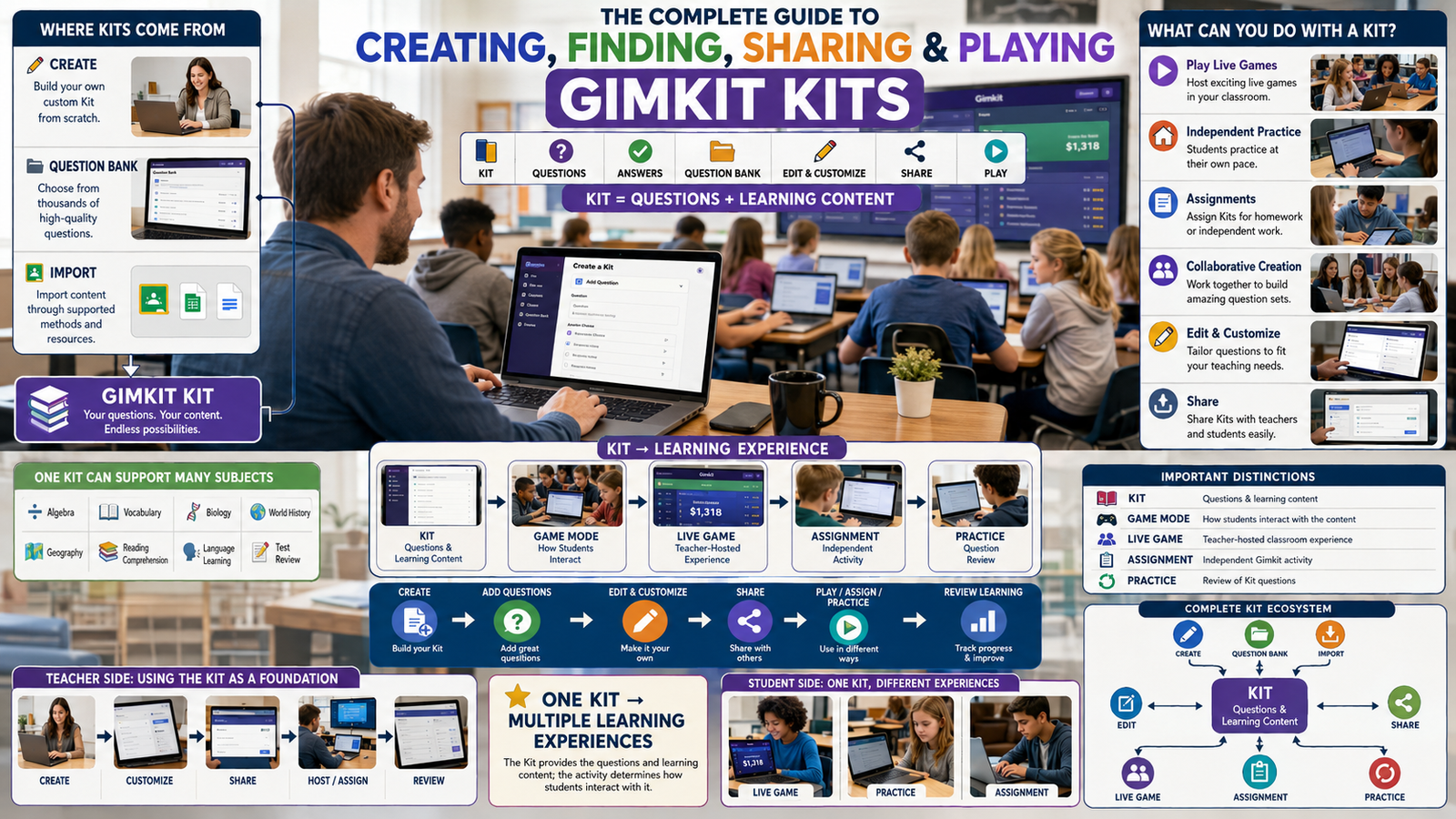
For an educator, it is the starting area for finding previously created Kits and reaching related functions. Gimkit's help documentation describes newly created Kits becoming available in the dashboard, with options to play, edit or add them to a folder. From the dashboard, educators can also reach assignments, Classes, reports and account settings through their respective documented paths.
The dashboard is not itself a game mode or an academic report. It is the place from which several different activities can be reached. A person who wants to find an old Kit has a different destination from someone looking for the results of a completed live game. Both may begin at the dashboard, but they should not follow the same subsequent navigation route.
Student-facing dashboard experiences are also described in Gimkit's assignment guidance. Students associated with Classes can see connected assignments in their own dashboards, and due-date filters may affect which assignments appear. This does not mean a student dashboard has the same controls as an educator's Kit-management workspace.
The practical objective of this page is to explain where a specific task belongs. Its interactive tool models navigation rather than content creation, hosting, gameplay, report analysis or account authentication. Those activities have their own separate workflows and dedicated pages.
Find the correct section
Identify which dashboard area contains the content, activity, report or setting you need.
Practise the navigation path
Use documented, step-based walkthroughs without giving this website account access.
Save your useful routes
Bookmark selected task paths locally and export a reusable navigation reference.
Gimkit Dashboard layout, navigation and task ownership
1. A dashboard is a workspace, not one universal screen
The word dashboard is often used broadly in educational software. It can refer to a homepage, a reporting screen, a collection of resources or a set of administrative controls. In Gimkit, the more useful interpretation is the signed-in workspace through which a person reaches the functions associated with their account. Different tasks lead to different sections, and those sections have their own interfaces and controls.
For example, a Kit can appear on the educator dashboard after creation. A completed live game's report can later be reached from Reports. An assignment has its own section and detail interface, while account information belongs under Settings. Calling all of these “the dashboard” without distinguishing their locations can make practical instructions difficult to follow.
This page therefore treats the Dashboard as a navigation problem. It identifies the user's intention, locates the appropriate area and explains the documented path. It does not assume that every individual screen shares identical controls, and it does not manufacture a single combined dashboard that Gimkit has never documented.
2. The educator dashboard starts at gimkit.com/me
Gimkit's official documentation repeatedly identifies gimkit.com/me as the educator dashboard location. The Create a Kit and Folders guides both use this destination as the starting point. That repeated documentation makes it a reliable direct link for educators who want to reach their own workspace.
The exact contents visible after arrival depend on the signed-in account and the product's current interface. An educator with several Kits may see different resources from a new user whose library is nearly empty. An account may also have archived content, folders, assignments or Classes that change which parts of the workspace are relevant.
A navigation guide should therefore distinguish the stable documented destination from the personal content shown after sign-in. GimkitApp.com cannot inspect that private content. Our tool simulates where to navigate without claiming to know which Kits, folders or assignments belong to the reader.
3. The task should determine the dashboard section
A user may arrive at the dashboard with a clear intention but not know where the corresponding action lives. “Find an older activity,” for example, might refer to an old Kit, an assignment or a completed game report. Those are different objects with different destinations.
The first step is to identify the object being sought. If it is reusable question content, the relevant starting point is usually the Kit listing or folder. If it is assigned independent work, the Assignments area is more appropriate. If it is evidence from a completed live session, the Reports section is the documented destination.
This object-first method improves navigation because it avoids searching every section indiscriminately. The Dashboard Workspace Navigator reflects the same logic: users select the role, choose an area or search for a task, and receive a documented route rather than a generic instruction to explore the whole website.
4. Educator and Student dashboards have different responsibilities
Gimkit distinguishes Educator and Student account types. These roles matter when explaining dashboard navigation. Educators work with authoring, hosting, assigned activities and instructional records. Students may use account-linked features, including Classes and relevant assignments, but they should not be assumed to possess the same educator controls.
The difference is visible in official assignment guidance. Educators enter Assignments through their own dashboards to manage or review a task. Students connected through Classes may see relevant assignments in their dashboards and use due-date filters to find them. These are different perspectives on related educational work.
The independent navigator has separate Educator and Student modes. Switching the role changes the offered task paths. It does not change a real Gimkit account, issue new permissions or certify which features the visitor can use. The purpose is simply to avoid directing a student toward educator-only controls.
5. Navigation labels identify destinations, not completed actions
Selecting the Reports section does not itself analyse a report. Opening Settings does not change account information. Finding a Kit card does not edit its questions. These actions are related to the same general workflow, but the first action locates a destination while the second performs a specialised task.
This distinction is useful for both usability and topical organisation. The Gimkit Dashboard page should help readers reach the correct workspace. Dedicated pages for Questions, Assignments, Classes and account functions can then explain their own deeper operations without repeating a generic navigation application.
The guided tool stops at the documented navigation boundary. It tells a user where to look and what to recognise, but it does not perform the underlying action on Gimkit. Completion markers represent the user's local walkthrough progress, not proof that the official platform has been modified.
6. Navigation paths can vary after product updates
Web applications change over time. A navigation label may move, a panel may be redesigned, or a feature may receive a new placement. Historical instructions can remain useful for understanding the purpose of an area, but they should not be interpreted as proof of a permanently fixed screen layout.
This is one reason official direct destinations are valuable when they are documented. Gimkit currently identifies the educator dashboard, reports and account settings through specific URLs. Other sections may be best reached through the signed-in navigation rather than through deep links whose stability has not been confirmed.
The navigator uses direct official URLs only where there is suitable documentation. For other sections, it provides the verified starting point and relevant steps. It does not invent private dashboard paths, imitate the account's real navigation state or promise that every screen will remain visually identical.
Locating content inside the educator Dashboard
7. Newly created Kits return to the Dashboard
Gimkit's official Create a Kit from Scratch guide describes selecting New Kit from the dashboard, entering the required information and adding questions through the supported editor. When the educator finishes and selects All Done, the new Kit becomes available in the dashboard. From there, the educator can play it, edit it or add it to a folder.
This establishes a clear navigation relationship: the editor creates or updates the content, while the dashboard gives the educator a place to locate the resulting resource. The dashboard is not itself an alternative authoring interface. It is the resource-discovery and access point from which deeper editing functions are reached.
For this article, the important task is locating the Kit after creation. The detailed processes for writing questions, choosing source material and modifying Kit content belong to other pages. The Workspace Navigator therefore includes the route to the Kit listing but does not provide a duplicate question editor.
8. A Kit's More menu exposes contextual actions
Gimkit's Folders and Archive documentation both describe the More menu associated with a Kit card. The menu provides actions relevant to that particular resource. For example, the documented folder workflow uses More followed by Add to Folder, while the archive workflow also begins with a Kit's More menu.
This is a contextual navigation pattern. The action does not apply to every resource in the dashboard simultaneously; the educator first locates the intended Kit, then opens its own menu. The correct initial step is therefore finding the right card, not searching for a sitewide option unrelated to the selected item.
The navigator represents that sequence explicitly. It can guide a user from the dashboard to a Kit's More menu and then to the documented action. It cannot know which real Kit the user selected, and the walkthrough cannot verify the menu's current contents inside the authenticated session.
9. Folders help group Kits within the dashboard
Folders are documented as an organisational method for Kits. The official workflow starts from the educator dashboard, uses a Kit's More menu and continues through Add to Folder. A user can select an existing folder or create one during that process.
The value of a folder lies in making related resources easier to locate. An educator may have Kits for different subjects, units or course sections, and placing related material together can make the visible workspace easier to understand. The official documentation does not require one universal naming system; that is a local organisational choice.
This page limits its guidance to discovering and locating folder controls. It does not duplicate a full Kit library manager or modify real folders. Its tool explains the path and identifies the relevant official action so users know where to go.
10. Gimkit has a documented limit of thirty visible folders
Gimkit's Folders Help article specifies a hard limit of thirty folders and explains that additional folders will not appear on the dashboard until older folders are deleted. This is an important distinction when someone believes newly created folder content has disappeared.
If the dashboard already contains many folders, the user should consider the documented visibility condition before concluding that every missing folder was permanently deleted. A folder's absence from the visible dashboard is not, by itself, evidence about the underlying content's exact state.
The Workspace Navigator includes a folder-visibility route that highlights the official limit. It does not count a user's actual folders or recommend deleting anything automatically. The number thirty comes from Gimkit's documentation, whereas the user's current folder count remains unknown to this independent website.
11. Archiving and deleting a Kit are different actions
Gimkit's official Archive and Delete a Kit article explains that a Kit must first be archived before it can be deleted. Archiving moves the Kit to the bottom of the Kit list and labels it Archived. It is not the same action as permanently deleting the resource.
This distinction matters when a Kit is no longer visible in its former position. A user may believe it has vanished after archiving, when the documented behaviour is to relocate it toward the bottom of the list. The relevant navigation task is to find the archived entry rather than immediately create a replacement.
The navigator includes separate routes for finding the Archive action and locating an archived Kit. It does not offer a simulated Delete button capable of affecting real resources. Any actual destructive action remains inside Gimkit and should be evaluated carefully by the account holder.
12. Unarchive provides a path back to the regular list
The same official documentation describes an Unarchive option for archived Kits. This means archiving should be understood as a reversible organisational state rather than the terminal condition of a deleted resource.
To find the appropriate control, the educator needs to locate the archived Kit in the listing, open its More menu and choose Unarchive. This path is different from creating a new Kit or uploading content. It addresses the visibility of an already existing resource.
The Workspace Navigator can take a user through that route. It does not inspect which Kits are archived or mark a real Kit active. Instead, it records whether the user has progressed through the documented navigation steps in their own separate official session.
13. Deletion requires an archived state first
Gimkit's documentation states that the Delete option appears after a Kit has been archived. This establishes an order of operations: an active Kit is archived, and an archived Kit may then expose the option for deletion through its More menu.
Understanding the order is useful even when the user does not intend to delete anything. It explains why a Delete action may not be visible on an ordinary Kit card. A missing destructive control is not necessarily a malfunction; it may reflect the product's documented workflow.
A responsible guide should also distinguish knowing where a destructive action is located from recommending its use. The navigator documents the route without asking for a Kit identifier or carrying out the deletion. Users should confirm their own intentions and the current official interface before removing content.
14. A folder view and an archived view answer different questions
A Kit placed in a folder is being grouped for organisation. A Kit placed in the archived state is being moved away from the ordinary active listing. Both actions affect how resources can be found, but they do not describe the same condition.
If someone cannot find a Kit, the search for its location should consider the type of action that occurred earlier. Was the Kit moved into a folder? Was it archived? Was the resource created under a different account? These are distinct possibilities that cannot be resolved by one generic instruction to search the dashboard.
The tool separates folder navigation from archive navigation and provides different guided paths for each. It does not claim to detect the true cause of a missing resource, because the private account state is not accessible.
Finding and opening assignments from the Dashboard
15. Assignments occupy a dedicated Dashboard section
Gimkit's Share and Manage Assignments guide instructs educators to select Assignments from the dashboard to view their assignments. From the list, they can choose a particular assignment and reach its own interface.
This is different from navigating to a Kit. A Kit is reusable source content, while an assignment represents a specific independent activity built with a chosen Kit and mode. The dashboard gives access to both, but they are not interchangeable items.
The important navigation step is knowing that an existing assignment should be sought in the Assignments section. Opening a Kit may offer ways to begin a new assignment, but that is not the same as finding the already created assignment's management view.
The Workspace Navigator accordingly provides a route to the assignment list. It does not create homework or reproduce assignment-mode settings. Those belong to the specialist Assignment page.
16. Assignment detail screens contain their own navigation
Once an educator opens a particular assignment, the official guidance describes navigation options above the assignment. These lead to tasks such as sharing the assignment, viewing results and inspecting the settings information.
A user who sees an assignment in the dashboard list is therefore at one level of the navigation hierarchy. Selecting it opens a more specific level containing controls relevant to that assignment. Confusing those two levels can lead to searching the dashboard sidebar for an action that belongs inside the assignment detail screen.
The navigator represents this as a multi-step route: open the dashboard, choose Assignments, select the relevant assignment and then find the task-specific control. It does not guarantee that every historical screenshot uses the same visual positioning in a future interface revision.
17. Sharing an assignment begins from its detail view
Gimkit's official Share and Manage Assignments documentation explains that a direct assignment link can be copied from the Share section of an assignment. The relevant navigation begins by opening the correct assignment rather than by selecting an unrelated global sharing action.
The Help article also explains that assignments connected to Classes may appear in students' dashboards. This creates two different paths to the activity: an educator's management path and a student's access path. The underlying assignment is related, but the screens are serving different people and responsibilities.
The dashboard guide owns only where the educator finds the Share area. It does not manufacture assignment links or send invitations. Actual links are generated and managed by Gimkit's authenticated system.
18. The assignment Info area is a reference destination
The official assignment management article describes an Info section that lets educators confirm the Kit and goal associated with an assignment. It also notes that assignment settings cannot be changed through that described information view.
This distinction is valuable because the word settings may suggest an editable configuration. In the documented assignment context, Info provides a way to review selected properties. A user should not assume that every property shown there can be rewritten after an assignment is created.
Our navigator includes an explicit “Locate Assignment Info” route. It stops when the user has reached the relevant official screen. It does not display a fake form for changing assignment goals or imply that an independent website can alter them.
19. Assignment results and the complete report are separate views
Gimkit provides assignment-level results that can be viewed through an assignment's interface, and its official guidance describes an Open Report action for accessing more detailed report information.
These destinations may both concern the same educational activity but answer different navigation questions. The Results area provides one level of information, while the report view provides another. A user searching for a report should not assume that every Results list is the same as the full report.
The dashboard navigator therefore maintains separate paths for opening assignment results and opening the associated report. This helps users find the correct destination without attempting to calculate grades, interpret responses or reproduce Gimkit's assessment analytics.
20. A missing student assignment may involve due-date filters
Gimkit's official assignment guidance explains that students connected to a Class may see assignments on their own dashboards. It specifically advises checking due-date filters when an expected assignment does not appear.
This provides a documented navigation explanation that differs from assuming the assignment has been deleted. A learner may be looking at a filtered list rather than the full set of relevant assignments. Adjusting the official filter may change which assignments are visible.
The Workspace Navigator includes a Student route that focuses on finding the due-date filters. It does not query the student's assignments, alter due dates or determine whether a teacher has shared the correct resource. Those questions depend on actual account and assignment state.
Where completed Gimkit game reports appear
21. Reports are a separate destination from the Dashboard home
Gimkit's Game Reports guide describes reaching past live-game reports through the dashboard's Reports tab. It also supplies a direct destination at gimkit.com/reports.
This means a completed game report should not be confused with the current Kit list. A Kit may have been used in several different game sessions, while reports concern recorded results from particular sessions. Finding the educational resource and finding its historical activity evidence are different tasks.
The direct Reports destination is useful when a user knows that the desired object is a past-game report. The official account still determines which reports are visible and which results belong to the user.
The navigator provides a verified shortcut to the reports area. It does not retrieve private report data or infer any performance statistics.
22. Reports can be reached after a game ends
Gimkit documents a View Report action at the end of a completed live game. The button's position differs between 2D and non-2D games in the official guide, demonstrating that the route to a report can depend on the activity format.
This immediate route is useful when the host is still at the end-of-game interface. If the host has already left that screen, the later Reports area provides a separate pathway.
The two routes reach related information from different starting conditions. Someone currently at the game-end screen does not necessarily need to return to the dashboard before opening the available report. Someone searching for last month's session is more likely to use historical Reports navigation.
Our tool focuses mainly on dashboard navigation, while documenting the official historical route. Detailed host-session controls and gameplay-end screens remain with the specialist hosting content.
23. The Reports list is ordered with recent entries first
The official Game Reports article explains that historical reports are listed with the most recent first. This establishes a useful expectation when a user opens Reports but does not immediately see the desired older session.
A past report may appear farther down the list because of its date. The right navigation task is to examine the historical report listing rather than treat the top entry as the only available result.
The navigator can explain this documented ordering, but it cannot know which sessions exist in the reader's private account. It therefore does not present a fake table of actual game dates, scores or student names.
The objective is to identify the location and general organisation of the historical reports screen, leaving the review and interpretation of specific evidence to its dedicated subject.
24. Report navigation includes several views
According to Gimkit's Game Reports documentation, report information can be viewed through Student Overview, General Overview and Question Breakdown. The guide describes choosing the relevant view from the left-hand pane after opening a report.
These categories are useful as navigation landmarks. Someone who wants question-level information should recognise Question Breakdown as a different destination from a student-focused overview.
This page does not reproduce those report views or generate synthetic student scores. That would move beyond dashboard orientation into analysis of assessment evidence.
The Workspace Navigator contains a route that identifies where to find the different views after opening a report. It deliberately does not make claims about individual performance or academic outcomes.
25. A report's location does not establish its interpretation
Finding a report is a navigation achievement, not an instructional conclusion. Once the report is open, a teacher may examine class-level or question-level information and consider what the results suggest. Those decisions require the actual data and its context.
An independent site without access to the authenticated report cannot claim that the students performed well, that particular misconceptions were present or that a future intervention is required.
This page therefore owns the question “Where do I find the report?” rather than “What does the report prove?” The distinction helps prevent unrelated tools from competing for the same topic and keeps the Dashboard article aligned with its navigation intent.
The navigation simulator marks only the user's progress through the steps. It cannot mark the report's academic analysis as complete.
26. Game reports and assignment reports have different entry paths
Historical live-game reports can be reached from the dedicated Reports area. Assignment reports can be opened through the corresponding assignment interface. Both may present useful learning evidence, but the documented starting paths are not identical.
This is a common reason a user can become confused when trying to find a particular result. If the activity was an independently completed assignment, opening the Assignments section may provide the more direct route. If it was a completed live session, the historical Reports area is documented for that purpose.
The navigator separates these paths into distinct tasks. It does not combine every activity into a fabricated unified analytics screen, nor does it claim that the official interface always uses one common report list for every purpose.
How the Dashboard connects to Classes
27. Classes are an organisational area with their own purpose
Gimkit's official Classes Explained article describes Classes as tools that support appropriate player names, assignment progress tracking, multiple completion information and saved assignment progress.
These functions explain why Classes are a distinct dashboard destination. A Class represents a group of learners and their supported relationship with activities. It is not simply another folder for storing Kits, and it should not be treated as a synonym for the teacher's entire dashboard.
When an educator needs information about the people associated with a Class, the relevant location is the Class area rather than the Kit list. When an educator needs a specific assignment report connected to that Class, the navigation may continue into the relevant assignment.
The navigator explains these location relationships without operating a roster or creating Class invitations. Student management remains a separate topic.
28. Classes and assignments connect two workspace areas
An assignment may be connected to one or more Classes. Gimkit's assignment documentation explains that students in connected Classes can see relevant assignments from their dashboards.
This relationship can lead to two valid navigation perspectives. The educator may open the assignment to inspect its settings, sharing information or results. The student may open their own dashboard and find the same assigned work through the class-connected experience.
The dashboard guide should not collapse these perspectives into a single universal menu. Each account role has different responsibilities, and the platform's views reflect those distinctions.
The independent tool therefore provides different guided task paths for educators and students. It does not attempt to reconstruct actual roster permissions or determine whether a specific student belongs to a particular Class.
29. Class membership changes what students may see
Gimkit's official guidance explains that students who are connected to Classes can see associated assignments from their dashboards. This means the visibility of an assignment may depend on the relationship between the activity and the student's Class.
A missing assignment is therefore not always a problem with the dashboard's design. The relevant questions can include whether the assignment was connected to the intended Class and whether a due-date filter is hiding it.
The independent navigator does not inspect those facts. It can identify the documented location to check but cannot know the teacher's assignment configuration or the student's authenticated membership.
This is an important limitation for any third-party guide. Helpful instructions may identify likely places to examine without pretending to provide a live diagnosis of a private account.
30. Assignment progress is not the same as live-game reporting
Classes support tracking assignment completion and reviewing results associated with independent work. Historical live-game Reports are a different destination. A teacher should distinguish these forms of evidence before deciding which screen to open.
If the immediate task is checking the status of an assignment linked to a Class, the Assignments and Class-related views may be relevant. If the immediate task is locating a completed live game's report, the Reports area provides the documented route.
The Workspace Navigator includes both paths because the dashboard connects to several forms of educational evidence. It does not calculate completion percentages, simulate rosters or infer student performance.
The distinction helps keep this page centred on navigation while preserving the specialised reporting and classroom-management subjects for their own guides.
31. Student dashboards should not be described as educator dashboards
A Student account and an Educator account do not have the same purpose. A student may use their dashboard to access account-linked assignments, while an educator may use their workspace to find Kits, assignments, Classes and reports.
Giving a learner instructions such as “open your Kit's More menu and archive the resource” would create confusion because that workflow belongs to the educator's content-management context.
The navigator prevents this kind of role mismatch by showing separate task libraries. Users can switch roles to understand how the destinations differ, but no real account changes occur.
This makes the simulated dashboard safer and clearer than a generic cloned interface that pretends every person can see every tool.
Finding Gimkit account settings from the Dashboard
32. The Me menu provides a documented Settings route
Gimkit's official account documentation describes opening the Me dropdown from the dashboard and selecting Settings. It also provides the direct account settings destination at gimkit.com/settings.
This is a different area from the educator's instructional resources. A Kit concerns learning content, while Settings concerns properties associated with the user's account or broader preferences.
The navigation task is therefore to find the Me menu or use the verified direct Settings URL. This page stops at that destination rather than providing an alternative account-management form.
Real identity changes should be performed only through Gimkit's official authenticated interface, not through a third-party dashboard simulation.
33. Account information and game preferences occupy different settings areas
Gimkit documents several settings-related functions. Editing a person's name or updating the registered email begins from the Account Information area, while Game Settings is identified as the destination for certain host preferences such as custom currency and language.
These are different categories of configuration. Changing a display name does not mean changing the default currency used in hosted games, and entering the Game Settings area does not automatically provide an email-change form.
The navigator identifies the relevant settings section for each kind of task. It does not expose the actual personal information in the visitor's account and cannot save changes to Gimkit.
The distinction is helpful because the word Settings is broad. A direct route to the main settings page may be correct, but the user still needs the appropriate subsection.
34. Name changes begin in Account Information
Gimkit's Edit Your Name Help article describes opening Settings and editing the relevant first-name and last-name fields. The instructions establish where the action is located within the official account interface.
This page does not ask users to type their real names into a local simulator. That would serve no navigation purpose and could create confusion about whether the name was actually updated.
Instead, the guided route identifies the official Settings destination and the Account Information area. The final action is performed by the user on Gimkit if they choose to make the change.
The distinction between locating a control and modifying account data is deliberate. The former belongs to the Dashboard guide; the latter belongs to official authenticated account management.
35. Changing an email address is an official account operation
The Update Your Email documentation describes opening Settings from the dashboard, selecting the email-related control in Account Information and following the service's verification process.
This involves actual identity information and should not be delegated to a third-party informational page without an appropriate authorised integration. The Workspace Navigator does not collect email addresses or verification codes.
The documented dashboard route is still useful. A user who wants to find where an existing account's email can be updated may navigate through Settings and the relevant account section.
Detailed identity verification belongs to the official service and the separate account-access topics. The Dashboard page simply provides the verified location.
36. Plan and Billing is reached through Settings
Gimkit's Pro FAQ describes Plan and Billing as a section of account settings. It can contain subscription-related information such as charges and receipts, depending on the account's situation.
Someone looking for an existing billing receipt should therefore begin from Settings and find Plan and Billing rather than assume the information appears beside every Kit or report.
The navigator provides the destination without copying financial information or calculating subscription comparisons. It also does not imply that every account will show identical billing entries.
Subscription eligibility, price comparisons and cancellation workflows are separate subjects. This article owns only the location of the documented settings section.
37. Account privacy and collected-information controls also begin in Settings
Gimkit's View Information Collected article describes opening Settings, finding the Account Information page and expanding a Support area to reach information collected about the user.
This is a different destination from gameplay reports or academic results. The information concerns the account itself, not simply the student's answers to a particular activity.
The Workspace Navigator includes an account-information route based on the documented path. It does not retrieve private data or present an invented summary of what Gimkit knows about a specific visitor.
Users should consult the actual official privacy controls and policy when they need authoritative information about their account data.
38. Account deletion is not a dashboard-cleanup shortcut
Gimkit's Delete Your Account documentation explains that account deletion is performed through Settings and is permanent. It removes the account and related content, including Kits, assignments, reports and Classes.
This should not be confused with archiving a Kit or organising folders. An educator who wants to reduce dashboard clutter should not treat deleting the entire account as an ordinary content-management action.
The guide identifies the relevant settings destination but does not simulate account deletion or present a one-click action. The actual process includes official safeguards and should be read carefully on the service itself.
This example demonstrates why understanding destination ownership matters: seemingly similar words such as delete and remove can refer to operations with very different consequences.
Dashboard Workspace Navigator & Guided Task Simulator
Choose Educator or Student, select a dashboard section, search for a task and follow the documented route step by step. Save important paths, record local walkthrough progress and export a personal navigation reference without exposing account information.
Find where a task belongs — then follow its route.
A guided navigation simulator, not an official Gimkit dashboard. No sign-in, private account data, real Kits or classroom records are accessed.
Find a navigation mission
Select a documented task. The walkthrough explains where to begin, what to look for and which official Help page supports that path.
Find a Kit on your Dashboard
Open official dashboard
Saved dashboard navigation routes
Keep frequently needed paths in a local shortcut collection. These are guidance bookmarks, not shortcuts into private content.
Exportable navigation brief
Saved route preferences and walkthrough progress may be stored in this browser. No real Gimkit information is saved or synchronized.
Why this is a genuine Dashboard-specific application
The application operates on a navigation model with roles, workspace sections, task routes, documented steps, progress acknowledgements and saved destinations. Its purpose is not to calculate a game outcome, prepare question material, compare game modes or manage a custom Creative map.
A user can search for a real dashboard task such as locating archived Kits, finding an assignment report or opening Plan and Billing. The application returns a documented path with a specific sequence of navigation stages. Users can move forward and backward through the steps, mark individual stages as found, return to earlier steps and save the whole route to a local bookmark collection.
The role selector is functional rather than decorative. Educator mode presents the documented educator workspace paths. Student mode presents the learner-facing tasks relevant to dashboard assignments and account access. A student is not offered a simulated educator Kit deletion action merely because the same website describes both accounts.
The workspace also provides filtering by section and free-text task search. Saved routes can be opened again without searching through the entire task library. The export contains each saved route, its official reference and the local progress indicators.
The application does not ask users for credentials, account IDs, student names, Kit contents or report data. Direct official links open Gimkit's own website in a separate browser tab. Marking a route complete never changes an official account. This separation between navigation guidance and platform control is central to its unique search intent.
How the Dashboard Workspace Navigator works
39. The application uses documented navigation destinations
The tool's route library is based on Gimkit Help Center instructions for Kits, folders, archived resources, assignments, Classes, reports and account settings. Each route describes an action sequence rather than claiming to contain the user's actual account data.
The route to a historical live-game report, for example, begins with the Reports destination. The route to a folder action begins with the educator dashboard and the relevant Kit card's More menu. The route to account settings uses the documented Me menu or direct settings destination.
These distinctions make the tool more useful than a static list of unrelated official links. The user can locate a task and inspect its path in the context of the specific object being sought.
Product updates may alter visual details. The source links remain visible so users can check the official instructions when necessary.
40. Search finds tasks, not private account content
The application's search field filters its built-in navigation routes. Searching for archived Kits finds the documentation-backed walkthrough, not actual Kits belonging to the visitor. Searching for a report locates the Reports task, not private session results.
This is an important difference from an authenticated dashboard's own internal search, if available. The independent navigator has no access to account records and cannot know what a real user has created or stored.
Its search function works entirely on publicly describable task titles, sections and route descriptions. Because those records are built into the page, the user does not need to provide personal information.
The result is a practical orientation tool that remains honest about the object it searches.
41. Workspace sections organise the route library
The navigation map groups routes by their destination: Kits, folders, assignments, reports, Classes, settings and Student assignments. This helps readers move from a broad question toward a more specific operation.
The categories in the independent tool are an explanatory organisation. They should not be interpreted as a screenshot-perfect recreation of the current Gimkit sidebar. Some official operations are nested within a content card or a menu rather than being permanent top-level sections.
Clicking a section filters the available tasks. The selected route can then show a more detailed breadcrumb representing the documented sequence of locations.
This creates a functional relationship between the broad navigation area and the individual task instead of displaying a collection of decorative cards.
42. Each route is a sequence with a starting destination
A route begins with the most relevant documented entry point. For educator tasks, that is often gimkit.com/me. For historical Reports, the official documentation supplies gimkit.com/reports. For account controls, Gimkit documents gimkit.com/settings.
The subsequent steps identify where to look and what action leads toward the destination. The navigator uses ordinary explanatory language, not simulated clicks that pretend to operate the real product.
Users can move between steps or jump back to an earlier point. A progress indicator shows the fraction of local steps acknowledged as found.
The sequence can guide a person who has the official service open in a separate tab, while the application remains independent of that authenticated session.
43. Progress markers are personal navigation acknowledgements
The Mark Step Found button records that the user has acknowledged a step in the independent guide. It does not detect the official website's current URL, inspect the user's browser tab or confirm that a private action succeeded.
A person might mark a step after finding the corresponding control in Gimkit. Another might use the marks while studying the navigation sequence. Both are local uses of the guide and should not be presented as official completion evidence.
The route progress percentage is calculated from the number of acknowledged steps divided by the route's total steps. This is a genuine calculation, but its meaning is intentionally narrow.
The tool does not generate an academic performance score or invent a classroom-management efficiency percentage.
44. Saved routes provide repeatable personal shortcuts
A teacher may repeatedly need to open historical Reports, inspect assignment details or locate archived Kits. Saving those navigation instructions locally can make it easier to return to the correct documented route later.
The navigator supports a collection of saved task IDs. Selecting a saved route reopens the corresponding walkthrough. Removing it from saved routes does not change any Kit, assignment or other object on Gimkit.
The collection is deliberately limited to navigation metadata. It does not copy real student results, access tokens or private resources. The saved records refer only to the tool's built-in task library.
This makes bookmarking functional while preventing the independent page from becoming a misleading alternative account database.
45. Exports preserve routes without pretending to preserve Gimkit data
The navigator produces text, CSV and JSON exports describing the selected role, saved routes, official reference links and locally acknowledged steps.
A text brief can be read as a list of locations. A CSV can be reviewed as a structured navigation record. JSON can restore the tool's local state in the same application. None of these formats can modify an official dashboard.
The import function accepts only the application's own supported state structure and recognised route IDs. It does not execute code from pasted JSON or use imported text to construct an arbitrary external account connection.
These safeguards help keep the application useful as a navigation reference without implying undocumented integration capabilities.
46. Official links are different from unofficial simulated controls
Some sections have explicitly documented direct destinations. The navigator links to those official locations when appropriate. Other routes begin from the dashboard because the official documentation provides a sequence of interface actions instead of an independently verified stable deep link.
A button labelled Open Official Destination therefore opens a real Gimkit web address. A button labelled Mark Step Found updates the independent guide's local state. The labels describe different actions, and the application keeps them separate.
This distinction prevents a common design problem in educational simulators: controls that look like real account actions but perform nothing more than an animation.
The walkthrough does not pretend to have navigated the external website or confirmed whether the visitor is signed in.
Common Gimkit Dashboard tasks and where they belong
47. An educator has just completed a new Kit
After using the official Kit editor, an educator selects All Done and expects to find the new content. Gimkit documents that the resulting Kit becomes available on the dashboard.
The appropriate navigation task is therefore to open the educator dashboard and locate the Kit among the available resources. If the Kit is present, later editing or hosting activities can begin from its own controls.
The Workspace Navigator provides a route to the dashboard's Kit listing without repeating the content-creation instructions themselves.
48. A familiar Kit appears to have disappeared
An educator remembers an older Kit but cannot find it near the active resources. Gimkit's archive documentation states that archived Kits appear toward the bottom of the Kit list with an Archived label.
This supplies one documented location to inspect before concluding that the resource was permanently removed. The navigator can guide the user to the relevant part of the listing.
It does not diagnose the actual private account or guarantee that an individual Kit still exists. The archive route is one possible navigation check supported by official documentation.
49. A new folder is not visible
An educator has used the folder workflow but does not see the expected folder near the top of the dashboard. Gimkit documents a thirty-folder limit affecting visibility.
The navigator directs attention to that official rule and the folder location. It does not automatically count the educator's folders or infer that content was deleted.
The user should inspect the actual dashboard and current documentation before taking any further action. Deleting resources or folders should never be triggered automatically by an independent guide.
50. A teacher needs the link for an existing assignment
The teacher should open Assignments from the educator dashboard, select the desired assignment and find its Share section. This is the path described by Gimkit's assignment-management documentation.
The correct object is the existing assignment, not its underlying Kit alone. That distinction matters because the direct assignment link belongs to the assignment workflow.
The navigator points to the documented Share location but does not generate or display a fake link. The official service supplies the actual link.
51. A student cannot see an expected assignment
A student connected through a Gimkit Class expects to find assigned work but the dashboard view does not show it. Gimkit's official Help material identifies due-date filters as a possible reason.
The student-facing navigator provides a dedicated task for locating and checking those filters. It does not claim that changing the filter always solves the problem.
Other causes could depend on the assignment's actual sharing or Class connections, information not available to this independent page. The tool provides a grounded navigation check rather than an unsupported diagnosis.
52. An educator wants a report from an earlier live game
The appropriate destination is the Reports area, documented directly at gimkit.com/reports. The official guide explains that reports are listed with the most recent first.
An educator looking for an older session may therefore need to inspect earlier entries in that list rather than expect the desired report to be the first result.
The navigator gives the official destination and basic ordering context. It does not access reports or analyse individual questions.
53. A teacher wants the report for one assignment
The official assignment documentation provides a path through the assignment's own interface. The teacher can open Assignments, select the relevant item and use Open Report when available.
This differs from searching the historical live-game Reports list. The choice of starting location depends on the kind of activity whose evidence is being sought.
The navigator keeps those routes separate so that users can identify the correct entry point without the page duplicating the actual analysis tools.
54. An educator wants to change account information
Gimkit documents accessing account settings through the Me menu or directly at gimkit.com/settings. The relevant Account Information area contains certain personal account controls.
The navigator provides that documented location. It does not ask for a real email, password or name and cannot submit changes to the official service.
This distinction is particularly important because identity information should be handled through authorised account interfaces rather than collected by unrelated educational websites.
55. An educator wants a subscription receipt
The Gimkit Pro FAQ identifies Plan and Billing inside Settings as the relevant location for charges and receipts. This means a user should not expect billing documents to appear in the Kit list or Reports area.
The route is Settings followed by Plan and Billing. The independent navigator provides the location without accessing financial information.
The presence or absence of receipts depends on the actual account's billing history, which this tool cannot inspect.
56. A user wants to remove dashboard clutter safely
Reducing visible clutter can mean different things. Organising Kits into folders is one option. Archiving a Kit is another documented action that moves it toward the bottom of the list. Permanently deleting a Kit is a more consequential step available after archiving.
The navigator can help the user distinguish those destinations, but it does not decide which resources should be kept. The user must evaluate the value and status of each real Kit.
The distinction also prevents an account-level action such as deleting the entire profile from being confused with ordinary dashboard organisation.
Frequently asked questions about the Gimkit Dashboard
What is the Gimkit Dashboard?
The Gimkit Dashboard is the account workspace used to reach Kits and other relevant account features. Official educator documentation identifies gimkit.com/me as the dashboard destination.
What is the official Gimkit Dashboard URL?
Gimkit's educator documentation uses https://www.gimkit.com/me. You may need to sign into the appropriate official account to see your actual workspace.
Can I access my real Dashboard through this article?
The page links to official Gimkit destinations, but it does not load your authenticated workspace inside GimkitApp.com or inspect its contents.
Does the Dashboard contain my Kits?
Gimkit's documentation describes newly created Kits appearing on the educator dashboard. Their subsequent actions may include playing, editing or adding them to folders.
Where do I find an older Kit?
Begin in the educator Dashboard's Kit area. If the Kit was archived, official documentation says archived entries appear toward the bottom of the list with an Archived label.
Where is Add to Folder?
Gimkit documents opening a Kit's More menu from the Dashboard and choosing Add to Folder. The actual action occurs on the official resource card.
How many Gimkit folders can appear on the Dashboard?
Gimkit's Folders documentation specifies a hard limit of thirty folders, with additional folders not appearing until older ones are removed.
Can this page create folders in my account?
No. The Workspace Navigator only explains the documented navigation path. It does not have permission to create or edit official folders.
How can I locate an archived Kit?
Official documentation says archived Kits move toward the bottom of the Kit listing. The navigator includes a specific route for locating that area.
Is archiving the same as deleting?
No. Gimkit distinguishes archiving, which moves the Kit out of the ordinary active listing, from deletion, which becomes an option after the Kit has been archived.
Can an archived Kit be restored?
Gimkit documents an Unarchive action available through the archived Kit's More menu. The actual change must be made on Gimkit.
Why can't I see Delete on an active Kit?
According to Gimkit's Help article, a Kit must first be archived before the Delete option becomes available through its contextual menu.
Where are Gimkit Assignments located?
Gimkit's official assignment management guide says educators can open Assignments from their Dashboard to access their assignment list.
How do I locate the Share option for an assignment?
Open the Assignments section, select the relevant assignment and then find the Share area in its detail interface.
Where can I see an assignment's original settings?
The official documentation describes an Info area in an assignment that shows associated information such as the Kit and goal.
Can assignment settings always be edited afterward?
Gimkit's published assignment-management guidance states that assignment settings cannot be changed through the documented Info view. Current official controls remain authoritative.
Where are completed Gimkit game reports?
Use the Reports section of the educator Dashboard or the documented direct destination at https://www.gimkit.com/reports.
How are historical reports ordered?
Gimkit's Game Reports documentation says past reports are listed with the most recent first.
What views are available inside a report?
Official documentation identifies Student Overview, General Overview and Question Breakdown. This guide explains where to find them but does not analyse real report data.
How can I find an assignment report?
Open the relevant assignment from the Dashboard and find its report-related controls, including Open Report where supported in the current interface.
What can Classes help with?
Gimkit describes Classes as supporting appropriate names, assignment progress tracking, multiple completion results and saved assignment progress.
Do students have the same Dashboard as teachers?
No. The account roles serve different functions. Official documentation describes student dashboard access to relevant assignments, while educator documentation includes content and management areas.
Why isn't an assignment showing on a student's Dashboard?
Gimkit advises students to check assignment due-date filters. Actual visibility can also depend on the assignment and Class relationship, which this independent page cannot inspect.
Where are Gimkit account settings?
Gimkit documents using the Me dropdown to select Settings or visiting https://www.gimkit.com/settings directly.
Where do I edit my account name?
The official Edit Your Name instructions use Settings and Account Information. Changes must be completed on Gimkit itself.
Where is the email-change option?
Official documentation places it in Account Information under Settings. Verification takes place within Gimkit's own account workflow.
Where do I find billing receipts?
Gimkit's Pro FAQ describes Plan and Billing inside account Settings as the location for relevant charges and receipts.
Can this simulator access my personal settings?
No. It does not connect to Gimkit accounts or collect passwords, emails, names or private account data.
What does Mark Step Found do?
It records local acknowledgement of the current walkthrough step. It does not confirm that the action was completed on Gimkit.
Are saved routes stored in Gimkit?
No. They are kept locally in the browser where storage is available. They are navigation bookmarks, not Gimkit account objects.
Can I export my Dashboard navigation routes?
Yes. The independent tool provides readable text, CSV and JSON exports. These files contain navigation metadata rather than private content or official account records.
Can the exported JSON be uploaded into Gimkit?
No. It is a format for restoring this navigator's state, not an official Gimkit Dashboard import format.
Does the navigator work on mobile?
Its independent interface is responsive and supports pointer and keyboard actions. Actual official Gimkit screens may differ by device and product version.
What is the difference between the Dashboard and Reports?
The Dashboard is the broader workspace. Reports is one destination within the ecosystem for reviewing evidence from completed eligible activities.
What is the difference between the Dashboard and a Kit editor?
The Dashboard helps users locate Kits and their available actions. The Kit editor is where actual question content is created or changed on the official platform.
Why should I rely on official Help pages for current navigation?
Gimkit controls its interface and may update it over time. Official documentation and the authenticated service are better sources for current controls than an independent static screenshot.
Dashboard navigation is different from classroom organisation strategy
Finding the Classes area or an assignment is a navigation problem. Deciding how to organise several teaching groups across a school term is a different instructional-management task.
For that wider subject, see the site's existing guide to building a professional Gimkit classroom. That article concerns teaching-group structure and classroom organisation, while this page concentrates on locating documented workspace controls.
Keeping these topics separate ensures that the Dashboard guide remains useful to someone who simply needs to find a Kit, open a report or locate Settings without reading an entire classroom-management strategy.
Official Gimkit documentation used for this Dashboard guide
These Help Center references support the documented navigation and workspace behaviour discussed in this article. The independent navigator's interface and local route-progress features are original website functionality, not official Gimkit capabilities.
Find the section. Follow the route. Use the official workspace.
The Gimkit Dashboard becomes easier to navigate when Kits, folders, assignments, reports, Classes and account settings are understood as distinct destinations with different responsibilities.
Return to Workspace Navigator ↑