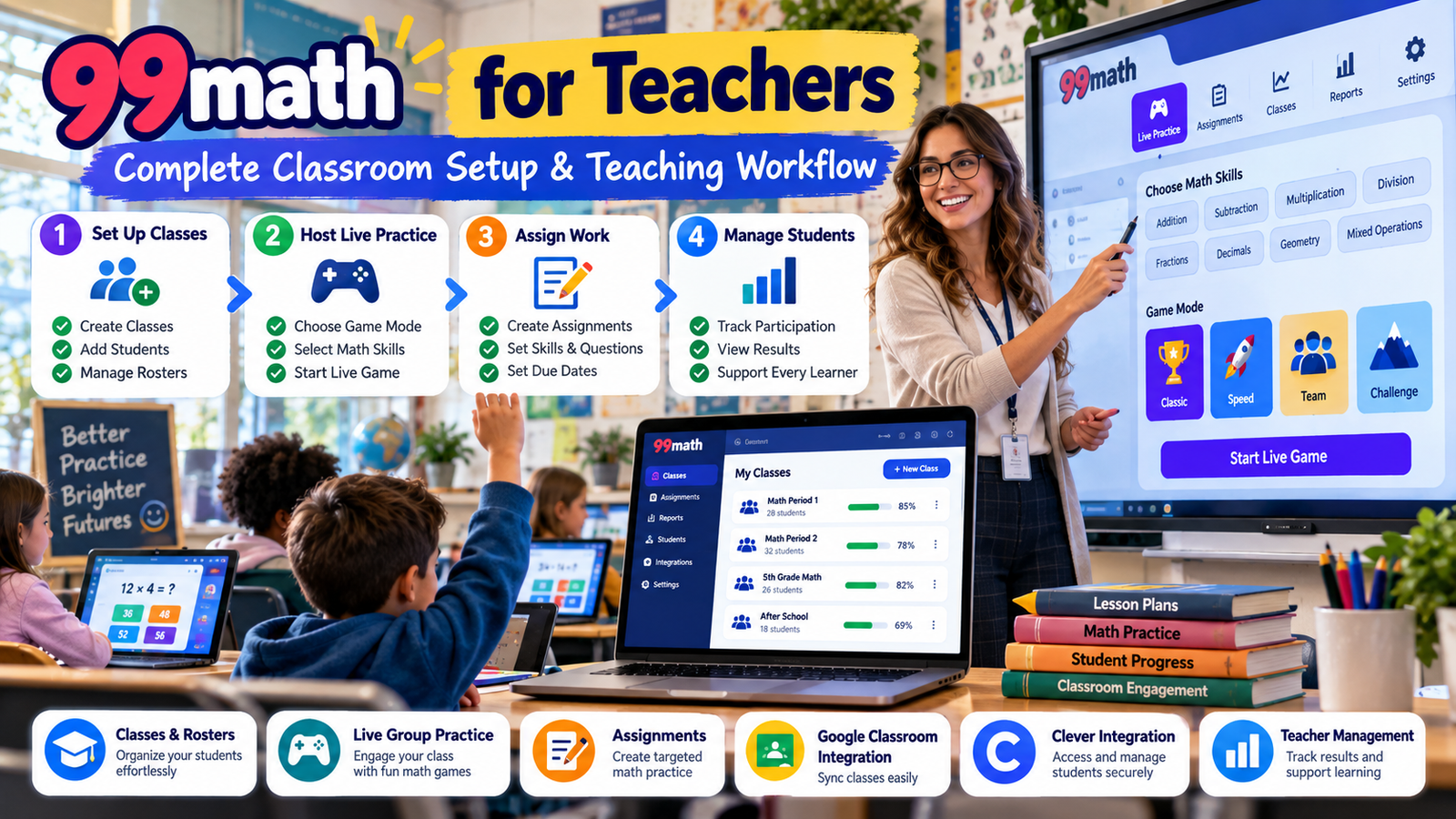
99math for teachers works best when it is treated as a classroom practice system, not simply as a math game that gets opened whenever there are a few minutes left in a lesson.
From one teacher account, educators can organize classes, work with persistent student rosters, import classes from Google Classroom or Clever, run live group practice, create individual assignments, manage student access, add co-teachers, and maintain the basic infrastructure that makes repeated use possible.
99math currently describes itself as a math-fluency platform built around live classroom games, individual assignments, and home practice. Its public site currently lists hundreds of mathematical skills across 28 topics and describes K–8 curriculum coverage, with selected additional topics beyond grade 8. 99math
For teachers, however, the real value is not the number of buttons or available topics. It is whether the platform can fit into an actual school day without producing unnecessary setup work.
A reliable 99math teacher workflow can be reduced to a clear sequence:
Set up the correct teacher account → build or import the class → keep the roster accurate → choose live or individual practice → configure the activity → deliver it → maintain the classroom structure afterward.
This guide explains that teacher-side system from beginning to end.
It deliberately does not turn into a student tutorial, a detailed performance-report guide, an analysis of every math skill, or an advanced classroom-competition article. Those are separate search intents and deserve their own pages.
Gimkit App offers practical guides, resources, and tips for teachers and students exploring interactive learning and educational games.
What 99math Gives Teachers
The teacher experience is built around several connected functions rather than one single type of activity.
Teacher function
Main purpose
Teacher account
Central control point for classroom use
Classes
Persistent student groups
Google Classroom import
Bring an existing Google roster into 99math
Clever import
Connect an existing Clever-based class
Group Practice
Run a live teacher-controlled session
Individual Practice
Give students work to complete independently
Assignments
Define skills, problem counts, and deadlines
Class codes
Connect students to persistent classes
Co-teachers
Give additional educators legitimate class access
Student settings
Handle selected student-account issues
Premium features
Extend the basic workflow with additional capabilities
99math’s current teacher knowledge base separates teacher help into Getting Started, Group Practice, Individual Practice & Assignments, Reports, Classes, and Accounts & Login. That division is useful because it reflects the fact that teachers are managing several different workflows rather than one universal “play” button. 99math Support
A teacher who understands these areas separately can choose the correct workflow much faster.
Start With the Correct Teacher Account
Before creating classes or planning activities, make sure you are operating from a teacher account.
That sounds basic, but account role affects what you can manage.
Your teacher account becomes the home for:
classes;
roster organization;
live activity setup;
assignments;
co-teachers;
student-management tools;
classroom administration.
If the account role is incorrect, fix it before investing time in setup.
This prevents a simple mistake from becoming an entire class-management problem later.
A useful principle for educational software is:
Build the identity layer correctly before building the classroom layer on top of it.
Once classes and students have been added, account corrections become more disruptive.
Is 99math Free for Teachers?
Yes. 99math currently states that it offers a free version to teachers and students and that core functions including live group practice, individual practice, and home practice remain available without a Premium license. 99math Support
The public 99math site also states that live games, assignments, class management, and reports are available for teachers and schools without a trial period. 99math
Teachers therefore do not need to purchase a paid plan merely to understand the basic classroom system.
This matters because the smartest implementation path is usually:
establish a class;
understand the basic workflows;
identify real limitations;
consider Premium only when a Premium capability solves an actual instructional or operational problem.
That order is better than designing an entire classroom process around features you may not even need.
What Teacher Premium Adds
99math currently distinguishes between Teacher Premium and School Premium.
According to its current Premium documentation, paid features can include:
combining multiple skills in a group game;
reviewing common student mistakes;
individualized skill pathways;
printable class and individual-student reports.
Teacher Premium is described as covering one teacher with an unlimited number of students under that teacher account, while School Premium is designed for a school site with unlimited teachers and students plus priority support. 99math Support
Those features expand the teacher workflow, but they should not be confused with the foundation.
You can establish the foundation without them.
The Best First-Time 99math Setup for a Teacher
A first-time implementation should be intentionally simple.
Trying to understand every setting, plan option, report, game behavior, integration, and advanced feature in one sitting creates unnecessary complexity.
A cleaner setup sequence is:
Stage 1: Establish the teacher account
Confirm that the account role and login method are correct.
Stage 2: Create one real class
Use a group you genuinely teach rather than a collection of test accounts.
Stage 3: Choose the right roster method
Use manual setup, Google Classroom, or Clever according to how your school already operates.
Stage 4: Run one basic group-practice session
Learn the mechanics of selecting an activity, configuring it, opening the lobby, and starting it.
Stage 5: Create one individual assignment
Learn the second major delivery method separately from the live-game workflow.
Stage 6: Standardize the classroom process
Once the mechanics make sense, decide how your classes, student identities, co-teachers, assignments, and login support will be handled consistently.
The goal of the first week is not maximum sophistication.
It is minimum friction.
Classes Are the Administrative Backbone
A class in 99math should not be viewed as just a folder with some student names.
For a teacher using the platform repeatedly, the class becomes the persistent administrative structure behind:
roster membership;
class codes;
student identity;
co-teacher access;
roster syncing;
assignments;
student-account troubleshooting.
That is why class setup deserves more attention than a one-time live game.
A live game ends.
A class persists.
When the persistent structure is clean, later activity becomes much easier.
Create Classes With Names You Will Still Understand Months Later
A class name that seems obvious during the first week of school may become unclear after several sections, intervention groups, semesters, or school years accumulate.
Weak examples include:
Math
Period 2
Students
Group 1
Better naming conventions give the class enough context to remain identifiable.
For example:
Grade 5 Math — Period 2
Grade 6 Intervention — Block A
Ms. Carter — Grade 4 Math
Math Support — Spring Semester
There is no special SEO-style naming formula for classroom software.
The goal is simply to reduce teacher confusion later.
Manual Class Creation vs. Imported Classes
Teachers generally have three practical roster approaches inside 99math:
Schools already organizing classes through Google Classroom
Clever import
Schools using Clever as an identity and roster layer
99math currently supports roster syncing and class imports from both Google Classroom and Clever. Teachers can choose the corresponding import option when creating a class and follow the authorization flow. 99math Support
The best method is not automatically the most technologically advanced one.
The best method is the one that avoids maintaining the same roster in several places unnecessarily.
When Manual Class Creation Makes Sense
Manual class creation is useful when the group you want in 99math does not correspond neatly to another digital classroom.
Examples might include:
temporary intervention groups;
math clubs;
small-group tutoring;
after-school support;
a cross-class enrichment group;
a custom roster created for a specific period.
Manual setup gives the teacher direct control.
Its trade-off is maintenance.
If students enter or leave, the teacher is responsible for keeping that roster accurate.
For a stable, small group, that may be perfectly reasonable.
When Google Classroom Import Makes Sense
If your students and class structure already exist accurately in Google Classroom, importing that structure can save duplicated setup work.
99math currently allows teachers to select Import from Google Classroom when creating a class. 99math Support
Before importing, however, review the source class.
Check whether:
former students remain in the roster;
recently added students are present;
the class name is still meaningful;
students use the correct school Google accounts;
you are importing the correct section.
An integration copies structure.
It does not magically improve the quality of the structure it receives.
When Clever Import Makes Sense
For schools already using Clever as a central access and roster system, Clever import can reduce the need to manually rebuild classes.
99math’s current help documentation also supports importing a class through Clever during class creation. 99math Support
The same source-of-truth rule applies.
If the Clever roster is wrong, that should be corrected at the appropriate level rather than repeatedly patched downstream in every learning tool.
rather than manually recreating student lists everywhere.
What Happens When a New Student Joins an Imported Class?
Enrollment changes do not stop after the first day of school.
99math currently documents two options for adding a new student to a class imported from Google Classroom or Clever.
Teachers can use Sync from the Classes page to update the imported roster, or the student can use an account and join the class through its class code. 99math Support
The first option is usually preferable when the student already appears in your connected source roster.
Why?
Because it preserves a clean system:
source roster changes → connected class syncs
instead of creating a separate exception process for every new student.
Keep One Authoritative Roster Whenever Possible
A common educational-technology problem is maintaining several versions of the same class.
One student is added manually.
Another arrives through Google.
Another has a second account.
A fourth appears after a Clever sync.
Soon, no one is certain which roster is authoritative.
Avoid this by making a clear decision.
For example:
Our official roster is Google Classroom.
or:
Our official roster comes through Clever.
or:
This intervention class is managed manually in 99math.
Once that decision is made, use exceptions sparingly.
How Many Students Can a Teacher Add?
99math currently says there is no overall limit on the number of students or classes that can be associated with a teacher account.
However, each individual class can contain up to 100 students. 99math Support
These are separate limits.
A teacher could therefore maintain several classes without being restricted to 100 total students.
The 100-student number applies to a single class.
For normal U.S. classroom sections, this is unlikely to be a limiting factor.
For larger combined programs, intervention pools, clubs, or schoolwide structures, it is worth knowing before building the roster.
A Class Code Is an Administrative Tool
A class code connects a student with a persistent class.
It should be treated as part of class administration rather than merely “another code students enter.”
From the teacher side, the important issue is purpose clarity.
When providing a code, say what it is.
Instead of:
“Put in this code.”
use:
“Use this class code to join our class.”
For a live session:
“Use today’s live-game code.”
That language prevents students from trying the correct code in the wrong workflow.
The student-side mechanics were covered in Article #1 and do not need to be re-explained here.
signs in through Google one day and a different route another day;
already exists in an imported roster but is manually recreated;
repeatedly uses new credentials when an existing account should be recovered.
From the teacher side, the best solution is prevention.
Decide how students in a class should access 99math and encourage consistent use of that route.
If your class is Google-based, keep that process consistent.
If your class uses Clever, preserve that structure.
If you manage usernames manually, recover those accounts instead of replacing them unnecessarily.
Helping Students Who Forget Their Passwords
Account problems should have a standard teacher response.
99math currently says teachers can help students retrieve or reset access through the Classes area.
For username-and-password accounts, a teacher can use Manage student settings to reset the password. For teacher-created accounts, the platform provides a View login info option. 99math Support
That means a forgotten password does not need to trigger a new account.
Creating replacements as the default solution increases the chance of duplicate identities.
A better operating procedure is:
recover first → replace only when necessary.
Store Student Login Information According to School Policy
99math’s support documentation says teacher-accessible login details can be printed for students. 99math Support
Whether you should print, distribute, store, or retain those credentials depends on your school’s policies.
Teachers should follow local privacy and account-management requirements rather than inventing an informal password system.
For younger students in particular, a consistent school-approved process can save significant instructional time.
Add Co-Teachers Properly Instead of Sharing Teacher Passwords
If another educator needs access to your class, do not solve the problem by sharing your personal teacher credentials.
99math includes a co-teacher feature.
The current documentation says teachers can add up to four co-teachers to a class. Each co-teacher first needs their own 99math account, after which they can be added through the Classes page. 99math Support
This is the better model because:
each adult has an individual identity;
your password remains private;
staff access can be changed later;
classroom ownership remains clearer.
This is particularly useful for:
co-taught classrooms;
intervention specialists;
special education teachers;
instructional coaches working directly with a class;
math specialists.
Understand Co-Teacher Access Limits
Do not assume that co-teachers have identical access to everything.
99math’s current support page says co-teachers can view group-game reports for a class but currently identifies a limitation involving assignment-report access. 99math Support
This should influence your team workflow.
If two teachers share responsibility, decide explicitly:
who creates individual assignments;
who manages class membership;
who runs live sessions;
who handles student-account support;
who reviews different types of information.
Technology does not automatically establish staff responsibilities.
Your teaching team still needs a process.
How to Create a Live Group Game
For teachers, live practice begins from the Group practice workflow.
99math’s current instructions are:
open Group practice;
select a grade level or math-facts category;
select a specific skill;
adjust the game settings;
choose round count and time per round;
select Play LIVE;
use the generated lobby to begin the class session. 99math Support
That is the platform operation.
The instructional decision—why this skill, for this class, at this time—belongs to teaching.
Keeping those two levels separate makes the tool easier to use.
Learn the Live Workflow Before Optimizing It
Your first live 99math session should not also be your attempt to create the most sophisticated game possible.
Start with a controlled objective:
Can I reliably get from teacher dashboard to active class practice?
That requires understanding:
where Group practice lives;
how to choose content;
where session settings are located;
how to open the live lobby;
when to start the activity.
Once this workflow is automatic, optimization becomes much easier.
Complexity should be earned by need.
The Teacher Has Three Operational Stages in a Live Session
A live session can be divided into three stages.
1. Configuration
Before the class enters, the teacher chooses the practice setup.
This is where content and round settings are established.
2. Lobby
After Play LIVE is selected, the teacher can see the lobby and students entering the activity. 99math Support
This is an operational checkpoint.
3. Active practice
Once the room is ready, the teacher starts the session.
Thinking in stages makes troubleshooting easier.
If something is wrong in the lobby, correct it before turning it into an in-game problem.
Use the Lobby as a Quality-Control Checkpoint
The lobby is not wasted time.
A teacher can use it to confirm:
the expected students are appearing;
names are recognizable;
obvious duplicates have not entered;
the class is on the intended session;
devices are connected;
students who need help are identified.
You do not need a perfect census every time.
You need enough information to avoid launching a session while several students are still solving access problems.
That can save more time than rushing to start.
Group Game Participant Limits
99math currently says a group game requires at least three players.
It also states that there is no upper participant limit imposed by 99math for a group game, though a slow internet connection may reduce the number of students who can participate reliably. 99math Support
Do not confuse this with the 100-student limit on one persistent class roster.
They describe different systems.
Current documented item
Limit
Students in one class
100 maximum
Players needed for group game
3 minimum
99math-imposed live-game maximum
No stated upper limit
Real-world live capacity
May depend on network performance
This distinction matters if several groups participate in the same live activity.
Network Capacity Is Part of Activity Planning
A platform may technically allow a large live group while your school Wi-Fi does not.
Teachers should distinguish between:
platform capacity
and
local infrastructure capacity.
If twenty-five students participate reliably but a much larger combined session struggles, the cause may be network conditions rather than an arbitrary platform participant limit.
Before a large event, test in the environment where it will actually be used.
A small successful class session does not automatically guarantee identical performance at a schoolwide scale.
Configure Round Count and Time to Fit the Lesson
99math currently lets teachers choose the number of rounds and the time allotted per round in the group-practice setup. 99math Support
Do not configure those settings in isolation.
The real time available also includes:
students opening devices;
entering the session;
resolving access problems;
giving instructions;
transitioning out of the activity.
If you have ten minutes, you do not have ten full minutes of live play.
You may have seven.
Good classroom technology use accounts for transition cost.
Do Not Let Setup Consume the Learning Window
A tool designed to make practice efficient can become inefficient when its setup process is improvised every time.
Reduce setup friction by establishing routines.
For example:
project the lobby in the same place;
use the same account expectations;
keep student devices ready;
use consistent language for live-game codes;
begin from the same teacher menu.
The goal is to make entering the activity predictable.
Predictability increases usable practice time.
Live Group Practice Does Not Replace Persistent Class Setup
Technically, a live activity and a persistent class are not identical requirements.
For one-off use, a teacher may be able to run a group session without building the same account infrastructure required for long-term assignments.
But repeated use changes the equation.
If you plan to manage:
recurring assignments;
stable student identities;
roster membership;
account support;
long-term classroom organization;
then a properly maintained class becomes more valuable.
A short event can be lightweight.
A semester-long system should not be.
Choose Live Practice When the Class Needs a Shared Moment
Use Group practice when your instructional design requires the class to participate during the same classroom window.
Examples might include:
a lesson warm-up;
a whole-class practice break;
a quick fluency block;
review before another instructional activity;
a shared end-of-lesson practice session.
This article intentionally does not prescribe competitive structures or motivational systems.
Those belong to the separate 99math Classroom Strategies page.
Here the distinction is operational:
Live practice = synchronized teacher-controlled delivery.
Use Individual Practice for Independent Work
99math’s second major teacher delivery pathway is Individual practice.
This is where teachers can create assignments rather than running a live class activity.
The current documented assignment flow begins by opening Individual practice and selecting Assign Skill. The teacher then chooses a class, grade or skill area, specific skills, problem quantity, and optional deadline before assigning the work. 99math Support
That workflow serves a different purpose from live Group practice.
The student does not need the entire class progressing through the activity simultaneously.
How to Create a 99math Assignment
The current official assignment process can be summarized as:
open Individual practice;
select Assign Skill;
select the correct class;
choose the appropriate skill area;
select the specific skill or skills available to the assignment;
set the number of problems;
add a deadline when appropriate;
assign the activity or distribute it through Google Classroom. 99math Support
The important teacher decision is not merely how to click through this sequence.
It is whether the assignment is sized and scheduled for a clear purpose.
Do Not Confuse More Problems With Better Practice
99math lets the teacher determine the number of problems included in an assignment. 99math Support
That control should not become a contest to maximize quantity.
The appropriate task size depends on:
age;
familiarity with the content;
lesson purpose;
workload from other classes;
whether the task is review or new practice;
the amount of independent work time available.
There is no defensible universal statement such as “every student should always complete 100 questions.”
A smaller task completed thoughtfully can be more useful than a large task completed carelessly.
Set Deadlines When Timing Matters
Teachers can add a deadline to an assignment.
Under the current documented behavior, an assignment remains visible until its deadline. If no deadline is set, it remains visible for two weeks. 99math Support
That default is important.
If an assignment is tied to a particular lesson, unit, or week, an explicit deadline can keep the student workspace cleaner.
If the task is intentionally available for longer practice, leaving it open may be appropriate.
Deadlines should clarify the learning workflow rather than exist solely to create pressure.
Completed Assignments Can Remain Available
99math currently says that after an assignment is completed, it stays active during its remaining availability period so students can practice it again. 99math Support
From the teacher perspective, this means:
completion status does not necessarily mean the task disappears.
Plan student instructions accordingly.
If students should move on after one completion, tell them.
If repeated practice is useful, explain that expectation.
Software behavior should not substitute for classroom directions.
Sharing Assignments Through Google Classroom
The current 99math assignment workflow supports sharing an assignment directly through Google Classroom. 99math Support
This can be useful when students already treat Google Classroom as their primary place to find schoolwork.
A practical division of labor might be:
Google Classroom: assignment discovery and classroom organization.
99math: execution of the math-practice activity.
That can be more intuitive than asking students to monitor several unrelated dashboards.
The right architecture is often not “replace everything with one tool.”
It is “give each tool one clear job.”
What to Check When Students Cannot See an Assignment
Do not immediately recreate the assignment.
First determine whether the problem affects:
the whole class;
a small group;
one student.
If the whole class cannot see it, investigate the assignment setup.
If only one student cannot see it, investigate that student’s account or class membership.
99math’s current teacher help structure includes specific guidance for students who cannot see assignments, and assignment visibility is tied to logged-in accounts and assignment availability. 99math Support
A logical troubleshooting sequence is:
correct class → correct account → assignment still active → account belongs to class → refresh/access check.
This is more efficient than recreating valid work.
Delete Assignments Intentionally
99math currently says teachers can delete an assignment from the Reports tab by selecting the assignment, opening its three-dot menu, and choosing Delete Assignment. 99math Support
Good reasons for deletion include:
the wrong class was selected;
the activity was duplicated accidentally;
the wrong practice task was assigned;
the assignment should no longer be available.
Deletion is not the right first response when one learner has an access issue.
Solve the smallest actual problem.
Separate Live and Independent Practice in Your Classroom Language
Teachers can reduce confusion simply by using consistent terminology.
For example:
“We are doing a live 99math session.”
versus:
“You have a 99math assignment to complete independently.”
Students should not have to guess whether:
everyone should join at once;
they need to wait for the teacher;
they should work independently;
the task has a deadline.
Clear teacher language can eliminate support questions that technology alone cannot solve.
Build a Predictable Weekly Workflow
99math does not require one specific weekly pattern.
Teachers can design one that fits their instruction.
For example:
Classroom phase
Possible 99math use
Beginning of week
Short live fluency check-in
Midweek
Individual practice assignment
Later lesson
Additional practice where needed
Teacher planning period
Maintain roster and prepare next activity
This is an example workflow, not an official prescription.
What matters is predictability.
Students learn systems faster when the workflow remains stable.
Keep Roster Maintenance Separate From Instruction
Roster cleanup should not normally happen while twenty-five students are waiting for a live game to begin.
Schedule administrative work separately.
Good moments include:
after enrollment changes;
before a new grading period;
after importing a new roster;
when duplicate identities appear;
before a new semester.
For Google Classroom or Clever classes, use the documented sync process when the upstream roster changes. 99math Support
This turns roster management into routine maintenance instead of classroom emergency work.
Edit a Class Instead of Rebuilding It When Possible
99math currently allows teachers to edit an existing class from the Classes page.
The current support article says teachers can rename a class, update its grade level, or remove the class entirely. 99math Support
That means a naming error or grade-level change does not automatically require a replacement class.
Use the least destructive correction.
Wrong name? Edit it.
Wrong grade? Update it.
Class genuinely obsolete? Then consider deletion.
Rebuilding should not be the default.
Be Careful Before Deleting a Class
Deleting a class is fundamentally different from changing its name.
Before removing one, ask:
Is the class genuinely obsolete?
Is it only named badly?
Will another teacher still need it?
Are students still attached to it?
Is it being used for current work?
A cleaner dashboard is useful.
Accidental destruction of a functioning classroom structure is not.
The general rule is:
Edit for correction. Delete for retirement.
Give Co-Teachers Their Own Responsibilities
Adding a co-teacher solves access.
It does not automatically solve workflow.
A shared class runs more smoothly when adults know who owns each task.
For example:
Task
Possible owner
Roster management
Lead classroom teacher
Live activity setup
Teacher running that lesson
Password help
Either teacher
Assignment creation
Assigned teacher
Class cleanup
Lead teacher
Group-session review
Relevant instructional staff
Your actual division may differ.
The important part is to make it explicit.
Teacher-Side Student Name Management
Classroom identity needs to remain understandable.
If students appear under unclear or inappropriate names, it becomes harder to manage a live session.
99math currently uses filtering around student names, and its support documentation acknowledges that legitimate names can occasionally be incorrectly changed by the filter. Teachers can correct affected student information through class-management settings. 99math Support
From the teacher perspective, treat an unexpected animal-style name as a possible filtering issue before assuming the student intentionally entered something inappropriate.
That avoids an unnecessary disciplinary misunderstanding.
Decide Your Nickname Policy Before the First Repeated Use
Some classrooms are comfortable with recognizable nicknames.
Others need full student names for classroom management and clean identity matching.
Whichever approach you use, decide intentionally.
A useful policy should answer:
Must the teacher immediately recognize every student?
Does the school have rules around display names?
Will multiple classes use the same activity?
Could similar nicknames create confusion?
The right answer varies by classroom.
Consistency matters more than novelty.
Keep Teacher Credentials Private
A teacher login may expose more classroom administration than a student account.
Do not share your teacher credentials with:
students;
classroom volunteers;
substitutes without proper authorization;
co-teachers who can instead have their own account.
Use official access mechanisms when available.
Co-teacher functionality exists precisely because multiple educators should not need one shared identity.
Use Technology Roles Correctly
A scalable school technology environment usually works better when each service has a defined role.
For example:
Google Classroom
Assignment communication and classroom organization.
Clever
School identity and application access.
99math
Math-fluency activities and associated classroom practice.
Trying to force 99math to become your entire learning-management system—or trying to force your LMS to replicate 99math’s math-practice experience—creates unnecessary work.
Integration is valuable because tools can specialize.
A Five-Minute Live-Session Workflow
For a short classroom window, the teacher process should be fast.
Before students enter
Open Group practice, choose the activity, and configure the basic session.
Display the lobby
Select Play LIVE and make the joining information visible.
Check readiness
Make sure the expected class is largely present and obvious access problems are handled.
Run the practice
Start only when the room is operationally ready.
Finish cleanly
End the digital activity with enough time to transition into the next part of the lesson.
The biggest time savings usually come from consistent routines, not faster clicking.
A Full Independent-Assignment Workflow
Independent practice has a different lifecycle.
Plan
Identify why students need independent practice.
Configure
Select the class, task, number of problems, and deadline.
Distribute
Assign through 99math or your normal classroom distribution system.
Support
Resolve individual access problems without recreating the entire assignment.
Close
Delete mistaken work when necessary and allow scheduled assignments to follow their intended availability.
Separating these stages prevents assignment administration from becoming improvised.
Build a Teacher Operating Standard
If you intend to use 99math throughout the year, document your classroom’s normal approach.
A simple operating standard might define:
Class naming: Grade + subject + period Roster source: Google Classroom Student identity: School Google account Live activities: Group practice Independent work: Individual practice Distribution: Google Classroom New enrollment: Sync roster Password problem: Recover existing account Co-teacher access: Official co-teacher function Class cleanup: End of grading period
This is not an official 99math requirement.
It is internal consistency.
Teachers make fewer unnecessary decisions when routine processes are already defined.
What Teacher Premium Changes Operationally
Premium should be understood as an expansion of the workflow, not a replacement for it.
Current Premium documentation lists capabilities such as mixing skills within group practice, personalized student skill paths, common-mistake review, and printable reports. 99math Support
The core system remains recognizable.
For example:
Free/basic workflow: select an activity and run group practice.
Premium extension: combine multiple skills within that experience.
The first question should therefore not be:
“Is Premium better?”
The more useful question is:
“Which specific Premium capability would solve a recurring problem in my current workflow?”
When an Individual Teacher Might Consider Premium
An individual teacher may have a stronger case for Premium when a Premium-only capability repeatedly solves a real instructional need.
For example:
needing multi-skill group activities regularly;
needing more individualized practice pathways;
needing printable output for meetings or communication.
A teacher who uses 99math only occasionally for straightforward live practice may evaluate the upgrade differently.
This article deliberately avoids a price-value verdict because pricing can change and purchasing intent belongs to a separate commercial article.
When a School-Level License Is Operationally Different
99math currently describes School Premium as supporting unlimited teachers and students at one school site, together with priority support. 99math Support
That changes implementation from:
one teacher choosing a classroom tool
to:
a school supporting a shared instructional system.
Schoolwide use raises additional questions:
staff onboarding;
account conventions;
roster management;
technology support;
professional development;
shared expectations.
Those are organizational considerations rather than simple feature comparisons.
Do Not Build Your Classroom Around Volatile Product Details
Interfaces, plan features, and specific controls can change over time.
Even if button labels change, that conceptual structure remains useful.
For current details such as:
Premium entitlements;
specific settings;
participant rules;
integration behavior;
verify against official 99math documentation before making schoolwide policy decisions.
This makes the article more evergreen without pretending product software never changes.
Technical Problems: Diagnose Before Rebuilding
When something fails, identify the level of the problem.
One student affected
Likely investigate student identity, credentials, or class membership.
One imported class affected
Investigate roster sync and source roster.
One assignment affected
Investigate assignment setup and availability.
Entire room affected
Investigate network or service availability.
Teacher account affected
Investigate account access.
This simple hierarchy prevents destructive “fixes” such as rebuilding a class because one password stopped working.
Large-Class Use Requires Infrastructure Awareness
99math currently states no platform-side upper limit for live group-game participation, while warning that network conditions can reduce practical capacity. 99math Support
If you want to combine several classes or run a larger event:
test the network;
ensure devices are ready;
establish clear joining instructions;
have enough adult support for access problems;
avoid making the first large session your first-ever 99math session.
Scale a workflow that already works.
Do not discover the workflow while scaling it.
A Strong First Month With 99math
A teacher does not need to master everything immediately.
Week 1
Create the correct account and one class.
Week 2
Run basic live practice until the launch workflow feels routine.
Week 3
Introduce an individual assignment.
Week 4
Standardize class naming, identity, roster syncing, and co-teacher procedures.
This gradual approach makes adoption more sustainable.
The teacher is learning a system, not just a game.
Common Teacher Mistakes and Better Alternatives
Common mistake
Better approach
Creating classes without a naming convention
Use class names that remain meaningful
Maintaining the same roster manually in several systems
Choose one authoritative roster source
Rebuilding accounts after forgotten passwords
Recover the existing student account
Sharing teacher credentials
Use official co-teacher access
Starting live play before students are ready
Use the lobby as a checkpoint
Confusing persistent classes with one-time sessions
Choose infrastructure based on long-term need
Making every task a live game
Use individual practice when asynchronous work fits better
Assigning excessive problem quantities automatically
Match task size to the learning purpose
Leaving deadline behavior unclear
Set deadlines intentionally
Recreating an assignment because one student cannot find it
Diagnose that student’s account/class connection
Importing an outdated roster
Clean the source roster first
Keeping old classes with vague names
Edit or retire classes deliberately
Trying every feature on day one
Establish one reliable workflow first
How This Article Fits the 99math Content Cluster
This page intentionally owns only teacher operations.
Other articles in the 99math cluster should remain separate.
99math for Students
Student joining, student accounts, student assignments, learner-side troubleshooting, and practice behavior.
Math topics, skills, grade matching, practice content, and selecting mathematical material.
99math Student Progress
Reports, performance interpretation, accuracy, progress trends, and using student data for instructional decisions.
That separation protects topical clarity.
A reader arriving at this page should receive a complete answer to “How do I operate 99math as a teacher?” without being forced through four unrelated articles.
At the same time, the page should not duplicate the deeper purpose of those neighboring pages.
Frequently Asked Questions About 99math for Teachers
Can one teacher manage multiple 99math classes?
Yes. 99math currently says there is no overall limit on the number of classes or students that can be associated with a teacher account, although each individual class is limited to 100 students. 99math Support
That makes it practical for teachers who instruct multiple periods or grade-level groups to keep separate classes rather than combining everyone into one roster. Separate classes usually make administration clearer because class membership, assignments, and teacher workflows remain attached to the correct instructional group. A good naming convention becomes increasingly important as the number of classes grows, particularly across semesters or school years.
Can I use 99math without Google Classroom or Clever?
Yes. Google Classroom and Clever are optional roster integrations, not requirements for basic teacher use. 99math supports imported classes from those systems, but teachers can also maintain classes directly. 99math Support
Manual class management can be useful for intervention groups, small tutoring groups, clubs, or classrooms that do not use either integration. The trade-off is that the teacher becomes responsible for maintaining membership rather than relying on an upstream roster source. Choose the setup that reduces administrative duplication in your particular environment rather than assuming an integration is always necessary.
What should I do when a student joins my class after the roster was imported?
If the class was imported from Google Classroom or Clever, 99math currently provides two options. A teacher can use Sync from the Classes page to pull in roster changes, or the student can join the class through its class code using an appropriate account. 99math Support
When the student’s official Google Classroom or Clever membership is already correct, syncing is generally the cleaner administrative path because it preserves the same roster source for the entire class. Class-code joining is useful when a specific situation requires it. Avoid creating unnecessary duplicate accounts simply to solve a roster-delay issue.
Can I have more than 100 students in a live 99math game?
The current documentation distinguishes between class size and live group-game participation. One persistent class can contain no more than 100 students, but 99math states that a live group game has a minimum of three participants and no platform-imposed upper participant limit. Network speed may reduce the practical number of students who can participate successfully. 99math Support
So the 100-student class limit should not automatically be interpreted as a 100-player live-session limit. For large events, test the real school network beforehand because infrastructure may become the practical constraint.
How many co-teachers can I add?
99math currently allows up to four co-teachers to be attached to a class. Each co-teacher needs their own 99math account before being added. 99math Support
This is preferable to several educators sharing one teacher login because each adult maintains an independent account. The current documentation also notes that co-teachers can access group-game reports but identifies limitations around assignment reports. Because access is not identical for every workflow, teaching teams should decide who will create assignments, maintain rosters, and manage other class functions rather than assuming every co-teacher can perform or view everything in exactly the same way.
How long does a 99math assignment remain available if I do not set a deadline?
Under the current documented behavior, an assignment without a deadline remains visible for two weeks. When a deadline is set, it remains visible until that deadline. Completed assignments can continue to remain active during their availability period so students may practice again. 99math Support
Teachers should therefore set a deadline when an assignment belongs to a particular lesson, week, or instructional sequence. If the task is intended as flexible practice, the default period may be appropriate. The important thing is to make student expectations clear rather than assuming platform visibility automatically communicates the instructional purpose.
What should I do if a student forgets a 99math password?
Use the existing account-recovery tools before creating a replacement account. 99math currently says teachers can reset username/password credentials through Classes → Manage student settings. For teacher-created accounts, the View login info option can provide account details, and that information can also be printed when appropriate. 99math Support
Recovering the same identity helps keep class membership and activity associated with one student account. Repeatedly creating new accounts after login problems can lead to duplicate identities and make classroom administration harder. Always handle printed or stored credentials according to your school’s privacy and security policies.
Can I edit a 99math class after creating it?
Yes. The current 99math help documentation says teachers can open the Classes page and use Edit or delete class to rename a class, update its grade level, or remove it completely. 99math Support
This means ordinary corrections do not require rebuilding the class. If the class still represents the same instructional group, edit the existing structure whenever that solves the problem. Deletion should be reserved for a class that genuinely needs to be removed. Before deleting, consider whether current students, co-teachers, or ongoing classroom work still depend on that class.
Do I need Premium before using 99math seriously in my classroom?
Not necessarily. 99math currently says its free version includes live group practice, individual practice, and home practice. Its public site also describes live games, assignments, class management, and reports as free teacher features. 99math Support
Premium expands that foundation with features such as mixed-skill group practice, individualized skill paths, common-mistake review, and printable reports. 99math Support The practical approach is to first establish whether the basic workflow works well in your classroom, then evaluate Premium based on specific recurring needs rather than assuming paid access is required for effective everyday use.
Final Takeaway
99math for teachers becomes much easier to manage when you stop thinking of it as a single classroom game and start thinking of it as an operational workflow.
Choose one authoritative roster source whenever possible.
Recover existing student accounts instead of creating unnecessary duplicates.
Use co-teachers instead of sharing teacher credentials.
Use Group practice when students need a synchronized teacher-led session.
Use Individual practice when they need independent work.
Configure assignment quantities and deadlines intentionally.
Maintain classes and rosters before they become classroom emergencies.
99math currently supports free live and individual practice, Google Classroom and Clever roster imports, multiple teacher-managed classes, co-teachers, class administration, individual assignments, and optional Premium extensions. 99math Support
The strongest implementation is not the one using the most features.
It is the one teachers can repeat reliably, quickly, and consistently throughout the school year.