Updated guidance, November 2026: Socrative’s own student-experience documentation identifies gosocrative.com as a student entry route. A teacher-provided room name, direct link or QR code normally starts the process. A rostered room additionally requires the Student ID assigned by the teacher. This is an independent educational guide, not a Socrative login service. Never type a school password or Student ID into a tool on this page.
Introduction
A Socrative student login usually does not work like a traditional school account login. In most classroom activities, students do not begin by creating a personal account, choosing a password, or opening a permanent dashboard.
Instead, they enter a temporary or teacher-managed classroom space called a room.
The normal access process is:
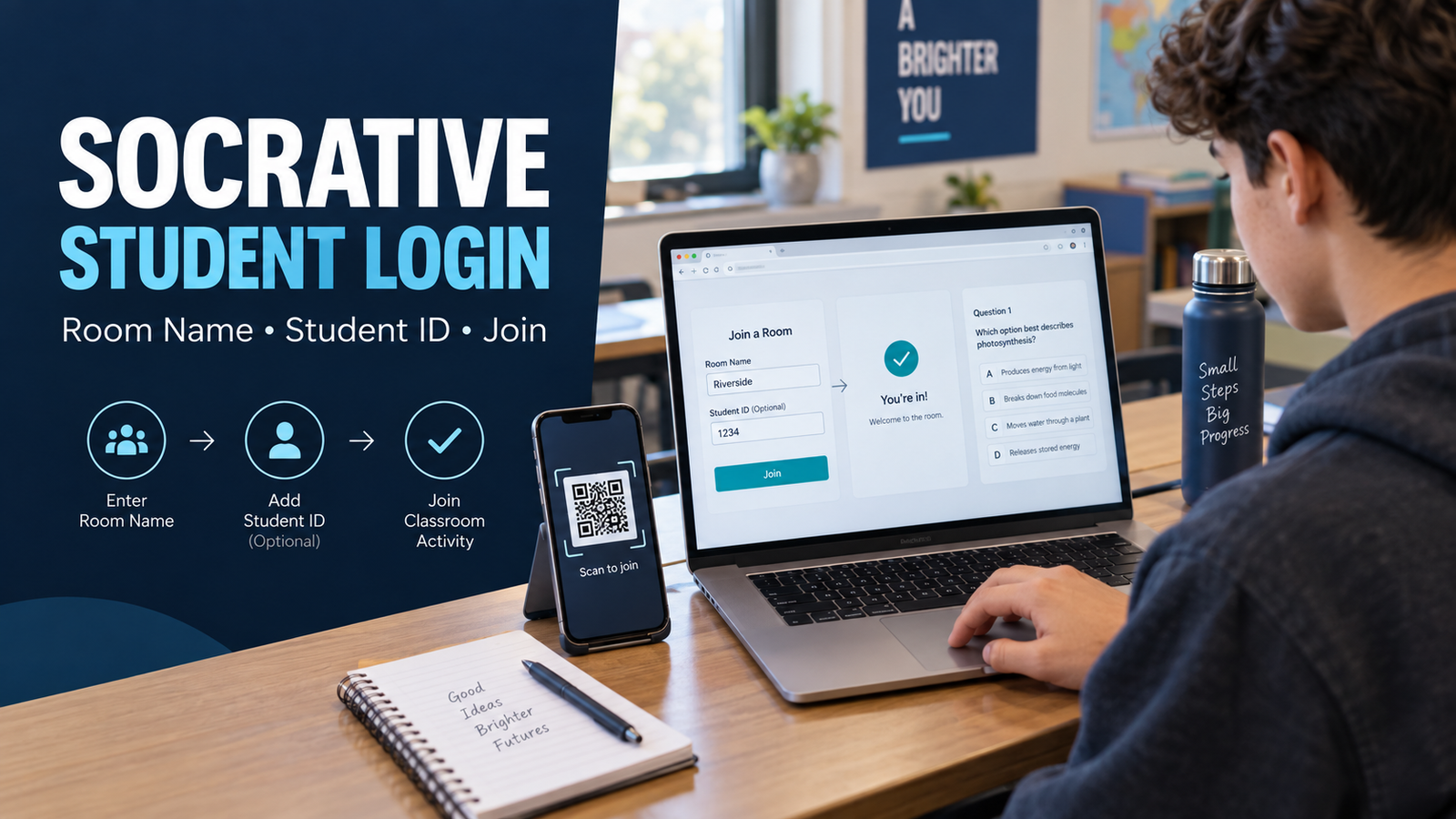
Open the student entry page → Enter the teacher’s room name → Provide a name or Student ID if requested → Enter the room
A teacher may also provide a direct room link or QR code that completes part of this process automatically.
The exact information required depends on whether the teacher is using a public room or a rostered room. Understanding that distinction prevents most Socrative login confusion.
Explore how interactive classroom learning, educational games, and modern teaching strategies come together in the Gimkit Live Learning & Earning Show, our central resource for engaging digital learning experiences.
Quick Socrative Student Login Instructions
Students can use the following basic process:
Open the Socrative student entry page in a supported browser.
Enter the room name supplied by the teacher.
Select the option to join the room.
Enter your name or assigned Student ID if prompted.
Wait for the active question or quiz to appear.
If a waiting message appears, remain in the room until the teacher launches the activity.
If the teacher supplied a QR code or direct invitation link, open it instead of manually entering the room name. A rostered room may still request a Student ID after the link opens.
What “Student Login” Means in Socrative
The phrase “Socrative student login” can be misleading because several different access methods may look like a login.
A student may be:
entering a public room with a room name;
identifying themselves with a display name;
entering a private rostered room with a Student ID;
opening a teacher-provided room link;
scanning a classroom QR code;
returning to an activity already in progress.
These are not identical situations.
A conventional login normally verifies a permanent user account with an email address and password. Standard Socrative classroom participation is more closely connected to the teacher’s room and activity.
The teacher controls:
the room students should enter;
whether the room is public or rostered;
whether student names are required;
which Student IDs are valid;
whether an activity is currently running;
whether another attempt is allowed.
This means students cannot generate the correct classroom credentials themselves. If the required room information is missing, the teacher is the correct person to contact.
What You Need Before Logging In
Before opening Socrative, collect the information your teacher has provided.
You may need:
a room name;
a direct room link;
a QR code;
your assigned Student ID;
instructions about which name to enter;
a supported internet-connected device;
confirmation that the activity has started.
You will not necessarily need every item.
If you received a room name
Enter the room name exactly as the teacher provided it. Avoid adding spaces, punctuation, a class period, or the teacher’s name unless those elements are officially part of the room name.
If you received a QR code
Scan the code using your device’s camera or QR scanner. The code should open the teacher’s room invitation. If the room is rostered, you may still be asked for your Student ID.
If you received a direct link
Open the link in a supported browser. The room information may already be connected to the link, reducing the amount of information you must enter manually.
If you received a Student ID
Use the exact ID assigned by the teacher. Do not replace it with your email address, school username, student number, or nickname unless the teacher specifically says they are the same.
Public Room vs Rostered Room Login
The most important Socrative login distinction is whether the room is public or rostered.
Access type
What the student normally needs
How identity is handled
Public room
Room name, direct link, or QR code
The student may enter a name if the teacher requires it
Rostered room
Room name, direct link, or QR code plus an assigned Student ID
The Student ID connects the student to an entry created by the teacher
Public room access
A public room is designed for straightforward entry. The student uses the room name, invitation link, or QR code supplied by the teacher.
The activity settings may ask the student to enter a name. This name helps the teacher recognize responses, but it is not necessarily a permanent Socrative username.
If names are not required, the activity may allow more anonymous participation.
Rostered room access
A rostered room contains a teacher-managed student list. Each student has an assigned Student ID used to enter that private room.
The Student ID must match the roster entry created by the teacher. A student cannot solve a rejected ID by creating a new personal account or inventing another identifier.
If the ID is not accepted, the student should check it carefully and then ask the teacher to verify the roster entry.
How to Log In Through a Web Browser
Browser access is the most direct method because Socrative is a web-based platform.
Step 1: Open the student entry screen
Use the student-participation page or the room link supplied by the teacher.
Make sure you are on the student entry screen rather than a teacher account sign-in page. A teacher page may request credentials that ordinary student participation does not require.
Step 2: Enter the room name
Type the room name exactly as provided.
Check for:
missing letters;
extra spaces;
similar-looking characters;
an incorrect class period;
an old room name saved by the browser;
a code belonging to another teacher.
Do not rely on a room name from a previous lesson unless the teacher confirms that the same room is still being used.
Step 3: Enter your name or Student ID
The next screen depends on how the teacher configured the room.
You may be asked for:
your name in a public room;
a Student ID in a rostered room;
no additional identity information for an anonymous activity.
Follow the wording shown on the screen. A name field and a Student ID field do not serve the same purpose.
Step 4: Enter the room
After the information is accepted, Socrative connects you to the teacher’s room.
One of several things may appear:
an active quiz or question;
a waiting screen;
a paused-activity message;
confirmation that the activity has been completed;
a notice that the activity has ended.
Reaching a waiting screen usually means the room entry worked.
Logging In With a QR Code
A QR code can reduce errors caused by manually typing the room name.
To use it:
Open your device’s camera or approved QR scanner.
Point it at the teacher-provided code.
Select the room invitation that appears.
Allow the page to open in the browser.
Enter your name or Student ID if requested.
Only use the QR code supplied for your current class or activity. An old screenshot may lead to a previous invitation that the teacher has reset or stopped using.
Teachers can reset room links and QR codes. When this happens, an older code may no longer provide access even if it previously worked.
Logging In With a Direct Room Link
A direct link can be shared through:
a learning management system;
an email;
a class presentation;
a digital assignment;
a class messaging platform;
a shared document.
Open the link using the browser or device expected by the teacher.
A direct link can take you to the intended room without requiring manual entry of the room name. However, it does not automatically remove every identity check. Rostered rooms can still require the assigned Student ID.
If a link opens the wrong room or does not work, return to the original message and confirm that the full link was opened. Copied links can fail when part of the address is missing.
What the Screen Means After Login
Students often think login has failed when Socrative is actually displaying the current state of the classroom activity.
Waiting for your teacher to start an activity
This normally means you entered the room successfully, but the teacher has not launched an activity in that room.
Remain on the screen unless the teacher provides different instructions.
Repeatedly refreshing or entering different room names will not start the activity. Only the teacher can launch it.
Activity paused
The teacher has temporarily paused the current quiz. Your access has not necessarily failed.
Wait for the teacher to resume the activity.
Answer submitted
In a teacher-paced activity, students may need to wait after each response. The teacher controls when the next question appears.
Do not leave the room simply because another question does not appear immediately.
Activity completed
This indicates that your responses have been submitted and your attempt has reached its completion point.
The teacher may review or share results separately.
Activity ended
The teacher has finished the activity. If you still needed to answer questions, ask the teacher whether another attempt will be allowed.
Public Name and Student ID Are Not Interchangeable
A common source of access confusion is treating a name and Student ID as the same credential.
A name identifies your response in a public room
The teacher may ask you to enter your real name, initials, or another classroom-approved label. The expected format depends on the teacher’s instructions.
A Student ID verifies your place in a rostered room
The Student ID is assigned through the teacher’s roster. It may not be the same as your:
email address;
lunch number;
school portal username;
district account number;
nickname;
device name.
Only use another school identifier when the teacher confirms that it was entered as your Socrative Student ID.
Do Students Need a Password?
Normal room-based participation does not typically require students to enter a personal Socrative password.
A rostered room uses a Student ID rather than a student-created password. Public-room access may require only the room information and a name.
If a screen unexpectedly requests an email address and password, check whether you opened:
a teacher login page;
a school-managed access portal;
an unrelated saved bookmark;
a different platform;
an institutional sign-in process added by your school.
Return to the invitation supplied by the teacher before entering personal credentials.
Can Students Log In From Different Devices?
Socrative is web-based and can be accessed from supported internet-connected computers and mobile devices. Students may participate through an appropriate browser or the method specified by their school.
The device should have:
a stable internet connection;
a current supported browser;
permission to access the required Socrative services;
sufficient screen functionality to read and answer questions.
School filters, firewall rules, restricted browsers, or device-management settings can interfere with access. Students usually cannot change institution-managed restrictions themselves.
If several students on the same school network cannot reach Socrative, the problem may need to be checked by the teacher or school technology team.
How Rejoining an Activity Works
Closing the tab or temporarily losing the connection does not always erase the student’s progress.
A student can generally return by using the same room information and the same name or Student ID. Socrative may reconnect the student to the earlier attempt so work can continue.
When returning:
Reopen the same room invitation.
Enter the exact room name if required.
Use the same name or Student ID used previously.
Allow the earlier activity to load.
Confirm that previous responses or progress appear before continuing.
Using a different name in a public room may create what looks like a second participant. Using the wrong Student ID in a rostered room may prevent access or connect incorrectly.
If the teacher enabled a one-attempt restriction or already finished the activity, re-entering the room may not create another attempt.
Login Checks That Solve Immediate Access Confusion
This short sequence helps identify where access stopped without turning the process into random trial and error.
Check 1: Are you using the current invitation?
Confirm that the room name, link, or QR code came from the teacher for the present class activity.
Check 2: Are you on the student entry screen?
A teacher sign-in page is not the correct gateway for normal student participation.
Check 3: Is the room name exact?
Retype it carefully instead of relying on browser autofill or an old saved value.
Check 4: Is the room public or rostered?
A rostered room needs the Student ID assigned by the teacher. A public room may ask for a display name instead.
Check 5: Did you actually reach the waiting screen?
A waiting message usually confirms successful room entry. It does not normally indicate an incorrect login.
Check 6: Has the teacher launched the activity?
Students cannot activate a quiz from their login screen.
Check 7: Are you rejoining with the same identity?
Use the same name or Student ID associated with the original attempt.
If these checks do not resolve access, record the exact stage where the process stops and show it to the teacher. That information is more useful than saying only that “Socrative does not work.”
What Students Should Not Do
Do not create random credentials
A made-up Student ID will not match the teacher’s roster.
Do not share your assigned Student ID
Treat teacher-issued identification as classroom access information. If another student needs help, direct them to the teacher rather than sharing your own ID.
Do not use another student’s name
Incorrect names can mix responses and make the teacher’s results unreliable.
Do not repeatedly switch rooms
Changing room names without teacher instructions can place you in the wrong classroom space.
Do not assume the waiting screen is an error
First confirm whether the teacher has launched the activity.
Do not submit personal passwords into an unfamiliar screen
Normal student-room entry should follow the teacher’s invitation. If the page appears different from what was expected, ask before entering private account credentials.
Teacher Instructions That Reduce Student Login Problems
Although this article focuses on student access, the clarity of teacher instructions strongly affects the login experience.
A useful classroom login instruction should identify:
the correct student entry method;
the exact room name;
whether a link or QR code should be used;
whether students should enter a real name;
whether a Student ID is required;
where students should wait after entering;
what to do if the room rejects the information;
whether students may rejoin after disconnection.
For example:
Open the student entry page and enter the room name exactly as displayed. When prompted, use the Student ID assigned to you for this class. If you see the waiting screen, remain there until the activity begins.
This is more useful than writing only “Log in to Socrative.”
Frequently Asked Questions
What is the Socrative student login?
The Socrative student login is simply the way a student enters a teacher’s Socrative room and gets to the activity waiting there. It is different from signing into a typical personal account.
A teacher will usually give students one of these:
Room name — type it into the student entry screen.
Direct room link — open it to go straight to the room invitation.
QR code — scan it to open the correct room.
Student ID — needed when the teacher has set up a rostered room.
So, if you are a student looking for a username-and-password login, you may not need one at all. Start with the access information your teacher provided.
Where do students enter the Socrative room name?
Enter the room name on the Socrative student participation screen. Think of the room name as the code that points Socrative to your teacher’s classroom.
Before submitting it, check two things:
Type the room name exactly as your teacher provided it.
Make sure you are using the current room name rather than one saved from an older class or activity.
If your teacher sent a direct link or QR code, you can use that instead. It can take you directly to the room invitation and saves you from manually entering the room name.
Why does Socrative ask for a Student ID?
Seeing a Student ID field usually means your teacher is using a rostered room.
In that setup, the Student ID helps Socrative match your entry with the correct student on the teacher’s class roster. This makes it possible for your participation and responses to be connected with the right roster entry.
Important: use the Student ID your teacher assigned or provided. Do not substitute your email address, school login, or another ID unless your teacher specifically tells you to.
Is a Student ID the same as a password?
No. A Socrative Student ID and a password serve different purposes.
A Student ID identifies you within a teacher-managed roster. It should not automatically be treated like a private account password.
For example, if Socrative asks for a Student ID, do not assume it wants your:
email password,
Google account password,
school portal password, or
another personal login credential.
Use the exact Student ID provided for that Socrative class. If you do not know it, the safest next step is to ask your teacher.
Does the waiting screen mean login failed?
Not necessarily. In many cases, the waiting screen actually means you made it into the room successfully.
You may be waiting because:
the teacher has not started the activity yet;
the next question has not been released;
the current activity requires everyone to wait; or
the teacher is changing or controlling the activity.
Instead of immediately refreshing the page or repeatedly entering the room again, read the message shown on the waiting screen. If the screen does not change when the class activity begins, then confirm with your teacher that you are in the correct room.
Can students join without a Socrative account?
Yes, standard classroom participation generally does not require students to create a permanent personal Socrative account.
The usual flow is much simpler:
Teacher shares room access → Student enters the room → Student provides any requested identification → Activity opens
What you are asked to enter can vary. One teacher may only require a room name and student name, while a rostered setup may also request an assigned Student ID.
The key point is that joining a teacher’s activity is not the same thing as creating and maintaining your own Socrative account.
What should a student do if the room name is rejected?
Start with the room information itself rather than repeatedly submitting the same entry.
Try this quick check:
Compare the spelling with the room name your teacher provided.
Look for missing or incorrectly typed characters.
Make sure you are not using information from an older class.
Ask the teacher whether the room name is still current.
Still rejected? Ask your teacher for the exact room name, a fresh direct invitation, or a new QR code. That is more reliable than guessing different versions of the room name.
Can students return after closing the browser?
Usually, a student can try to enter the room again using the same access information. If identification is required, use the same name or Student ID that was used previously.
However, re-entering the room and continuing the previous attempt are not always the same thing.
What happens after you return can depend on:
whether the activity is still running;
whether the teacher has ended or changed it;
the activity settings; and
whether your earlier attempt can still be continued.
If the activity does not return as expected, avoid starting over unnecessarily. Check with the teacher first.
Why does the room open but no quiz appears?
If the room itself opens, the room name may already be correct. The missing quiz can be related to what is currently happening inside that room.
For example:
Nothing has started yet: the teacher may not have launched the quiz.
The screen is waiting: the activity may be paused or waiting for teacher action.
You already submitted: your attempt may already be complete.
The activity disappeared: the teacher may have ended the session.
Read the on-screen message first. It often gives a better clue than leaving the room and trying to log in repeatedly.
Who can provide a missing room name or Student ID?
Your teacher or school is the right source for missing classroom access information.
The room name identifies the classroom the teacher created, while a Student ID can be tied to the roster the teacher manages. Because these details depend on your specific class, they cannot be reliably discovered by trying random room names or unrelated school credentials.
If either detail is missing, ask for:
the exact current room name;
your assigned Student ID, if required; or
a direct room link or QR code as an alternative way to enter.
That gets you to the correct class without unnecessary login attempts.
Final Login Checklist
Before asking for help, confirm:
I am using the current student invitation.
I entered the room name exactly.
I know whether the room requires a name or Student ID.
I used the Student ID assigned by my teacher.
I did not open the teacher account page.
I checked whether the screen says waiting, paused, completed, or ended.
I used the same identity when rejoining.
I confirmed that the teacher started the activity.
I checked my internet connection and browser.
I can explain exactly where the login process stopped.
The essential rule is simple:
The room information comes from the teacher, the access requirement comes from the room type, and the screen after entry reflects the activity’s current status.
Official Socrative documentation and important distinctions
These links lead directly to Socrative’s support documentation, rather than a third-party sign-in imitation. The official student experience guide explains the waiting screen, navigation, submission, leaving and rejoining. The official invitation guide covers QR codes, room links and reset invitations. The rooms and rosters overview explains when a Student ID is required. Socrative’s student data notice distinguishes optional public-room names from teacher-managed roster information.
A student joining an activity is not the same as a teacher signing into the management dashboard. The Google sign-in option described in Socrative teacher-account help should not be presented as a universal student-login requirement. If a page demands an email address and password when the teacher gave only a room name, check that you opened the student entry route and not the teacher login screen.
Room names are created and managed by teachers. This website cannot generate a working Socrative room name, recover a private Student ID, access teacher rosters, reset classroom invitations or see whether a particular quiz is live. The safe next step for missing or rejected credentials is to ask the teacher or school administrator responsible for that class.
Interactive Socrative Join-Path Troubleshooter
This private, browser-only decision helper suggests the next check from two choices. It never requests, stores or transmits a room name, student name, Student ID or password. The output is guidance, not a live connection test.
Choose your invitation and the screen you see, then select Show next steps.
No account lookup or automatic login is performed. The helper runs locally in the page.
Detailed access situations: choosing the right response instead of guessing
Situation 1: A teacher shares a room name before the lesson begins
Receiving a room name early is useful preparation, not proof that an activity has started. Open the student entry screen, enter the exact room name and follow the prompts shown. If you reach a waiting screen, your connection may already be correct. Keep the tab available and listen for the teacher’s instruction. Do not repeatedly change the room name to force a quiz to appear. A teacher can launch a quiz, quick question, exit ticket or other supported activity later, and the student’s view changes when the activity is active. If the teacher is using multiple rooms, confirm the class period and subject before entering.
Situation 2: The room name looks correct but the site refuses it
Compare the invitation with what you typed character by character. Similar-looking letters and digits are easy to confuse when a room name is copied from a whiteboard. Ask whether the teacher recently renamed the room. A room name is not the same as a quiz title, teacher email address or student ID. If your class was moved to a different room, an old bookmark can be misleading. Reopen the current link or use the current name. Do not test random names: that could take you into an unrelated classroom. The teacher is the authoritative source for a valid room name.
Situation 3: A QR code opens a page but no activity is visible
A QR code can make joining faster by taking you to the right room, but it does not guarantee that a quiz is already running. First inspect the page for a waiting message. If the QR code was printed in an older worksheet, ask the teacher whether it has been reset. Socrative’s invitation guide explains that a teacher can reset a room link and QR code; a previously shared code can then stop working. Avoid scanning unrelated classroom posters or links sent by strangers. If a QR code points to an unfamiliar domain, ask the teacher to provide the official room entry route instead.
Situation 4: A private room asks for a Student ID
A rostered room uses a teacher-assigned Student ID to recognize an enrolled student. It is not a request to invent a new password, register a personal Socrative account or share a school-wide identifier publicly. Check the ID privately with your teacher, then enter it only on the official Socrative student screen. If the roster was updated, the teacher may need to confirm the current value. Do not try another student’s ID, photograph someone else’s roster or post your ID in a public chat. If you believe the wrong identity was used, tell the teacher so the classroom record can be checked.
Situation 5: A public room asks for your name
In a public room without a roster, the teacher may request a name or other classroom identifier so they can interpret responses. Follow the naming convention the teacher gave you. For example, some classes use first names plus an initial, while others use assigned nicknames. Do not assume the screen always requires your full legal name. Socrative’s student data documentation notes that teachers may choose identifiers appropriate for their class. The important thing is consistency: a different name on each reconnect can make it harder for the teacher to interpret progress or match an interrupted session to the original student.
Situation 6: A student accidentally opens the teacher dashboard
Teacher and student workflows serve different purposes. A teacher creates and launches activities, manages rooms and views results. A student joins an activity through the student entry page. If you are unexpectedly asked to sign in with a teacher account, do not create a new account merely to access today’s quiz. Return to the official student entry route or use the teacher’s current invitation. If your school uses a learning management system, the class link may take you directly to the right student screen. Verify the link with the teacher before entering any sensitive credentials.
Situation 7: The page says paused while other students are working
A paused activity is not necessarily a technical failure. Socrative’s student experience documentation describes paused states and teacher-paced progression. The teacher may be reviewing a response, discussing a misconception or controlling the next question. Wait for an instruction instead of refreshing repeatedly. If your classmates can answer but your screen remains paused for an unusually long time, tell the teacher exactly what the screen says. That information is more useful than saying only that the login is broken. A screenshot can help, but avoid including private student identifiers when sharing it.
Situation 8: A question is submitted and the screen appears frozen
In a teacher-paced activity, submitting a response can leave the student waiting while the teacher advances the class. In other settings, students may see confirmation or navigation to another question. Read the on-screen status carefully before pressing the browser back button. A completed message is different from a waiting or paused message. If you have answered all questions, the teacher may already have your responses. Repeatedly joining with different names can complicate interpretation. If you are unsure whether your answer was recorded, ask the teacher to inspect the live activity rather than entering it again at random.
Situation 9: A connection drops halfway through a quiz
First restore your normal internet connection and reopen the official invitation or student entry page. Socrative’s student guidance says students can often rejoin using the same name or Student ID and continue where they left off. Whether another attempt is allowed depends on the teacher’s activity settings, so do not promise that all answers will always be restored. If you rejoin and see a new blank activity, stop and tell the teacher before submitting a duplicate attempt. The teacher can distinguish a connection problem from a quiz that was ended or relaunched.
Situation 10: Several students are using a shared classroom device
On a shared tablet or laptop, one student’s room session may still be open when the next student arrives. Check the displayed identity and activity state before answering. Use the Socrative leave-room control when appropriate and follow your school’s device-sharing policy. Do not clear another student’s browser data without permission, and do not submit responses under someone else’s identity. Teachers can reduce confusion by providing a short entry routine: close the previous activity, verify the room, enter the assigned identifier and wait for the new activity. A visible checklist near shared devices is often more effective than verbal reminders alone.
Situation 11: The quiz is visible on a phone but controls are difficult to use
Students may use a supported mobile browser, but screen size, keyboard behavior and network stability can affect comfort. Try portrait and landscape orientation where appropriate, check browser zoom and ensure the page has finished loading before answering. If an accessibility feature or assistive technology is needed, tell the teacher before the timed activity begins. Avoid installing unofficial apps that promise a shortcut into the room. If the teacher allows it, a school laptop may provide a clearer layout for lengthy questions, tables or images. Accessibility is a teaching-design consideration, not a student’s failure to keep up.
Situation 12: The room opens in the wrong language
Socrative’s student-experience guidance notes that the joining screen may follow the browser’s language setting, while quiz content uses the language selected when the teacher created the questions. If the interface language is unexpected, check the browser’s language preference or ask the teacher for help. Do not assume the room name has changed or that your responses will be translated automatically. A teacher should preview question wording for multilingual classes and clarify any technical vocabulary before launching. If the questions themselves are in an unexpected language, the teacher—not the student-login form—must review the activity content.
Situation 13: The teacher has ended the activity
An ended activity is different from a waiting screen and cannot be reopened by changing the room name. If you joined after the teacher finished the quiz, explain when you attempted to join and ask about the class policy for late participation. The teacher may choose a separate activity, a permitted retry or an alternative assessment. Students should not try to bypass an ended session with old links or borrowed IDs. A useful teacher-side prevention step is to display the room name and starting time clearly and confirm that everyone has reached the waiting screen before launching the timed assessment.
Situation 14: Two different teachers use Socrative in the same school
Students may have several room invitations from different classes. A room name from science will not automatically connect you to a mathematics activity, even if both teachers use Socrative. Keep invitations organized by subject and date. Check the course announcement or learning platform rather than using the first old link in browser history. Teachers can help by writing the room name, subject, class period and activity status in one place. If you join the wrong room, leave politely without submitting responses, then use the correct invitation. Never assume a room belongs to your class based only on a familiar teacher’s name.
Situation 15: A classmate offers an unofficial login shortcut
There is no need to use a third-party service to join a standard Socrative classroom activity. Unofficial sites may collect personal information, display misleading advertisements or redirect students away from the teacher’s room. The official student experience uses a room name, invitation link or QR code, with a Student ID only for rostered rooms. If a shortcut asks for your school password, payment details or permission to install software, stop and ask the teacher. A genuine classroom access problem should be solved through the teacher’s invitation or Socrative’s own help materials, not through guessed credentials or unverified browser extensions.
What teachers can do before sharing a Socrative invitation
Teachers can prevent many student-login problems with a predictable two-minute entry routine. First, open the correct room and verify that its name matches the one on the board or in the learning management system. Second, decide whether the activity should use a public room or a rostered room. Third, prepare the invitation link or QR code and confirm it still works. Fourth, tell students whether they will enter a name or a teacher-assigned Student ID. Fifth, explain what a normal waiting screen looks like. Finally, keep a paper or verbal fallback for students whose devices cannot connect.
For a rostered room, avoid displaying individual Student IDs publicly. Share each identifier through the school’s approved private channel. If a student cannot enter, verify the roster before assuming a technical failure. Socrative’s official roster guidance explains that adding or editing students may be restricted while an activity is running. Plan roster changes before class when possible. A teacher should also decide how to handle late arrivals, students who disconnect, shared devices and students requiring an accessible alternative. These choices are instructional decisions, not simply settings.
How to distinguish joining, participating and learning
Successful access only means a student reached the activity. Participation means they had a meaningful opportunity to respond. Learning requires stronger evidence: an explanation, improved reasoning, an accurate application or a later demonstration of understanding. A room full of connected devices does not establish mastery. Teachers should use responses to identify patterns, follow up with discussion and check whether misconceptions persist. The distinction is explored further in our guide to classroom participation in quiz-based learning.
Different tools use different joining models. For example, our 99math joining walkthrough explains a teacher-led mathematics session, while the 99math student login guide separates classroom access from personal account workflows. The Gimkit live-game joining guide covers a different code-and-lobby model. These are comparisons of access patterns, not claims that a Socrative room name works on another platform. Teachers evaluating classroom response tools can also read our Socrative for teachers guide for the assessment decisions that follow a successful login.
Privacy, accessibility and classroom safety checks
Students should use the minimum information requested by their teacher for the activity. A public-room nickname is not the same as a private roster identifier. Never publish a Student ID, full class roster or screenshot of another student’s responses on a public forum. Teachers should follow school privacy requirements and Socrative’s documented data practices. Students who need screen readers, enlarged text, additional time or alternative response formats should tell the teacher early enough for the activity to be adapted. An accessible backup such as a printed question sheet can preserve the learning goal when the online entry route fails.
Before a high-stakes quiz, test the exact student route on a separate device without exposing real student data. A teacher can confirm the invitation and waiting screen without entering a student’s private credentials. For timed activities, state when the timer begins and what happens if a connection drops. If a student encounters an error, ask them to describe the screen, not to send passwords. Keep technical troubleshooting separate from disciplinary decisions: a failed room entry is not evidence of disengagement. Document a reasonable alternate assessment method when access problems cannot be resolved promptly.
Five-question student self-check before asking for help
Am I on the official student entry screen or the teacher dashboard?
Did I use the exact current room name, QR code or link from my teacher?
Does this room require my teacher-assigned Student ID?
Am I waiting for an activity, paused between questions or actually seeing an error?
Can I explain the screen message to my teacher without sharing private credentials?
If all five checks are complete and access still fails, the teacher can verify the room and activity status. This guide cannot see classroom rosters, diagnose an individual network connection or override the teacher’s access settings.