Gimkit Join
Enter Live Games Quickly and Confidently
Have a live Gimkit invitation from your teacher?
You can join through the official game-entry page,
a teacher-shared direct link, a QR code or, in
supported situations, an authenticated Gimkit Class.
The right route depends on what your host has shared.
This guide focuses specifically on the student
experience before gameplay: choosing an entry
method, recognising the name prompt, finding the
live lobby, preparing a suitable device and
knowing what to do when something interrupts entry.
Four documented entry routesPractical lobby guidanceStudent-side readiness tools
GimkitApp.com is independent from Gimkit.
No real game codes or student passwords are
requested, collected or checked on this page.
STUDENT ENTRY / EXPERIENCE MAP
Your route into a live session
Choose an invitation → identify yourself →
wait in the lobby.
📩 Receive the teacher's invitation
🧭 Follow the appropriate entry route
👤 Enter or approve your displayed name
✅ Arrive in the game lobby
This illustrates the documented joining journey.
It is not a live connection or an official
Gimkit interface.
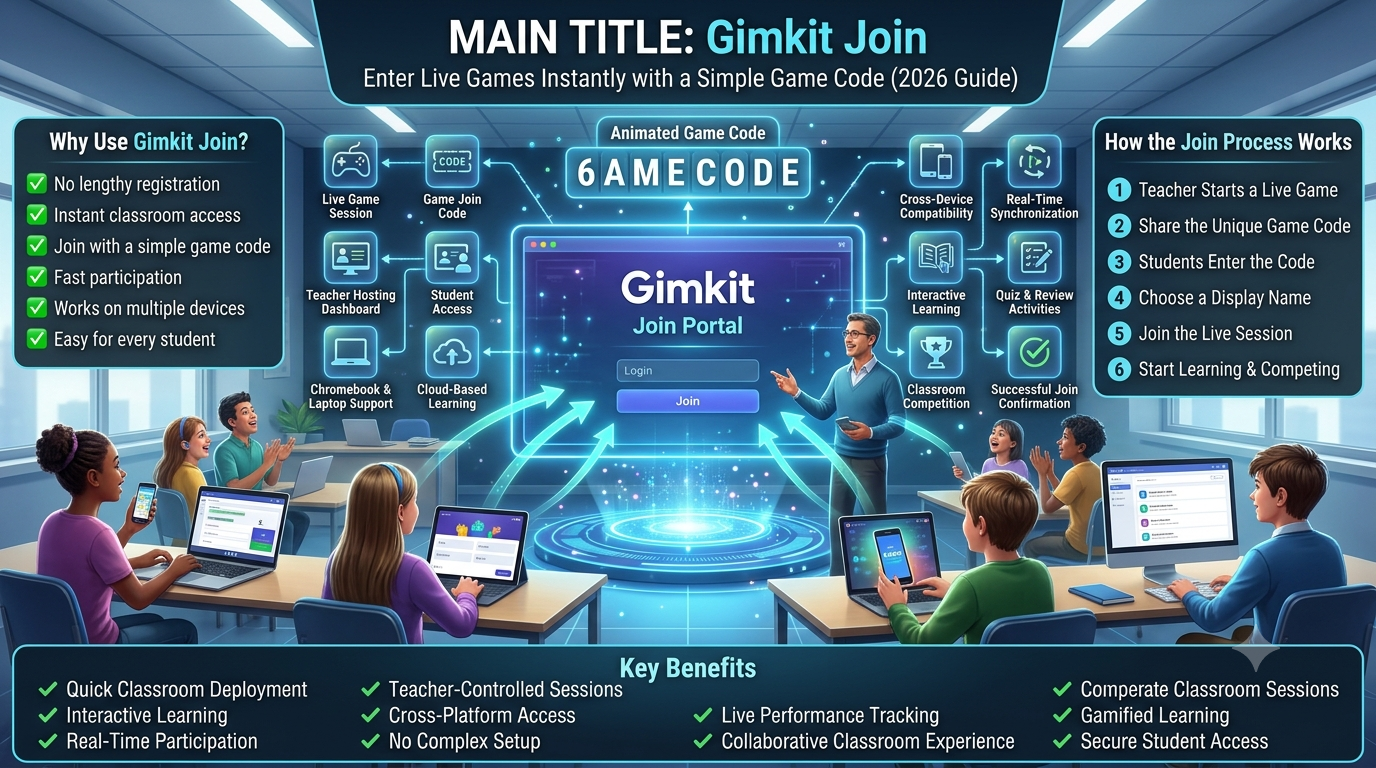
The essential joining procedure
How to join an active Gimkit live game
If your teacher has already opened a session,
the official process is short. You do not need
to search for publicly posted codes or use
an unofficial game-entry portal.
01
Get the invitation
Find the current game code or QR image on your
teacher's screen, or use the direct link they
shared through the approved class channel.
02
Use the official entry route
Open the official Join page for manual entry,
follow the direct link, or scan the teacher's
QR code. A connected Class may offer
automatic entry when signed in.
03
Confirm your identity
Supply the appropriate classroom name if
requested, or approve the nickname provided
by the host's Nickname Generator.
04
Wait in the lobby
Successful entry brings you into the live
waiting area. Keep the tab open and wait
for the host to begin the session.
Official-source clarification:
Gimkit Help describes these steps for live games.
Account requirements differ when a teacher uses
connected Classes. A normal live-game invitation
is not the same as registering for a Class.
What does “Gimkit Join” actually mean?
When a student searches for Gimkit Join, the
immediate task is normally to enter an active
session that a teacher has made available.
The joining service acts as the entry doorway
to the live game, not as a catalogue of
permanent public rooms. Without a current
invitation, students cannot assume that
a random code from a website will lead
to a valid class activity.
In the ordinary manual-entry route, the
host displays a code and players enter it
using the official joining interface.
The precise characters and validity of
a particular code are managed by Gimkit,
not this informational website. Detailed
code-specific questions belong to our
separate
Gimkit Join Code reference
.
What does quick entry depend on?
A working invitation matters, but so does
the state of the student's device. The
browser must be usable, the network must
allow the platform to communicate and the
host must be accepting the student's
joining attempt. A direct link can remove
manual code entry, while a QR code can
simplify the same task on devices with
suitable cameras.
The word “instant” should not be interpreted
as a guaranteed number of seconds. Loading
and connection behaviour may vary across
networks, browsers, school restrictions
and live-session conditions. The objective
is a simple and reliable joining experience,
not an invented speed benchmark.
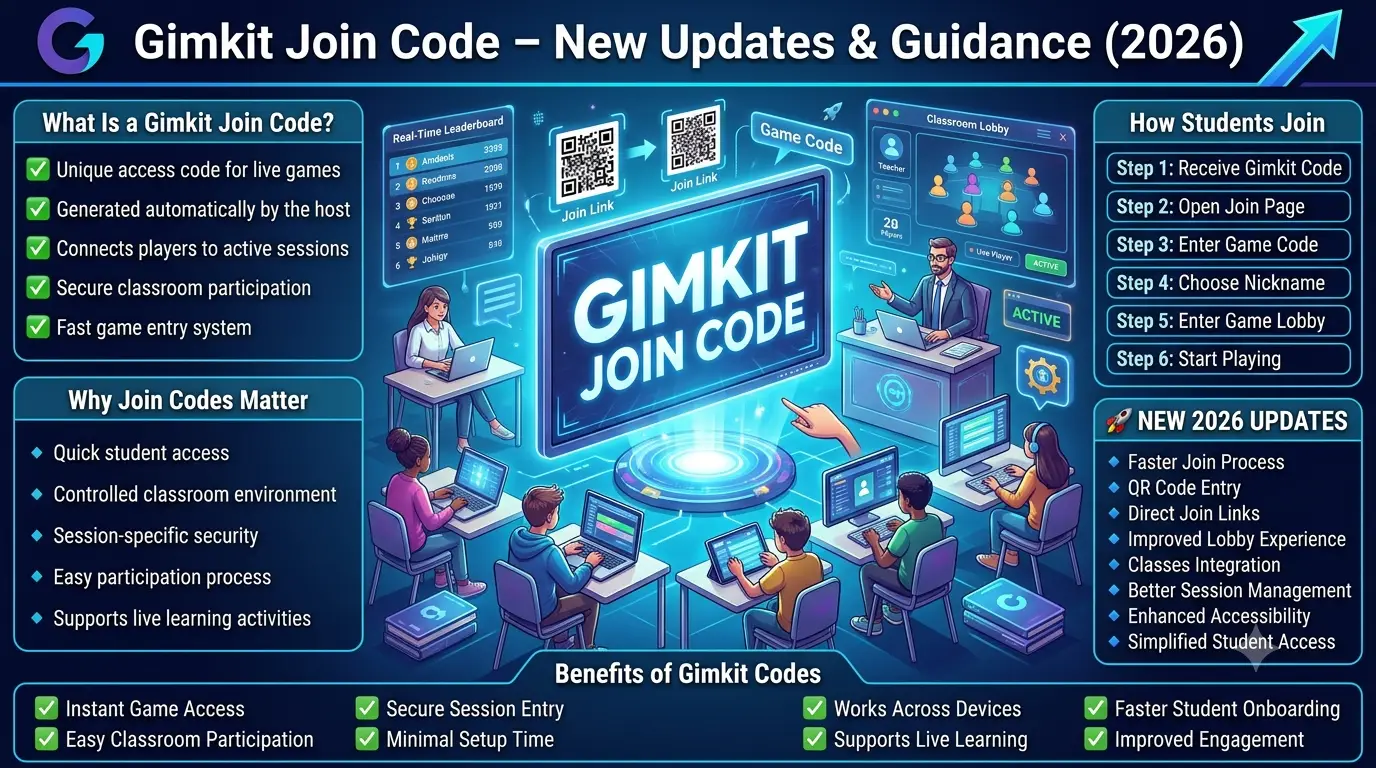
Choose the correct invitation method
Four ways students may enter a Gimkit live game
These methods reach an official hosted activity
by different routes. They should not be confused
with downloading an application, creating a new
teacher account or opening unrelated classroom content.
🔢
Manual game-code entry
This method works when a teacher provides an
active code on a projector, interactive board,
class message or another approved channel.
The student opens Gimkit's official Join page
and enters the code shown for the current
session. A displayed name may then be required.
Manual entry is convenient when everyone can
see the host's screen but does not already have
a clickable invitation. It can require extra
care when a code is read aloud or a distant
projector is difficult to see.
📷
Teacher-provided QR code
Gimkit Help documents QR invitations displayed
from the host's game code. A compatible
camera or scanner can recognise the QR image
and open the appropriate invitation without
requiring the student to type the code.
QR scanning depends on the device, camera
permissions, lighting and legibility of the
displayed code. If scanning is unavailable,
the host can provide the same session's
manual code or a direct link.
🔗
Direct invitation link
A host may copy and share a game-specific
invitation link. A learner can open it
from an approved classroom message, email
or learning platform. This route can
eliminate the need to transfer a code
from one screen to another.
Direct links are particularly convenient
in remote learning situations where
students are already receiving digital
messages. Students should still confirm
that the invitation genuinely came
from the expected host.
🏫
Connected Gimkit Class
When students belong to a configured
Gimkit Class, are signed in and the host
has connected that Class to the game,
Gimkit's official instructions describe
an automatic joining pathway.
Simply possessing a student account
does not necessarily place someone
into every game. A correct Class
connection and suitable session are
important. Class membership has its
own account requirements.
Joining method
What the student needs
Main advantage
Potential friction
Manual code
Current code and official Join page
No shared clickable URL required
Reading or entering the invitation incorrectly
QR scan
Host QR image and compatible scanning device
Avoids most manual typing
Camera access, lighting or scan compatibility
Direct link
Authentic host-shared invitation URL
Convenient for digital and remote communication
Links can be inaccessible or outdated
Class connection
Appropriate account sign-in and host Class setup
May remove manual entry for connected students
Incorrect account or missing Class connection
Choose the route that the host actually supplied
It is tempting to regard the methods as four
interchangeable buttons, but the teacher's
invitation determines which one is practical.
If a student has only a code, the manual
route is straightforward. If the teacher
posts a direct link in the class chat,
opening that authentic link can avoid
transcription mistakes. If the room has
a clear QR projection and students use
camera-equipped devices, scanning can
simplify entry.
Class-based joining is different because
it depends on an authenticated relationship
between a student account and a teacher's
configured Class. It should not be
recommended as a shortcut when a student
is not enrolled in that Class. Trying
different accounts at random may create
unnecessary confusion rather than solve
the joining problem.
What should students not do?
Do not enter school passwords on unofficial
sites promising to join games automatically.
Do not assume that a random internet listing
offers a valid invitation to a current
classroom session. Do not distribute a
teacher's private invitation to unrelated
people. And do not treat a third-party
instructional tool as an official
substitute for the actual Gimkit service.
A legitimate student experience starts
with the host's directions. This basic
principle prevents many avoidable
misunderstandings about links,
Class accounts and session access.
Unique interactive student application
Gimkit Student Entry Navigator
Not sure which joining route applies to you?
Choose the invitation you received, walk through
a local practice simulation, diagnose your
current joining obstacle and prepare a
personal device-readiness card.
The workspace never asks for a real game code,
username or password. It offers a practical
preparation and guidance experience—not a
simulated connection to Gimkit's servers.
Choose your invitation route
Select what your teacher provided.
The Navigator builds instructions for
that method and your device context.
What invitation do you have?
Personal entry guidance
Choose your route or run the planner to see the recommended next steps.
Practice the joining sequence
Move through four simulated stages to
understand what should happen during
a normal entry attempt. This demo cannot
open a real lobby or check a live session.
1 Invitation
2 Entry
3 Identity
4 Lobby
Local educational simulation
📩
Receive an invitation
Locate the current invitation supplied by the host.
What this demo teaches:
being in the lobby is not the same as the
game having started. The host controls
when a live session begins.
Resolve a joining obstacle
Select the symptom you are experiencing.
The resolver distinguishes host-side
access conditions from device and
connectivity conditions. It cannot
determine an actual server or code status.
Student help recommendations
Choose a symptom to receive a structured response.
Your before-joining readiness card
Check the items you have completed.
The status updates automatically and
you can copy, export or print your
personal preparation summary.
0 of 6 preparation items completed.
My Gimkit Join Preparation
Build an entry plan and complete the checklist to prepare your summary.
Student Entry Navigator provides local educational
guidance. It does not submit a code, verify a
live invitation, measure network speed, check
Gimkit availability, authenticate students
or record personal account information.
After you follow the invitation
Understanding the name prompt, lobby and game start
One of the most important distinctions for
students is the difference between being
accepted into a live game and the host
beginning the actual activity.
The name step identifies you within the activity
Gimkit's official joining instructions describe
two related possibilities: students may be asked
to enter a name, or they may approve a nickname
when the teacher has enabled the Nickname Generator.
Which prompt appears depends on the session setup.
Students should follow their teacher's requirements
for appropriate names rather than inventing
deliberately misleading or disruptive identities.
If your teacher expects a particular displayed
name, use the requested format. Where a name
is generated for you, it may not look like
the ordinary classroom nickname you use
elsewhere. That does not necessarily indicate
that the joining process has failed.
The waiting lobby is a normal stage
After successful entry, participants may find
themselves in a waiting area while the host
prepares to launch the game. That waiting
period should not automatically be interpreted
as a browser problem or a frozen session.
The host is responsible for deciding when
the group is ready to begin.
Some Gimkit experiences are presented in
two-dimensional environments, while others
use different layouts. The lobby appearance
may therefore vary by the selected game
experience. A student should not expect
every session to look like the same
screenshots found online.
When the game is already running
The host can configure the Join in Late
setting. Gimkit's published instructions
say live games default to allowing late
entry, but the host may change this option
and the selection may persist between games.
A student arriving after the start should
ask whether late joining remains permitted.
There is no legitimate student-side shortcut
to bypass the host's restrictions.
If the host confirms that the activity
has ended, ask for the next session
rather than repeatedly attempting
entry through an old invitation.
What should you do while waiting?
Keep the correct browser tab available,
avoid refreshing unnecessarily and follow
the host's instructions. If you are using
a shared device, do not switch accounts or
remove another student's work without
authorisation. If you are unsure whether
the lobby is correct, tell the teacher
what the screen actually says instead
of assuming the game has malfunctioned.
Why your friend's screen may look different
Students may see different entry screens
because one used a QR invitation while
another typed a code, one account belongs
to a connected Class or the teacher
enabled generated nicknames. Device
dimensions also change how the interface
is arranged. The important confirmation
is that the student has reached the
intended host's current activity.
Student-side obstacles
Why joining may fail before gameplay begins
The correct next action depends on where
the failure occurs. A missing invitation,
denied lobby entry and blocked game-server
connection are not the same problem.
📭
No invitation available
The student has not received a current
game invitation. Ask the teacher for
the active code, QR display or direct
link. Searching for arbitrary codes
online is not an appropriate alternative.
⏳
Entry window has changed
A session may have started or ended,
or the host may have disabled late
joining. Confirm the current session
state with the teacher before repeating
the same attempt.
🌐
Connection cannot be established
School firewalls, proxy settings or
connectivity problems may prevent
communication with game servers.
Official Gimkit Help recommends its
compatibility check for diagnosing
these conditions.
📸
QR image will not scan
Confirm the image is the teacher's
current invitation, improve visibility,
check camera permissions and use a
manually provided route when scanning
is impractical.
👤
Unexpected name prompt
The host may use a Nickname Generator.
Follow the displayed instructions and
contact the teacher if your expected
name or Class connection is not shown.
🏫
Class entry did not occur
A signed-in account and a properly
connected teacher Class may be required
for automatic joining. Confirm the
account and Class arrangement through
official Gimkit procedures.
Distinguish the webpage loading from connecting to the live game
A student might be able to open a website
while the live game connection remains
unavailable. These are different technical
conditions. A normal webpage request
can succeed even if the network restricts
the separate real-time connections used
for gameplay. For that reason, repeatedly
refreshing the page does not necessarily
solve all joining problems.
Gimkit's official troubleshooting documentation
identifies network restrictions affecting
its game-server domain and secure WebSocket
communication. These settings are normally
handled by school IT staff, not by students
changing firewall configurations without
permission. The official compatibility
checker is the appropriate first diagnostic
when game-server connectivity is suspected.
Use the correct support level
If the issue is an expired invitation
or session timing, contact the host.
If the issue involves the account used
for a connected Class, follow the
school's account procedures.
If many devices on the same school network
cannot connect, the teacher may need
to involve school IT staff and provide
the official compatibility documentation.
Do not share account passwords, authentication
codes or private student information
while asking for help. A description
of the error message, device type
and whether the problem also affects
other approved devices is normally
more useful than revealing credentials.
Why a joining failure is not necessarily a server outage
School filters, temporary local connection
interruptions and host-controlled settings
can produce similar visible symptoms.
It would be inaccurate for a third-party
article or offline JavaScript tool to
declare that Gimkit servers are down
without real-time evidence. Official
server-status and connection-check
resources help separate these possibilities.
Technical boundary:
The Entry Navigator provides possible
next actions. It cannot inspect the
school's firewall, fetch live session
state or identify the current cause
of an individual connection failure.
Access from real student devices
Preparing Chromebooks, computers, phones and tablets
The entry process is similar across
compatible browsers, but the preparation
differs depending on camera access,
school restrictions, device sharing
and the way invitations are delivered.
💻
School Chromebook
Use the school-approved browser and
confirm the device has connected to
the permitted network. If the
main site opens but joining stalls,
tell the teacher so the school's
compatibility checks can be reviewed.
🖥️
Desktop or laptop
Keep the browser available before
the activity and use the invitation
supplied by the host. A direct
link can be convenient for online
classes; manual code entry is
practical when using a projected
classroom screen.
📱
Phone or tablet
A genuine QR invitation can be useful
with a supported camera. If the code
is already displayed on the same
screen, a direct link may be more
convenient than trying to scan
the device's own display.
🔄
Shared computer
Follow the school's account and
device-sharing instructions. Check
whether a previous user remains
signed in and avoid changing
someone else's account or data.
Ask for assistance when needed.
School-managed browsers and content filters
Students often cannot modify software
or network policies on school-managed
devices. That is appropriate: security
settings belong to authorised administrators.
If a browser displays a restriction,
students should not attempt to bypass
school protections. Instead, show the
message to the teacher or school IT team.
Gimkit's official documentation provides
domains and connection requirements
for administrators to review. The
technical configuration should be
made by authorised staff rather than
by students following unrelated
internet instructions.
Remote and hybrid participation
In a remote class, students may not
be able to see a projected code
clearly. A direct link in an
approved meeting chat or learning
platform can reduce transcription
effort. The teacher should ensure
that the invitation is visible only
to the intended participants
where appropriate.
In hybrid settings, some students
receive instructions in the classroom
while others receive them digitally.
A consistent explanation of which
invitation is current helps avoid
confusion between multiple active
lesson messages. The same live
session should be identified
clearly to both groups.
Accessibility and readable invitations
A QR image should not be the only
available joining method when a
student cannot scan it. A typed
invitation or accessible link can
provide an alternative. Similarly,
a code displayed in tiny text at
the front of a large classroom
may be difficult for learners
sitting farther away or using
assistive technology.
Teachers should make the invitation
readable and provide an alternative
when necessary. The objective is to
give each authorised student a
realistic way to reach the intended
activity, not to require identical
devices or identical interactions.
Student-facing examples
Five common joining situations and the correct response
These short scenarios illustrate practical
decisions a learner may face before
reaching an active lobby.
Situation 01 / Classroom projection
The teacher displays an active game code
A student arrives with a school
Chromebook. The code is visible
on the board and the host has
opened the lobby. The student
uses the official Join page,
follows the displayed prompts
and waits for the teacher.
Best response:
Use the current invitation and confirm that the intended lobby appears. Do not search for alternative public rooms.
Situation 02 / Remote class
The teacher posts a direct link
Students are attending a live
online lesson and receive the
invitation through their usual
classroom communication platform.
Because the link is already
clickable, there is no need
to transfer a code from one
screen to another.
Best response:
Open the trusted teacher-shared link and follow the official name or lobby prompts.
Situation 03 / Connected Class
A student expects automatic entry
The class uses connected Gimkit
student accounts. One learner
cannot enter as expected.
The teacher checks whether the
student is signed into the
correct account and whether the
intended Class is connected.
Best response:
Confirm account and Class membership through approved school procedures, without sharing passwords.
Situation 04 / Joining after the start
A student enters the lesson late
The group has already started.
The student's invitation is
current, but entry may depend
on whether the host permits
late joining. Repeatedly
refreshing cannot override
a host-controlled restriction.
Best response:
Ask the host whether Join in Late remains enabled and follow the host's direction.
Situation 05 / Network restriction
Several school devices cannot connect
The school browser can open the
main webpage, but the real-time
activity does not load correctly.
Multiple students report a
similar issue from the same
managed network.
Best response:
Teacher or IT staff use Gimkit's official compatibility test and network documentation.
Situation 06 / QR fallback
The camera cannot read the displayed QR
A student tries scanning the
teacher's image but the device
has no compatible camera or the
scan repeatedly fails. The
student does not need to
abandon the learning activity
solely because the camera
method is unavailable.
Best response:
Request the host's manual game code or direct invitation link as an alternative.
Developing a reliable classroom entry habit
A consistent joining routine reduces
confusion because students know where
to look for the invitation and what
screen should appear next. The
teacher might always show the
current invitation in the same
part of a presentation or post
the link through the same approved
channel. Students then know where
to find the information without
following unrelated search results.
The routine should still be flexible
enough to accommodate different
devices, accessibility requirements
and occasional connection problems.
A QR-first classroom should not
leave behind a student who has no
camera. A code-first classroom
should not force learners to
decipher unreadably small text.
More than one supported invitation
method can improve access.
The goal of efficient entry is
not to force every student to
reach the lobby in an arbitrarily
fixed number of seconds. It is
to avoid preventable confusion
while respecting the host's
session permissions and the
school's technology rules.
Practical entry awareness
What students can control and what only the host can control
Stage
Student responsibility
Host or administrator responsibility
Invitation
Use the invitation received for the current session.
Provide the actual code, QR display or game-specific link.
Browser access
Use an approved browser and open the correct service.
Maintain appropriate school device policies and network access.
Displayed identity
Enter or approve the permitted nickname.
Configure nickname-related options and manage participation.
Lobby
Wait in the intended waiting area.
Review participation and start the activity.
Late joining
Ask for the current joining arrangement.
Determine whether late joining is enabled.
Connection fault
Describe the visible problem without sharing credentials.
Check network restrictions and official compatibility results.
Session ended
Stop attempting the finished invitation.
Provide a fresh invitation when a new session becomes available.
Why joining is not the same as hosting
A student who has been invited
normally interacts with the
entry screen, identity prompt
and waiting lobby. The student
does not need to prepare the
teacher's question Kit or
configure the game's host
settings. Those responsibilities
belong to the host.
Keeping this distinction clear
avoids confusing help instructions.
A student's first response to a
failed invitation should not be
to look for educator dashboard
controls or attempt to launch
a different game. Instead,
the student should identify
which part of the assigned
joining path has failed.
Why an account screen may appear
Ordinary live joining is different
from account-based Class participation.
When the session involves a
connected Class, a student may
need the correct authenticated
account. If a learner reaches
a sign-in prompt unexpectedly,
the right response is to
verify the teacher's intended
route rather than entering
credentials into an unrelated
site.
Our existing
Gimkit Login guide
owns detailed account-access
instructions, while this
article remains focused on
entering the active live game.
Why official documentation matters
Third-party joining pages
sometimes describe different
game-code lengths, invent
universal player limits or
claim to offer automatic
entry into any active game.
Those claims should not be
trusted without confirmation.
The official joining procedure
is defined by Gimkit itself,
and the host is the source
of the invitation for a
particular session.
Focused student FAQs
Gimkit Join questions answered
These answers address specific
entry conditions rather than
repeating the platform overview,
teacher-hosting instructions
or detailed code-validation topics.
Where should I go when my teacher says “join Gimkit”?
Use the official Gimkit joining service or the authentic invitation your teacher supplied. A direct link or QR invitation may take you into the correct entry flow without requiring manual code entry.
Can I join before my teacher opens the session?
Students need an invitation associated with an active hosted game. If the host has not made the session available, wait for the current instructions rather than guessing a code.
Which is better: a QR code or a direct link?
Both can reduce manual typing. A direct link works particularly well when it is already available in a digital class message. A QR code can be convenient when the host displays an image to a group using camera-equipped devices.
What if my device does not have a QR scanner?
Ask the teacher for the same game's manual invitation code or direct link. QR scanning is an entry option, not a requirement for every participant.
What happens after I follow a valid invitation?
You may be asked to enter a display name or approve a generated nickname. Once accepted, you enter the waiting lobby until the host begins the activity.
Why am I being given a generated nickname?
The host may have enabled Gimkit's Nickname Generator. Follow the displayed approval prompt and the teacher's instructions.
Why am I waiting while other students have joined?
Waiting in the lobby is normal before the host begins the game. A student may also see different visuals depending on the mode and device. Ask the teacher if the intended session is unclear.
Can I enter after the host presses Start?
That depends on the Join in Late setting and the current session. Gimkit documents a host-controlled late-join option, so the teacher must confirm whether new entry is permitted.
What if the live activity has already ended?
A completed session cannot simply be resumed through an old invitation by a new student. Ask the host for instructions for the next scheduled activity.
Why doesn't my teacher's direct link work?
The link could be outdated, inaccessible through the device or affected by the current session state. Ask the host to confirm that the invitation belongs to the active game, then check approved browser and network access.
Can a school firewall block the live game even when the homepage opens?
Yes. Gimkit's official troubleshooting documentation explains that real-time game connections depend on services that school proxies and filters may restrict. School IT staff can use the compatibility check to investigate.
Should I disable school security settings to join?
No. Students should follow school technology policies. Network configuration and security exceptions must be handled by authorised staff.
Does a Class connection always join me automatically?
Not necessarily. The student must be using the appropriate authenticated account and the teacher must have configured the connected Class arrangement for the session.
Can I use my phone while the teacher uses a computer?
Students may participate from suitable browser-based devices, subject to platform compatibility and school rules. The teacher's hosting device does not require every learner to use the same form factor.
What if I can see the joining page but nothing loads after that?
First check whether the network is working and ask the host whether the session is active. When game-server connectivity is suspected, use Gimkit's official compatibility resource with help from authorised school staff.
Why does a 2D game show a different screen?
Some Gimkit experiences use two-dimensional environments, so the waiting and gameplay screens can differ from other modes. Device graphics support may also matter for 2D loading.
Should I share my teacher's invitation publicly?
Follow the host's sharing instructions. Avoid publishing a classroom invitation on unrelated websites or distributing it to people who are not intended participants.
Can this Student Entry Navigator join a real game for me?
No. The Navigator explains which official route applies, provides a local practice walkthrough and generates a readiness summary. Actual joining must occur through Gimkit's official service.
Does the Navigator know whether the game code is active?
No. This page does not collect codes or access live session data. The host and official Gimkit interface are the appropriate sources for checking an actual invitation.
What should I tell my teacher when joining fails?
Explain which invitation method you used, what screen or message appeared, what device you are using and whether the connection works for other approved school services. Do not share account passwords.
Primary sources
Official Gimkit joining documentation
The following are the official
product references supporting
the practical joining guidance.
Some older Help articles may
describe interface details
that have changed since publication.
Editorial source policy:
Joining methods and host-controlled
permissions are grounded in published
Gimkit Help material. Device preparation
tips are practical recommendations,
not guarantees of entry speed.
GimkitApp is not an official
Gimkit service.
Next appropriate steps
When your joining question belongs to another guide
The current article is focused
on entering an active session.
These two resources provide
different kinds of specialised help.
🔢
Invitation-code reference
If your question is specifically
about the structure or behaviour
of a game code, use the code-focused
guide linked in the relevant
explanation above.
🔐
Account-access reference
If the actual problem involves
signing into the right Gimkit
student account, use the
account-access guide linked
earlier in this article.
Ready to enter your teacher's live game?
Confirm the invitation, prepare your
device and follow the proper joining
route with confidence.