A Socrative student login usually does not work like a traditional school account login. In most classroom activities, students do not begin by creating a personal account, choosing a password, or opening a permanent dashboard.
Instead, they enter a temporary or teacher-managed classroom space called a room.
The normal access process is:
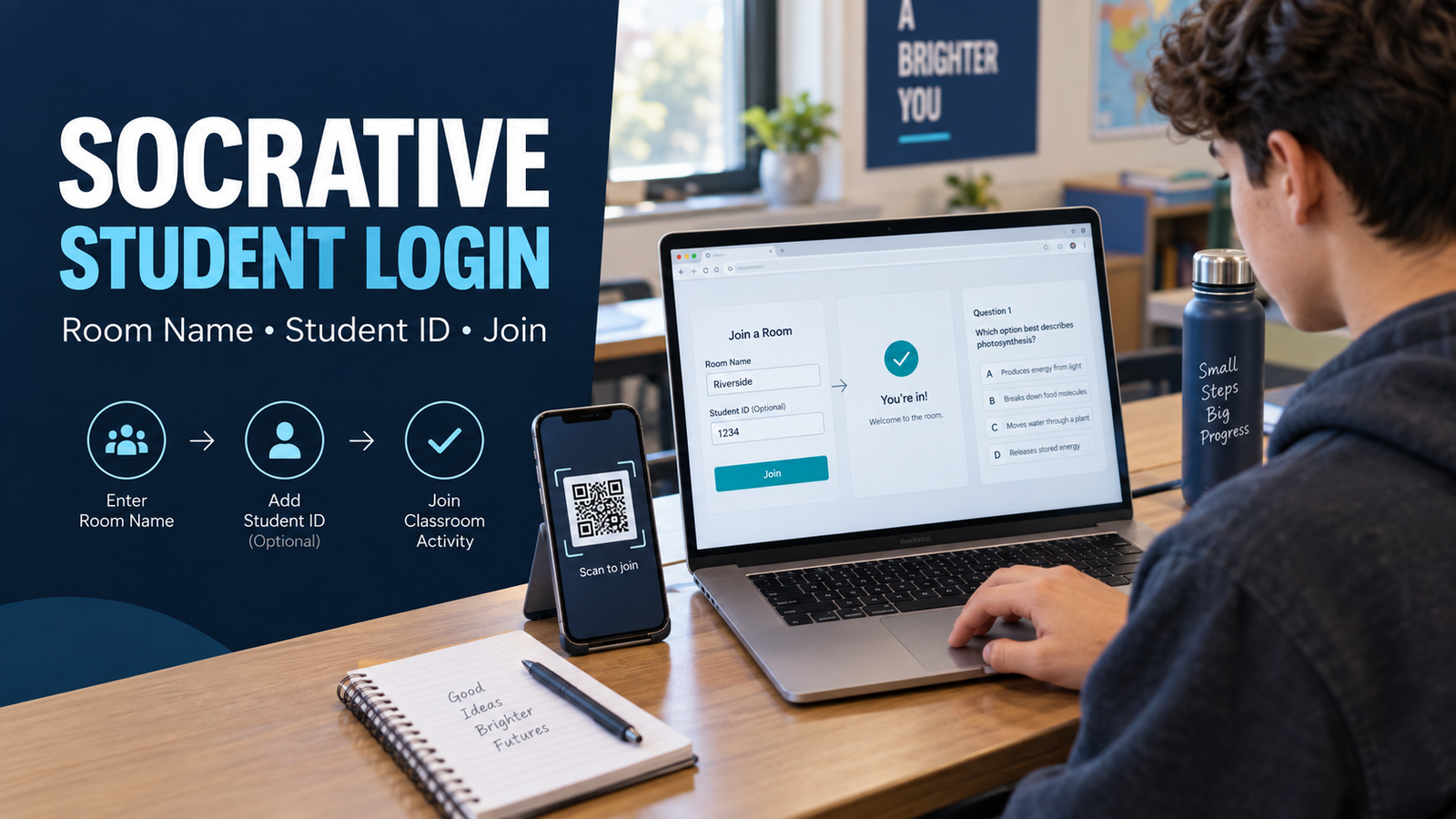
Open the student entry page → Enter the teacher’s room name → Provide a name or Student ID if requested → Enter the room
A teacher may also provide a direct room link or QR code that completes part of this process automatically.
The exact information required depends on whether the teacher is using a public room or a rostered room. Understanding that distinction prevents most Socrative login confusion.
Explore how interactive classroom learning, educational games, and modern teaching strategies come together in the Gimkit Live Learning & Earning Show, our central resource for engaging digital learning experiences.
Quick Socrative Student Login Instructions
Students can use the following basic process:
Open the Socrative student entry page in a supported browser.
Enter the room name supplied by the teacher.
Select the option to join the room.
Enter your name or assigned Student ID if prompted.
Wait for the active question or quiz to appear.
If a waiting message appears, remain in the room until the teacher launches the activity.
If the teacher supplied a QR code or direct invitation link, open it instead of manually entering the room name. A rostered room may still request a Student ID after the link opens.
What “Student Login” Means in Socrative
The phrase “Socrative student login” can be misleading because several different access methods may look like a login.
A student may be:
entering a public room with a room name;
identifying themselves with a display name;
entering a private rostered room with a Student ID;
opening a teacher-provided room link;
scanning a classroom QR code;
returning to an activity already in progress.
These are not identical situations.
A conventional login normally verifies a permanent user account with an email address and password. Standard Socrative classroom participation is more closely connected to the teacher’s room and activity.
The teacher controls:
the room students should enter;
whether the room is public or rostered;
whether student names are required;
which Student IDs are valid;
whether an activity is currently running;
whether another attempt is allowed.
This means students cannot generate the correct classroom credentials themselves. If the required room information is missing, the teacher is the correct person to contact.
What You Need Before Logging In
Before opening Socrative, collect the information your teacher has provided.
You may need:
a room name;
a direct room link;
a QR code;
your assigned Student ID;
instructions about which name to enter;
a supported internet-connected device;
confirmation that the activity has started.
You will not necessarily need every item.
If you received a room name
Enter the room name exactly as the teacher provided it. Avoid adding spaces, punctuation, a class period, or the teacher’s name unless those elements are officially part of the room name.
If you received a QR code
Scan the code using your device’s camera or QR scanner. The code should open the teacher’s room invitation. If the room is rostered, you may still be asked for your Student ID.
If you received a direct link
Open the link in a supported browser. The room information may already be connected to the link, reducing the amount of information you must enter manually.
If you received a Student ID
Use the exact ID assigned by the teacher. Do not replace it with your email address, school username, student number, or nickname unless the teacher specifically says they are the same.
Public Room vs Rostered Room Login
The most important Socrative login distinction is whether the room is public or rostered.
Access type
What the student normally needs
How identity is handled
Public room
Room name, direct link, or QR code
The student may enter a name if the teacher requires it
Rostered room
Room name, direct link, or QR code plus an assigned Student ID
The Student ID connects the student to an entry created by the teacher
Public room access
A public room is designed for straightforward entry. The student uses the room name, invitation link, or QR code supplied by the teacher.
The activity settings may ask the student to enter a name. This name helps the teacher recognize responses, but it is not necessarily a permanent Socrative username.
If names are not required, the activity may allow more anonymous participation.
Rostered room access
A rostered room contains a teacher-managed student list. Each student has an assigned Student ID used to enter that private room.
The Student ID must match the roster entry created by the teacher. A student cannot solve a rejected ID by creating a new personal account or inventing another identifier.
If the ID is not accepted, the student should check it carefully and then ask the teacher to verify the roster entry.
How to Log In Through a Web Browser
Browser access is the most direct method because Socrative is a web-based platform.
Step 1: Open the student entry screen
Use the student-participation page or the room link supplied by the teacher.
Make sure you are on the student entry screen rather than a teacher account sign-in page. A teacher page may request credentials that ordinary student participation does not require.
Step 2: Enter the room name
Type the room name exactly as provided.
Check for:
missing letters;
extra spaces;
similar-looking characters;
an incorrect class period;
an old room name saved by the browser;
a code belonging to another teacher.
Do not rely on a room name from a previous lesson unless the teacher confirms that the same room is still being used.
Step 3: Enter your name or Student ID
The next screen depends on how the teacher configured the room.
You may be asked for:
your name in a public room;
a Student ID in a rostered room;
no additional identity information for an anonymous activity.
Follow the wording shown on the screen. A name field and a Student ID field do not serve the same purpose.
Step 4: Enter the room
After the information is accepted, Socrative connects you to the teacher’s room.
One of several things may appear:
an active quiz or question;
a waiting screen;
a paused-activity message;
confirmation that the activity has been completed;
a notice that the activity has ended.
Reaching a waiting screen usually means the room entry worked.
Logging In With a QR Code
A QR code can reduce errors caused by manually typing the room name.
To use it:
Open your device’s camera or approved QR scanner.
Point it at the teacher-provided code.
Select the room invitation that appears.
Allow the page to open in the browser.
Enter your name or Student ID if requested.
Only use the QR code supplied for your current class or activity. An old screenshot may lead to a previous invitation that the teacher has reset or stopped using.
Teachers can reset room links and QR codes. When this happens, an older code may no longer provide access even if it previously worked.
Logging In With a Direct Room Link
A direct link can be shared through:
a learning management system;
an email;
a class presentation;
a digital assignment;
a class messaging platform;
a shared document.
Open the link using the browser or device expected by the teacher.
A direct link can take you to the intended room without requiring manual entry of the room name. However, it does not automatically remove every identity check. Rostered rooms can still require the assigned Student ID.
If a link opens the wrong room or does not work, return to the original message and confirm that the full link was opened. Copied links can fail when part of the address is missing.
What the Screen Means After Login
Students often think login has failed when Socrative is actually displaying the current state of the classroom activity.
Waiting for your teacher to start an activity
This normally means you entered the room successfully, but the teacher has not launched an activity in that room.
Remain on the screen unless the teacher provides different instructions.
Repeatedly refreshing or entering different room names will not start the activity. Only the teacher can launch it.
Activity paused
The teacher has temporarily paused the current quiz. Your access has not necessarily failed.
Wait for the teacher to resume the activity.
Answer submitted
In a teacher-paced activity, students may need to wait after each response. The teacher controls when the next question appears.
Do not leave the room simply because another question does not appear immediately.
Activity completed
This indicates that your responses have been submitted and your attempt has reached its completion point.
The teacher may review or share results separately.
Activity ended
The teacher has finished the activity. If you still needed to answer questions, ask the teacher whether another attempt will be allowed.
Public Name and Student ID Are Not Interchangeable
A common source of access confusion is treating a name and Student ID as the same credential.
A name identifies your response in a public room
The teacher may ask you to enter your real name, initials, or another classroom-approved label. The expected format depends on the teacher’s instructions.
A Student ID verifies your place in a rostered room
The Student ID is assigned through the teacher’s roster. It may not be the same as your:
email address;
lunch number;
school portal username;
district account number;
nickname;
device name.
Only use another school identifier when the teacher confirms that it was entered as your Socrative Student ID.
Do Students Need a Password?
Normal room-based participation does not typically require students to enter a personal Socrative password.
A rostered room uses a Student ID rather than a student-created password. Public-room access may require only the room information and a name.
If a screen unexpectedly requests an email address and password, check whether you opened:
a teacher login page;
a school-managed access portal;
an unrelated saved bookmark;
a different platform;
an institutional sign-in process added by your school.
Return to the invitation supplied by the teacher before entering personal credentials.
Can Students Log In From Different Devices?
Socrative is web-based and can be accessed from supported internet-connected computers and mobile devices. Students may participate through an appropriate browser or the method specified by their school.
The device should have:
a stable internet connection;
a current supported browser;
permission to access the required Socrative services;
sufficient screen functionality to read and answer questions.
School filters, firewall rules, restricted browsers, or device-management settings can interfere with access. Students usually cannot change institution-managed restrictions themselves.
If several students on the same school network cannot reach Socrative, the problem may need to be checked by the teacher or school technology team.
How Rejoining an Activity Works
Closing the tab or temporarily losing the connection does not always erase the student’s progress.
A student can generally return by using the same room information and the same name or Student ID. Socrative may reconnect the student to the earlier attempt so work can continue.
When returning:
Reopen the same room invitation.
Enter the exact room name if required.
Use the same name or Student ID used previously.
Allow the earlier activity to load.
Confirm that previous responses or progress appear before continuing.
Using a different name in a public room may create what looks like a second participant. Using the wrong Student ID in a rostered room may prevent access or connect incorrectly.
If the teacher enabled a one-attempt restriction or already finished the activity, re-entering the room may not create another attempt.
Login Checks That Solve Immediate Access Confusion
This short sequence helps identify where access stopped without turning the process into random trial and error.
Check 1: Are you using the current invitation?
Confirm that the room name, link, or QR code came from the teacher for the present class activity.
Check 2: Are you on the student entry screen?
A teacher sign-in page is not the correct gateway for normal student participation.
Check 3: Is the room name exact?
Retype it carefully instead of relying on browser autofill or an old saved value.
Check 4: Is the room public or rostered?
A rostered room needs the Student ID assigned by the teacher. A public room may ask for a display name instead.
Check 5: Did you actually reach the waiting screen?
A waiting message usually confirms successful room entry. It does not normally indicate an incorrect login.
Check 6: Has the teacher launched the activity?
Students cannot activate a quiz from their login screen.
Check 7: Are you rejoining with the same identity?
Use the same name or Student ID associated with the original attempt.
If these checks do not resolve access, record the exact stage where the process stops and show it to the teacher. That information is more useful than saying only that “Socrative does not work.”
What Students Should Not Do
Do not create random credentials
A made-up Student ID will not match the teacher’s roster.
Do not share your assigned Student ID
Treat teacher-issued identification as classroom access information. If another student needs help, direct them to the teacher rather than sharing your own ID.
Do not use another student’s name
Incorrect names can mix responses and make the teacher’s results unreliable.
Do not repeatedly switch rooms
Changing room names without teacher instructions can place you in the wrong classroom space.
Do not assume the waiting screen is an error
First confirm whether the teacher has launched the activity.
Do not submit personal passwords into an unfamiliar screen
Normal student-room entry should follow the teacher’s invitation. If the page appears different from what was expected, ask before entering private account credentials.
Teacher Instructions That Reduce Student Login Problems
Although this article focuses on student access, the clarity of teacher instructions strongly affects the login experience.
A useful classroom login instruction should identify:
the correct student entry method;
the exact room name;
whether a link or QR code should be used;
whether students should enter a real name;
whether a Student ID is required;
where students should wait after entering;
what to do if the room rejects the information;
whether students may rejoin after disconnection.
For example:
Open the student entry page and enter the room name exactly as displayed. When prompted, use the Student ID assigned to you for this class. If you see the waiting screen, remain there until the activity begins.
This is more useful than writing only “Log in to Socrative.”
Frequently Asked Questions
What is the Socrative student login?
The Socrative student login is simply the way a student enters a teacher’s Socrative room and gets to the activity waiting there. It is different from signing into a typical personal account.
A teacher will usually give students one of these:
Room name — type it into the student entry screen.
Direct room link — open it to go straight to the room invitation.
QR code — scan it to open the correct room.
Student ID — needed when the teacher has set up a rostered room.
So, if you are a student looking for a username-and-password login, you may not need one at all. Start with the access information your teacher provided.
Where do students enter the Socrative room name?
Enter the room name on the Socrative student participation screen. Think of the room name as the code that points Socrative to your teacher’s classroom.
Before submitting it, check two things:
Type the room name exactly as your teacher provided it.
Make sure you are using the current room name rather than one saved from an older class or activity.
If your teacher sent a direct link or QR code, you can use that instead. It can take you directly to the room invitation and saves you from manually entering the room name.
Why does Socrative ask for a Student ID?
Seeing a Student ID field usually means your teacher is using a rostered room.
In that setup, the Student ID helps Socrative match your entry with the correct student on the teacher’s class roster. This makes it possible for your participation and responses to be connected with the right roster entry.
Important: use the Student ID your teacher assigned or provided. Do not substitute your email address, school login, or another ID unless your teacher specifically tells you to.
Is a Student ID the same as a password?
No. A Socrative Student ID and a password serve different purposes.
A Student ID identifies you within a teacher-managed roster. It should not automatically be treated like a private account password.
For example, if Socrative asks for a Student ID, do not assume it wants your:
email password,
Google account password,
school portal password, or
another personal login credential.
Use the exact Student ID provided for that Socrative class. If you do not know it, the safest next step is to ask your teacher.
Does the waiting screen mean login failed?
Not necessarily. In many cases, the waiting screen actually means you made it into the room successfully.
You may be waiting because:
the teacher has not started the activity yet;
the next question has not been released;
the current activity requires everyone to wait; or
the teacher is changing or controlling the activity.
Instead of immediately refreshing the page or repeatedly entering the room again, read the message shown on the waiting screen. If the screen does not change when the class activity begins, then confirm with your teacher that you are in the correct room.
Can students join without a Socrative account?
Yes, standard classroom participation generally does not require students to create a permanent personal Socrative account.
The usual flow is much simpler:
Teacher shares room access → Student enters the room → Student provides any requested identification → Activity opens
What you are asked to enter can vary. One teacher may only require a room name and student name, while a rostered setup may also request an assigned Student ID.
The key point is that joining a teacher’s activity is not the same thing as creating and maintaining your own Socrative account.
What should a student do if the room name is rejected?
Start with the room information itself rather than repeatedly submitting the same entry.
Try this quick check:
Compare the spelling with the room name your teacher provided.
Look for missing or incorrectly typed characters.
Make sure you are not using information from an older class.
Ask the teacher whether the room name is still current.
Still rejected? Ask your teacher for the exact room name, a fresh direct invitation, or a new QR code. That is more reliable than guessing different versions of the room name.
Can students return after closing the browser?
Usually, a student can try to enter the room again using the same access information. If identification is required, use the same name or Student ID that was used previously.
However, re-entering the room and continuing the previous attempt are not always the same thing.
What happens after you return can depend on:
whether the activity is still running;
whether the teacher has ended or changed it;
the activity settings; and
whether your earlier attempt can still be continued.
If the activity does not return as expected, avoid starting over unnecessarily. Check with the teacher first.
Why does the room open but no quiz appears?
If the room itself opens, the room name may already be correct. The missing quiz can be related to what is currently happening inside that room.
For example:
Nothing has started yet: the teacher may not have launched the quiz.
The screen is waiting: the activity may be paused or waiting for teacher action.
You already submitted: your attempt may already be complete.
The activity disappeared: the teacher may have ended the session.
Read the on-screen message first. It often gives a better clue than leaving the room and trying to log in repeatedly.
Who can provide a missing room name or Student ID?
Your teacher or school is the right source for missing classroom access information.
The room name identifies the classroom the teacher created, while a Student ID can be tied to the roster the teacher manages. Because these details depend on your specific class, they cannot be reliably discovered by trying random room names or unrelated school credentials.
If either detail is missing, ask for:
the exact current room name;
your assigned Student ID, if required; or
a direct room link or QR code as an alternative way to enter.
That gets you to the correct class without unnecessary login attempts.
Final Login Checklist
Before asking for help, confirm:
I am using the current student invitation.
I entered the room name exactly.
I know whether the room requires a name or Student ID.
I used the Student ID assigned by my teacher.
I did not open the teacher account page.
I checked whether the screen says waiting, paused, completed, or ended.
I used the same identity when rejoining.
I confirmed that the teacher started the activity.
I checked my internet connection and browser.
I can explain exactly where the login process stopped.
The essential rule is simple:
The room information comes from the teacher, the access requirement comes from the room type, and the screen after entry reflects the activity’s current status.
Stay connected with major developments across gaming and entertainment through IGN, a long-established media destination covering video games, reviews, guides, movies, television, and wider entertainment culture.