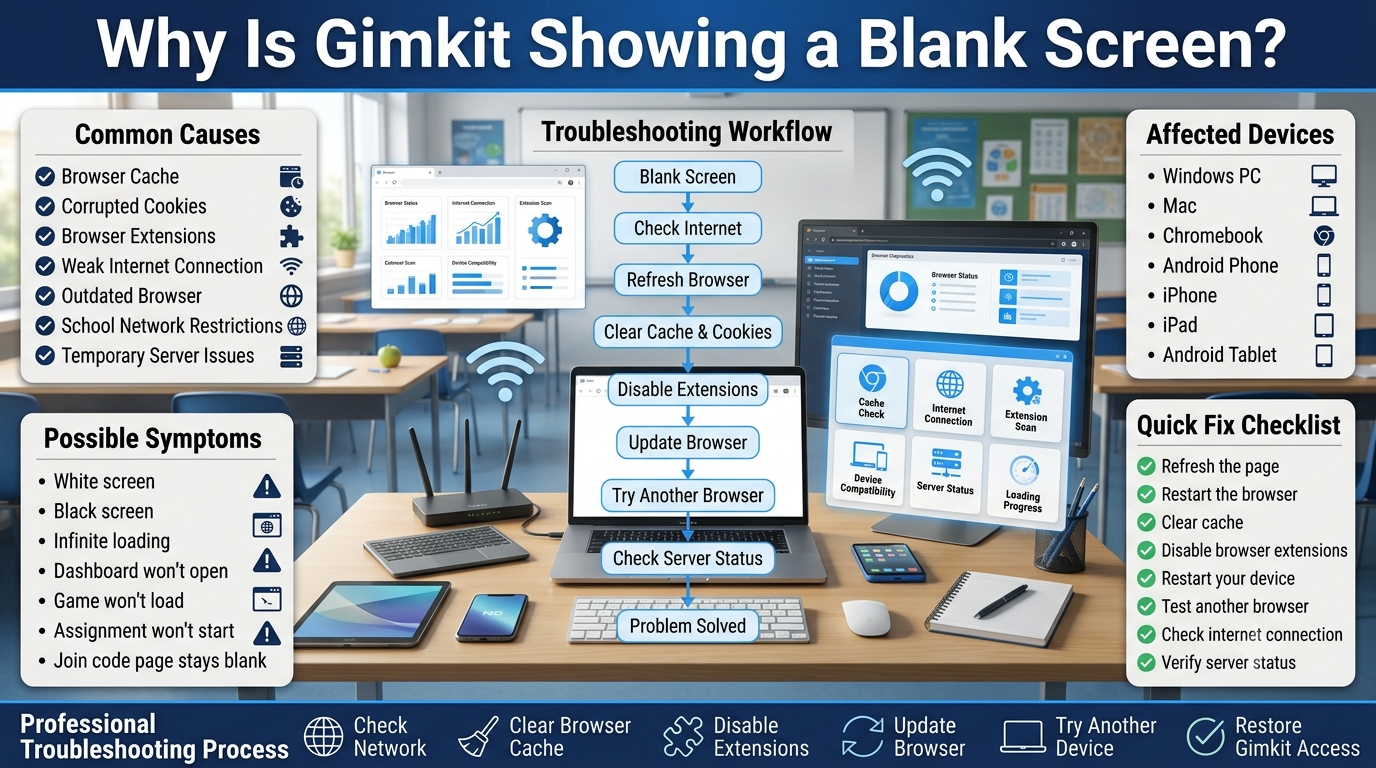
Why Is Gimkit Showing a Blank Screen-A blank screen in Gimkit usually indicates that the game interface failed to load correctly. In most cases, the problem is caused by browser cache, unsupported extensions, unstable internet connections, outdated software, or temporary server issues rather than a problem with your account. The good news is that most blank screen errors can be fixed in just a few minutes without losing your progress.
Whether you’re a teacher preparing a classroom activity or a student trying to join a live game, seeing nothing but a white or black screen can quickly interrupt learning. The issue may appear while opening the homepage, joining a game with a code, launching an assignment, or switching between different game modes. Because the same symptom can have several different causes, identifying the source of the problem is the key to resolving it efficiently.
This guide walks through every major reason Gimkit may display a blank screen and explains practical solutions for Windows PCs, Macs, Chromebooks, tablets, and smartphones. You’ll also learn how browsers, school network restrictions, browser extensions, cached files, and temporary platform outages can affect loading behavior. By the end of this guide, you’ll know exactly how to diagnose the issue, apply the correct fix, and reduce the chances of encountering the same problem again.
Opening Gimkit and seeing nothing except a blank white or black screen can be frustrating, especially when a class is about to begin or you’re trying to join a live game. Instead of loading the dashboard, game lobby, assignment, or question interface, the page appears empty, leaving teachers and students unsure whether the problem is with their device, browser, internet connection, or Gimkit itself.
In most situations, a blank screen does not mean your account has been deleted or that your data has been lost. The issue is usually caused by a browser rendering problem, corrupted cache files, blocked website resources, incompatible browser extensions, network restrictions, or a temporary platform issue. Because several different factors can produce the same symptom, guessing rarely solves the problem. A structured troubleshooting process is much more effective.
This guide explains every major cause of the Gimkit blank screen, how to identify the real reason behind it, and the best solutions for Windows, Mac, Chromebook, Android, and iPhone users. Whether you’re a teacher managing a classroom, a student joining a live session, or an IT administrator supporting school devices, you’ll find practical, step-by-step guidance to restore Gimkit quickly and prevent the problem from returning.You should get in touch on our Gimkit Live app -Official Platform where millions of students & teachers are doing thier life improvemnt works by joining Gimkit Live shows.
Quick Answer
If Gimkit is showing a blank screen, the page has failed to load its interface correctly. The most common reasons include corrupted browser cache, outdated browsers, blocked JavaScript, conflicting browser extensions, unstable internet connections, school firewall restrictions, or temporary Gimkit server issues. In most cases, clearing your browser cache, refreshing the page, disabling problematic extensions, updating your browser, or trying another supported browser resolves the issue within minutes.
What Does the Gimkit Blank Screen Error Mean?
A Gimkit blank screen error means the application has opened, but its visual interface failed to render. Instead of displaying menus, game controls, assignments, or live sessions, the browser loads an empty page because essential website resources were interrupted during the loading process.
This interruption can occur before the page is fully displayed or after some resources have already loaded. In many cases, the browser successfully reaches the website but fails to process JavaScript files, authentication data, cached resources, or other elements required to build the interface. As a result, users see a white, black, or completely empty screen even though the website address appears correct.
Unlike login errors or invalid game code messages, a blank screen usually points to a loading or rendering issue rather than an account problem. That distinction is important because the troubleshooting steps are different and often much simpler.
Why This Issue Matters for Teachers and Students
For teachers, a blank screen can interrupt lesson plans, delay classroom activities, and reduce student engagement during live games. When multiple students experience the same problem simultaneously, the issue may also indicate a shared network restriction or school device configuration rather than an individual browser fault.
Students face a different challenge. They may be unable to join a game before the session begins, miss classroom participation, or lose valuable learning time while trying random fixes that don’t address the actual cause. Understanding why the problem occurs helps both teachers and students resolve it faster and return to the activity with minimal disruption.
Common Symptoms of the Gimkit Blank Screen Error
Although the issue is commonly described as a “blank screen,” it can appear in several different ways depending on the underlying cause.
Common symptoms include:
A completely white page after opening Gimkit.
A black screen with no visible controls.
The loading icon continues spinning indefinitely.
The dashboard never appears after signing in.
A live game fails to load after entering a game code.
Only the page background loads while buttons and menus remain missing.
The screen becomes blank immediately after clicking Play, Host, or Assignments.
The page refreshes repeatedly without displaying any content.
Recognizing these symptoms helps narrow down whether the issue is related to the browser, the network, the device, or Gimkit’s services.
When Does the Blank Screen Usually Appear?
The blank screen can occur at different stages of using Gimkit, and the timing often provides clues about its cause.
You might encounter it:
While opening the Gimkit homepage.
Immediately after signing in.
After entering a game code.
While launching a live game.
During assignment loading.
After switching between browser tabs.
Following a browser or operating system update.
On school-managed devices with restricted network settings.
During periods of temporary server maintenance or service disruption.
Knowing exactly when the blank screen appears makes the troubleshooting process much faster because different causes tend to occur at different stages of the loading process.
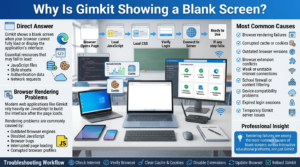
Why Is Gimkit Showing a Blank Screen?
Understand how browser rendering, JavaScript, cache, authentication, and network communication work together to load Gimkit—and learn what causes a blank screen when any step fails.
Direct Answer: Gimkit shows a blank screen when your browser cannot fully load or display the application’s interface. This usually happens because essential website resources—such as JavaScript files, style sheets, authentication data, or network requests—fail to load correctly.
Unlike an error message that clearly identifies the problem, a blank screen is often the final result of another hidden issue. The page may technically open, but if critical resources are blocked or interrupted, the browser has nothing to display.
The most common causes include:
Browser rendering failures
Corrupted cache or cookies
Outdated browser versions
Browser extension conflicts
Weak or unstable internet connections
School firewall or content filtering
Device compatibility problems
Expired login sessions
Temporary Gimkit server issues
Each of these causes behaves differently, which is why identifying the source of the problem is more effective than repeatedly refreshing the page.
Browser Rendering Problems
Modern web applications like Gimkit rely heavily on JavaScript to build the interface after the page loads. If the browser fails to execute these scripts correctly, the interface may never appear even though the website itself is reachable.
Rendering problems are commonly caused by:
Outdated browser engines
Disabled JavaScript
Browser bugs
Interrupted page loading
Corrupted browser profiles
In many cases, simply updating Chrome, Edge, Firefox, or Safari resolves rendering issues because newer versions include compatibility fixes and security improvements required by modern web applications.
Professional Insight: Rendering failures are among the most common causes of blank screens across interactive educational platforms, not just Gimkit.
Corrupted Cache and Cookies
Browsers store cached files and cookies to make websites load faster. While this usually improves performance, stored data can sometimes become outdated or corrupted.
When Gimkit loads, the browser may attempt to use old cached resources instead of downloading the latest versions. If those files no longer match the current version of the website, the application may fail to display correctly.
Common signs include:
Blank screen after an update
Infinite loading
Missing buttons
Broken layouts
Repeated loading loops
Clearing cached files forces the browser to download a fresh copy of the website, eliminating many loading problems.
JavaScript Loading Failures
Gimkit depends on JavaScript for nearly every interactive feature, including authentication, navigation, game sessions, score tracking, and classroom management.
If JavaScript files fail to load because of:
network interruptions,
browser restrictions,
content blockers,
firewall rules,
or corrupted downloads,
the browser may display nothing more than a blank page.
Unlike simple websites built mostly with HTML, interactive platforms cannot function properly without their JavaScript components.
Browser Extension Conflicts
Extensions improve browser functionality, but some interfere with how web applications operate.
The following types of extensions commonly cause loading problems:
Ad blockers
Script blockers
Privacy protection tools
Security extensions
Pop-up blockers
Cookie managers
These tools may mistakenly block resources that Gimkit requires to display its interface.
A useful troubleshooting method is opening Gimkit in an Incognito or Private Browsing window, where most extensions are disabled by default. If the page loads correctly there, an extension is likely responsible.
Internet Connection Problems
Even a connection that appears “working” may not be stable enough to load every resource required by Gimkit.
Possible network-related causes include:
Packet loss
High latency
Weak Wi-Fi signals
Frequent disconnections
Congested school networks
ISP routing problems
Because the browser loads dozens of files while opening Gimkit, losing just a few critical requests can result in a blank interface instead of a visible error message.
For classroom environments, shared Wi-Fi congestion is one of the most common contributors to intermittent loading issues.
School Firewall and Content Filtering
Many schools use managed networks with security policies that restrict certain online services.
Firewalls, DNS filters, web filters, or proxy servers can accidentally block resources that Gimkit needs to load successfully.
Possible restrictions include:
JavaScript files
Content delivery networks (CDNs)
Authentication requests
WebSocket connections
Third-party educational services
If multiple students experience the same blank screen simultaneously while using the same school network, the issue is more likely related to network policies than individual devices.
Teachers and school IT administrators should verify that Gimkit’s required domains are permitted through the school’s filtering systems.
Device Compatibility Issues
Although Gimkit supports most modern devices, older hardware and unsupported software can struggle to load newer web technologies.
Compatibility issues are more common on:
Older Chromebooks
Unsupported Android versions
Legacy Windows browsers
Outdated Safari releases
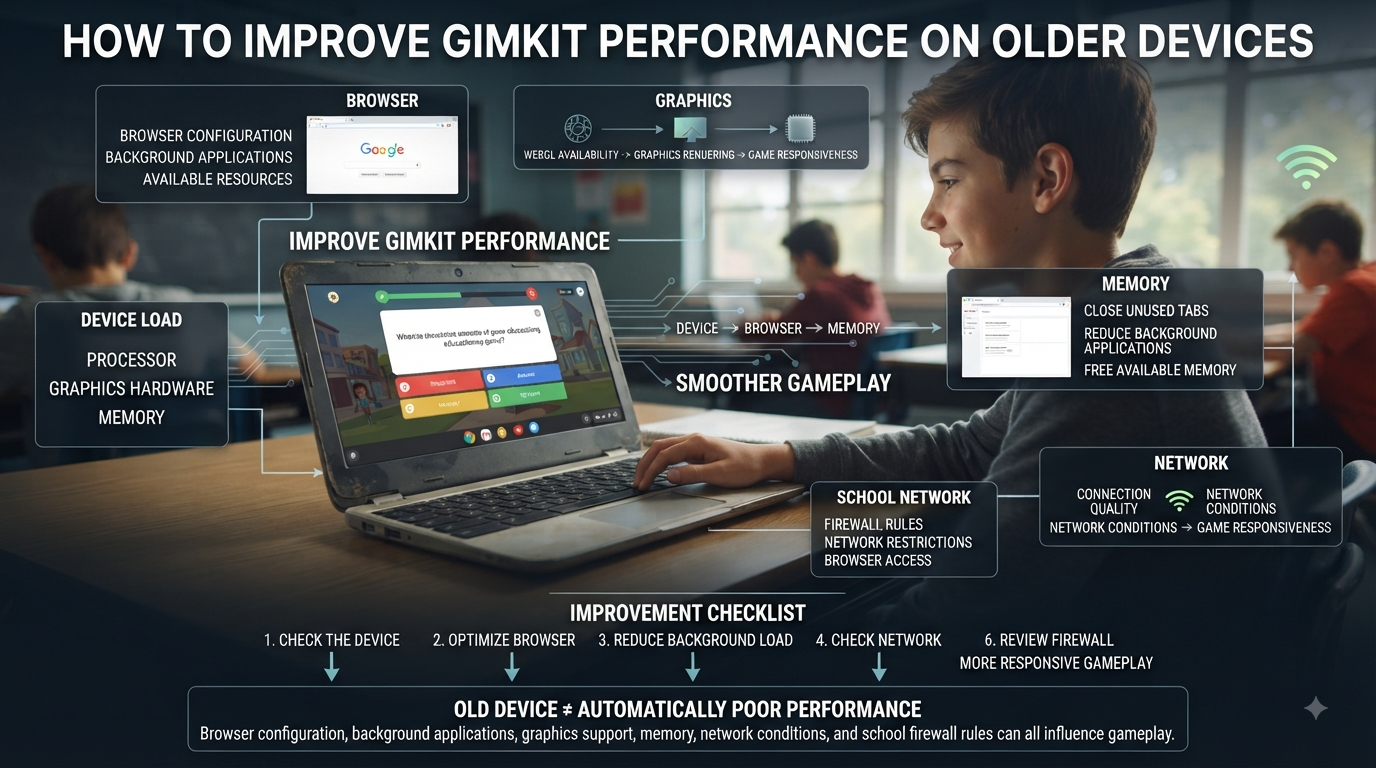
Devices with very limited memory
Low available RAM can also affect browser performance. When memory is exhausted, browsers may stop rendering complex web applications, resulting in partially loaded pages or completely blank screens.
Keeping both the operating system and browser up to date significantly reduces compatibility-related problems.
Expired Login Sessions and Authentication Errors
Sometimes the browser still stores an old login session that is no longer valid.
Instead of displaying a sign-in error, the authentication process may become stuck while trying to verify outdated session information. As a result, the application never finishes loading.
This issue commonly occurs after:
Password changes
Long periods of inactivity
Switching between multiple accounts
Browser cookie corruption
Session expiration
Signing out completely, clearing site data, and logging in again usually resolves authentication-related loading problems.
Temporary Gimkit Server Issues
Although less common than browser or network problems, the issue may originate from Gimkit itself.
Examples include:
Temporary maintenance
Unexpected outages
Backend service interruptions
Authentication server failures
High traffic during peak classroom hours
When the platform experiences server-side issues, users may notice:
Blank pages
Loading loops
Login failures
Missing dashboards
Slow page loading
If multiple users from different locations report the same symptoms at the same time, waiting for the service to recover may be the only available solution.
A blank screen is rarely the actual problem—it is a symptom of an underlying loading failure. By identifying whether the cause is your browser, stored website data, internet connection, device, school network, or Gimkit’s servers, you can apply the correct solution quickly instead of relying on guesswork.
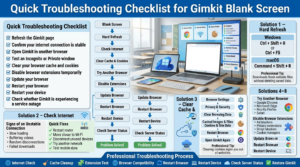
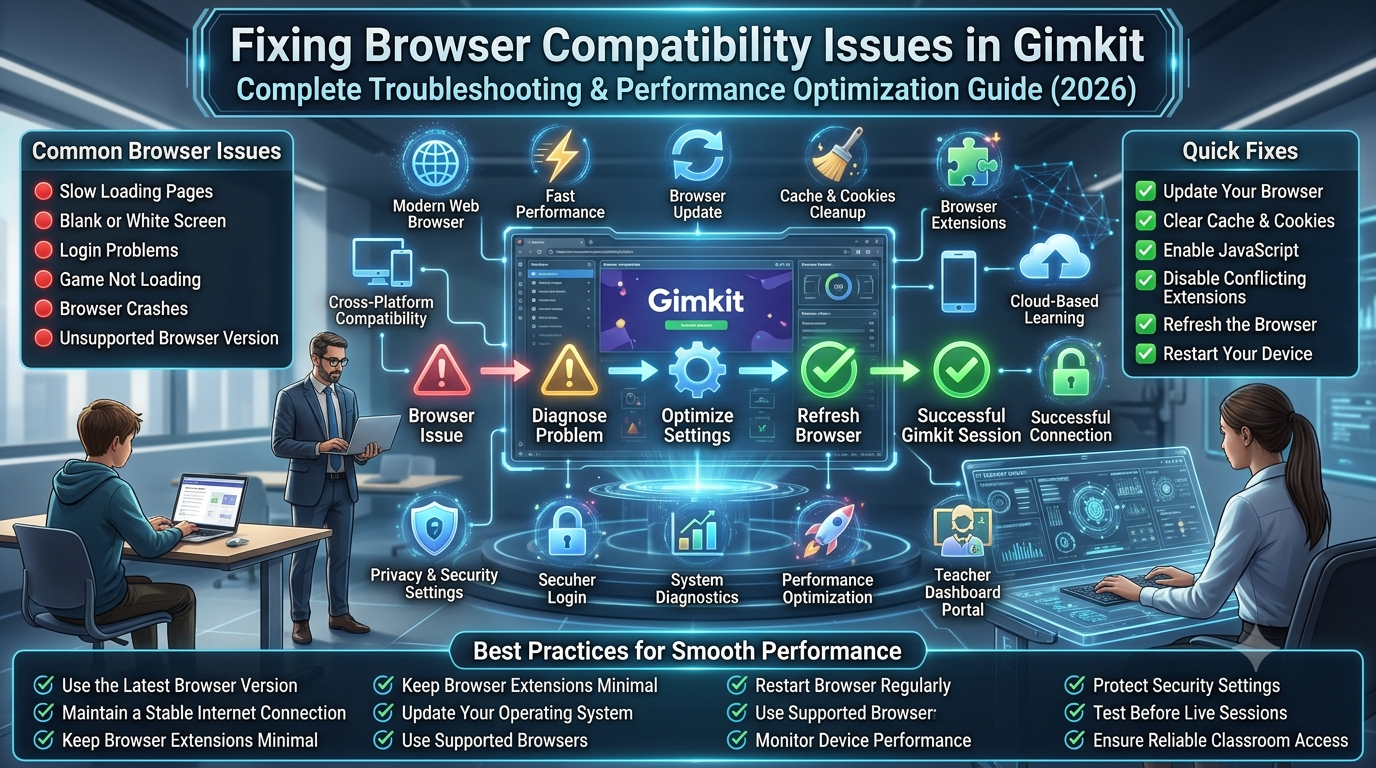
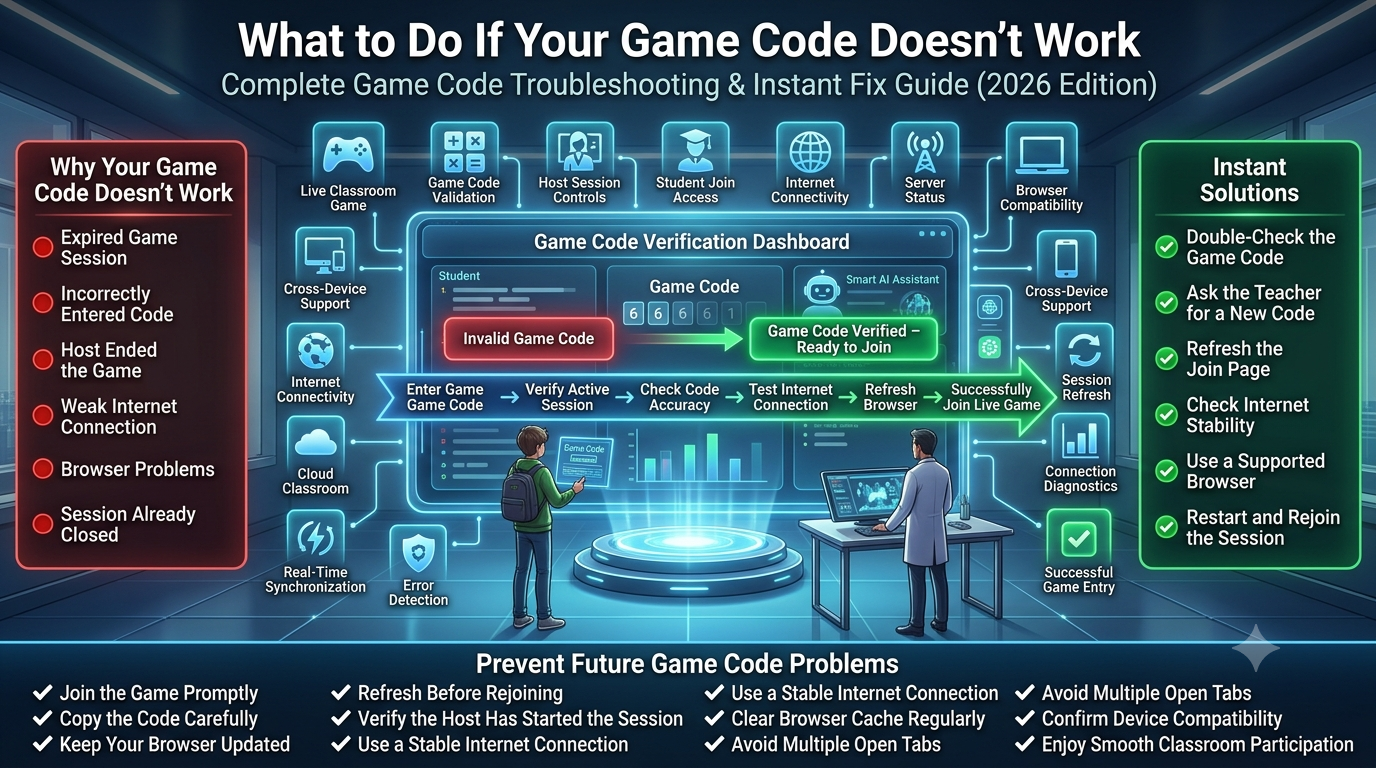
Quick Troubleshooting Checklist
Follow this structured troubleshooting checklist to quickly identify and fix the most common causes of Gimkit blank screen errors using proven browser, network, cache, and device solutions.
Before trying advanced solutions, work through this checklist:
✓ Refresh the Gimkit page.
✓ Confirm your internet connection is stable.
✓ Open Gimkit in another browser.
✓ Test an Incognito or Private window.
✓ Clear your browser cache and cookies.
✓ Disable browser extensions temporarily.
✓ Update your browser to the latest version.
✓ Restart your device.
✓ Check whether Gimkit is experiencing a service outage.
If the blank screen remains after these steps, continue with the detailed fixes below.
Solution 1: Perform a Hard Refresh
Direct Answer: A hard refresh forces the browser to ignore cached resources and download fresh copies of the webpage.
Unlike a normal refresh, a hard refresh clears temporary page files from memory without deleting your saved data.
Keyboard Shortcuts
Operating System
Shortcut
Windows
Ctrl + Shift + R or Ctrl + F5
macOS
Command + Shift + R
Wait until the page fully reloads before deciding whether the problem has been resolved.
Best Practice: Use a hard refresh immediately after Gimkit updates, as cached resources may no longer match the latest version.
Solution 2: Check Your Internet Connection
A weak connection doesn’t always disconnect you completely. Sometimes it only interrupts specific requests, preventing important Gimkit files from loading.
Signs of an Unstable Connection
Pages load slowly.
Videos buffer frequently.
Other websites behave inconsistently.
Games disconnect randomly.
Downloads pause unexpectedly.
What to Do
Restart your router if possible.
Move closer to your Wi-Fi access point.
Disconnect unused devices from the network.
Switch from public Wi-Fi to a trusted connection.
If available, test using mobile data or another network.
If Gimkit works on a different network, the original connection is likely causing the issue.
Solution 3: Clear Browser Cache and Cookies
Direct Answer: Clearing cache removes outdated website files that may prevent Gimkit from loading correctly.
Although cached files improve loading speed, they occasionally become corrupted after browser or website updates.
General Steps
Open your browser settings.
Locate Privacy and Security.
Select Clear Browsing Data.
Choose:
Cached Images and Files
Cookies and Site Data
Restart the browser.
Open Gimkit again.
Important: Clearing cookies signs you out of most websites, so ensure you know your login credentials before proceeding.
Solution 4: Try a Different Browser
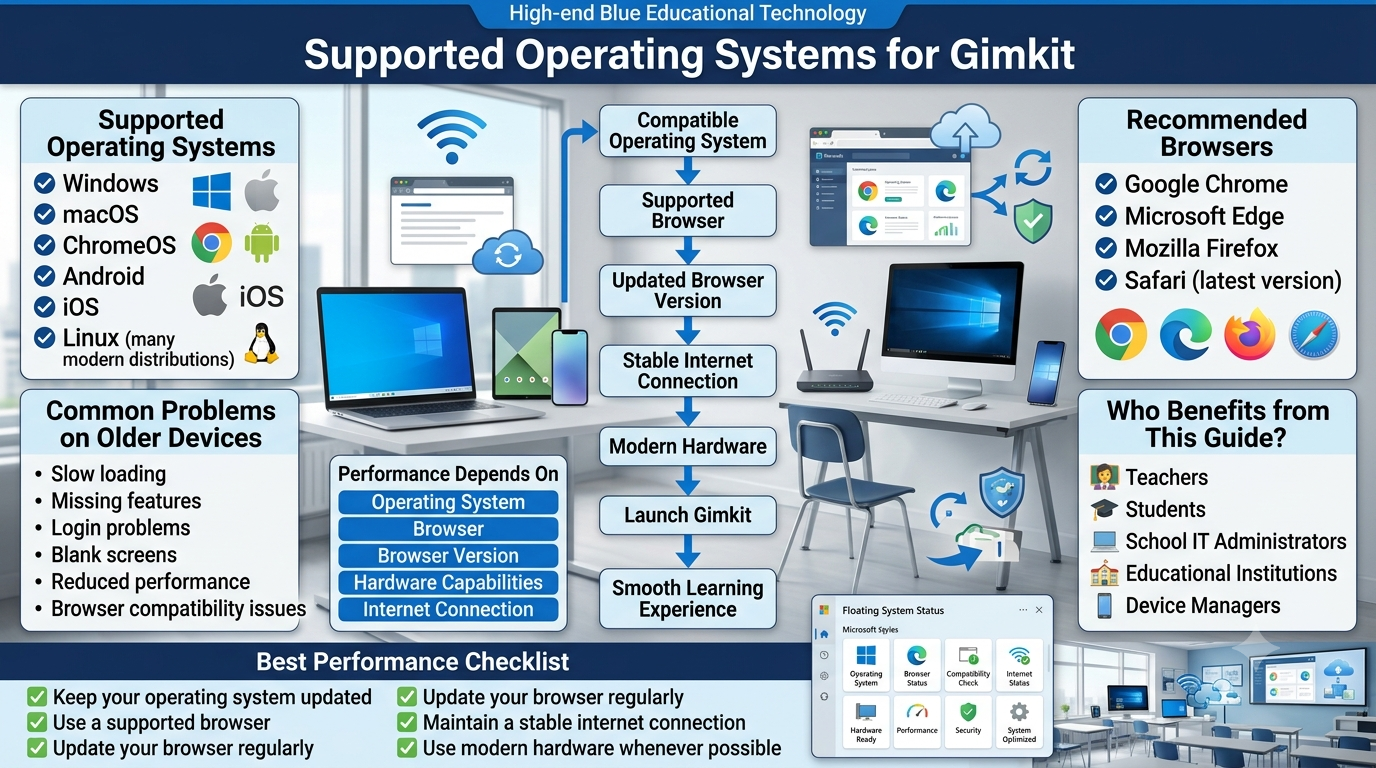
Modern educational platforms are designed for current web standards. If one browser develops compatibility issues, another may load the application without any problems.
Recommended browsers include:
Google Chrome
Microsoft Edge
Mozilla Firefox
Safari (latest version)
If Gimkit opens successfully in another browser, the original browser likely has corrupted settings, incompatible extensions, or outdated components.
Solution 5: Disable Browser Extensions
Extensions are among the most overlooked causes of blank screens.
Temporarily disable:
Ad blockers
Privacy extensions
Script blockers
Security plugins
Cookie managers
Performance optimizers
Rather than disabling them one by one immediately, first test Gimkit in an Incognito or Private window.
If the page loads normally there, re-enable extensions individually until the conflicting one is identified.
Solution 6: Update Your Browser
Running an outdated browser can prevent modern web applications from functioning correctly.
Browser updates provide:
Security improvements
JavaScript engine updates
Better HTML and CSS compatibility
Bug fixes
Performance enhancements
Older browser versions may not fully support the technologies used by Gimkit, resulting in incomplete page rendering.
Solution 7: Restart Your Browser
Browsers sometimes develop temporary problems after running for long periods.
Restarting the browser can:
Clear temporary memory.
Reload active processes.
Reset stuck tabs.
Close frozen scripts.
Completely exit the browser—not just the current tab—before reopening Gimkit.
Solution 8: Restart Your Device
If browser-related fixes don’t help, restart your computer, Chromebook, tablet, or smartphone.
Restarting clears:
Temporary memory usage
Background conflicts
Network adapters
Stuck browser processes
System resource issues
This simple step resolves many temporary software conflicts that are difficult to diagnose manually.
Solution 9: Verify JavaScript Is Enabled
Gimkit depends heavily on JavaScript for navigation, authentication, live gameplay, and interactive classroom features.
If JavaScript has been disabled manually or blocked by browser settings, the interface may never appear.
After enabling JavaScript, reload the page and allow several seconds for all resources to load completely.
Solution 10: Test Incognito or Private Mode
Private browsing launches the browser with minimal stored data and usually disables most extensions automatically.
If Gimkit works correctly in Incognito Mode, the problem is commonly related to:
Corrupted cookies
Cached files
Browser extensions
Stored website preferences
This is one of the fastest methods for narrowing down the cause.
Solution 11: Sign Out and Sign In Again
Occasionally, expired authentication tokens prevent Gimkit from loading properly.
To refresh your session:
Sign out of your account.
Close the browser.
Reopen the browser.
Visit Gimkit again.
Sign in with your account.
This creates a new authenticated session and can resolve account-related loading issues.
Solution 12: Check for Temporary Gimkit Service Issues
Sometimes the problem is not on your device at all.
If:
classmates experience the same issue,
multiple teachers report blank screens,
or the platform recently underwent maintenance,
waiting a short time before trying again may be the correct solution.
Avoid repeatedly clearing settings when the issue is caused by a temporary service interruption.
Professional Troubleshooting Workflow
Experienced IT teams rarely apply random fixes. Instead, they follow a structured process:
Blank Screen Appears
        │
        ▼
Hard Refresh
        │
        ▼
Check Internet
        │
        ▼
Open in Incognito
        │
        ▼
Clear Cache & Cookies
        │
        ▼
Disable Extensions
        │
        ▼
Update Browser
        │
        ▼
Restart Device
        │
        ▼
Test Another Browser
        │
        ▼
Check for Server Issues
        │
        ▼
Problem Resolved
Common Mistakes to Avoid
Many users unintentionally make troubleshooting harder by:
Repeatedly refreshing the page without checking the network.
Clearing important browser data before testing simpler solutions.
Continuing to troubleshoot while a temporary platform outage is in progress.
Avoiding these mistakes can save time and reduce unnecessary frustration.
Key Takeaway
Most blank screen issues can be resolved without advanced technical knowledge. Start with the quickest fixes—hard refresh, stable internet, Incognito Mode, cache clearing, and browser updates—before moving to more advanced troubleshooting. A systematic approach is far more effective than guessing and often restores access to Gimkit within a few minutes.
How to Fix the Gimkit Blank Screen on Windows PCs
Direct Answer: Most Windows users can fix a Gimkit blank screen by updating their browser, clearing cached data, disabling conflicting extensions, and ensuring Windows itself is up to date.
Recommended Troubleshooting Steps
Close every open browser window.
Restart your computer.
Open the latest version of Chrome, Edge, or Firefox.
Clear cached files and cookies.
Disable browser extensions temporarily.
Visit Gimkit again and sign in.
If the issue continues, create a new browser profile or test the website using another supported browser. A damaged browser profile can occasionally prevent modern web applications from loading correctly.
Professional Tip: Avoid using Internet Explorer or legacy browsers, as they do not support the web technologies required by Gimkit.
How to Fix the Gimkit Blank Screen on macOS
Mac users typically experience blank screen issues because of outdated Safari versions, corrupted website data, or browser extensions.
Recommended Steps
Install the latest macOS updates.
Update Safari to the newest available version.
Clear Safari website data.
Disable Safari extensions temporarily.
Restart the browser before reopening Gimkit.
If Safari still displays a blank screen, test the website using Google Chrome or Mozilla Firefox. If Gimkit works there, the issue is likely related to Safari’s cached data or extension settings.
Chromebook Troubleshooting Guide
Chromebooks are widely used in schools, making them one of the most common devices for accessing Gimkit.
Common Chromebook Causes
Outdated Chrome browser
Low available storage
School management restrictions
Corrupted browser cache
Weak Wi-Fi connection
Recommended Fixes
Restart the Chromebook.
Connect to a stable Wi-Fi network.
Clear Chrome browsing data.
Update Chrome OS.
Close unused tabs to free memory.
Try Guest Mode to determine whether the issue is related to your Chrome profile.
If the page loads correctly in Guest Mode, your regular Chrome profile may contain corrupted settings or conflicting extensions.
Fixing the Blank Screen on Android Devices
Android users may encounter loading problems when using outdated browsers, unstable mobile networks, or cached application data.
Steps to Follow
Update Chrome through the Google Play Store.
Force close the browser.
Clear browser cache.
Restart the phone.
Switch between Wi-Fi and mobile data.
Disable VPN applications temporarily.
If the problem occurs only on one network, your connection—not your phone—is likely responsible.
Fixing the Blank Screen on iPhone and iPad
Safari is the default browser on iOS, and most loading issues relate to stored website data.
Recommended Solution
Open iPhone Settings.
Navigate to Safari.
Clear website history and data.
Restart Safari.
Reopen Gimkit.
If the issue remains, install another supported browser such as Chrome or Firefox and compare the results.
Browser-Specific Recommendations
Even on the same device, browsers behave differently. If one browser consistently displays a blank screen, another may work without any changes to your device.
Browser
Recommendation
Google Chrome
Update regularly and clear cache if pages fail to load.
Microsoft Edge
Disable unnecessary extensions and keep Edge updated.
Mozilla Firefox
Refresh the browser profile if persistent rendering issues occur.
Safari
Clear website data and install the latest system updates.
Using a supported, up-to-date browser significantly reduces compatibility issues.
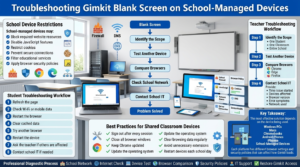
Troubleshooting School-Managed Devices
Follow structured teacher and student troubleshooting workflows to identify school network restrictions, browser policy conflicts, and device-specific issues that may prevent Gimkit from loading correctly.
Many schools provide managed Chromebooks, Windows laptops, or tablets with administrative policies that limit browser settings and internet access.
These restrictions may:
Block required website resources.
Disable JavaScript features.
Restrict cookies.
Prevent secure connections.
Filter educational services through security software.
If multiple students using school-issued devices experience the same blank screen, individual troubleshooting is unlikely to solve the problem.
What Teachers Should Do
Confirm whether all affected students are using the same network.
Test Gimkit on a personal device connected to another internet connection.
Inform the school’s IT department if the issue appears network-wide.
Avoid changing browser settings that are controlled by school administrators.
Teacher Troubleshooting Workflow
When an entire class reports blank screens, use a structured approach instead of troubleshooting each device separately.
Step 1: Identify the Scope
Ask:
Is only one student affected?
Is one classroom affected?
Is the entire school affected?
This helps determine whether the issue is local or network-wide.
Step 2: Test Another Device
If Gimkit works on a personal laptop or smartphone, the problem is likely related to school hardware or network policies.
Step 3: Compare Browsers
If Chrome fails but Edge or Firefox works, browser configuration is the likely cause.
Step 4: Contact School IT
Provide details such as:
Time the issue started.
Devices affected.
Browser versions.
Error symptoms.
Whether the issue occurs on other networks.
This information allows IT staff to diagnose firewall, DNS, or content-filtering issues more efficiently.
Student Troubleshooting Workflow
Students can often resolve the issue independently by following a simple sequence:
Refresh the page.
Check Wi-Fi or mobile data.
Restart the browser.
Clear cached data.
Try another browser.
Restart the device.
Ask the teacher whether other classmates are experiencing the same issue.
Report persistent problems to the school’s IT support if necessary.
Avoid repeatedly entering game codes or refreshing the page dozens of times, as this rarely resolves the underlying issue.
Best Practices for Shared Classroom Devices
Shared computers and Chromebooks are more likely to develop browser-related issues because multiple users sign in and out throughout the day.
To reduce future problems:
Sign out after every session.
Close all browser windows before another student logs in.
Keep Chrome and the operating system updated.
Clear browsing data periodically.
Avoid installing unnecessary browser extensions.
Restart devices at the beginning of each school day.
These simple maintenance habits improve browser stability and reduce classroom disruptions.
Key Takeaway
The most effective solution depends on the device being used. Windows PCs, Macs, Chromebooks, Android phones, iPhones, and school-managed devices each have unique browser settings and security policies that can affect how Gimkit loads. By applying device-specific troubleshooting instead of generic fixes, teachers and students can identify the real cause more quickly and restore access with minimal downtime.
How to Prevent the Gimkit Blank Screen in the Future
Direct Answer: The best way to prevent Gimkit from showing a blank screen is to keep your browser updated, clear outdated website data periodically, use a reliable internet connection, and avoid browser extensions that interfere with modern web applications.
Preventive maintenance takes only a few minutes but can eliminate many of the issues that commonly interrupt classroom activities. Schools using shared computers or Chromebooks should also establish routine browser maintenance to keep devices performing consistently throughout the academic year.
Best Practices for Teachers
Teachers often rely on Gimkit during live lessons where even a short interruption can affect the entire class. Preparing devices before class helps avoid unexpected technical problems.
Teacher Preparation Checklist
Update your browser before important classroom sessions.
Test Gimkit several minutes before students join.
Keep only necessary browser tabs open.
Use a stable and high-speed internet connection.
Have a backup device available for emergencies.
Verify that classroom network filters are not blocking educational websites.
Encourage students to use supported browsers.
Testing the platform before class begins allows time to resolve small issues without disrupting instruction.
Best Practices for Students
Students can reduce the likelihood of loading problems by following a few simple habits.
Student Checklist
Restart your device regularly.
Avoid opening dozens of browser tabs while playing.
Keep Chrome, Edge, Firefox, or Safari updated.
Use a reliable Wi-Fi connection whenever possible.
Avoid installing unnecessary browser extensions.
Sign out properly after each session on shared devices.
Refresh the page only after confirming your internet connection is working.
These practices improve overall browser stability and reduce unexpected loading errors.
Common Mistakes That Cause Blank Screen Issues
Many loading problems are unintentionally created by user actions.
Avoid these common mistakes:
Using unsupported or outdated browsers.
Ignoring browser update notifications.
Installing multiple ad-blocking or privacy extensions.
Running several browser windows with limited system memory.
Joining Gimkit on unstable public Wi-Fi.
Keeping corrupted cached files for long periods.
Attempting repeated page refreshes without checking the real cause.
Recognizing these habits can prevent recurring issues and make troubleshooting much easier.
Troubleshooting Decision Matrix
Problem You Notice
Most Likely Cause
Recommended Solution
Completely white screen
Browser rendering issue
Hard refresh and update browser
Black screen after login
Expired session or cache
Sign out, clear cache, and sign in again
Infinite loading spinner
Slow or unstable internet
Check your connection and reload the page
Works in Incognito Mode
Browser extension conflict
Disable extensions one at a time
Multiple students affected
School network restriction
Contact school IT administrator
Only one device affected
Device or browser configuration
Update browser and clear site data
Works on mobile but not computer
Desktop browser issue
Reset or reinstall the browser
Fails on every device
Temporary Gimkit service issue
Wait and try again later
This table provides a quick reference for identifying the most likely cause based on the symptoms you observe.
Complete Troubleshooting Workflow
Blank Screen Appears
        │
        ▼
Refresh the Page
        │
        ▼
Check Internet Connection
        │
        ▼
Open in Incognito Mode
        │
        ▼
Clear Cache & Cookies
        │
        ▼
Disable Extensions
        │
        ▼
Update Browser
        │
        ▼
Restart Device
        │
        ▼
Try Another Browser or Device
        │
        ▼
Check for School Network Restrictions
        │
        ▼
Verify Gimkit Service Status
        │
        ▼
Issue Resolved
Following the workflow in order helps isolate the cause efficiently instead of relying on random troubleshooting.
Quick Summary
A Gimkit blank screen is usually a loading issue rather than an account problem. Browser cache corruption, outdated software, extension conflicts, unstable internet connections, school network restrictions, and temporary platform outages are the most common causes. Most users can resolve the issue by refreshing the page, clearing browser data, updating their browser, disabling conflicting extensions, or testing another device. Preventive maintenance and regular browser updates help reduce the likelihood of future interruptions.
Quick Review of Expert Conciquences for your Best experience
Why Is Gimkit Showing a Blank Screen is often caused by a temporary browser loading problem that prevents the website from displaying properly.
Why Is Gimkit Showing a Blank Screen may occur when the internet connection is unstable or frequently disconnects during loading.
Why Is Gimkit Showing a Blank Screen can happen if an outdated browser is missing modern web features required by the platform.
Why Is Gimkit Showing a Blank Screen is sometimes related to corrupted browser cache or outdated temporary website files.
Why Is Gimkit Showing a Blank Screen may appear when browser cookies are blocked or disabled.
Why Is Gimkit Showing a Blank Screen can result from JavaScript being disabled in the browser settings.
Why Is Gimkit Showing a Blank Screen is commonly linked to browser extensions that interfere with website scripts.
Why Is Gimkit Showing a Blank Screen may happen when ad blockers prevent essential resources from loading.
Why Is Gimkit Showing a Blank Screen can occur if strict privacy settings block required website functions.
Why Is Gimkit Showing a Blank Screen may indicate a temporary server-side issue affecting multiple users simultaneously.
Why Is Gimkit Showing a Blank Screen can appear during scheduled maintenance or temporary service interruptions.
Why Is Gimkit Showing a Blank Screen sometimes results from school-managed devices that restrict browser permissions.
Why Is Gimkit Showing a Blank Screen may occur because school network filters block important website resources.
Why Is Gimkit Showing a Blank Screen can happen when firewall or security software interrupts secure website connections.
Why Is Gimkit Showing a Blank Screen may appear if browser security settings prevent required scripts from running.
Why Is Gimkit Showing a Blank Screen sometimes affects older Chromebooks that no longer receive browser updates.
Why Is Gimkit Showing a Blank Screen can result from insufficient available device memory while loading interactive content.
Why Is Gimkit Showing a Blank Screen may occur when multiple browser tabs consume excessive system resources.
Why Is Gimkit Showing a Blank Screen can sometimes be resolved by refreshing the webpage after the connection stabilizes.
Why Is Gimkit Showing a Blank Screen may disappear after clearing browser cache and temporary website data.
Why Is Gimkit Showing a Blank Screen can often be diagnosed by testing the website in another supported browser.
Why Is Gimkit Showing a Blank Screen may indicate browser compatibility issues that require updating to the latest version.
Why Is Gimkit Showing a Blank Screen sometimes occurs when browser permissions restrict website storage or cookies.
Why Is Gimkit Showing a Blank Screen may be related to VPNs or proxy services interfering with secure connections.
Why Is Gimkit Showing a Blank Screen can affect only one browser while working normally in another browser.
Why Is Gimkit Showing a Blank Screen may result from incomplete page loading caused by interrupted network requests.
Why Is Gimkit Showing a Blank Screen sometimes resolves after restarting the browser or the device completely.
Why Is Gimkit Showing a Blank Screen may occur if browser profiles become corrupted over time.
Why Is Gimkit Showing a Blank Screen can happen when antivirus software mistakenly blocks website components.
Why Is Gimkit Showing a Blank Screen may affect only school accounts because of administrative network restrictions.
Why Is Gimkit Showing a Blank Screen becomes easier to diagnose by checking whether classmates experience the same issue.
Why Is Gimkit Showing a Blank Screen may indicate that network administrators need to review school internet filtering policies.
Why Is Gimkit Showing a Blank Screen can often be isolated by testing the platform on another device using the same network.
Why Is Gimkit Showing a Blank Screen may disappear when switching temporarily to a different internet connection.
Why Is Gimkit Showing a Blank Screen is less likely to occur when browsers and operating systems remain fully updated.
Why Is Gimkit Showing a Blank Screen highlights the importance of using officially supported browsers for classroom activities.
Why Is Gimkit Showing a Blank Screen can usually be resolved by identifying whether the problem originates from the browser, device, network, or server.
Why Is Gimkit Showing a Blank Screen reminds teachers to verify both device settings and classroom network configuration before troubleshooting individual students.
Why Is Gimkit Showing a Blank Screen should be investigated systematically instead of changing multiple browser settings at once.
Why Is Gimkit Showing a Blank Screen is typically resolved by checking browser compatibility, internet stability, cache, extensions, school network restrictions, and temporary service availability. A structured troubleshooting process helps teachers and students identify the actual cause quickly and restore normal classroom access.
Why Is Gimkit Showing a Blank Screen may occur if the browser blocks essential cookies needed to load classroom sessions correctly.
Why Is Gimkit Showing a Blank Screen can happen when browser permissions prevent important website resources from loading completely.
Why Is Gimkit Showing a Blank Screen is sometimes caused by outdated browser settings that are incompatible with newer web technologies.
Why Is Gimkit Showing a Blank Screen may appear after a browser update if conflicting extensions remain enabled.
Why Is Gimkit Showing a Blank Screen can result from unstable Wi-Fi that interrupts page loading before all resources are downloaded.
Why Is Gimkit Showing a Blank Screen becomes more likely when the device has very limited available memory during gameplay.
Why Is Gimkit Showing a Blank Screen may occur if background applications consume excessive system resources while the platform is loading.
Why Is Gimkit Showing a Blank Screen can affect only one user when browser data becomes corrupted over time.
Why Is Gimkit Showing a Blank Screen may indicate that browser security software is preventing required scripts from running.
Why Is Gimkit Showing a Blank Screen sometimes disappears after signing out and logging back into the account.
Why Is Gimkit Showing a Blank Screen can occur when the browser session has expired and requires a fresh login.
Why Is Gimkit Showing a Blank Screen may happen if classroom devices have restrictive administrative policies that limit website functionality.
Why Is Gimkit Showing a Blank Screen often affects multiple students when the school’s internet filter blocks required website resources.
Why Is Gimkit Showing a Blank Screen can be identified by testing the same account on another supported device.
Why Is Gimkit Showing a Blank Screen may be related to browser compatibility when older software versions are still in use.
Why Is Gimkit Showing a Blank Screen becomes easier to diagnose by checking whether other educational websites load normally.
Why Is Gimkit Showing a Blank Screen may indicate a temporary interruption affecting the platform rather than the user’s device.
Why Is Gimkit Showing a Blank Screen can sometimes be resolved by disabling unnecessary browser extensions before loading the site.
Why Is Gimkit Showing a Blank Screen may occur if secure website connections are interrupted by network security software.
Why Is Gimkit Showing a Blank Screen highlights the importance of using a reliable and modern web browser for classroom activities.
Why Is Gimkit Showing a Blank Screen becomes less common when browsers, operating systems, and school devices receive regular updates.
Why Is Gimkit Showing a Blank Screen may require teachers to verify that all students are using supported browser versions.
Why Is Gimkit Showing a Blank Screen often has a simple technical cause rather than a problem with the user’s account.
Why Is Gimkit Showing a Blank Screen should be investigated methodically by checking the browser, device, internet connection, and school network one step at a time.
Why Is Gimkit Showing a Blank Screen can frequently be prevented through regular browser maintenance and software updates.
Why Is Gimkit Showing a Blank Screen reminds educators to test classroom technology before beginning important learning activities.
Why Is Gimkit Showing a Blank Screen may affect only specific classrooms if local network policies differ across school buildings.
Why Is Gimkit Showing a Blank Screen encourages schools to maintain compatible devices and updated browsers for reliable digital learning.
Why Is Gimkit Showing a Blank Screen becomes easier to resolve when teachers document recurring issues and identify common technical patterns.
Why Is Gimkit Showing a Blank Screen ultimately results from browser, device, network, or temporary service-related factors rather than a single universal cause. By checking each possibility systematically, teachers and students can identify the issue quickly, minimize classroom disruption, and restore access to learning activities with greater confidence.
Why Is Gimkit Showing a Blank Screen may occur after major browser updates until cached website files are refreshed or replaced with newer versions.
Why Is Gimkit Showing a Blank Screen can often be confirmed as a network issue when the platform works normally on a different internet connection.
Why Is Gimkit Showing a Blank Screen reminds teachers to verify classroom devices before lessons, reducing unexpected technical interruptions during instructional time.
Why Is Gimkit Showing a Blank Screen is usually easier to resolve when troubleshooting follows a simple order: browser, cache, extensions, internet connection, device, and school network settings.
Why Is Gimkit Showing a Blank Screen ultimately emphasizes that most loading problems are temporary and can be resolved by updating the browser, clearing cached data, checking network restrictions, and ensuring the device meets the platform’s current compatibility requirements.
Frequently Asked Questions
How do I know if the problem is on Gimkit’s servers?
When Gimkit suddenly stops working, the issue is not always caused by your device or internet connection. Occasionally, the platform may experience temporary server outages, maintenance, or service disruptions that affect users worldwide. If multiple people at your school or in different locations are unable to access Gimkit at the same time, the problem may be on Gimkit’s servers rather than your own system.
Before troubleshooting your device, check whether the issue is widespread. This can save time and prevent unnecessary changes to your browser or network settings. If the servers are unavailable, the best solution is usually to wait until the service is restored.
The website fails to load on different devices and networks.
Friends or colleagues report the same problem.
Login requests continuously fail despite a stable internet connection.
The platform was working normally before suddenly becoming unavailable.
Official announcements mention maintenance or temporary outages.
Is the blank screen always caused by Gimkit?
No. A blank or white screen does not automatically mean there is a problem with Gimkit. In many cases, the issue is caused by the web browser, corrupted cache files, outdated software, browser extensions, unstable internet connections, or school network restrictions. These local issues can prevent the website from loading correctly even when Gimkit’s servers are operating normally.
The best approach is to test the website in another browser, open it in a private browsing window, or try another device. If Gimkit works elsewhere, the problem is likely related to your browser or computer rather than the platform itself.
Common causes of a blank screen:
Corrupted browser cache or cookies.
Outdated browser version.
Internet connection problems.
Conflicting browser extensions.
School firewall restrictions.
Temporary loading errors.
Can school Wi-Fi block Gimkit?
Yes. Many schools use internet filtering systems and firewalls to control which websites students can access. If Gimkit has been accidentally categorized as a restricted site or blocked by the school’s network administrator, it may fail to load even though it works perfectly on other internet connections.
If Gimkit opens successfully on your mobile data or home Wi-Fi but not on your school’s network, the school’s internet filter is a likely cause. In this situation, students should contact their teacher or school IT department instead of attempting to bypass network restrictions.
Signs your school network may be blocking Gimkit:
Gimkit works on mobile data but not school Wi-Fi.
Other educational gaming websites are also unavailable.
Only students on the school network experience the issue.
The browser displays access denied or connection errors.
Teachers report similar problems in multiple classrooms.
The issue disappears when using a different network.
Should I reinstall my browser?
Reinstalling your browser is rarely the first solution. Most Gimkit loading problems can be resolved by updating the browser, clearing cached files, disabling problematic extensions, or resetting browser settings. These simpler troubleshooting steps often solve the issue without requiring a complete reinstall.
If problems continue after trying basic fixes and other websites also fail to function correctly, reinstalling the browser may help repair damaged program files. However, it should generally be considered a last resort rather than the first troubleshooting step.
Try these solutions first:
Update your browser to the latest version.
Clear cache and cookies.
Disable browser extensions.
Test Gimkit in Incognito or Private Mode.
Restart your computer.
Try a different browser before reinstalling.
Why does Gimkit work on my phone but not my laptop?
If Gimkit works on your phone but not on your laptop, the issue is usually specific to your computer rather than your account. Different browsers, operating systems, extensions, security software, and cached files can affect how websites load. Since your phone successfully accesses the platform, your internet connection and Gimkit account are likely functioning correctly.
Compare the environments on both devices to identify the difference. Updating the browser, disabling extensions, or clearing browser data often resolves the issue without requiring advanced technical support.
Possible reasons your laptop isn’t working:
Outdated web browser.
Corrupted cache or cookies.
Browser extension conflicts.
Security software blocking website content.
School network restrictions.
Unsupported browser settings.
Does clearing cache delete my Gimkit account?
No. Clearing your browser’s cache does not delete your Gimkit account, saved classes, assignments, quizzes, or progress. Cache files only store temporary website data that helps pages load more quickly. Removing these files simply forces your browser to download fresh copies of website content the next time you visit.
You may need to sign back into your account after clearing cookies, but all account information remains securely stored on Gimkit’s servers. Clearing cache is one of the safest and most common troubleshooting methods for resolving loading problems.
Clearing cache will:
Remove temporary website files.
Refresh stored page data.
Fix some loading problems.
Improve website performance after updates.
Require you to log in again in some cases.
Not delete your Gimkit account or classroom data.
Can browser extensions cause Gimkit to stop loading?
Yes. Some browser extensions can interfere with how Gimkit loads and functions. Ad blockers, script blockers, privacy tools, antivirus browser add-ons, VPN extensions, and content-filtering software may accidentally block important website resources, causing incomplete loading, blank screens, or broken features.
If you suspect an extension is causing the problem, open Gimkit in a private browsing window where most extensions are disabled by default. If the site loads correctly, re-enable extensions one at a time to identify the conflicting add-on.
Extensions that commonly cause issues:
Ad blockers.
Script-blocking extensions.
Privacy protection tools.
VPN browser extensions.
Security or antivirus add-ons.
Website filtering software.
Why is Gimkit only showing a white screen?
A white screen usually indicates that the webpage failed to load completely rather than the website being permanently unavailable. This may happen because essential website files were blocked, interrupted, or failed to load correctly. Browser problems, internet interruptions, extension conflicts, or temporary server issues are among the most common causes.
Start with simple troubleshooting steps before assuming the platform is down. Refresh the page, clear your browser cache, disable extensions, update your browser, or test another device. If the problem continues across multiple devices and networks, the issue may be related to Gimkit’s servers.
Steps to fix a white screen:
Refresh the webpage.
Clear browser cache and cookies.
Disable browser extensions.
Update your browser.
Restart the browser or computer.
Test another browser or device.
Check whether Gimkit is experiencing a temporary outage.
Final Conclusion
A blank screen in Gimkit may seem like a major problem, but it is usually the result of a browser, network, or device issue that can be resolved with a structured troubleshooting approach. Rather than trying random fixes, start with the simplest solutions—refresh the page, verify your internet connection, clear cached data, disable browser extensions, and update your browser. If the problem persists, compare devices, test another browser, and consider whether school network policies or a temporary platform issue could be responsible.
For teachers, routine browser maintenance and pre-class testing can prevent disruptions during live activities. For students, keeping devices updated and using supported browsers provides the most reliable experience. By understanding both the causes and the correct troubleshooting workflow, you can resolve blank screen errors quickly and return to learning with minimal interruption.