Gimkit Assignment: Complete Guide to Homework, Goals & Results
Gimkit Assignments let educators provide independent game-based practice that students can complete on their own time, using a compatible 2D game mode and a defined completion objective.
Learn how to create and share an assignment, select suitable goals, understand the difference between class-connected and direct-link participation, confirm student completion and interpret the results that Gimkit actually records.
Our exclusive Assignment Readiness & Completion Evidence Lab helps educators prepare a configuration before publishing it, simulate cash-versus-question goal outcomes, organise anonymous completion observations and generate a reliable student handoff checklist.
Pro entitlement checksSolo-compatible 2D modesCash vs question goalsAssignment linksCompletion confirmationResults evidence
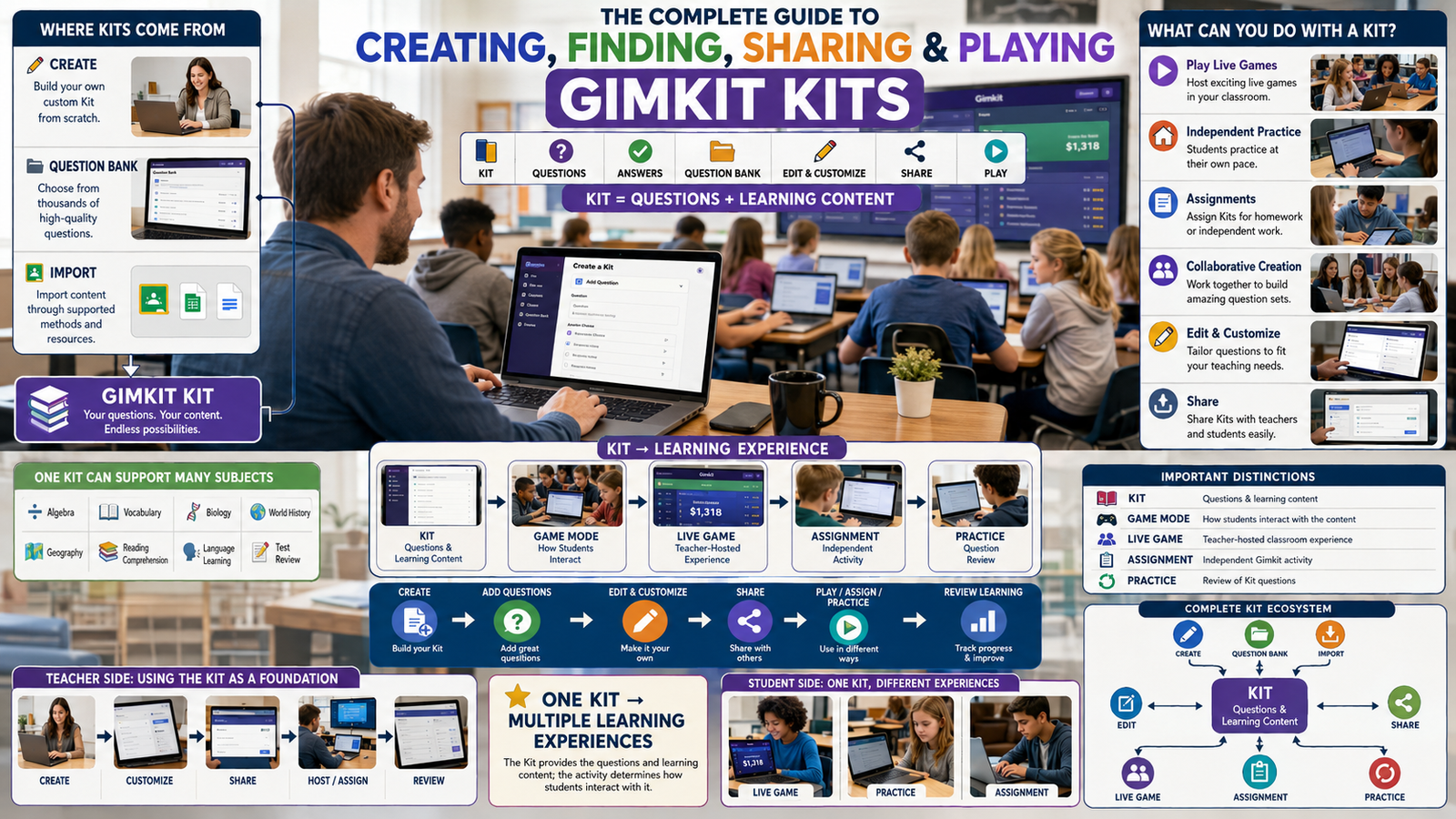
The official assignment lifecycle
Conceptual reference, not an embedded Gimkit dashboard.
01
Select a Kit
Choose the educational questions to practise.
02
Select an eligible game mode
Assignments require a solo-capable 2D mode.
03
Confirm settings and goals
Review carefully before creation.
04
Share the assignment
Use the actual direct link or connected Class.
05
Verify completion and results
Use Gimkit's official Results and Reports views.
Direct Answer
What is a Gimkit Assignment?
A Gimkit Assignment is an asynchronous activity created by an educator so students can independently practise a Kit through a supported 2D game mode. Instead of joining a teacher-hosted live round at the same time, students use an assignment link or their connected Class dashboard and work toward an assigned goal.
Gimkit's official Assignments Explained documentation states that creating assignments requires Gimkit Pro. A teacher using an eligible Pro subscription or an applicable active Pro trial can access the feature, subject to the actual account entitlement shown in the official service.
The setup begins by selecting a Kit and an assignment-compatible game mode. The official instructions explain that assignments support 2D modes that do not require a team or group to play. A mode that depends on multiplayer cooperation cannot automatically be treated as an eligible independent homework experience.
After choosing a mode, the educator configures its available options. Many assignment configurations include a primary cash goal and an optional question goal. Reaching whichever configured goal comes first completes the assignment. Other compatible modes may use a mode-specific primary objective, such as a summit goal, so the exact available options must be checked in the official mode picker.
A due date and optional Class association can be part of the setup. Connecting Classes improves student visibility, completion tracking and progress-saving features. However, a direct assignment link can also be used without a connected Class, and students do not universally need accounts merely to open and play an assignment.
Completion has a specific meaning. According to Gimkit's official Complete an Assignment article, the student must reach the configured completion goal and see the Assignment Complete message followed by the results screen.
The teacher can then open the assignment's Results view and related report information. Results can be organised by completion status, with additional capabilities when Classes are attached.
This page's interactive application focuses on the decisions and evidence surrounding that process. It does not host an assignment, change official settings, create an authenticated classroom roster or falsely mark a real student as complete.
Important: Assignment goals and settings cannot be changed after creation according to the official Help Center. The assignment title can be renamed, but that is not equivalent to editing its goals. Verify the configuration before publishing.
01 / PREPARATION
Check assignment readiness
Evaluate Pro entitlement, Kit preparation, mode eligibility, goal configuration and sharing requirements before creating an assignment.
02 / COMPLETION
Understand goal outcomes
Simulate when the configured primary objective or optional question goal would complete the task.
03 / EVIDENCE
Review completion responsibly
Separate work in progress, completed attempts and verified teacher reports using anonymous research observations.
Exclusive Interactive Assignment Application
Assignment Readiness & Completion Evidence Lab
Build an independent pre-creation worksheet, see exactly what needs checking before publication, test how goal completion works and record anonymous results-verification observations without collecting actual student names or claiming access to Gimkit's reports.
This application is a local planning and simulation tool. It cannot create a real assignment, inspect an educator's subscription, check current mode availability or read student reports.
1. Define the assignment before creating it
A local working title; it does not rename anything in Gimkit.
Enter only a Kit title; no student information is needed.
Use the value actually supported by the selected mode's assignment form.
Only model this when the selected mode offers the option.
The real due date is configured inside Gimkit.
Pre-publication verification
0/6Verification checks completed
0Critical setup issues
0Anonymous evidence records
Not runGoal simulation status
2. Assignment readiness assessment
3. Student handoff message preview
This message contains no actual assignment link. Copy the real link from Gimkit's Share section after creation.
4. Explore the documented first-goal completion rule
For assignments supporting a primary cash goal and optional question goal, reaching either configured target first ends the assignment. Some modes use other primary objectives; the simulator can represent their numeric targets, but it does not simulate actual mode mechanics.
Primary goal
0 / 1,0000%
Enter incremental progress below.
Optional question goal
0 / 200%
The question goal completes the assignment when reached first.
5. Local progress-event history
Order limitation: If one manually entered step crosses both targets simultaneously, this simulator reports an ambiguous first goal. It cannot infer which target the real game processed first. An actual assignment is complete only when Gimkit displays its official completion screen.
6. Record anonymous completion-check observations
Use generic slot labels such as Learner A or Record 1. This is an independent verification worksheet, not a student roster or an imported Gimkit report. Do not enter actual names, emails, IDs or private performance data.
Use fictional, non-identifying labels only.
7. Evidence quality summary
8. Result interpretation guardrails
CompletedOfficial status
Use Gimkit's completion screen and the teacher's Results view to establish completion. Do not mark real work completed merely because a modelled cash or question value reached a threshold.
Working On ItProgress in process
The learner may have begun but has not completed the configured goal. Connected Classes give teachers more useful status visibility than an unconnected link alone.
Has Not StartedRoster context
For connected Classes, the Results view can identify students who have not begun the assignment. This is different from assuming every missing result means a student has done no work.
Repeated attemptsReporting distinction
The official Results and Reports help articles describe different attempt visibility. Verify the actual view instead of treating all attempts as universally visible in every report.
9. Export an independent assignment planning report
The backup contains only locally generated planning data. It cannot create, modify, complete or recover any actual Gimkit Assignment.
What makes this an Assignment-specific application?
This Lab focuses on the information an educator needs to decide before creating an independent assignment, rather than reproducing a generic calendar, a Kit editor or the hosting controls of a live game. It recognises that assignment creation involves several commitments whose effects differ from ordinary classroom hosting.
The first part evaluates the educator's Pro access, the Kit reference, the selected mode's solo compatibility, primary and optional goals, due-date decision, Class connection and student access route. Each input is separate because the teacher may be ready in one respect while still having an unresolved problem in another.
The pre-publication checks are particularly important because official assignment goals and settings cannot be edited after creation. The application distinguishes this restriction from the ability to rename an assignment title. It can flag the need to create a new correctly configured assignment, but it cannot change the original.
The Goal Simulator models a documented completion rule: reaching either configured goal first ends the task. It uses incremental event records rather than pretending to calculate actual Gimkit game cash, movement or question performance. If both goals cross during the same simulated event, the outcome is marked ambiguous instead of inventing an order.
The Evidence Worksheet helps an educator preserve anonymous observations. A record can be identified as an unverified claim, a progress observation or a completion confirmed in the official interface. The worksheet does not replace the authenticated Results tab.
For privacy, it is designed around non-identifying record labels. Actual student rosters, emails, personally identifiable performance information and credentials should remain in the appropriate school-approved system rather than being copied into an independent browser-local worksheet.
The tool also generates a student-facing handoff draft. It identifies the working title, learning purpose, due-date reference, completion objective and need to use the actual assignment link copied from Gimkit. The generated message does not include an invented live link.
Finally, the report and export functions collect the local preflight decisions and evidence notes. The tool uses browser-local storage where available, supports undo, and validates its own JSON backup format before restoring data.
Scope boundary: No real assignment is created by this Lab. It cannot verify a subscription, change an existing goal, submit student answers, produce an official completion screen or read the school's authenticated Gimkit reports.
Part One — Assignment Fundamentals
Understanding what makes Gimkit Assignments different
1. An assignment is asynchronous gameplay built around a Kit
A Gimkit Assignment lets students practise selected question content independently rather than joining a live game controlled by a teacher at the same moment. The educator creates the activity from a Kit, chooses a supported mode and sets an objective that indicates when the assignment is complete.
This makes an assignment useful for circumstances where students cannot all participate simultaneously. A student may begin at home, during independent work time or as part of a remote-learning arrangement, subject to the conditions of the selected assignment and their access route.
The underlying Kit provides the educational questions. The compatible 2D mode supplies the gameplay environment. The assignment configuration combines those elements with completion conditions and distribution options. Understanding these components separately prevents the assignment from being confused with an ordinary Kit link or an invitation to a teacher-hosted live session.
2. Assignments are a Gimkit Pro feature
Gimkit's official Assignments Explained documentation states that the feature is available to paid Gimkit Pro members. Its Pro FAQ also identifies Assignments as a feature that distinguishes Pro from the free Gimkit Basic plan.
A teacher should therefore check the subscription status of the actual educator account before planning an assignment workflow around this feature. A new educator account may have access through a trial, but an expired trial should not be treated as active Pro.
The Lab models entitlement as a manually confirmed state. Selecting Active Pro or Active Pro trial indicates a teacher's reported situation; it does not connect to account billing or authenticate whether the feature is enabled. Detailed subscription purchasing and renewal questions belong to the dedicated Pro and Pricing resources.
3. Assignments are not equivalent to hosting a live round
A traditional live game requires the host and participating students to join a particular session. The teacher starts and manages the game, and students participate in a shared activity according to the selected mode's rules.
An assignment instead allows each student to work through a compatible mode on their own. The work is designed around an assigned objective rather than the real-time decisions of a shared host lobby.
The difference affects how educators plan participation. A collaborative game that depends on multiple active players may work well for live classroom interaction but not for an individual assignment. Conversely, a solo-compatible 2D experience can let students practise independently. The Assignment Lab therefore checks solo compatibility rather than relying on a general claim that every Gimkit mode supports homework.
4. Not every 2D mode is assignment-compatible
The official Assignments Explained article explains that assignments use 2D game modes that do not require a team or group to play. This narrows the eligible selection compared with the complete catalogue of game modes.
A mode may be attractive for classroom review while remaining unsuitable for independent completion if its rules depend on cooperative or competitive interactions among multiple players. Simply being labelled 2D is not sufficient proof of assignment eligibility.
The correct verification point is the actual assignment mode picker. The Lab includes a separate state for a solo-compatible mode confirmed there, along with ineligible group-dependent and non-2D categories. It does not publish a permanently exhaustive mode list that could become outdated when Gimkit adds or modifies experiences.
5. Assignments can support homework, revision and remote learning
The official documentation identifies distance learning, independent study and homework as common purposes for assignments. These uses share an important requirement: the learner must be able to work without the teacher continuously hosting a live session.
The instructional purpose should influence the selected Kit and goal. Revision after a lesson may focus on recalling key terms. Homework can extend practice beyond class. A remote learner may benefit from a task that can be resumed later when supported by the Class connection.
The Assignment Lab records the intended learning purpose to keep the educator's design decision visible. It does not assume that the same mode and goal will be appropriate for every subject, age group or accessibility requirement.
6. A Kit is the educational foundation of the assignment
Gimkit's creation workflow starts with selecting a Kit. That Kit supplies the questions the student will answer during the independent activity, while the mode determines how those questions are incorporated into gameplay.
A poorly prepared Kit can undermine an assignment even when every technical setting is correct. Incorrect answer keys, ambiguous wording or material that students have not been prepared to practise can create difficulties that are unrelated to the assignment feature itself.
Before publication, the teacher should review the selected Kit for accuracy and suitability. The Lab includes a Kit review confirmation but does not edit questions, verify answer keys or duplicate the dedicated Kits and Create tools elsewhere on the site.
7. A completion goal defines when the activity ends
An assignment does not become complete merely because a student has opened its link or spent a certain amount of time on the page. The relevant condition is the objective configured for that assignment.
Official documentation describes cash goals and optional question goals for many modes. It also recognises mode-specific objectives. The student completes the task when the applicable configured completion condition is met and the service displays the completion screen.
This makes goal selection a core design decision. An objective that is too easily reached may produce a short activity, while a difficult objective may require more time than the teacher intended. The Lab provides a goal simulator so educators can understand the logical relationship between targets without pretending to predict actual gameplay difficulty.
8. The assignment lifecycle extends beyond creation
Creating an assignment is only the first stage of the workflow. The teacher also needs to distribute access, explain the completion condition, allow students to participate and inspect results after work begins.
These later stages are important because a technically valid assignment may still be difficult for students to find or interpret. A connected Class may display the assignment on a dashboard, but students might need to adjust due-date filters. A direct link may be easier to distribute, but it does not provide all the same organised Class tracking features.
The Lab separates preparation, goal simulation and evidence review so educators can address the whole lifecycle without confusing the three responsibilities.
Part Two — Creating Assignments
How to create a Gimkit Assignment step by step
9. Start from the authenticated educator Dashboard
An educator begins from the Gimkit Dashboard while signed into the account that has the appropriate assignment entitlement. The official Create an Assignment guide describes using the Assign HW button next to a Kit as one available creation path.
This route is convenient when the teacher has already selected the educational content and wants to turn it into an independent activity. The Kit serves as the source for the questions, so the educator can proceed directly to choosing a compatible game mode.
A second official creation path starts in the Assignments section. In that case, the educator selects the Kit during the creation process. The Assignment Lab covers the decisions required either way; it does not recreate authenticated Dashboard navigation.
10. Choose the Kit before the mode
The order of the official creation flow matters. The teacher selects the Kit to establish what students will practise, then selects the assignment mode and its settings.
Thinking about the content first can improve the instructional design. A teacher should know whether the questions support recall, application, reinforcement or another learning objective before deciding how much game progress to require.
A long list of questions is not automatically better than a carefully selected set. The goal should match the material and the time students reasonably have to complete it. The Lab records the Kit title as a planning reference and asks for confirmation that its question content has been reviewed.
11. Select a supported mode from the assignment picker
After selecting the Kit, the official workflow opens the mode picker. The educator chooses an available game mode and continues to the assignment options.
Gimkit's documentation specifies that assignment modes must support independent play. This means an educator should not select an arbitrary live multiplayer mode and assume that the system can convert it into homework without changing the required player interactions.
The current picker is the strongest practical source for available modes. A guide written months earlier may not reflect every new or retired option. The Lab therefore includes a separate confirmation checkbox for checking the live assignment picker rather than claiming that a static third-party list provides permanent eligibility.
12. Different modes can expose different assignment options
Gimkit's creation article explains that many assignments have a cash goal and an optional question goal, while the detailed options depend on the selected mode. Some compatible 2D experiences have a distinctive primary objective rather than an ordinary cash target.
For example, Gimkit's Don't Look Down documentation explains that assignments using that mode can specify which summit the student should climb toward. The mode also uses a question goal option.
An educator should therefore verify the controls displayed for the specific mode rather than assuming that every assignment uses identical cash, movement and progress measurements. The Lab models the goal structure conceptually and labels mode-specific objectives clearly.
13. Set the primary assignment objective carefully
The primary objective is the task condition the selected mode uses to determine successful completion. For many modes this may be a cash goal, while another mode can use an alternative objective that fits its mechanics.
The chosen number needs to be meaningful in relation to the selected Kit and the expected amount of independent practice. A target is not simply a decoration on the assignment form; it determines when the student's activity can conclude.
Because the settings cannot be changed after creation according to the Help Center, the teacher should review the target before publishing. The Lab asks for an explicit confirmation of the objective and its value to encourage a deliberate pre-publication check.
14. Decide whether to include a question goal
Gimkit's Create an Assignment and Complete an Assignment articles describe an optional question goal for configurations that support it. When enabled alongside another completion goal, it gives the student an additional way to finish.
The key logical consequence is that the assignment ends when either configured goal is reached first. That does not mean students must complete both targets.
An educator who wants a particular amount of question practice should consider this interaction before creation. The Lab's Goal Simulator demonstrates how one target can end the activity before the other has been reached. It does not promise that every mode exposes the same optional setting.
15. Confirm the due date and distribution method
The official creation interface includes due-date and Class options. A due date helps organise the assignment, and a Class connection can make the task visible on student dashboards.
The teacher should consider whether students need time to complete the activity outside school, whether some learners will rely on shared devices and whether there are other relevant classroom deadlines.
The published documentation explains that past-due assignments can be identified in the teacher's list and that due-date filters influence student visibility. It does not establish one universal late penalty or automatic grade reduction for every task. The Lab records the planned date but avoids inventing a strict cutoff rule.
16. Review before creation because settings are not editable later
The Share & Manage Assignments article explicitly states that assignment settings cannot be changed after creation. The Complete an Assignment article likewise says the cash and question goals cannot be changed afterward.
This creates a significant difference between planning and publishing. A teacher who notices an inappropriate goal before creation can adjust the draft configuration. After creation, they should not expect an Edit Goals action that the official product does not document.
A new correctly configured assignment may be needed if the original settings are unsuitable. The Lab marks unresolved goal checks as a reason to hold publication and ensures its simulated configuration changes are never described as changes to an existing official assignment.
17. The assignment title can be changed separately
Gimkit creates a default assignment title by combining the Kit and mode names. The official management guide explains that the educator can open the assignment, click its title, enter a replacement and save.
This is a useful exception to the general restriction on changing assignment settings. A clearer title can help students recognise the task in their dashboard or assignment list.
However, renaming the activity does not modify the underlying Kit selection, goal values or mode rules. The Lab includes a working title field for planning purposes and makes clear that the teacher must use the actual title control in Gimkit to rename a real assignment.
18. A created assignment has its own shareable link
After the assignment is created, the teacher can copy its link from the official Share section. This link provides access to the particular assignment without requiring students to enter a live-game join code.
Gimkit's documentation says that an assignment has one shareable link even if multiple Classes are associated with it. This makes the distribution workflow different from managing several separate live sessions.
The educator should copy the real link from the actual assignment rather than constructing a plausible URL from the Kit title or another identifier. The Lab generates only a communication template with an explicit placeholder for the official link.
Part Three — Completion Objectives
Cash goals, question goals and the first-goal-wins rule
19. The primary goal defines a successful endpoint
A completion goal is the point at which the assignment's independent gameplay is considered finished. In many configurations, the primary measure is a cash target: the student works through the selected mode until the required game cash is reached.
This cash is a gameplay resource inside the selected mode. It is not automatically the same as account-level GimBucks used for cosmetic purchases. Confusing the two could produce an inaccurate description of both the assignment and the Rewards system.
Other modes may use a different primary objective. The appropriate unit and value must come from the actual assignment form. The Lab lets educators label the primary target accordingly rather than silently applying a cash formula to every mode.
20. A question goal provides an additional completion route
When a question goal is enabled, it specifies an amount of question progress that can independently complete the task. This is useful when the educator wants the assignment to include a clearly defined question-based endpoint.
The setting is optional in documented configurations, and its availability depends on the selected mode. It should not be assumed present or mandatory in every assignment interface.
The teacher must also understand that the question goal does not necessarily operate as a minimum requirement in addition to the primary goal. Where both are enabled, the official rule says the first completed target ends the assignment. The Lab explains that relationship through a sequence of simulated progress events.
21. Students do not have to satisfy both goals when either can end the task
A common misunderstanding is to read two visible targets as a requirement to finish both. Gimkit's documented completion logic is different: the first goal reached ends the assignment.
For example, if a cash goal is reached while the student remains below the question target, the cash completion condition can end the activity. The reverse is also true: enough completed questions can end the assignment before the cash goal is reached.
This matters for instructional planning. A teacher seeking a particular amount of exposure to the questions should not simply enable two targets without considering how soon either might be met. The simulator helps illustrate this relationship without inventing gameplay predictions.
22. The first target reached is a sequence-dependent result
Completion can depend on which objective is reached earlier during play. Two students may approach the same targets differently because their gameplay progress differs.
One student might accumulate the required cash first. Another might answer enough questions to reach the optional question goal before completing the primary objective.
A calculator receiving only the final values cannot always determine which happened first. This is why the Lab uses ordered simulated events. The visitor enters one progress step at a time, and the application records when a target is crossed. If both are crossed in one combined step, it reports that the first objective cannot be determined from that information.
23. A simulated goal crossing is not an official completion
The Lab can determine mathematically whether a hypothetical progress amount reaches a configured threshold. That result is useful for understanding the assignment's logic.
However, the simulation has no access to the real game state. It cannot know whether the student encountered an interruption, whether the game recorded progress or whether the selected mode applied additional rules.
Only the actual Gimkit assignment can provide a real completion confirmation. The official Complete an Assignment guide identifies an Assignment Complete message followed by the student's results screen as the decisive visible indication.
The Lab deliberately calls its outcome a simulated goal result rather than claiming to issue an official completion certificate.
24. Question goals should fit the available learning material
A question goal is most useful when it aligns with the instructional purpose and the content being practised. A very low target may end the activity before the student has had sufficient opportunity to revisit important concepts.
Conversely, a target that creates an unnecessarily long or repetitive task may be less appropriate for a short review session. The teacher should consider the number and complexity of questions, the intended practice time and whether learners need additional support.
The Lab can calculate when the target is mathematically reached, but it does not claim that a particular number is pedagogically ideal. That judgment belongs to the educator working with the actual Kit and learners.
25. Mode-specific objectives need their own interpretation
Some assignment-compatible 2D modes measure progress in a way that fits their distinctive gameplay. The official Don't Look Down documentation, for example, describes selecting a summit objective when assigning the mode.
Such a goal should not be converted into game cash merely because a general guide uses cash as its primary example. Doing so would misrepresent the actual mode.
The Lab therefore allows an alternative numeric primary goal for conceptual testing. This models the first-goal logic without recreating climbing physics or implying that all summit choices are interchangeable with a cash amount.
The exact available options remain determined by the official assignment picker.
26. Goal configuration is a pre-publication quality decision
The official Help Center repeatedly states that assignment goals cannot be changed after creation. As a result, goal selection deserves more attention than an ordinary temporary preference.
A teacher should verify the target number, the optional question goal, the selected mode's gameplay assumptions and the reason the assignment is being created.
A preflight worksheet is useful because it makes unresolved choices visible before the real assignment is published. The Lab treats unchecked goal validation as a significant readiness issue.
This approach avoids the misleading practice of building a complicated dashboard that appears to offer post-publication controls which Gimkit has not documented.
27. A due date is not a replacement for a completion objective
The due date and the assignment goal answer different questions. The goal defines what progress the student must achieve for completion, while the due date provides a reference for when the educator expects the work to be done.
Reaching the due date does not by itself prove that the student completed the assignment. Likewise, a student who finishes the required goal has reached the documented completion condition regardless of the mere existence of a future date.
The Help Center describes due-date filters and visual indicators, but the reviewed pages do not establish a universal rule for late penalties or automatic grading. The Lab therefore stores the planned due date as a reference and evaluates completion separately.
28. Goal evidence should come from the actual results screen
A student can report progress toward an assignment goal before completion. That can be useful information, but it is not the same as the assignment's official completed state.
The decisive student-side indication described by Gimkit is the completion message and the results screen that follows it. Teachers can then inspect the assignment's Results section.
The Lab's goal simulation does not create that message. Its separate Evidence Worksheet asks how a completion claim was observed and whether the official teacher view was checked.
This distinction helps educators avoid treating a promising progress screenshot or a manually entered number as conclusive proof of a completed assignment.
Part Four — Access and Distribution
Sharing Gimkit homework through Classes and assignment links
29. Gimkit provides one link for each assignment
The official Assignments Explained guide states that an assignment has one shareable link, even when the teacher connects it to multiple Classes. The link can be copied from the assignment's Share area.
This provides a straightforward distribution method because the educator does not need to generate a separate link for every connected Class. The same assignment remains the relevant activity.
However, the educator should not construct the URL manually or assume that a Kit page link will behave in the same way. A genuine assignment link should come from the authenticated assignment interface after the item has been created.
The Lab's student handoff message deliberately includes a placeholder instead of inventing an active destination.
30. A direct link can work without a connected Class
Gimkit's Share & Manage Assignments article explains that the direct assignment link can be shared with students even when the educator is not using connected Classes.
The article states that anyone visiting the assignment link can play the assignment and that completed attempts appear in the related results section.
This flexibility is useful for independent practice outside a formal Class roster. It does not imply that the teacher receives all the same roster-level tracking and progress-saving functionality available with connected Classes.
The Lab distinguishes Direct Link from Connected Class instead of treating them as two interchangeable versions of the same reporting experience.
An assignment linked to a Gimkit Class can appear on the dashboards of students who belong to that Class. This means the teacher may not need to rely exclusively on an external message containing the assignment link.
However, the Help Center notes that students may need to adjust due-date filters if an expected assignment is not immediately visible.
A student who reports that the activity is missing may therefore be facing a display-filter issue rather than an assignment that was never created.
The Lab's Class workflow includes an explicit access verification check and the generated handoff reminds students to review the relevant dashboard filters.
32. Class membership is relevant to access and tracking
For a connected assignment to appear through a Class dashboard, the student needs to belong to one of the selected Classes. Simply having a Gimkit account somewhere in the service does not establish membership of a particular educator's Class.
Gimkit's official guidance explains that students join Classes through a class link and authentication. The Class structure gives teachers better control over the roster and access to organised results.
An educator should confirm that the intended Class is connected to the assignment and that students have joined it. The Lab models this as a separate verification dimension rather than assuming Class membership from the assignment title.
33. Students do not universally need accounts to play assignments
Gimkit's Account FAQ says students can play live games and assignments without necessarily creating or signing into accounts.
This is important because a direct-link assignment can be useful when a teacher wants independent participation without adding every learner to a Class.
However, optional account access should not be confused with the richer Class-linked experience. Features involving saved progress and organised student identity depend on the relevant account and Class relationship.
A good handoff explains the method students should use instead of incorrectly stating that every assignment requires a student login. The Lab generates different instructions depending on the selected distribution route.
34. Class connections support saved assignment progress
Gimkit's Classes Explained article describes the ability to save assignment progress when students use connected Classes. This can allow students to leave an assignment and return later to finish.
For independent learning, this is an important capability. A student may need to pause because of a timetable change, device access or another interruption.
The teacher should nevertheless avoid promising that every anonymous direct-link session will retain progress in the same way. The official documentation connects that feature specifically to the Class-supported workflow.
The Lab therefore distinguishes the route for continuing work rather than claiming universal progress persistence for all participants.
35. Due-date filters can make an assignment appear missing
The official management guide specifically advises students to use the due-date filter buttons when a connected assignment does not show on their dashboard.
This provides a practical first check. A student may be looking at a filtered list that excludes the assignment because of its date status.
Before creating another assignment or sending a replacement link, the educator can confirm the selected Classes and ask the learner to inspect the dashboard's available filters.
The Lab's readiness list includes distribution verification because access problems can arise after a technically correct assignment has already been created. This is distinct from editing the Kit or changing the configured goals.
36. Sharing should explain the goal, not only the link
A link tells students where to begin, but it does not necessarily explain why they are completing the activity or what they should expect at the end.
A clear handoff can identify the subject, the planned due date, the relevant completion objective and the need to reach the official Assignment Complete screen.
For connected Classes, it can also remind students to use their dashboard and due-date filters. For direct-link participation, it should direct them to the actual assignment link supplied by the teacher.
The Lab generates a concise handoff template from the locally entered details. It leaves space for the teacher to paste the genuine official link rather than inventing one.
Part Five — Student Completion
How students start, resume and complete Gimkit Assignments
37. Students should open the actual assignment destination
A student may access an assignment through a link shared by the teacher or through a connected Class dashboard. The destination should be the real activity created in Gimkit, not a generic Kit page or an unofficial simulation.
When the page opens, the student is entering an independent activity that uses the selected Kit and assignment-compatible mode.
The teacher's communication should make the correct entry route clear, particularly when several assignments exist for the same subject. A meaningful title can reduce confusion, while the assignment's due-date information helps students identify the expected work.
The Lab provides a handoff checklist but does not act as a portal for submitting student answers or accessing an authenticated assignment.
38. Independent play differs from simultaneous classroom hosting
In a live game, students participate in a shared session controlled by the teacher. An assignment lets an individual student progress toward the configured goal without waiting for a live lobby to start.
This changes the student's responsibilities. The learner must understand the goal, follow the selected mode's instructions and recognise when the assignment has been completed.
The teacher does not need to host the activity continuously in the same way as a live round. Nevertheless, the assignment remains configured and managed through the educator's official Gimkit account.
The Lab models the completion logic without reproducing the game's movement controls, questions or other mode-specific mechanics.
39. Class-connected progress can be resumed when supported
Gimkit documents that Classes and Assignments together support saving progress, allowing students to leave and complete their work later.
That capability can be valuable for students who need to divide the task into separate study periods. The learner should use the appropriate Class-linked account and follow the official interface's progress-saving workflow.
A teacher should not generalise this feature to all anonymous participation methods. The Help Center presents Class membership as an important part of the saved-progress experience.
The Lab treats Class connection as a meaningful setup decision rather than merely a decorative label for the assignment.
40. Reaching a goal triggers the completion state
The official Complete an Assignment guide identifies the configured goal as the event that finishes the assignment. When both a primary goal and an optional question goal are present, whichever is reached first can end the task.
The student therefore needs to participate until the actual game recognises one of those conditions.
A learner who has completed some questions but has not reached either required threshold may still be working on the assignment. Partial progress can be genuine without being a completed submission.
The Lab's simulator uses the same logical distinction and refuses to describe its own numeric result as an official assignment completion.
41. The completion screen is the decisive student-side confirmation
According to Gimkit's official documentation, a student knows they have completed an assignment when the game displays Assignment Complete followed by a results screen.
This is more reliable than guessing completion from a score, elapsed time or a student's impression that they have done enough practice.
If the learner never reaches that screen, the Help Center says the assignment has not yet been completed. They may need to continue toward the configured objective.
The Lab's Evidence Worksheet treats the completion screen as a meaningful source of confirmation and encourages a separate teacher-side check in Results when a verified record is required.
42. The student can review results after completing the task
The Complete an Assignment article explains that students can review their results after they reach the completion screen. The student may need to scroll down to inspect the information.
This provides immediate feedback about the finished activity, although the exact report content should be understood through the official interface rather than inferred from a third-party example.
For educational purposes, the student can use the available results to reflect on questions they found difficult. The teacher can later examine the assignment's official reporting views.
The Lab deliberately avoids creating a pretend official question-level report from invented answer data.
43. Starting an assignment does not guarantee it was submitted
A student may successfully open the assignment, answer several questions and make progress without reaching the required completion goal.
In a connected Class, the educator may be able to distinguish Working On It from Completed in the assignment Results section.
This is important when reviewing homework. A missing completion should not automatically be interpreted as a failure to open the activity, nor should a student's statement that they played for a while be treated as proof that the objective was met.
The Evidence Worksheet keeps started work, completed work and unverified claims in separate statuses instead of reducing them to a single yes-or-no checkbox.
44. Repeated attempts and reporting are not identical concepts
Gimkit's documentation says students may play assignments multiple times. However, the reporting articles do not describe identical visibility for every view.
The Assignment Results article says the first three attempts are recorded in results. The Assignment Reports article describes the first response appearing in a report.
An educator should therefore verify the precise view being consulted before claiming that every replay appears identically across all reporting formats.
The Lab does not invent a universal unlimited-attempt reporting feature. It flags the documentation distinction as a reason to check the actual Results and Report views for the assignment being reviewed.
Part Six — Results and Reporting
Understanding Gimkit Assignment Results and Reports
45. The Results section shows assignment participation statuses
The official Assignment Results article describes a Results view available inside each assignment. It includes status filters such as Completed, Working On It and Has Not Started.
These distinctions are useful because a teacher may need to identify which students have completed the assignment, which are still progressing and which have not begun.
The quality of that visibility depends partly on how the assignment is connected to Classes. A complete roster context allows meaningful identification of students who have not started, rather than inferring that every person absent from an unconnected activity was supposed to participate.
The Lab's worksheet uses the same conceptual distinctions but does not claim to reproduce the official status data.
46. Connected Classes improve the usefulness of results
Gimkit's Classes Explained documentation identifies assignment progress tracking as a benefit of Class connections. An educator can use that structure to distinguish students in different stages of completion.
This is particularly useful when the assignment is intended for a known group of learners. The teacher can review results in relation to the Class rather than merely looking at a collection of completed direct-link visits.
The relationship also supports more organised viewing of multiple attempts and progress-saving features.
The Lab records whether the Class route has been planned, but it does not build a fake student roster from arbitrary names or pretend that Class membership has been authenticated.
47. Direct-link participation gives a different reporting context
The Share & Manage Assignments article states that anyone who visits the assignment link can play it and appear in the results after completion.
However, the Assignment Results article explains that without Classes, the teacher cannot easily view multiple attempts by the same student side by side and does not have the same Class-based sorting option.
This means direct-link access and connected-Class access are both supported, but their reporting convenience differs.
An educator should choose the distribution method according to the task and the available Class structure, not simply assume that every method produces identical results.
48. Completion status and question-level performance are different
A Completed status indicates that the assignment's configured goal has been reached and the activity has entered the completed state.
That does not by itself explain which individual concepts the student understands or which question types remain difficult.
More detailed report information may be needed for educational interpretation. Gimkit provides report views accessible through the assignment, and the teacher can inspect the available information according to the current interface.
The Lab deliberately separates completion verification from educational diagnosis. Its anonymous worksheet is a process aid, not a substitute for authenticated question-level reporting.
49. The Open Report control provides deeper assignment information
Gimkit's Assignment Reports article explains that the educator can open an assignment and select Open Report to inspect its report.
The report defaults to a student-oriented view, and additional view options may be available through the interface.
The exact content and attempt representation should be interpreted according to the official report itself. A static independent article cannot guarantee that every account, Class configuration or historical attempt displays the same fields indefinitely.
The Lab links the verification workflow to the official Report concept without embedding a misleading mock report that could be mistaken for actual student results.
50. Results and Reports have different attempt descriptions
There is an important distinction in Gimkit's official documentation. Assignment Results, updated March 7, 2024, says students may replay assignments and that the first three attempts are recorded in results.
The Assignment Reports article states that students can play repeatedly but only the first response appears in the report. The wording suggests different behaviour or presentation between those views, but it does not provide a complete reconciliation.
A careful guide should preserve that uncertainty rather than replacing it with a blanket claim that all repeated attempts are always visible everywhere.
Educators should review the specific Results or Report view they intend to use and verify its contents before making assessment decisions.
The Assignment Results help article says connected Classes affect how results can be viewed and sorted. It identifies Class-based filtering as one of the capabilities available in the appropriate configuration.
This can be useful when one assignment is shared with multiple Classes. The teacher may need to review completion separately for each group rather than combine all activity into one undifferentiated list.
The official Assignments Explained guide also confirms that the same assignment can be connected to multiple Classes while retaining one shareable link.
The Lab avoids duplicating the Classroom tool's roster-management intent. Its concern is whether the assignment's reporting structure will support the intended evidence review.
52. A missing Results entry needs contextual interpretation
If a student does not appear as completed in the assignment Results view, several explanations may need checking. The student might not have reached the objective, might have opened a different assignment link or might not have the expected Class association.
A teacher should not infer the correct explanation from the missing completed status alone.
For connected Classes, the status filters provide a better starting point because they distinguish incomplete work from students who have not started. For an unconnected direct-link assignment, roster expectations may require additional care.
The Evidence Worksheet allows a record to remain Unverified until the educator has checked an appropriate source.
53. Reports should support instruction rather than become the entire objective
Assignment results can help an educator understand participation and identify areas for follow-up. They are useful when interpreted alongside the selected Kit, goal configuration and the wider lesson.
However, the fact that a student reached a mode-specific completion goal does not automatically mean that every underlying concept has been mastered.
A thoughtful review may involve examining question-level information and deciding whether learners need clarification, another practice opportunity or a different activity.
The Lab's reporting checklist encourages that distinction by treating completion evidence and instructional conclusions as separate questions. It does not award grades or infer academic ability from a manually entered completion status.
54. Protect actual student information when using outside tools
Gimkit's authenticated Class and assignment interfaces may contain student names and performance information. Those records should be managed within the educator's approved systems and according to relevant school requirements.
An independent browser-based worksheet does not need that personal information to explain assignment setup and completion logic.
For this reason, the Lab encourages anonymous record labels and warns users not to enter real student names, email addresses, identifiers or sensitive performance details.
Its exports provide a way to preserve process observations without attempting to replicate the complete official student reporting database. The app's local storage is an optional convenience, not an enterprise student-record system.
Part Seven — Common Problems
Why a Gimkit Assignment may not work as expected
55. The educator cannot find the Assignment feature
An educator who cannot find the expected assignment controls should first check whether the account has active access to the feature. Gimkit's official documentation identifies Assignments as a Pro entitlement.
A free Basic account does not automatically include the same assignment creation capabilities. An educator who previously used the feature during a trial may also need to confirm whether that trial is still active.
The next step is to inspect the official account's available navigation and Pro status rather than using a third-party workaround that claims to create assignments without permission.
The Lab flags Basic-only and unconfirmed entitlement conditions before describing the draft as ready for publication.
56. The intended game mode is missing from the assignment picker
Not every game mode is appropriate for independent assignment play. The official eligibility rule limits assignments to solo-capable 2D modes.
If a particular game is absent from the picker, the teacher should not assume that the mode can be forced into an assignment using a specially constructed link.
Instead, the educator should examine available assignment modes and select an option that supports the intended independent learning objective. A mode designed around team interaction may be better suited to live hosting.
The Lab prevents a team-dependent or non-2D mode from passing the readiness check merely because a teacher has entered a title and goal.
57. The teacher wants to change a goal after publication
Gimkit's Help Center states that assignment goals and settings cannot be changed after creation. That restriction is distinct from renaming the assignment title.
If the teacher discovers that the target is unsuitable, they should not expect the Goal Simulator or another independent website to update the official activity.
A practical solution may involve creating a new assignment with the corrected configuration and sharing the new official link, while managing the old activity through the supported interface.
The Lab encourages goal validation before publication precisely because a post-publication edit action is not documented.
58. A student cannot see an assignment on the dashboard
For Class-connected assignments, the student may need to use the dashboard's due-date filters. Gimkit specifically identifies that possibility in its sharing guidance.
The teacher can also confirm that the student belongs to the relevant Class and that the assignment was connected to the intended group.
If the activity was distributed by direct link rather than through a Class, the student's path may be different. They should use the actual link supplied by the educator.
The Lab separates those distribution routes and includes access verification in its preflight assessment rather than presenting every visibility problem as an account outage.
59. A student reports playing but is not marked complete
Playing part of an assignment is not necessarily the same as reaching its configured completion goal. The official documentation says the learner should see Assignment Complete and a results screen when the task is finished.
If that confirmation did not appear, the student may need to continue working toward the primary or optional question target.
For Class-connected assignments, the educator can inspect the Results statuses to distinguish a student who is Working On It from one who has completed the activity.
The Lab's Evidence Worksheet preserves this distinction and avoids declaring completion based only on a student-reported progress amount.
60. The teacher cannot identify everyone who has not started
Assignment Results are more informative when the activity is connected to a Class roster. Without a known roster, a teacher cannot simply infer that every student absent from a completion list was expected to participate.
Gimkit's Classes documentation identifies tracking assignments across students who have completed, started or not started as a benefit of the connected-Class workflow.
An educator who needs systematic participation monitoring should consider that reporting requirement before deciding how the assignment will be distributed.
The Lab treats the intended evidence review as a planning consideration and does not generate fictional roster data to fill gaps in the real Results view.
61. A replay is not displayed as expected in a report
Students can replay assignments, but the official reporting articles distinguish how attempts are represented. One says the first three attempts are recorded in Results, while another describes the first response appearing in a Report.
A teacher who expects every replay to appear in the same format should check which interface they are viewing.
Results, class-specific views and full reports can serve related but different purposes. An independent guide should not replace their documented differences with a universal guarantee.
The Lab includes this limitation in its evidence notes to discourage unsupported claims about attempt histories.
62. A due date has passed and the assignment appears orange
The official Assignments Explained article says that past-due assignments are indicated with an orange icon in the teacher's assignment list.
This is a useful visual status, but the cited material does not establish that an automatic academic penalty or a universal permanent lockout occurs whenever the icon changes.
A teacher should inspect the actual assignment and applicable classroom policy before interpreting a due-date indicator as a final grading outcome.
The Lab highlights potentially past-due planning dates as a review issue but does not impose an invented late-submission penalty or mark a student unsuccessful solely because of the calendar.
Part Eight — Practical Assignment Scenarios
Applying Gimkit Assignment rules to real instructional situations
63. Independent revision after a classroom lesson
An educator finishes a lesson and wants students to revisit important questions on their own time. A carefully prepared Kit provides the subject matter, while a suitable assignment-compatible mode supplies an independent practice environment.
The teacher checks Pro access, verifies the selected mode in the assignment picker and chooses a completion goal that aligns with the amount of intended review.
If a connected Class is available, the assignment can appear on the students' dashboards. The handoff should explain the completion condition and the due date, not merely say that students should play Gimkit.
The Lab provides a preparation worksheet for the teacher to confirm each of those steps before creation.
64. Homework distributed through a direct link
A teacher wants to share independent practice with learners who are not all members of a configured Gimkit Class. The official sharing guidance supports copying the assignment's direct link.
Students can use the link to open the activity without the same universal account requirement as Class membership. However, this distribution route does not provide all of the organised tracking and progress-saving benefits associated with connected Classes.
The teacher should communicate the real assignment link, the expected completion goal and how students can recognise the official completion screen.
The Lab generates a handoff draft suited to direct-link access while making no claim that its own placeholder is an active assignment URL.
65. Distance learning with the ability to resume later
A distance-learning assignment may need to accommodate students who complete their work in more than one sitting. This can happen because of different schedules, available devices or the time required for the selected goal.
Gimkit's Classes Explained guidance identifies progress saving as a benefit of connecting assignments to Classes. The teacher should plan that relationship when resuming work matters.
The educator also needs to verify that students belong to the intended Class and can locate the assignment through the dashboard.
The Lab records those decisions separately from the goal calculation. A suitable completion target alone does not ensure that students can leave and resume the activity through the expected access route.
66. An assignment with two possible completion goals
Suppose a compatible mode offers a primary cash target and an optional question target. The educator sets both and expects students to complete the activity independently.
The official rule says the first goal reached ends the assignment. Therefore, one student might complete the task by reaching the cash target while another finishes through the question target.
If the teacher's educational purpose depends on a particular number of questions being answered, that relationship deserves examination before creation.
The Lab can simulate both outcomes. It does not predict which will occur during a real session, because the actual order depends on gameplay that the independent application does not observe.
67. A Don't Look Down independent assignment
Gimkit's official Don't Look Down documentation explicitly states that the mode is available for Assignments. It describes selecting a summit objective for the activity and considering the interaction with a question goal.
The teacher should review those mode-specific options rather than treating the task as an ordinary cash-goal assignment. The selected summit and the question goal may influence how long the activity lasts.
The Lab supports a mode-specific primary objective as a conceptual input, but it does not simulate the platforming physics, energy requirements or summit selection interface.
This keeps the Assignment guide focused on configuration and completion logic rather than duplicating the separate Don't Look Down gameplay resource.
68. A teacher assigns one task to several Classes
An educator may teach more than one group using the same Kit and wants to distribute the same independent assignment across those Classes.
Gimkit's official documentation states that an assignment can have multiple Classes while retaining one shareable link. It also describes viewing results by Class.
The teacher should confirm which Classes are associated with the assignment and ensure the learners can access the appropriate dashboard entries.
The Lab models the need for a verified Class connection but does not create multiple rosters or collect student identities. The actual Class selection and report filtering remain in Gimkit's authenticated interface.
69. A teacher notices that the configured target is too short
After publishing an assignment, an educator realises that its optional question goal may allow the activity to finish earlier than intended.
The official rule makes that outcome plausible because the first completed goal ends the assignment. However, the teacher cannot simply modify the goals in the existing assignment according to the Help Center.
The appropriate response is to inspect the official settings and consider creating a corrected assignment rather than assuming the title-edit feature also changes the objective.
The Lab is intended to reduce this risk before creation by forcing goal review and demonstrating the first-goal logic with an independent simulation.
70. A student finishes but the teacher needs evidence
A learner reports reaching the Assignment Complete screen. The teacher wants to verify that the task appears in the official assignment Results view.
The student-side completion indication is useful, but the educator's authenticated Results and Report interfaces provide the appropriate location for checking official records.
A responsible workflow distinguishes the student's statement from a teacher-side report confirmation. The two are related but do not have identical evidence strength.
The Lab's anonymous worksheet allows a record to be identified as Student Reported or Teacher Checked. It never turns the local note into an authenticated completion result.
71. An assignment is used as an informal readiness check
An educator might use independent practice to identify material that students should revisit before a later lesson. The selected Kit would contain questions related to the intended revision topics.
However, completion of the game objective does not automatically establish mastery of every individual question. A student can finish a mode-specific goal while still needing support with particular concepts.
The teacher should use suitable results information and instructional judgment when planning follow-up.
The Lab identifies the task's learning purpose but does not fabricate academic proficiency scores or turn completion into a universal measure of understanding. This keeps the assignment workflow separate from dedicated assessment and question-authoring resources.
72. An educator decides between Practice and Assignment
Gimkit's Assignments Explained guide offers a useful distinction: teachers who simply want students to practise questions without due dates or grading can share a Kit's Practice link instead.
That alternative removes game modes and scoring from the described practice experience, making it different from a configured independent assignment.
The choice should depend on the educational objective. An assignment is appropriate when the teacher wants the selected mode, configured goal and related result tracking. A simpler Practice link may be sufficient when those elements are unnecessary.
The Lab focuses specifically on assignments and does not pretend that every independent question-practice link should be configured as paid Pro homework.
Assignment Quick Reference
What Gimkit Assignments officially support
Feature or rule
Documented behaviour
Important limitation
Educator entitlement
Assignments are a Gimkit Pro feature.
Confirm the real account's entitlement.
Mode selection
Solo-capable 2D modes are eligible.
Not every 2D or multiplayer mode qualifies.
Kit
Provides the educational questions.
Question quality still requires teacher review.
Primary goal
Cash or supported mode-specific objective.
Available options vary by mode.
Question goal
Optional in supported configurations.
Either goal can complete the assignment first.
Editing goals
Not supported after creation in official guidance.
Title renaming is a separate action.
Assignment link
One link can be shared.
Copy it from the official assignment.
Class-connected assignment
Dashboard visibility and improved tracking.
Class membership and filters matter.
Guest participation
Students can play assignments without an account.
Class-linked saved progress has different requirements.
Completion confirmation
Assignment Complete and results screen.
Partial progress alone is not completion.
Results statuses
Completed, Working On It, Has Not Started.
Class structure affects visibility.
Repeated attempts
Supported, with view-specific reporting limits.
Results and Reports documentation differ.
Frequently Asked Questions
Gimkit Assignment FAQs
What is a Gimkit Assignment?
A Gimkit Assignment is an independent activity where students play a compatible 2D mode using a selected Kit and work toward a configured completion goal.
Can teachers assign Gimkit as homework?
Yes. Assignments are designed for homework, independent practice and distance learning.
Is Gimkit Assignment free?
Official documentation identifies creating Assignments as a Gimkit Pro feature rather than a standard Gimkit Basic entitlement.
Does Gimkit Pro include Assignments?
Yes. Assignments are specifically included among the educator features described in Gimkit's Pro documentation.
Can I create an Assignment during a Pro trial?
New educator accounts may receive a Pro trial. Check that the trial is currently active and the assignment feature is available in the real account.
Where do I create a Gimkit Assignment?
From the authenticated educator Dashboard, use Assign HW next to a Kit or begin in the Assignments section.
What do I need before creating an Assignment?
Confirm educator Pro access, select a suitable Kit, verify an eligible mode and review the available assignment goals and options.
Can any Kit be used in an Assignment?
The creation workflow begins with selecting a Kit. Review the actual editor and your Kit's suitability before publishing the task.
Can every Gimkit game mode be assigned?
No. Official documentation says assignments use 2D modes that do not require a team or group.
Are team-required modes available as Assignments?
A mode that requires a team or group does not meet the official independent assignment eligibility rule.
Is Don't Look Down available for Assignments?
Yes. Gimkit's official Don't Look Down guide explicitly documents assignment support and a summit goal option.
What is the cash goal in an Assignment?
It is a primary gameplay objective available in many assignment configurations. Its exact value is selected by the educator during creation.
What is the question goal?
An optional question-based completion target available in supported assignment configurations.
Does a student need to reach both goals?
No. When both primary and question goals are configured, whichever goal is reached first ends the assignment.
What if the cash goal is reached first?
The assignment completes through that goal under the documented first-goal completion rule.
What if the question goal is reached first?
The assignment completes through the question goal before the other target is reached.
Can I change the question goal after creating the Assignment?
No. Gimkit's official documentation says assignment goals and settings cannot be changed after creation.
Can I change the cash goal later?
The official Help Center says assignment goals cannot be edited after creation.
Can I rename an Assignment?
Yes. Open the assignment, select its title and use the documented rename control.
Does renaming change the assignment settings?
No. Renaming the title is separate from the underlying Kit, mode and completion goals.
Can I set a due date?
The assignment creation interface includes due-date options.
What happens when an Assignment is past due?
Gimkit documentation says past-due assignments have an orange indicator in the educator's assignment list. The reviewed pages do not establish a universal late penalty.
How do I share a Gimkit Assignment?
Open the actual assignment and use Copy Link from its Share section.
Does each Class need a different assignment link?
No. Gimkit says one assignment has one shareable link even when multiple Classes are connected.
Can students open an Assignment without a Class?
Yes. The official direct-link workflow supports participation without connecting a Class.
Do students need Gimkit accounts to play Assignments?
No. Gimkit's Account FAQ says students can play assignments without logging in, although Class-connected features work differently.
Can students save Assignment progress?
Gimkit's Classes documentation identifies saved assignment progress as a benefit of connecting Assignments with Classes.
Can students leave and return later?
Class-connected assignments support saved progress according to official documentation. The same guarantee should not be assumed for every anonymous session.
Why is my Assignment not showing on the student dashboard?
Check Class membership and the dashboard's due-date filters. Gimkit specifically recommends reviewing those filters.
Can an Assignment be connected to multiple Classes?
Yes. The official guidance describes one assignment connected to more than one Class.
How does a student know the Assignment is completed?
Gimkit says the student should see Assignment Complete followed by a results screen.
Does opening an Assignment count as completing it?
No. Completion depends on reaching the configured goal and receiving the official completion indication.
Is answering a few questions enough to complete it?
Not necessarily. The configured primary or optional question goal must be reached.
Where does the teacher check Assignment results?
Open the assignment from the educator Dashboard and select Results.
What results statuses does Gimkit provide?
Its documentation identifies Completed, Working On It and Has Not Started as available status filters.
Can I filter Assignment results by Class?
Yes, where the assignment is connected to the relevant Classes. Class configuration affects available results filters.
What is the Open Report option?
It opens the related assignment report through Gimkit's official interface.
Can students replay an Assignment?
Yes. Official help articles say students may play assignments more than once.
Are all attempts recorded?
Do not assume that. Gimkit's Results article says the first three attempts are recorded there, while its Reports article describes the first response appearing in a report.
Why do the Results and Reports articles describe attempts differently?
They discuss different reporting views, but the reviewed documentation does not completely reconcile their attempt-display rules.
Can a teacher see students who have not started?
Connected Classes improve that visibility by linking the assignment to a known roster.
Can I use Practice instead of Assignment?
Yes. Gimkit documentation recommends a Kit's Practice link when students simply need question practice without due dates, modes, scoring or reporting.
What is the Assignment Readiness & Completion Evidence Lab?
It is an independent tool for checking assignment preparation, simulating completion-goal logic and organising anonymous evidence observations.
Does the Lab create a real Gimkit Assignment?
No. Real assignments must be created inside the authenticated official service.
Can the Lab edit an already published Assignment?
No. It does not connect to Gimkit, and official assignment settings are not editable after creation according to the Help Center.
Does the Goal Simulator reproduce actual gameplay?
No. It evaluates manually entered progress against the selected numerical goals, without simulating the game's real mechanics.
What happens when both goals are crossed in one simulated step?
The Lab reports an ambiguous first-goal order because it cannot determine which objective was processed first within that combined step.
Can the Lab officially mark a student complete?
No. Only the real assignment and its official results provide authenticated completion evidence.
Does the Lab store student names?
It is designed for anonymous labels and explicitly discourages entering real student identities or private performance information.
Does the Evidence Worksheet replace Gimkit Reports?
No. It is a local process worksheet, not an official authenticated reporting system.
Can I export an assignment planning report?
Yes. The Lab supports copy, TXT, CSV, JSON and print controls.
Can I restore a saved Lab backup?
Yes. The independent application validates its JSON backup before restoring local data.
Does an exported backup affect Gimkit?
No. It contains local planning data and cannot restore or change official assignments.
Can I use the Lab without signing into Gimkit?
Yes. The planning application is independent. Real assignment creation still requires the appropriate authenticated educator access.
Is GimkitApp.com an official Gimkit service?
No. GimkitApp.com is an independent educational resource and is not operated or endorsed by Gimkit.
Related Specialist Resources
Where Assignment fits within the Gimkit workflow
A teacher who needs to understand educator feature access should consult the separate Gimkit Pro guide. Pro explains entitlement, while this page explains the actual independent assignment creation and completion process.
For editing question content and understanding Kit creation, the Gimkit Create guide owns that distinct search intent. This Assignment page remains focused on independent homework configuration, goal completion and evidence review.
Primary Source Documentation
Official sources supporting the Assignment guide
The guidance on entitlement, creation, sharing, goals, Class connections and reporting is grounded in Gimkit Help Center material. The interactive Lab is an independent educational application and does not use authenticated Gimkit data.
Reporting documentation distinction: Assignment Results documents the first three attempts, while Assignment Reports refers to the first response appearing in a report. Educators should verify the exact view rather than assuming all repeat attempts are recorded identically everywhere.
Independence and privacy: GimkitApp.com is not operated, authorised or endorsed by Gimkit. This Lab cannot create assignments, inspect Pro subscriptions, collect official student results or modify classroom settings. Avoid entering personal student data into its local worksheet.
Prepare the goal. Share the real link. Verify completion.
A reliable Gimkit Assignment starts with suitable educational content and ends with the official completion and results evidence—not merely an attractive game mode or an assumed student submission.