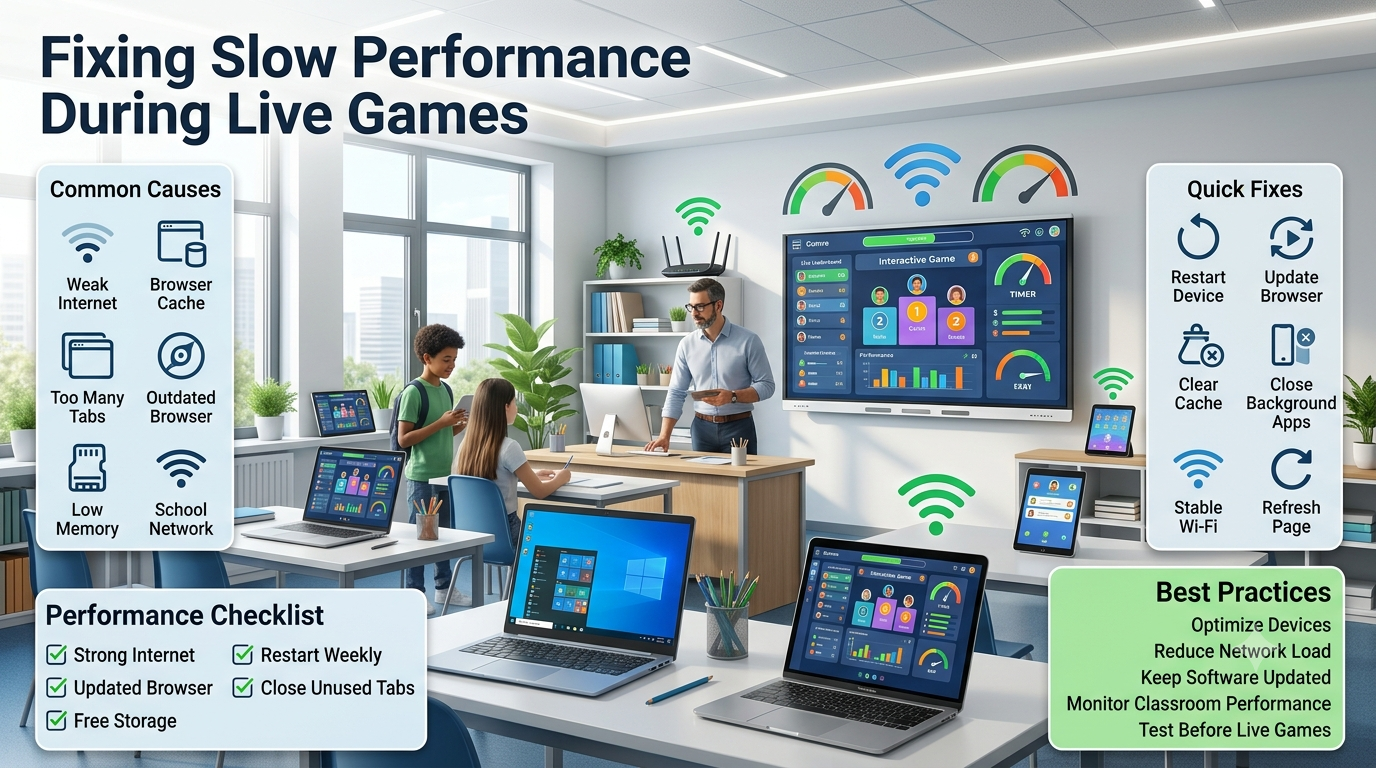
Fixing Slow Performance During Live Games-Slow performance during live games can quickly disrupt classroom momentum, reduce student engagement, and make learning activities frustrating instead of enjoyable. Whether players experience lag, delayed responses, freezing screens, or slow loading times, the underlying issue is usually connected to internet quality, device performance, browser configuration, or network restrictions rather than the game itself. Understanding how these factors interact is the first step toward resolving the problem effectively.
This comprehensive guide explains how to identify the causes of slow performance during live games, diagnose issues systematically, and apply practical solutions that work across Windows PCs, Macs, Chromebooks, tablets, and mobile devices. It also includes professional optimization techniques for teachers managing large classrooms, preventive maintenance tips, and troubleshooting workflows that help create a smoother experience before, during, and after every game session.
Rather than relying on trial and error, you’ll learn how to isolate performance bottlenecks, optimize both classroom devices and networks, and follow best practices that minimize interruptions. Whether you’re a teacher hosting a live quiz or a student joining from home, this guide is designed to help you achieve consistently reliable gameplay.You should get in touch on our Athentic Gimkit Live app show -A Professional plateform organized for students & teachers.
What Slow Performance During Live Games Means
Slow performance during live games refers to any situation where the game does not respond as expected in real time. Instead of smooth gameplay, participants may notice delays between their actions and the game’s response. These interruptions can affect answering questions, purchasing upgrades, updating scores, or syncing player progress.
Performance issues do not always indicate a problem with the game platform. In many cases, they result from a combination of factors such as unstable internet connections, overloaded browsers, outdated software, limited device resources, or heavily filtered school networks. Identifying the actual source prevents unnecessary troubleshooting and leads to faster solutions.
From a technical perspective, live educational games rely on continuous communication between each player’s device and remote servers. Every answer submission, score update, power-up purchase, and leaderboard refresh requires small amounts of data to travel across the network within milliseconds. When that communication slows down, gameplay feels sluggish even if the device itself appears to be working normally.
Why Live Game Performance Matters in the Classroom
Reliable performance is essential because live classroom games depend on immediate interaction. Students expect their answers to register instantly, teachers rely on accurate real-time analytics, and competitive game modes work best when every participant experiences similar response times.
Even minor delays can create several classroom challenges:
Consistent performance also improves classroom management. Teachers spend less time troubleshooting devices and more time focusing on instruction, discussion, and student participation. A stable game environment allows every learner to engage with the lesson instead of struggling with technical obstacles.
Common Symptoms of Performance Problems
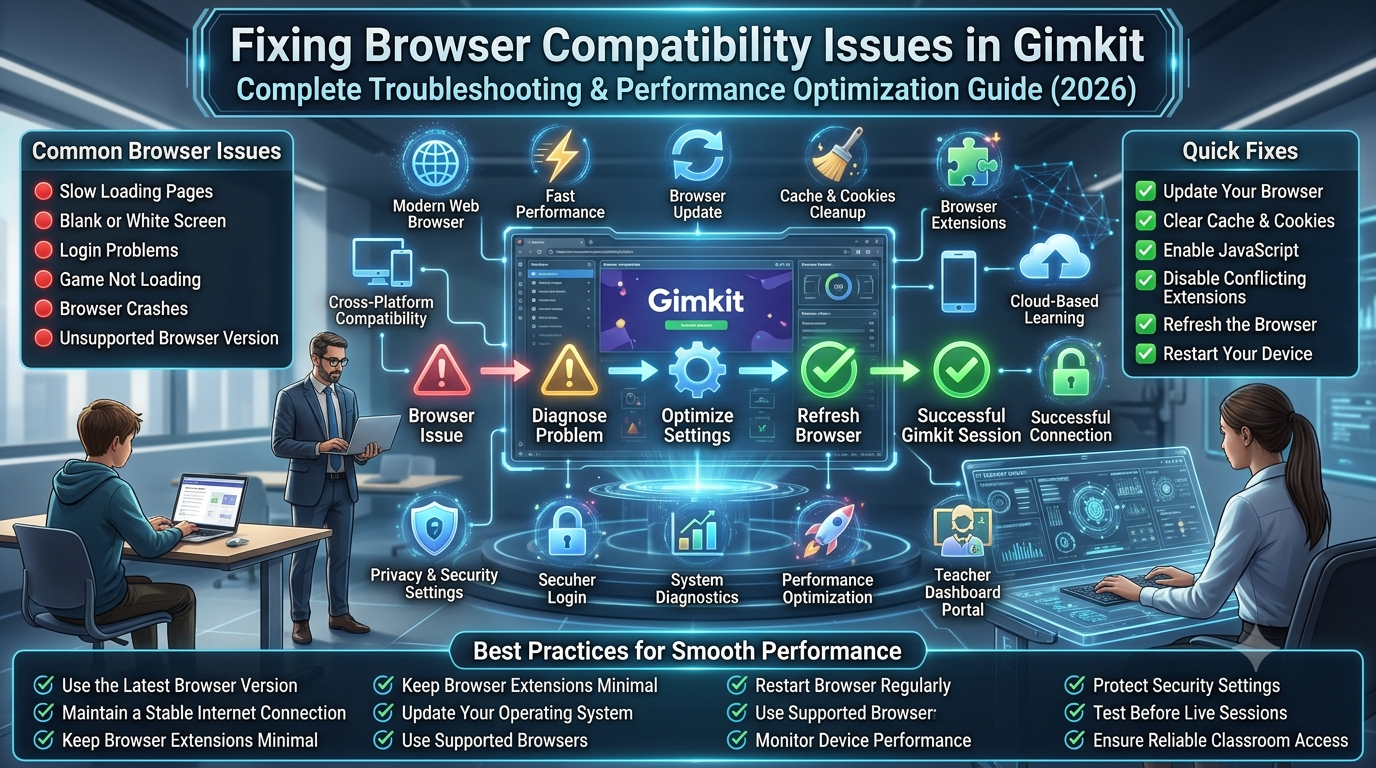
Understand the most common causes of slow live classroom games by identifying symptoms, analyzing network performance, and following a structured troubleshooting workflow.
Recognizing the symptoms helps narrow down the root cause more quickly. While different issues may appear similar at first, each often points toward a different area of investigation.
Common signs include:
Questions taking several seconds to load.
Answers registering after noticeable delays.
Frozen or unresponsive game screens.
Slow leaderboard updates.
Players disconnecting unexpectedly.
Long loading screens before joining a game.
Browser tabs becoming unresponsive.
Delayed animations or stuttering gameplay.
Players reporting different game speeds on different devices.
Some problems affect every participant equally, suggesting a shared network or service issue. Others impact only one or two students, indicating device-specific or browser-related limitations. Understanding this distinction makes troubleshooting much more efficient.
How Gimkit Live Games Process Data
Understanding how live games work behind the scenes makes performance issues easier to diagnose.
When a teacher starts a live session, the game server coordinates communication between every connected player. Each participant’s browser sends requests whenever an answer is submitted, an in-game purchase is made, or a score changes. The server processes that information and distributes updates back to every connected device almost immediately.
A simplified workflow looks like this:
Teacher Starts Game
        │
        ▼
Students Join Session
        │
        ▼
Player Submits Answer
        │
        ▼
Server Processes Request
        │
        ▼
Leaderboard Updates
        │
        ▼
Results Display Instantly
Because this process repeats continuously throughout the game, even small interruptions in internet connectivity, browser performance, or device resources can accumulate into noticeable lag. This explains why one student using an older laptop or a weak Wi-Fi signal may experience delays even while others continue playing normally.
Primary Causes of Slow Performance
Most live game performance problems fall into a few major categories. Understanding these categories helps prioritize troubleshooting instead of randomly changing settings.
Internet Connectivity
Weak Wi-Fi signals, network congestion, unstable mobile hotspots, or intermittent packet loss can delay communication between devices and game servers.
Browser Performance
Browsers with dozens of open tabs, outdated versions, excessive cached files, or conflicting extensions often consume significant memory and processing power.
Device Hardware
Older computers, limited RAM, slower processors, and nearly full storage drives may struggle to keep up with modern web applications running in real time.
Operating System Issues
Outdated operating systems sometimes lack important performance improvements, security updates, or browser compatibility enhancements that affect online applications.
School Network Restrictions
Many educational institutions use firewalls, web filters, bandwidth management systems, and security software that can unintentionally slow cloud-based classroom platforms during busy school hours.
Background Applications
Video conferencing software, cloud synchronization tools, downloads, screen recording software, antivirus scans, and other resource-intensive applications compete for processor time, memory, and network bandwidth.
Identifying which category matches the observed symptoms allows teachers and students to focus on the most likely solution instead of attempting unnecessary fixes.
Quick Checklist Before You Begin Troubleshooting
Before changing advanced settings, complete this quick health check. Many performance issues can be resolved within a few minutes.
✅ Confirm the internet connection is stable.
✅ Refresh the browser page.
✅ Close unnecessary browser tabs.
✅ Restart the browser if it has been running for several hours.
✅ Check whether the browser is fully updated.
✅ Restart the device if performance has gradually slowed.
✅ Pause large downloads or cloud synchronization.
✅ Ensure enough free storage is available.
✅ Verify that no school firewall or network outage is affecting access.
✅ Test whether the issue occurs on another browser or device.
Internet Connection Issues
A weak or unstable internet connection is the most common reason for lag during live games. Every player continuously exchanges small pieces of data with the game server, and even brief interruptions can cause noticeable delays.
Common network-related problems include:
Weak Wi-Fi signal.
Network congestion during busy school hours.
Mobile hotspots with inconsistent speeds.
High latency despite good download speeds.
Packet loss causing delayed responses.
How to Check Your Connection
Start by observing whether all students are experiencing lag or only a few participants.
Situation
Most Likely Cause
Entire class experiences lag
School network or internet connection
Only one student experiences lag
Individual device or Wi-Fi signal
Random players disconnect
Wireless interference or unstable network
Game loads slowly but then improves
Temporary network congestion
Professional Recommendation
Whenever possible, connect the teacher’s device using Ethernet instead of Wi-Fi. A stable host connection often improves the overall classroom experience because the game session remains consistently managed.
Browser-Related Performance Problems
Modern educational games rely heavily on web browsers. Even a fast computer can perform poorly if the browser consumes excessive memory or runs outdated software.
Common browser issues include:
Too many open tabs.
Outdated browser version.
Corrupted cache.
Conflicting browser extensions.
High memory consumption.
Background browser processes.
Signs the Browser Is the Problem
You may notice:
Pages loading slowly.
Browser freezing temporarily.
Delayed button clicks.
High CPU usage.
Fan noise increasing on laptops.
Quick Browser Optimization Checklist
✔ Close unused tabs.
✔ Restart the browser.
✔ Clear cached files if performance has gradually declined.
✔ Disable unnecessary extensions.
✔ Update to the latest browser version.
✔ Test the game in another supported browser.
Trying another browser is often one of the fastest ways to determine whether the issue is browser-specific or system-wide.
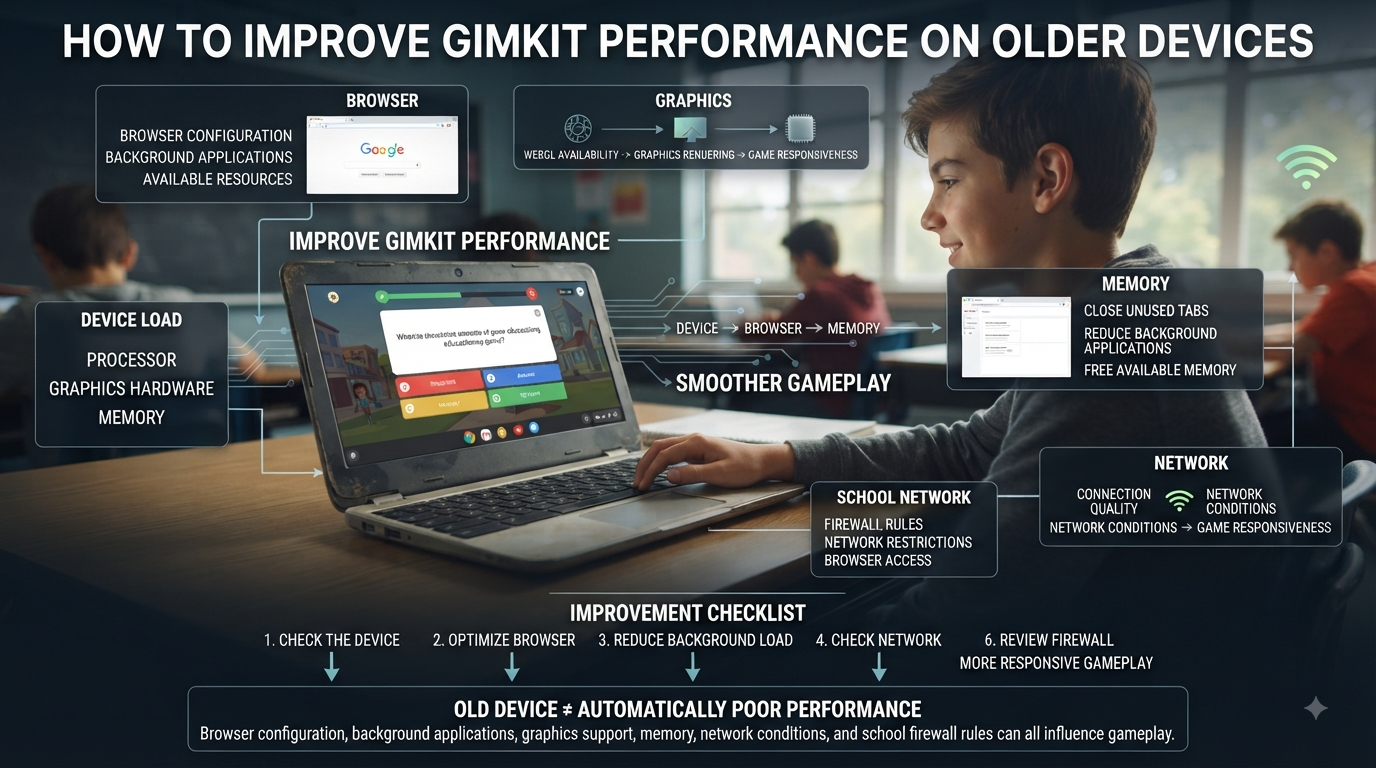
Device Hardware Limitations
Older devices may struggle when multiple applications compete for processing power. Although live games are designed to work on a wide range of hardware, limited system resources can still create slow performance.
Hardware limitations commonly involve:
Low available RAM.
Older processors.
Nearly full storage drives.
Background applications consuming memory.
Thermal throttling caused by overheating.
Common Hardware Symptoms
Symptom
Possible Cause
Entire computer feels slow
Insufficient RAM
Browser freezes frequently
Processor overload
Delayed animations
Graphics performance limitations
Device becomes hot
Thermal throttling
Applications respond slowly
Storage almost full
Professional Insight
Restarting the device before class clears temporary memory usage and background processes, often providing a noticeable improvement without changing any settings.
Operating System Compatibility
Operating system updates often include browser improvements, security patches, and performance optimizations that directly affect web applications.
Running outdated software may introduce:
Browser compatibility problems.
Slower JavaScript execution.
Security restrictions.
Driver incompatibilities.
Reduced hardware optimization.
Recommended Maintenance
For best performance:
Install operating system updates regularly.
Keep device drivers current where applicable.
Restart after major updates.
Avoid postponing critical security patches.
Routine maintenance helps maintain consistent performance throughout the school year.
School Network Restrictions
Educational institutions commonly use network security systems that inspect internet traffic. While these systems improve safety, they can occasionally introduce additional latency.
Possible network restrictions include:
Firewall filtering.
Content filtering.
Bandwidth management.
Traffic prioritization.
Proxy servers.
Network authentication delays.
When Network Restrictions Are Likely
The issue is more likely related to the school network if:
Every classroom experiences slow performance simultaneously.
Performance worsens only during school hours.
Other educational websites also respond slowly.
Home internet works normally with the same device.
In these situations, teachers should report the issue to the school’s IT department instead of repeatedly troubleshooting individual student devices.
Background Apps Consuming Resources
Many performance issues occur because other applications are using system resources behind the scenes.
Examples include:
Video conferencing software.
Cloud storage synchronization.
Automatic operating system updates.
Streaming music or videos.
File downloads.
Antivirus scans.
Screen recording software.
These applications compete for:
CPU usage.
Memory.
Storage access.
Internet bandwidth.
Closing unnecessary programs before starting a live session gives browsers more resources to maintain smooth gameplay.
Browser Extensions That Affect Performance
Extensions enhance browsers but can also interfere with interactive web applications.
Potentially problematic extensions include:
Ad blockers.
Privacy tools.
Script blockers.
VPN extensions.
Screen capture tools.
Performance monitoring utilities.
How to Test Extensions
A simple method is to open the game in a private or incognito browsing window. Most extensions remain disabled there by default. If performance improves significantly, one or more extensions are likely responsible.
Disable extensions individually until the source is identified instead of removing everything at once.
Cache, Cookies, and Temporary Files
Diagnose and resolve slow live classroom games by clearing browser cache, checking device performance, testing internet connectivity, and following a structured troubleshooting workflow.
Browsers store temporary files to improve loading speed, but over time these files can become outdated or corrupted.
Possible symptoms include:
Pages loading incorrectly.
Buttons not responding.
Long loading screens.
Unexpected freezing.
Slow navigation.
Clearing cached files forces the browser to download fresh resources during the next session. While this may slightly increase the first page load, it often resolves persistent browser-related issues.
Identifying Whether the Problem Is Local or Server-Side
Not every slowdown originates on the user’s device. Occasionally, the issue may involve the game service or a temporary internet routing problem.
Use this simple decision framework:
Slow Performance Detected
          │
          ▼
Only One Device?
      │          │
     Yes         No
      │          │
Check Browser   Entire Class?
and Device         │
                   │
              Yes        No
               │          │
      Check School   Compare Multiple
        Network       Student Devices
               │
               ▼
      Possible Network
        or Service Issue
This structured approach prevents unnecessary troubleshooting and helps identify the correct area to investigate first.
Performance Diagnostic Workflow
Before applying fixes, complete this workflow.
Diagnostic Step
Purpose
Test internet stability
Rule out connection issues.
Restart browser
Remove temporary browser problems.
Close unnecessary apps
Free system resources.
Try another browser
Identify browser-specific issues.
Test another device
Separate hardware from network problems.
Compare multiple students
Determine whether the issue is isolated or widespread.
Contact school IT if needed
Investigate network-level restrictions or outages.
Following this sequence allows teachers and students to identify the underlying cause systematically instead of relying on guesswork.
Diagnostic Checklist Before Moving to Solutions
Use this checklist once your investigation is complete.
✅ Internet connection tested.
✅ Browser restarted.
✅ Browser updated.
✅ Device restarted.
✅ Background applications closed.
✅ Browser extensions reviewed.
✅ Cache checked if needed.
✅ School network considered.
✅ Multiple devices compared.
✅ Root cause identified as closely as possible.
Improve Internet Stability
A stable internet connection is the foundation of smooth live gameplay. Even high-speed connections can experience lag if they are unstable or overloaded.
Best Ways to Improve Network Performance
Move closer to the Wi-Fi access point.
Use a 5 GHz Wi-Fi network if available.
Connect the teacher’s computer via Ethernet whenever possible.
Pause large downloads and cloud backups.
Disconnect unused devices from the network.
Avoid streaming videos during live classroom sessions.
Best Practice
If multiple classrooms are playing live games simultaneously, coordinate with your school’s IT team to ensure adequate wireless coverage and available bandwidth during peak usage times.
Optimize Browser Performance
Browsers handle all game interactions, so keeping them efficient significantly improves responsiveness.
Browser Optimization Steps
Close unnecessary tabs.
Restart the browser before class.
Update to the latest browser version.
Clear cached files periodically.
Disable unnecessary extensions.
Allow enough free system memory.
Avoid running multiple browser windows simultaneously.
Recommended Browsers
Browser
Performance
Google Chrome
Excellent
Microsoft Edge
Excellent
Mozilla Firefox
Very Good
Safari (macOS/iPadOS)
Very Good
Using the latest version of a supported browser helps ensure compatibility with modern web technologies and security improvements.
Update Browsers and Operating Systems
Keeping software up to date improves performance, compatibility, and security.
Regular updates often include:
Faster JavaScript engines.
Better memory management.
Improved graphics acceleration.
Enhanced browser stability.
Bug fixes affecting web applications.
Update Checklist
✔ Install browser updates.
✔ Install operating system updates.
✔ Restart the device after updating.
✔ Verify automatic updates remain enabled.
Schools managing large numbers of devices should also ensure updates are deployed consistently across classroom computers.
Reduce Device Resource Usage
Computers with limited hardware resources benefit greatly from reducing unnecessary workload.
Close Resource-Intensive Applications
Examples include:
Video conferencing software.
Streaming platforms.
Cloud synchronization tools.
Large spreadsheet programs.
Video editing software.
Game launchers.
Screen recording utilities.
Monitor Resource Usage
If a device becomes slow before the game even starts, system resources are likely being consumed elsewhere. Closing unused applications frees CPU time, RAM, and storage access for the browser.
Recommended Browser Settings
Certain browser settings improve overall responsiveness without requiring advanced technical knowledge.
Recommended Configuration
Setting
Recommendation
Hardware Acceleration
Enable if supported
Pop-up Blocking
Leave enabled
JavaScript
Enabled
Cookies
Allow required site cookies
Browser Zoom
100% when possible
Extensions
Only essential ones enabled
Avoid changing advanced browser flags or experimental settings unless specifically instructed by the browser developer.
Classroom Wi-Fi Best Practices
Teachers play an important role in minimizing classroom connectivity issues.
Before Class
Restart classroom devices if they have been running all day.
Confirm Wi-Fi connectivity.
Open the game platform before students arrive.
Test one student device before launching the session.
During Class
Ask students not to stream media.
Minimize unnecessary internet activity.
Monitor whether multiple students report similar issues.
After Class
Note recurring performance problems.
Inform the school’s IT department if issues persist across multiple sessions.
A few minutes of preparation often prevents significant disruptions later.
Managing Large Classes Efficiently
Performance challenges become more noticeable as more students join a live game. While the platform is designed to support classrooms, good management practices reduce unnecessary strain on both devices and networks.
Recommended Workflow
Ask students to join several minutes early.
Verify everyone has connected successfully.
Resolve individual device issues before starting.
Begin only after the class is fully synchronized.
Avoid restarting the session unless necessary.
Staggering troubleshooting before gameplay begins helps maintain classroom momentum.
Device-Specific Optimization
Different operating systems require slightly different maintenance practices.
Windows
Restart regularly.
Install Windows Updates.
Close startup applications.
Keep storage space available.
Update graphics and network drivers when appropriate.
macOS
Install the latest macOS updates.
Close unused applications using Activity Monitor if needed.
Restart after major updates.
Maintain available storage for smooth browser performance.
Chromebook
Chromebooks generally perform well with browser-based educational platforms but still benefit from routine maintenance.
Android performance varies depending on hardware specifications.
Improve performance by:
Updating Android.
Updating the browser.
Closing background applications.
Restarting regularly.
Ensuring sufficient free storage.
Older entry-level devices may naturally respond more slowly than newer hardware, especially when many browser tabs remain open.
Teacher Best Practices Before Starting a Live Game
Professional preparation minimizes technical interruptions and creates a better classroom experience.
Pre-Game Checklist
Task
Completed
Internet connection tested
□
Browser updated
□
Device restarted
□
Background applications closed
□
Classroom Wi-Fi verified
□
Students connected successfully
□
Test question completed
□
Backup device available
□
Completing this checklist takes only a few minutes but can prevent many common issues during the lesson.
Professional Performance Tips
Experienced educators often follow simple routines that keep live sessions running smoothly throughout the school year.
Professional Tip: Restart shared classroom computers at the beginning of each school day instead of leaving them running for weeks. This clears temporary memory usage, ends unnecessary background processes, and often improves browser responsiveness.
Best Practice: Encourage students to keep only the game tab open during live sessions. Reducing multitasking lowers memory usage and helps maintain consistent performance, particularly on Chromebooks and older laptops.
Optimization Reminder: If slow performance appears suddenly after weeks of normal operation, check for recent browser updates, operating system changes, or school network modifications before assuming the issue is with the game itself.
Advanced Troubleshooting & Prevention
When standard fixes do not resolve slow performance, a more systematic troubleshooting process is necessary. Advanced diagnosis focuses on identifying recurring patterns, distinguishing between device and network issues, and applying preventive measures that reduce the likelihood of future interruptions. The goal is not only to solve today’s problem but also to create consistently reliable live game sessions.
How to Troubleshoot Persistent Lag
Persistent lag usually indicates that more than one factor is affecting performance. Instead of repeatedly refreshing the page, work through the following process to isolate the root cause.
Step 1: Test Another Device
If the game runs smoothly on another computer or tablet connected to the same network, the original device is likely responsible for the slowdown.
Step 2: Test Another Browser
Switch to another supported browser. If performance improves immediately, the issue is likely related to browser settings, extensions, or cached data.
Step 3: Test Another Network
Connect the same device to a different internet connection, such as a home network or mobile hotspot. If performance improves, the school network may require further investigation.
Step 4: Restart Everything
Restart:
The browser
The device
The Wi-Fi router (when appropriate)
Classroom access points (IT administrators)
Temporary software issues often disappear after a complete restart.
Understanding Latency vs. Frame Drops
Although both create a poor experience, latency and frame drops are different problems that require different solutions.
Understanding these differences helps avoid applying the wrong fix.
Performance Comparison Table
The following table summarizes common issues and the most effective solutions.
Problem
Most Likely Cause
First Solution
Slow question loading
Internet latency
Test network stability
Delayed answer submission
High latency
Improve Wi-Fi connection
Browser freezing
Memory overload
Restart browser
Entire device slow
Hardware limitations
Close background applications
Only one student affected
Device issue
Restart and test another browser
Entire class affected
School network
Contact school IT
Game disconnects repeatedly
Unstable connection
Check router and wireless signal
Random lag spikes
Network congestion
Reduce simultaneous bandwidth usage
Common Mistakes That Cause Slow Games
Prevent slow classroom games by updating devices, optimizing browsers, maintaining a stable network, and following a professional performance checklist before every live session.
Many performance problems are unintentionally created by routine classroom habits.
Keeping Too Many Tabs Open
Every browser tab consumes memory and processing power. Leaving dozens of tabs open reduces available resources for interactive web applications.
Ignoring Software Updates
Running outdated browsers or operating systems can introduce compatibility and performance problems that have already been fixed in newer versions.
Starting Games Before Testing Devices
Launching a session without confirming that devices are working increases interruptions once students begin playing.
Running Multiple Resource-Heavy Applications
Video conferencing, streaming platforms, downloads, and cloud synchronization can compete with live games for bandwidth and system resources.
Assuming Every Problem Is Server-Related
Many issues originate from local devices or classroom networks. Testing multiple devices before drawing conclusions helps identify the true source of the problem.
Professional Performance Optimization Checklist
Use this checklist before every live game session.
Network
✔ Stable internet connection
✔ Strong Wi-Fi signal
✔ No active large downloads
✔ Router functioning normally
Device
✔ Restarted recently
✔ Enough free storage
✔ No unnecessary applications running
✔ Operating system updated
Browser
✔ Latest version installed
✔ Unused tabs closed
✔ Extensions reviewed
✔ Cache maintained periodically
Classroom
✔ Students connected successfully
✔ Test game completed
✔ Backup device available
✔ IT support contact available if required
Following this routine significantly reduces the likelihood of technical interruptions during live lessons.
Preventing Slow Performance in Future Sessions
The best troubleshooting strategy is preventing problems before they occur.
Build a Routine
Create a standard preparation checklist before every class.
Keep Devices Updated
Schedule browser and operating system updates outside teaching hours to avoid unexpected installations during lessons.
Monitor Classroom Networks
If performance consistently declines at certain times of day, document the pattern and share it with your school’s IT department.
Encourage Good Device Habits
Students should:
Restart devices regularly.
Close unused tabs.
Avoid unnecessary downloads during class.
Keep browsers updated.
Maintain sufficient storage space.
Small maintenance habits lead to noticeably more reliable classroom experiences over time.
When to Contact Gimkit Support
If you have completed all recommended troubleshooting steps and slow performance continues, contacting Gimkit Support may be appropriate.
Consider reaching out when:
Multiple devices experience identical issues across different networks.
Performance problems persist after browser, device, and network troubleshooting.
Error messages consistently accompany the slowdown.
A newly introduced issue affects normal classroom usage without an obvious local cause.
Before contacting support, gather useful information such as:
Device type
Operating system
Browser version
Approximate time the issue occurred
Network environment
Steps already attempted
Providing detailed information helps support teams investigate more efficiently.
Summary
Slow performance during live games is usually caused by internet instability, browser limitations, device resource constraints, or school network conditions rather than the game platform itself. Diagnosing the issue systematically allows teachers and students to identify the correct solution quickly.
Regular software updates, browser maintenance, stable internet connections, and good classroom preparation significantly improve reliability. By following the troubleshooting workflows and optimization practices outlined in this guide, educators can reduce interruptions, improve student engagement, and create smoother live learning experiences.
Expert Reviews collected from Professionals
Fixing Slow Performance During Live Games begins by checking that the internet connection is stable before starting the session.
Fixing Slow Performance During Live Games becomes easier when browsers are updated to the latest supported version.
Fixing Slow Performance During Live Games often starts with closing unnecessary browser tabs to free system memory.
Fixing Slow Performance During Live Games improves gameplay when background applications are closed before joining.
Fixing Slow Performance During Live Games requires using a supported browser with modern web technology.
Fixing Slow Performance During Live Games becomes more effective after clearing outdated browser cache and temporary files.
Fixing Slow Performance During Live Games helps reduce lag by disabling unnecessary browser extensions.
Fixing Slow Performance During Live Games works best when devices have sufficient available memory.
Fixing Slow Performance During Live Games improves reliability by restarting the browser before class begins.
Fixing Slow Performance During Live Games often resolves minor issues after restarting the device completely.
Fixing Slow Performance During Live Games benefits from maintaining a strong Wi-Fi signal throughout the activity.
Fixing Slow Performance During Live Games becomes more stable when fewer devices compete for network bandwidth.
Fixing Slow Performance During Live Games improves classroom performance by avoiding large downloads during gameplay.
Fixing Slow Performance During Live Games requires keeping operating systems updated for maximum compatibility.
Fixing Slow Performance During Live Games becomes easier when students use officially supported browsers.
Fixing Slow Performance During Live Games helps by confirming that JavaScript and cookies remain enabled.
Fixing Slow Performance During Live Games reduces interruptions when browser permissions are correctly configured.
Fixing Slow Performance During Live Games improves responsiveness by reducing unnecessary multitasking on classroom devices.
Fixing Slow Performance During Live Games benefits from testing devices before students join the activity.
Fixing Slow Performance During Live Games becomes more reliable when teachers verify classroom technology in advance.
Fixing Slow Performance During Live Games helps identify whether the issue affects one device or the entire class.
Fixing Slow Performance During Live Games becomes more manageable by testing another browser if problems continue.
Fixing Slow Performance During Live Games may require switching to a more reliable internet connection.
Fixing Slow Performance During Live Games improves stability when school networks are not overloaded.
Fixing Slow Performance During Live Games encourages limiting unnecessary network traffic during classroom sessions.
Fixing Slow Performance During Live Games becomes more effective when browser updates are installed regularly.
Fixing Slow Performance During Live Games helps reduce delays by keeping device storage from becoming completely full.
Fixing Slow Performance During Live Games improves user experience through regular software maintenance.
Fixing Slow Performance During Live Games supports smoother gameplay when classroom devices meet recommended system requirements.
Fixing Slow Performance During Live Games benefits from monitoring recurring technical issues across multiple sessions.
Fixing Slow Performance During Live Games encourages teachers to prepare backup devices whenever possible.
Fixing Slow Performance During Live Games becomes easier when troubleshooting follows a consistent step-by-step process.
Fixing Slow Performance During Live Games helps minimize interruptions through proactive classroom technology management.
Fixing Slow Performance During Live Games supports consistent participation by ensuring every student uses compatible devices.
Fixing Slow Performance During Live Games improves lesson quality by reducing avoidable technical delays.
Fixing Slow Performance During Live Games becomes more successful when network equipment receives regular maintenance.
Fixing Slow Performance During Live Games encourages identifying technical bottlenecks before important classroom activities.
Fixing Slow Performance During Live Games demonstrates that routine device maintenance significantly improves browser performance.
Fixing Slow Performance During Live Games helps create smoother classroom experiences through preparation and preventive troubleshooting.
Fixing Slow Performance During Live Games ultimately depends on updated browsers, stable internet, sufficient device resources, proper browser settings, and consistent technology maintenance. Addressing these factors before live sessions minimizes lag, improves responsiveness, and creates a more reliable learning experience for both teachers and students.
Frequently Asked Questions
1. Why are live games running slowly even with fast internet?
A fast internet connection does not always guarantee smooth Gimkit gameplay. Live games rely on several factors working together, including browser performance, device processing power, available memory (RAM), network stability, and the number of applications running in the background. Even on high-speed internet, an overloaded browser or older device can introduce delays, lag, or slow response times during gameplay.
Teachers should also remember that classroom performance depends on the entire network environment. If dozens of students are connected to the same Wi-Fi access point or using bandwidth-intensive applications simultaneously, the network may become congested despite having a high-speed internet connection. Regular device maintenance and browser updates often improve performance more than increasing internet speed alone.
Ways to improve live game performance:
Close unnecessary applications before class.
Use an updated web browser.
Keep the operating system current.
Connect to a stable Wi-Fi network whenever possible.
Restart older devices before beginning a session.
Avoid downloading large files during gameplay.
2. Can too many browser tabs slow down live games?
Yes. Every open browser tab consumes system memory and processing resources, even when it is not actively being used. When dozens of tabs remain open, the browser has fewer resources available to load Gimkit efficiently, which can result in slower gameplay, delayed responses, or occasional freezing during live sessions.
Closing unused tabs is one of the easiest ways to improve browser performance before class begins. This simple habit reduces memory usage, helps pages load faster, and allows the browser to dedicate more resources to running Gimkit smoothly.
Best browser practices:
Close tabs unrelated to the lesson.
Keep only essential educational websites open.
Restart the browser periodically.
Disable unnecessary browser extensions.
Monitor memory usage on older computers.
Encourage students to close unused tabs before joining.
3. Should I clear my browser cache to improve performance?
Yes. Clearing the browser cache is one of the safest and most effective troubleshooting steps when Gimkit loads slowly or displays unexpected errors. Cached files help websites load faster, but over time they may become outdated or corrupted, preventing newer website content from loading correctly.
Removing temporary browser data forces the browser to download fresh versions of Gimkit’s files during the next visit. Although you may need to sign in again after clearing cookies, your account, classroom data, and saved Kits remain securely stored on Gimkit’s servers.
Benefits of clearing cache:
Removes outdated temporary files.
Resolves many loading problems.
Refreshes stored website content.
Improves browser stability.
Helps after major platform updates.
Does not delete your Gimkit account.
4. Why do only some students experience lag?
If only a few students experience lag while others play normally, the issue is usually related to individual devices rather than Gimkit itself. Older hardware, limited memory, outdated browsers, weak Wi-Fi signals, background applications, or browser extensions can all reduce performance for specific users.
Teachers should compare affected students’ devices with those that are functioning correctly. Identifying common factors such as browser version, operating system, or network connection often makes troubleshooting much faster and more effective.
Possible causes of individual lag:
Older computers or mobile devices.
Weak wireless signal.
Outdated web browser.
Too many background applications.
Browser extension conflicts.
Limited available system memory.
5. Does restarting the computer really help?
Yes. Restarting a computer is one of the simplest yet most effective ways to improve performance before using Gimkit. A restart clears temporary memory, closes background processes, resets network connections, and allows the operating system to start with a clean working environment.
Many devices remain powered on for days or weeks without restarting, causing memory usage and background processes to accumulate over time. Restarting before class often resolves minor performance issues without requiring additional troubleshooting.
Why restarting helps:
Clears temporary memory.
Ends unnecessary background processes.
Refreshes network connections.
Improves browser performance.
Installs pending updates after reboot.
Resolves many temporary software issues.
6. How can teachers reduce performance problems before class?
Preventing technical issues before students join a game is much easier than fixing them during instruction. Teachers should prepare classroom devices in advance by verifying browser updates, testing the internet connection, and ensuring unnecessary applications are closed. Spending just a few minutes on preparation can significantly reduce interruptions during live gameplay.
Students should also receive simple instructions before class begins. Encouraging everyone to restart devices, close unused tabs, and connect to a stable network creates a more consistent experience across the entire classroom while reducing troubleshooting time.
Pre-class preparation checklist:
Test Gimkit before students arrive.
Update browsers regularly.
Ask students to restart their devices.
Close unnecessary tabs and programs.
Verify Wi-Fi stability.
Keep charging devices available if needed.
Prepare a backup activity in case of technical issues.
7. When should I contact Gimkit Support?
Most performance issues can be resolved through basic troubleshooting, including updating the browser, clearing cache, restarting the device, or testing another internet connection. However, if problems continue after completing these steps, contacting Gimkit Support is the next logical step.
Before submitting a support request, gather useful information such as the device type, operating system, browser version, screenshots of any error messages, and a description of the problem. Providing detailed information helps the support team identify the issue more quickly and recommend the most appropriate solution.
Contact Gimkit Support when:
Troubleshooting steps have not resolved the problem.
Login or account issues continue.
Multiple devices experience the same error.
Games consistently fail to load.
You receive repeated error messages.
Classroom data appears to be missing.
You need assistance with account-specific technical problems.
Conclusion
Fixing slow performance during live games is rarely about applying a single solution. Reliable gameplay depends on a combination of stable internet connectivity, well-maintained devices, updated browsers, and thoughtful classroom preparation. By following a structured troubleshooting process, educators and students can quickly identify the source of performance issues instead of relying on guesswork.
Consistent maintenance is equally important. Regular software updates, periodic browser cleanup, careful network management, and pre-class testing create a more dependable learning environment where technology supports instruction rather than disrupting it. With these best practices in place, live games can remain fast, responsive, and engaging for classrooms of every size.